Burst Mode? How To Use It
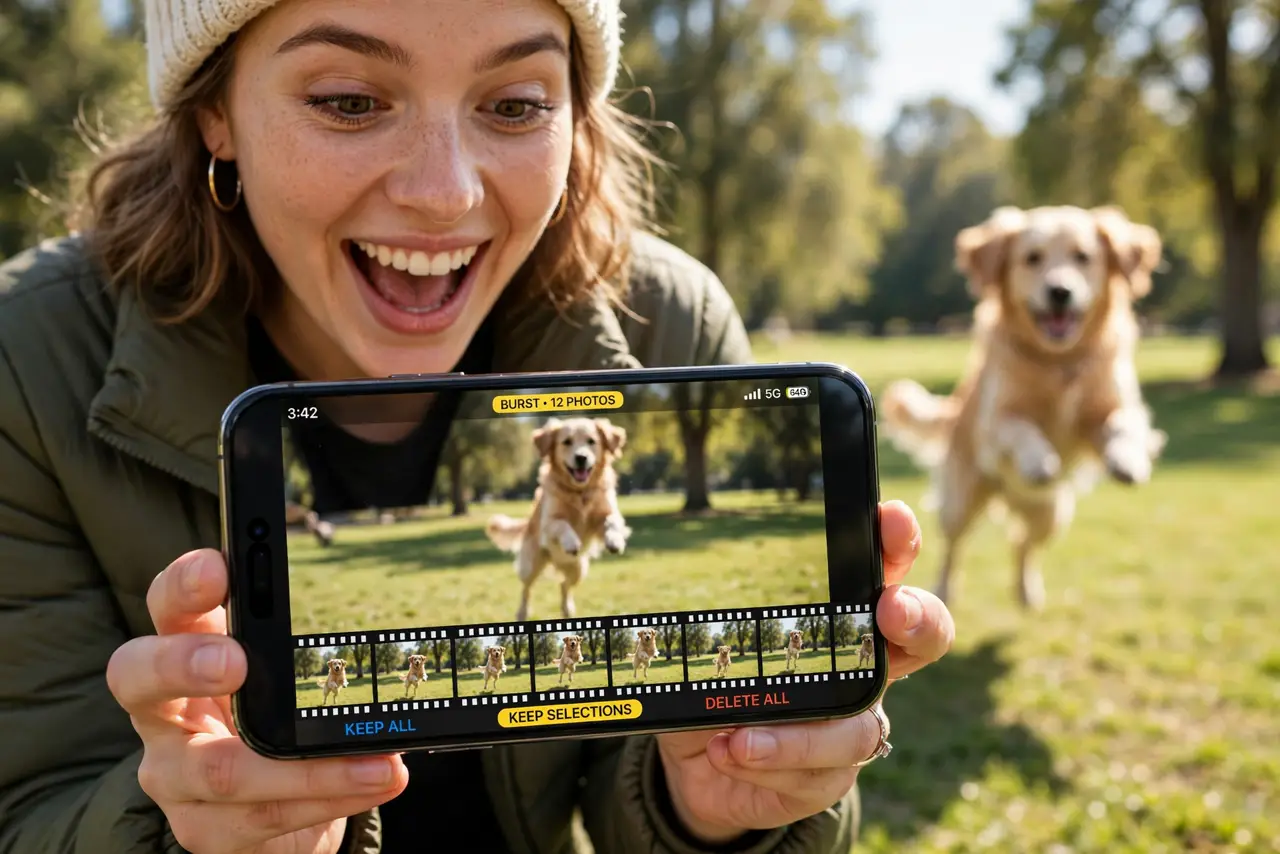
The perfect action shot — the jump, the goal, the dog mid-leap — happens in a fraction of a second, and single taps always miss it. Burst mode fires a rapid volley of photos while you hold the shutter, so you can pick the perfect frame afterward. Here is how to trigger it and how to choose the keeper.
TL;DR / Quick Fix
Quick fix: burst mode fires a rapid series of photos while you hold the shutter — ideal for action. On iPhone, hold the shutter and swipe left, or hold volume-up. On Android, hold the shutter in the camera app. Open the burst stack, pick the sharpest frame, delete the rest.
Follow these steps
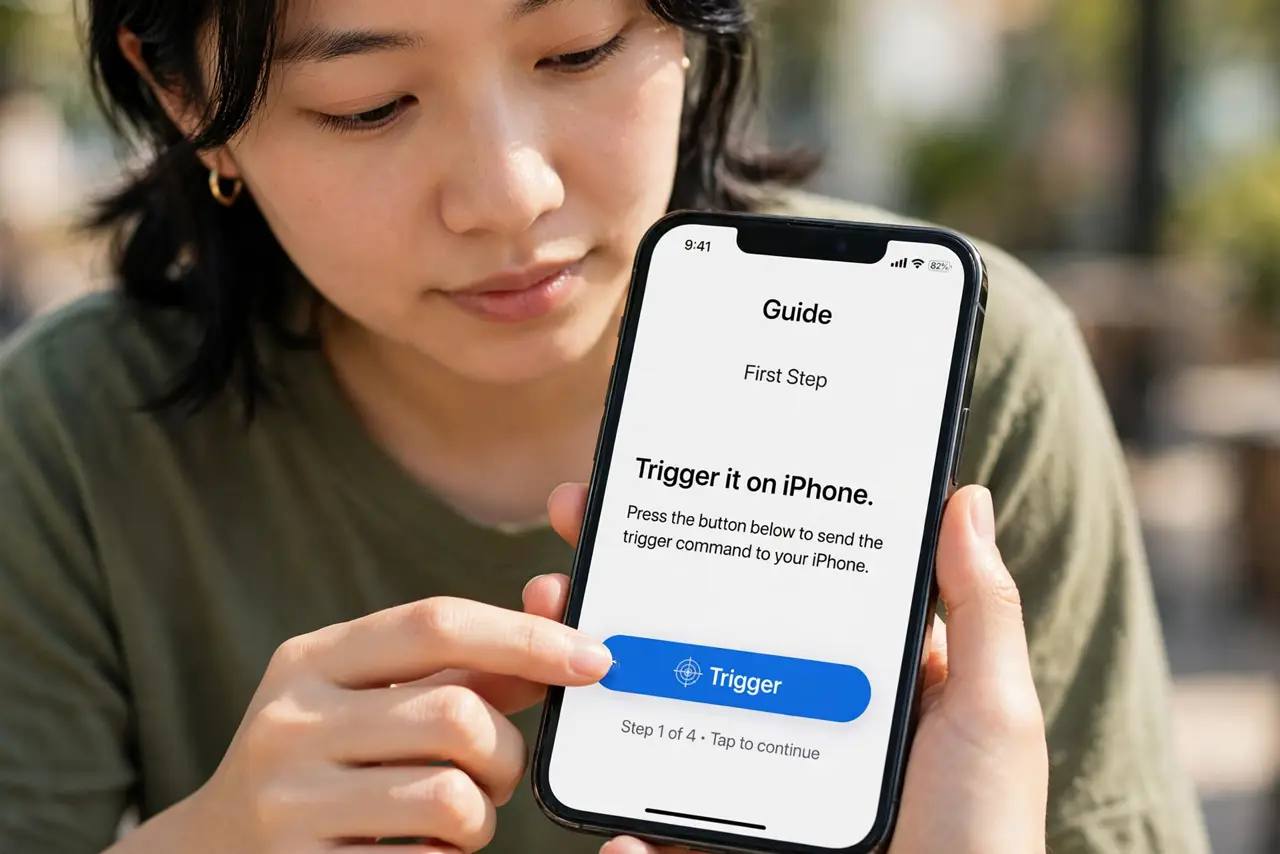
- Trigger it on iPhone. Open Camera, press and hold the shutter button, then immediately swipe left. The counter climbs as it fires. Alternatively, enable 'Use Volume Up for Burst' in Settings > Camera and just hold volume-up.
- Trigger it on Android. In most camera apps, press and hold the shutter button. Some phones need burst enabled in camera settings first — check if holding the shutter only takes one photo.
- Hold steady through the burst. Brace the phone with both hands and follow the action smoothly. A ten-frame burst of blurry shots is worse than one careful photo — stability still matters.
- Pick the keeper afterward. On iPhone, open the burst stack in Photos, tap Select, and tick the sharpest frames. On Android, open the burst in your gallery and choose favorites. Keep one to three; delete the rest.
- Delete the rejects promptly. Bursts eat storage fast — a single enthusiastic burst can be dozens of megabytes. See why burst photos fill storage and clear rejects the same day.
- Know when not to burst. Portraits, landscapes, and still life gain nothing from bursts. Save it for motion: sports, kids, pets, and anything that will not sit still.
What NOT to do
- Do not burst everything. A hundred-frame burst of a sunset is just a hundred identical photos eating storage.
- Do not keep the whole burst 'just in case.' Pick the best two or three and delete the rest — decisiveness is the skill.
- Do not burst in low light expecting miracles. Bursts need fast shutter speeds; dim scenes still blur. Use night mode for dark stills instead.
- Do not forget flash etiquette. Bursting with flash at an event blinds everyone — check your surroundings first.
Frequently asked questions
How do I view burst photos?
On iPhone they appear as one stack in Photos — tap it, then Select to browse frames. On Android, bursts group similarly in the gallery app.
Why does holding the shutter record video instead?
On iPhone, holding without swiping starts QuickTake video. Swipe left while holding for burst — or use the volume-up setting.
Do burst photos have lower quality?
Slightly, on some phones, since the sensor prioritizes speed. For action shots the tradeoff is worth it; for stills, take a single photo.