Camera Timer? How To
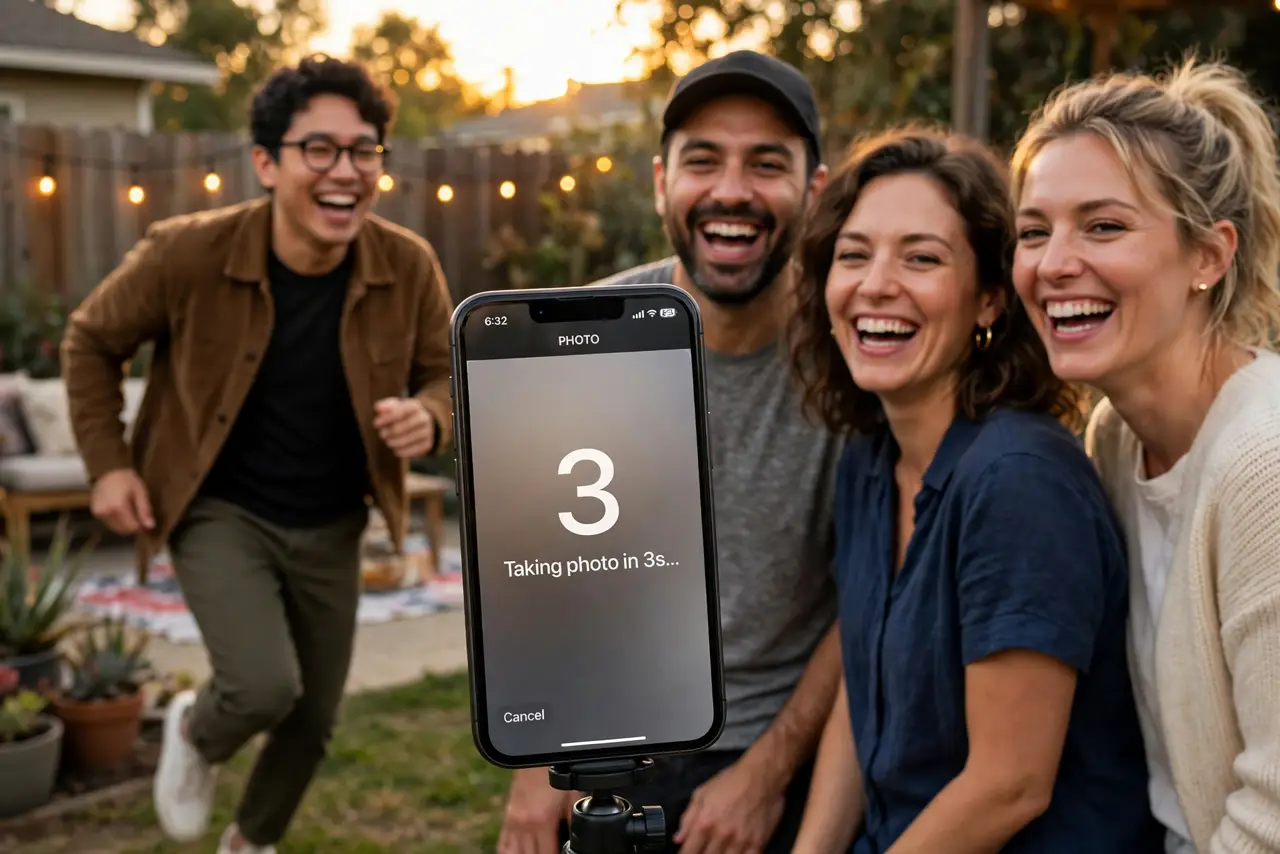
You want to be in the group photo instead of behind the camera — or you want a shake-free long exposure. The camera timer counts down a few seconds after you tap the shutter, giving you time to get into position or let the phone settle. It is in every camera app, hiding behind one small clock icon.
TL;DR / Quick Fix
Quick fix: the timer delays the shutter a few seconds after you tap it. On iPhone, tap the arrow in the Camera app, then the timer icon, and choose 3 or 10 seconds. On Android, tap the timer icon and pick the delay. Prop the phone steady first.
Follow these steps
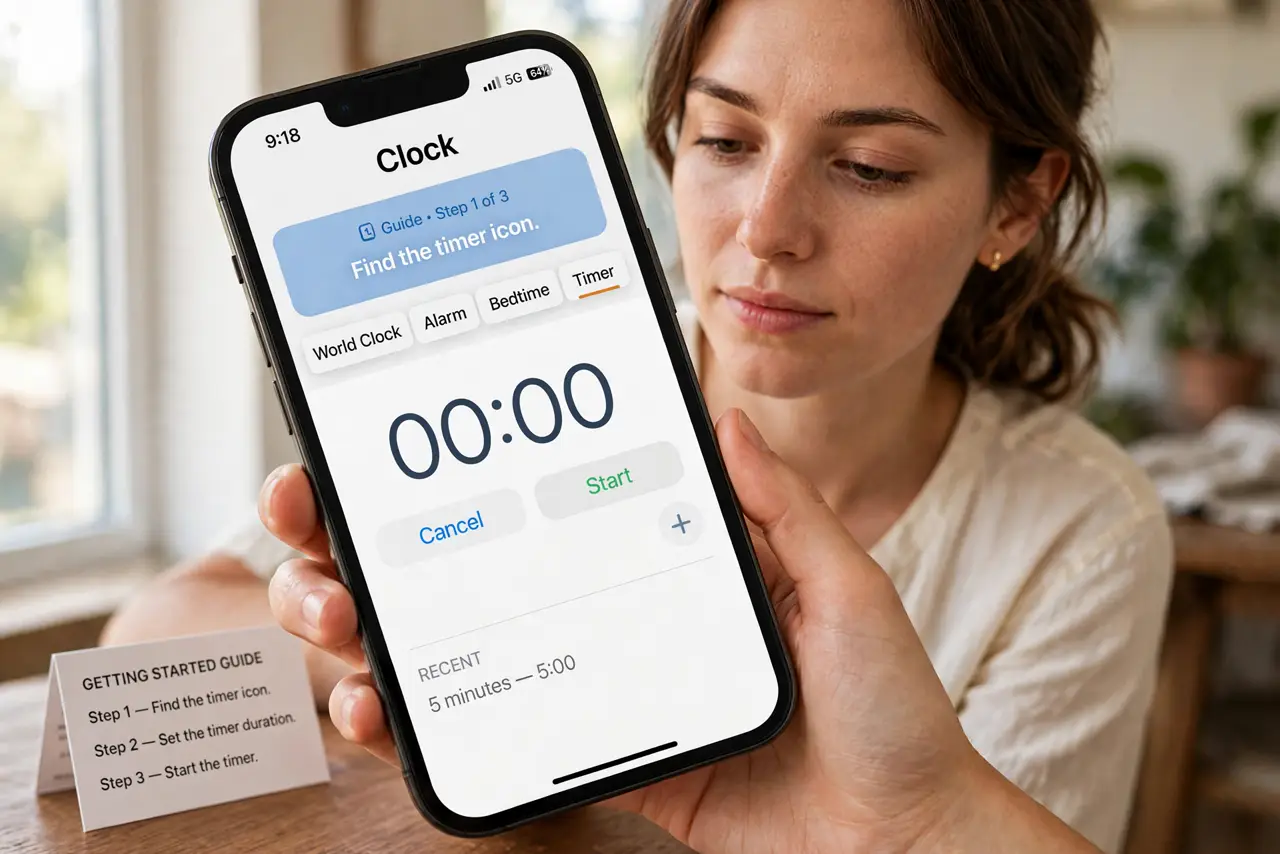
- Find the timer icon. On iPhone, tap the small arrow at the top of the Camera app to reveal the toolbar, then tap the clock-like timer icon. On Android, the timer icon usually sits right in the main camera toolbar.
- Choose 3 or 10 seconds. Three seconds is enough to steady the phone for a shake-free shot. Ten seconds gives you time to run into a group photo. Pick the delay that matches the job.
- Prop the phone before tapping. A timer cannot fix a wobbly phone. Lean it against a bag, use a mini tripod, or wedge it on a shelf — then tap the shutter and step back.
- Use burst with the timer for groups. On iPhone, the timer can fire a burst of ten photos, so blinking is no longer fatal. Check camera settings for the burst-with-timer option and let it rip.
- Combine with the front camera wisely. For group selfies, the timer plus the front camera works — but check the mirror setting so the saved photo matches what you saw in the preview.
- Turn it off when done. The timer stays on until you disable it, and a surprise 10-second delay ruins candid moments. Make switching it off part of your routine.
What NOT to do
- Do not use the timer handheld. The whole point is a steady phone — handheld timer shots are just delayed shaky shots.
- Do not forget it is still on. The classic fail: timer active during the next day's spontaneous moment, everyone waiting awkwardly.
- Do not stand too far for 3 seconds. Ten seconds sounds long until you are sprinting across a yard — rehearse the route.
- Do not ignore the flash setting. In dim light the timer plus auto flash can white-out faces — check exposure first.
Frequently asked questions
Where is the timer on iPhone?
Tap the arrow at the top of the Camera app to show the toolbar, then the timer icon. Choose 3s or 10s — it is not in the main Settings app.
Can the timer take multiple photos?
On iPhone, yes — the timer can capture a burst of ten shots per countdown. On Android it varies by camera app.
Why are my timer photos blurry?
The phone moved — the timer only delays the shutter. Prop the phone on something solid; a delay cannot stabilize a handheld phone.