Mirror Front Camera? Setting
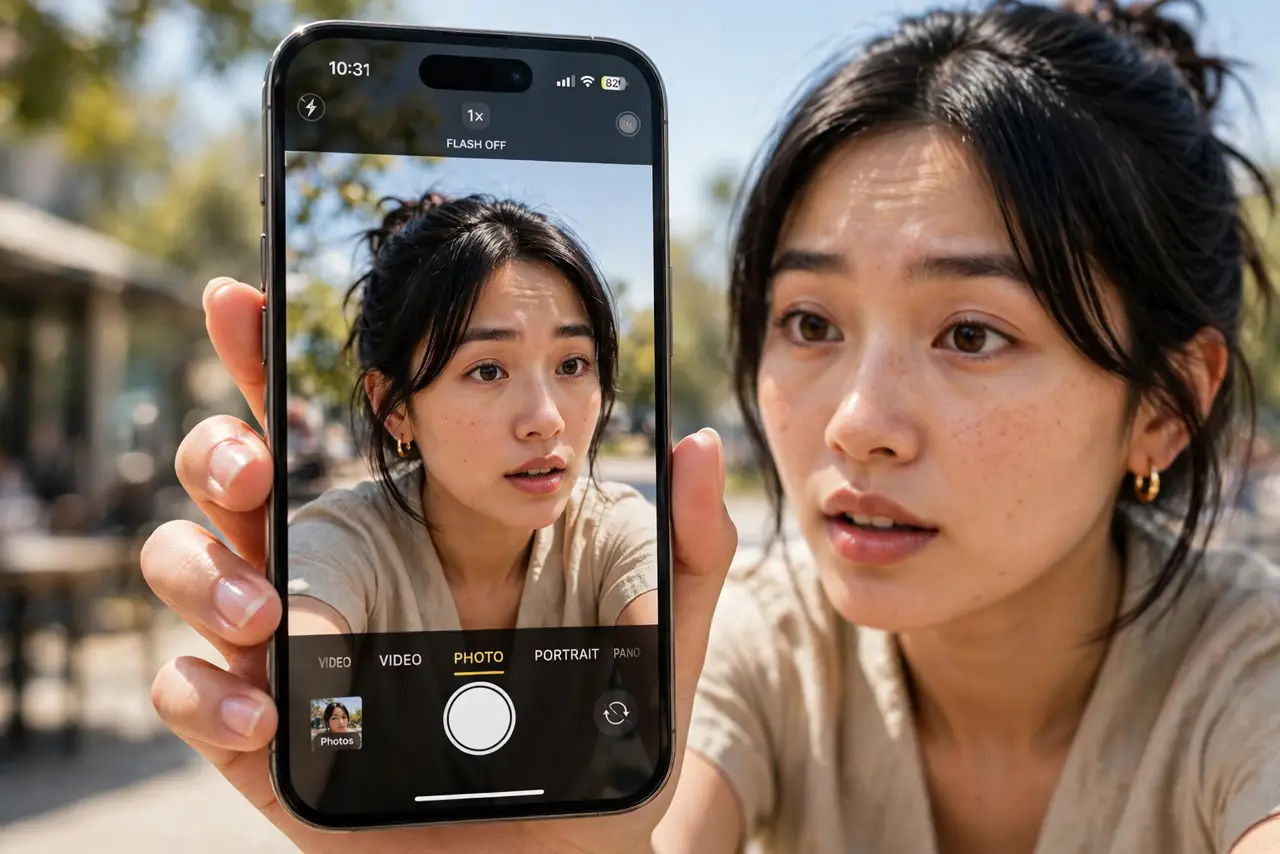
You frame the perfect selfie — then the saved photo looks flipped: text backward, your face oddly unfamiliar. The front camera previews a mirror image (like looking in a mirror), but saves the 'true' unmirrored version. One setting controls which version you keep. Here is what is happening and how to choose.
TL;DR / Quick Fix
Quick fix: the front camera previews a mirror image but saves the true one — unfamiliar because you're used to mirrors. On iPhone: Settings > Camera > Mirror Front Camera on, to save what you saw. On Android: look for 'Save selfies as previewed' in camera settings.
Follow these steps
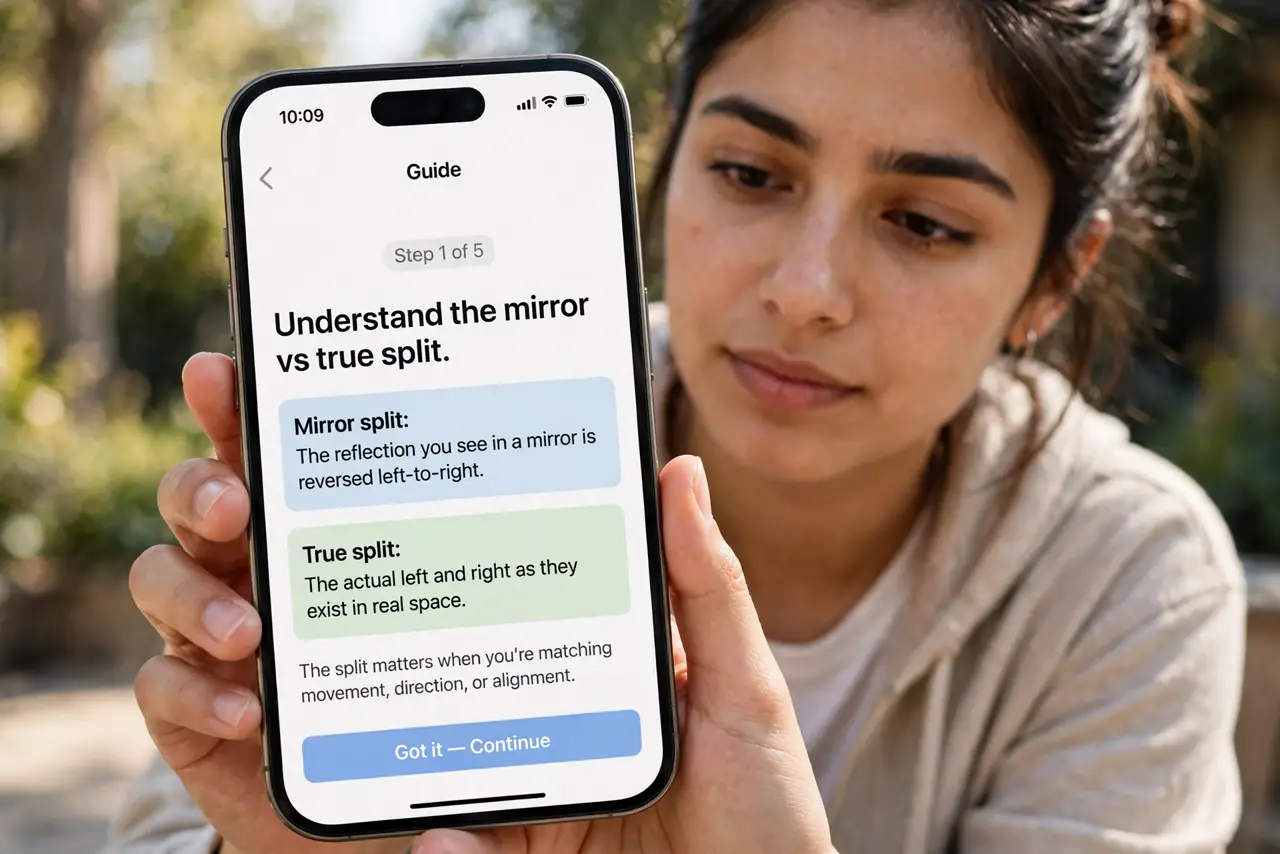
- Understand the mirror vs true split. The preview is mirrored so the camera feels like a mirror while framing. The saved photo is unmirrored — how the world actually sees you. Neither is 'wrong'; they are two views of the same face.
- Turn on Mirror Front Camera on iPhone. Go to Settings > Camera > Mirror Front Camera (or Mirror Front Photos). New selfies now save exactly as previewed — text reads correctly, familiar face preserved.
- Find the Android equivalent. In the camera app's settings, look for 'Save selfies as previewed,' 'Mirror photo,' or a selfie-mirror toggle. The name varies by maker, but the option is nearly universal.
- Know when true image is better. Group selfies with signs, whiteboards, or text look wrong mirrored — backward text screams 'selfie.' For photos with readable text, keep the true (unmirrored) version.
- Check before an important shot. Take a test selfie with text in frame — a book cover, a sign. Which version reads correctly tells you which setting you want for that situation. Pair the mirror choice with the camera timer for hands-free group selfies.
- Do not overthink your face. Everyone finds their unmirrored face slightly strange — you have spent a lifetime looking at mirrors. Friends recognize the true version instantly; it is only unfamiliar to you.
What NOT to do
- Do not assume the camera is broken. The flip between preview and saved photo is by design on every phone.
- Do not mirror photos with text in them. Backward writing looks like an error to everyone except you.
- Do not 'fix' it with a filter app. The system toggle does it losslessly — third-party mirroring recompresses the photo.
- Do not change it mid-shoot without checking. Mixed mirrored and unmirrored selfies from one event look inconsistent.
Frequently asked questions
Why do my selfies look different from the mirror?
The saved photo is unmirrored — how others see you. The mirror you know flips your face, so the true image always looks slightly unfamiliar at first.
Will mirroring affect photo quality?
No. It is a simple horizontal flip applied at save time — zero quality loss either way.
Can I un-mirror a photo I already took?
Yes. Any photo editor — including the built-in Photos app — can flip an image horizontally after the fact.