Update Carrier Settings? How To
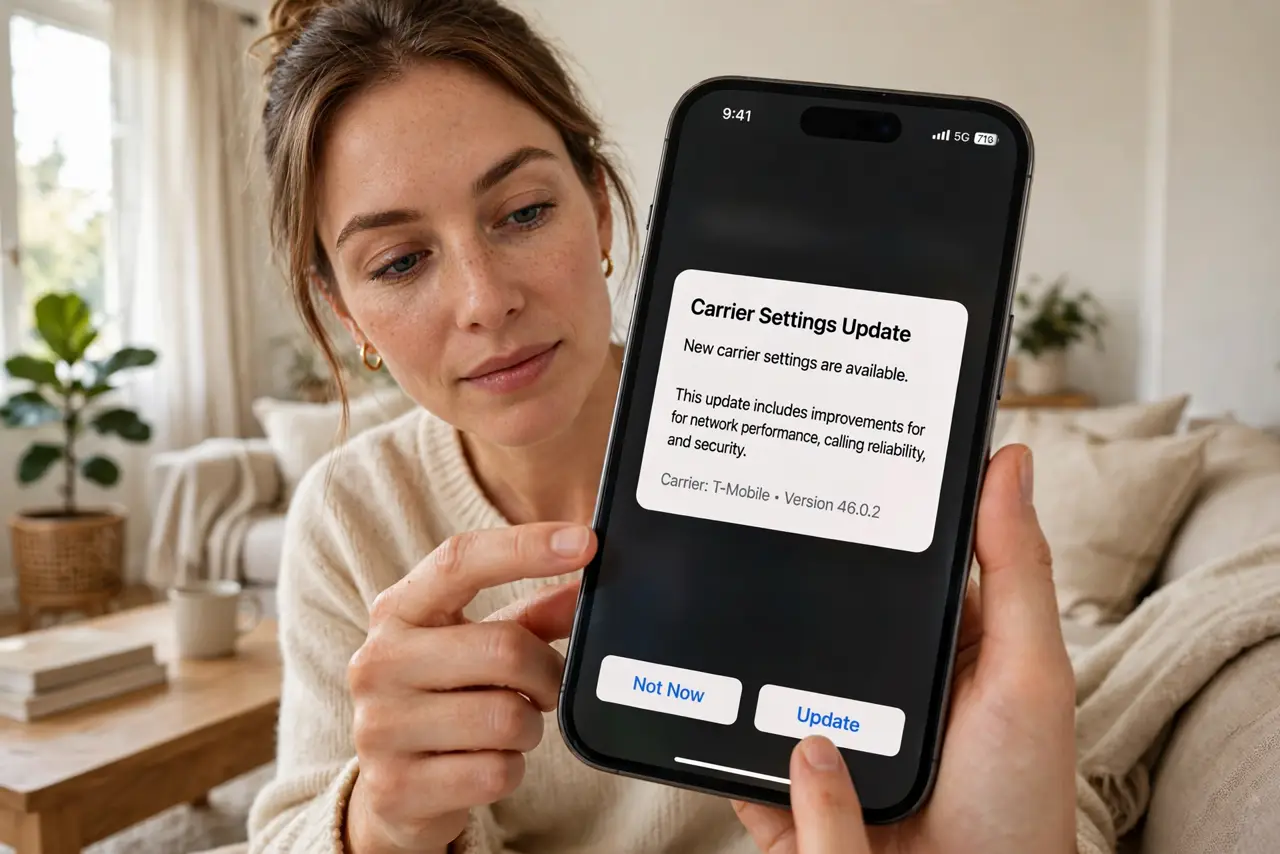
Every so often your phone offers a small 'carrier settings update' — no fanfare, no explanation, just a popup asking to update. These tiny files tune how your phone talks to your carrier's network: new towers, new features like Wi-Fi calling, bug fixes. Installing takes seconds and is safe, but the popup's timing confuses people. Here is what it does and where to check manually.
TL;DR / Quick Fix
Quick fix: when the carrier settings popup appears, tap Update — it is a small, safe file from your carrier that improves network compatibility. To check manually on iPhone, open Settings, General, About, and wait; a pending update prompts you. On Android these arrive with system updates.
Follow these steps
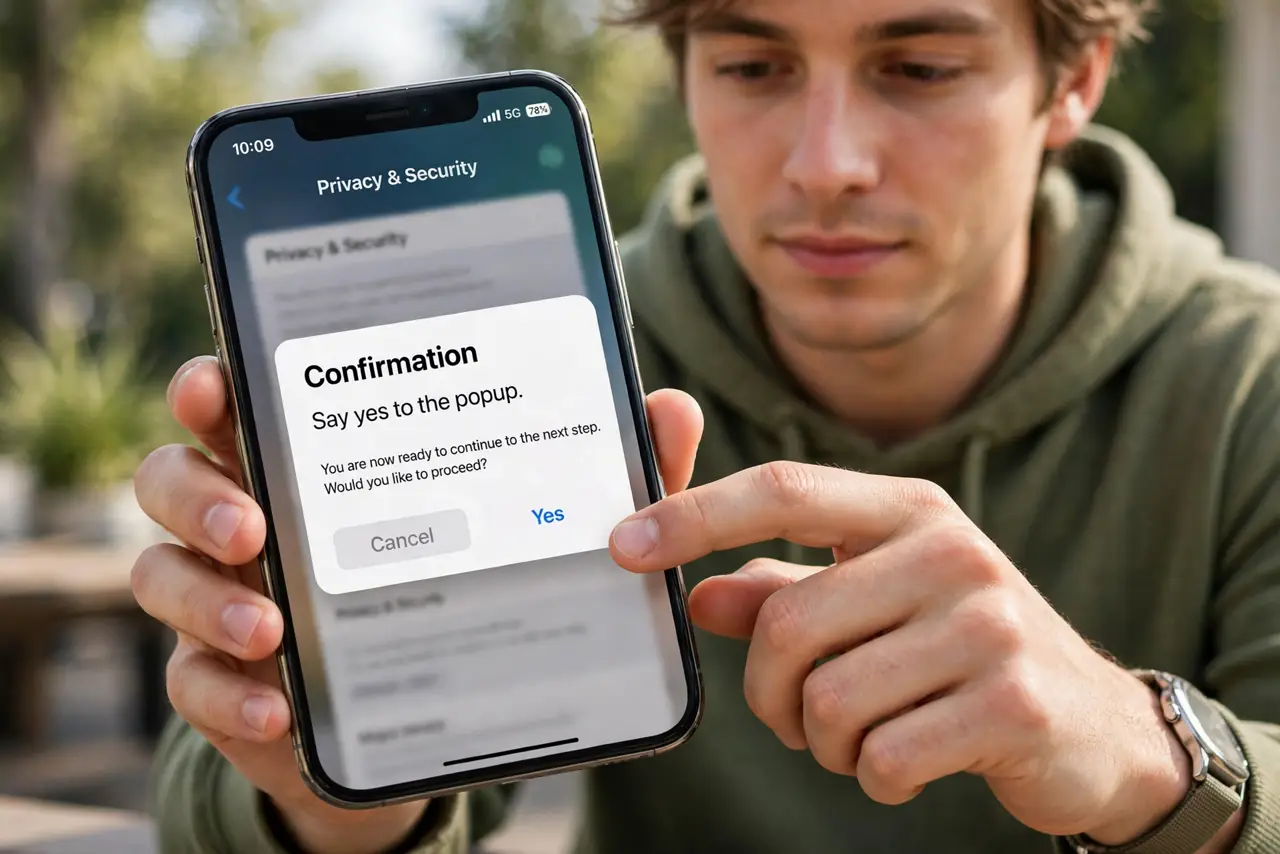
- Say yes to the popup. The update comes from your carrier through Apple or Google — not a random website. Tapping Update installs a tiny configuration file, usually under a megabyte, in seconds.
- Check manually on iPhone. Open Settings, then General, then About, and wait on that screen for about ten seconds. If an update is pending, the prompt appears by itself.
- Check on Android. Carrier settings usually ride along with system updates: Settings, then System, then System update. Some carriers also push them through their own account app.
- Restart after installing. A quick restart lets the new settings take full effect on the network registration. If No Service lingers afterward, the update was not the cause.
- Do not fear the 'update' word. This is not a full OS upgrade and will not change your apps or layout. It only touches the carrier configuration bundle.
- Keep automatic updates on. Leaving the phone's update checks enabled means you get these quietly in the background instead of as surprise popups.
What NOT to do
- Do not download 'carrier updates' from websites or texts. Real ones come only through Settings or the carrier's official app — anything else is a scam.
- Do not ignore the popup forever. Skipping updates can leave new network features (like Wi-Fi calling) half-broken.
- Do not confuse it with a software update. This changes kilobytes of carrier config, not your operating system — it will not fix a slow phone.
- Do not factory-reset over a failed carrier update. Retry once, restart, and if it still fails, call the carrier — the file comes from them.
Frequently asked questions
Is a carrier settings update safe?
Yes. It is a small signed configuration file delivered through the phone's official update path. It cannot access your data.
Why did it appear out of nowhere?
Carriers push them when they change network equipment or enable features. The phone only asks when one is actually waiting.
Will it use my mobile data?
The file is tiny — well under a megabyte. It downloads over whatever connection is active without noticeable cost.