Change the Default Mail App
You tap an email address on a website and the wrong app opens — Apple's Mail when you live in Gmail, or vice versa. The default mail app is the one the phone uses for every 'send email' tap system-wide. Changing it takes twenty seconds and ends the app-switching dance for good.
TL;DR / Quick Fix
Quick fix: set your preferred email app as the system default. On iPhone: Settings > Apps > Default Apps > Email > choose your app. On Android: Settings > Apps > Default apps > Email app > pick yours. Every email link and email action now opens your chosen app.
Follow these steps
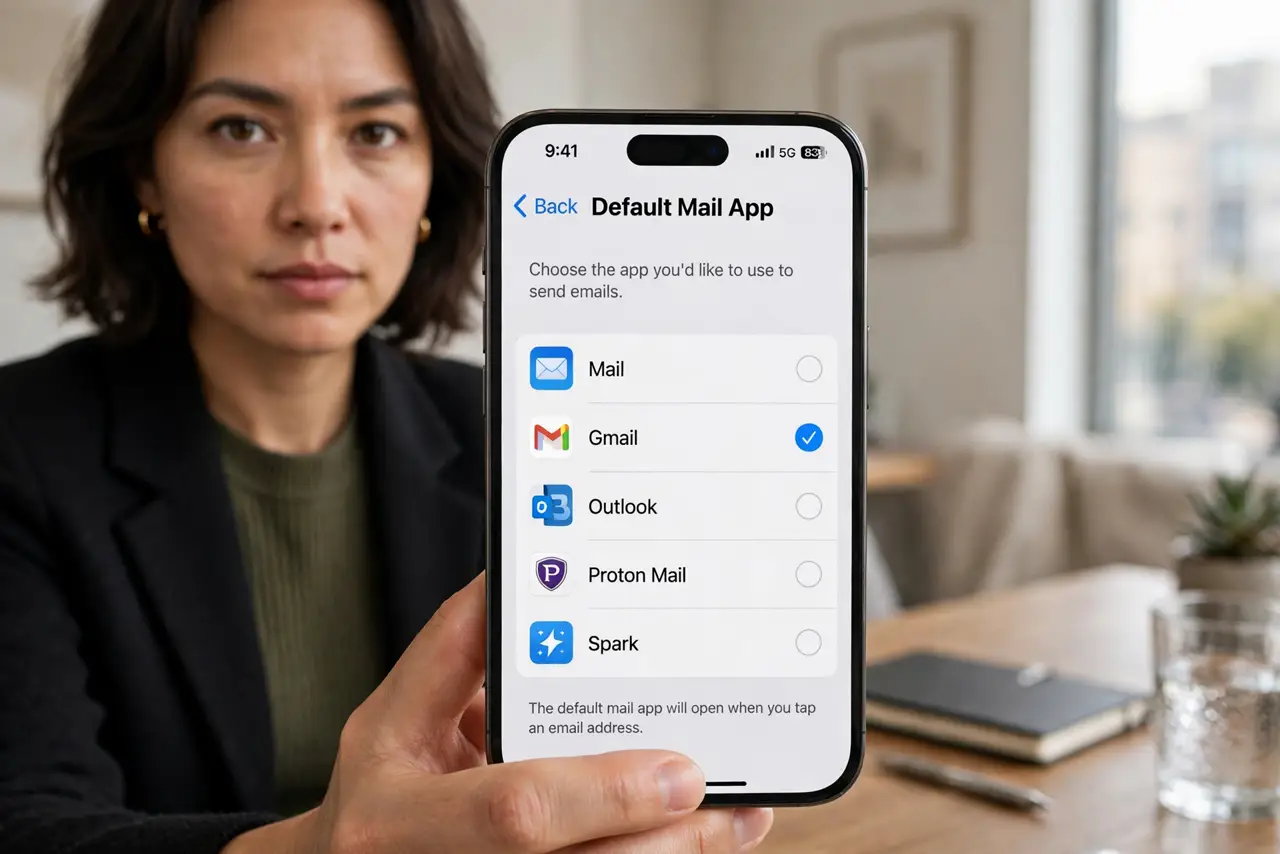
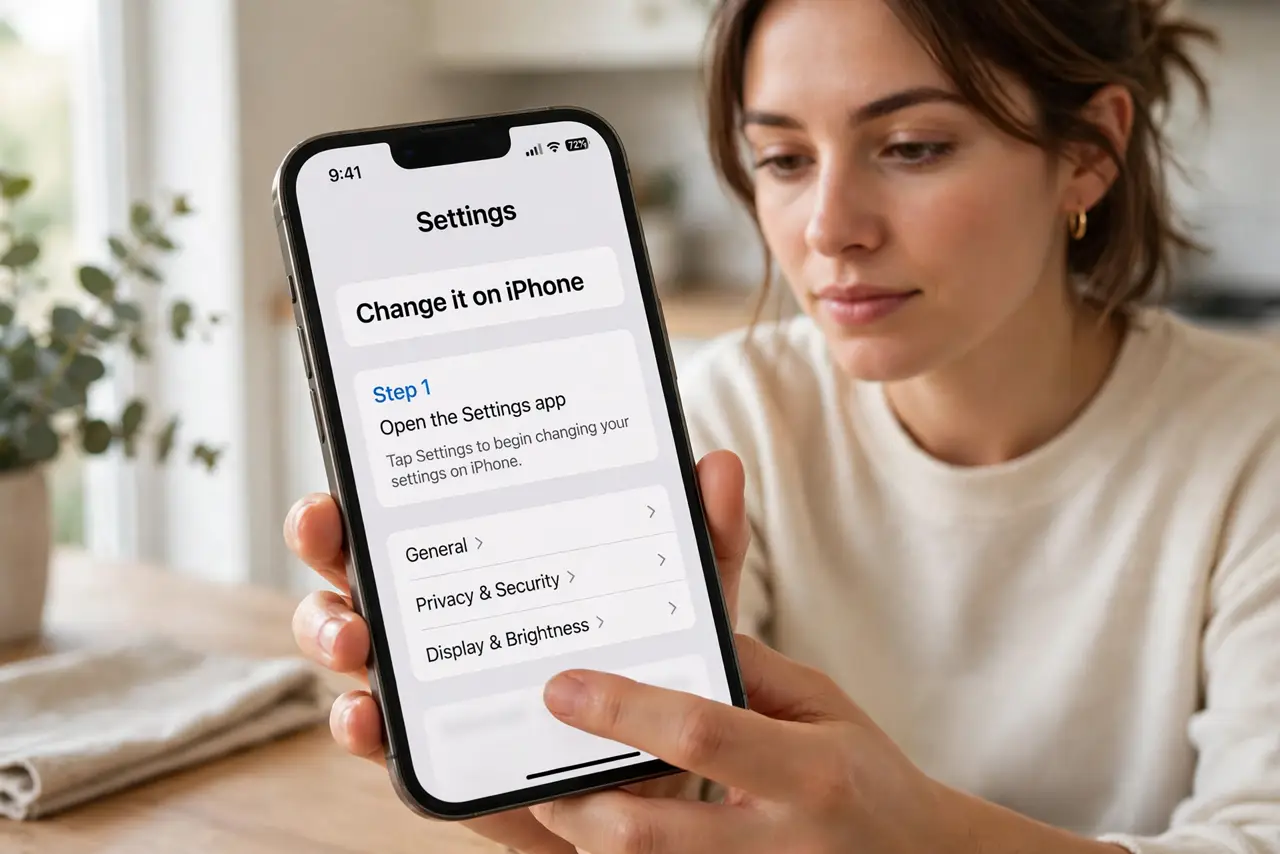
- Change it on iPhone. Open Settings > Apps > Default Apps > Email. Every installed mail app that supports it appears — tap your choice. The checkmark confirms the new default.
- Change it on Android. Go to Settings > Apps > Default apps and look for the email or mail category. Select your preferred app. Some Android skins nest this under Advanced — search Settings for 'default apps' if lost.
- Install your preferred app first. The default list only shows installed, supporting apps. Install Gmail, Outlook, Spark, or your choice from the store first — then it appears as an option.
- Test with a real email link. Open a browser, tap any 'contact us' email link, and confirm your chosen app opens with a compose window. If the old app still opens, the default did not stick — repeat the setting.
- Set the default browser too. The same Default Apps screen on iPhone — and Default apps on Android — covers the browser. See change default browser; mail and browser defaults are set in the same place.
- Know what 'default' covers. Email links, share-sheet email actions, and assistant 'send email' commands all route to the default. The old app still works fine when opened directly — default only changes the automatic routing.
What NOT to do
- Do not set a default you have not signed into. A default mail app with no account configured just shows an empty setup screen.
- Do not expect the old app to disappear. Changing the default does not uninstall anything — remove or delete the old app separately if you want it gone.
- Do not confuse default with notifications. The default app handles new-email taps; notification settings per app are separate.
- Do not skip the test tap. An untested default fails at the worst moment — verify with one real email link.
Frequently asked questions
Will changing the default move my emails?
No. Emails live in your accounts, not the app. Sign into the same account in the new app and everything is there.
Can I change it back?
Anytime — return to the same settings screen and pick a different app. There is no limit and no penalty.
Why isn't my app listed as an option?
It is not installed, or the app does not declare mail-handler support. Install it first, or pick another mail app that does.