Transfer an eSIM? How To
No tiny tray, no paperclip — your phone number lives as software now, which is wonderful until you switch phones and the number does not follow. eSIM transfer moves your carrier plan to the new phone digitally, but the exact path depends on your carrier: some do it in settings, others need a QR code or a call. Here is how each route works.
TL;DR / Quick Fix
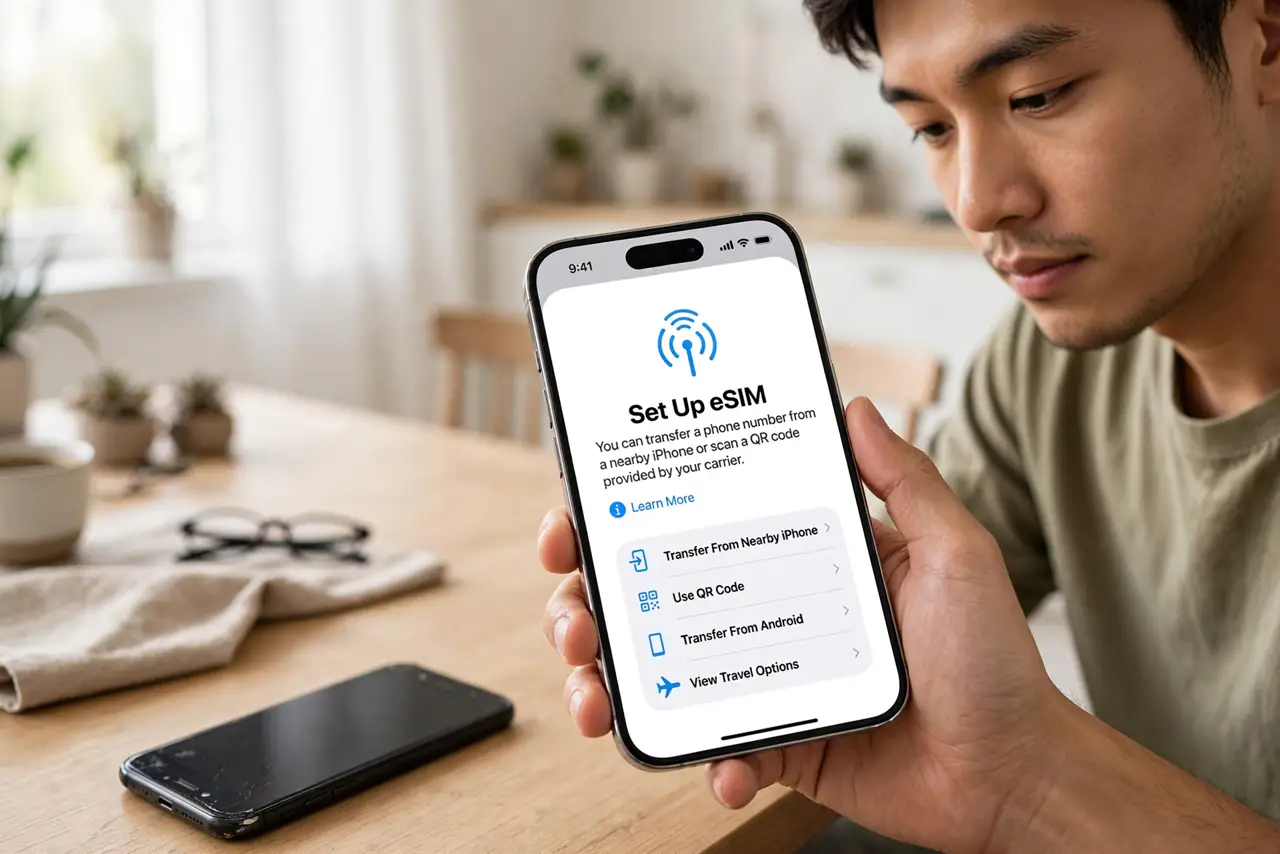
Quick fix: on iPhone go to Settings, Cellular, Add eSIM, and choose Transfer From Nearby iPhone with the old phone close, unlocked, and on Wi-Fi. On Android look under Settings, Network, SIMs for a transfer option. If it fails twice, ask your carrier for a fresh QR code.
Follow these steps
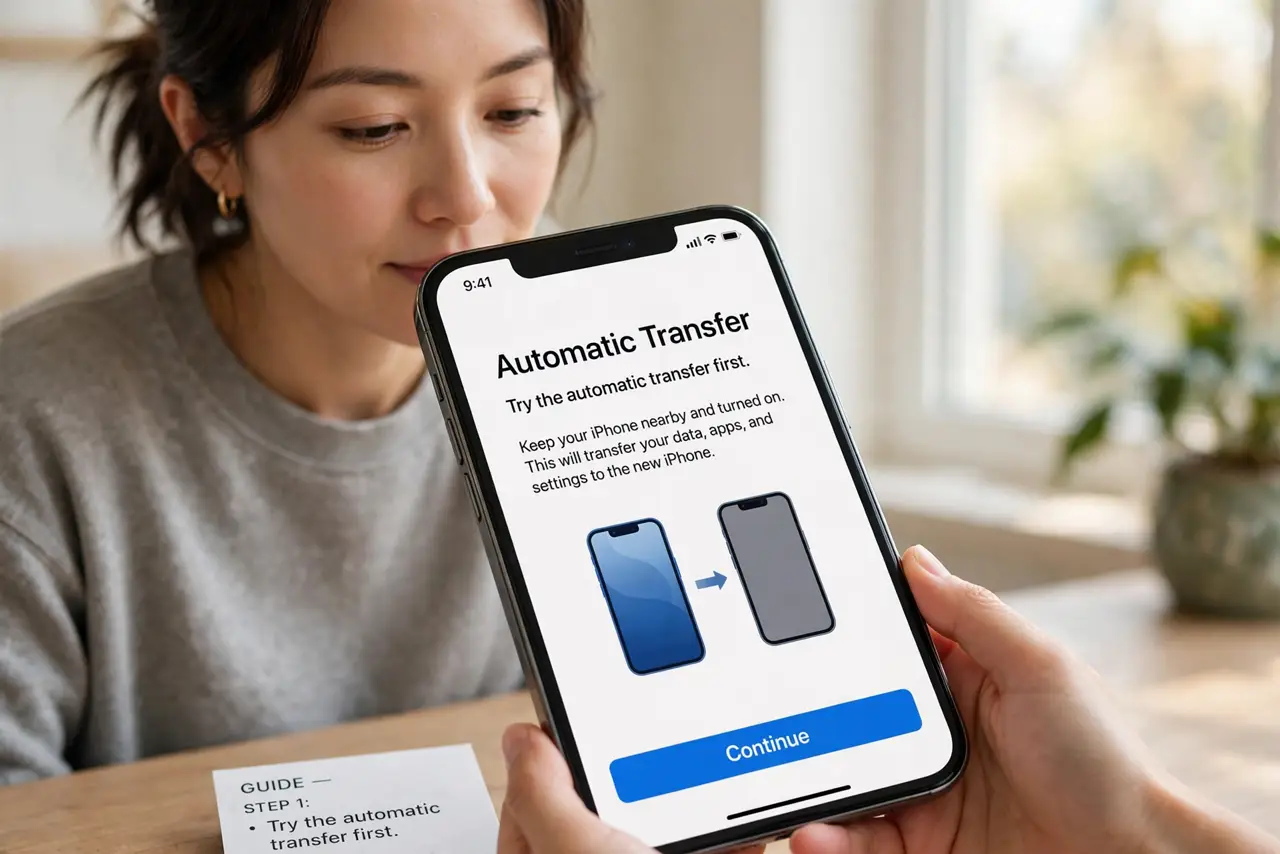
- Try the automatic transfer first. iPhone-to-iPhone: Settings, Cellular, Add eSIM, Transfer From Nearby iPhone. Keep both phones close, unlocked, and on Wi-Fi — Bluetooth handles the handshake.
- Look for the Android transfer option. Open Settings, then Network and internet, then SIMs. Some makers and carriers offer direct transfer; others only offer 'download a new eSIM' with a carrier QR code.
- Get a QR code from your carrier. When automatic transfer is not offered, your carrier's app, website, or store gives a QR code. Scan it on the new phone under Add eSIM — it provisions the same number.
- Keep the old phone working until the new one connects. Do not wipe the old phone until the new one makes calls and uses data. The transfer can need a confirmation on the old device.
- Confirm calls, texts, and data. After transfer, test all three. Data working but calls failing usually means the carrier still needs to finish activation on their side.
- Know when to call the carrier. If the transfer stalls twice, stop retrying and call. Repeated failed attempts can lock the eSIM, and only the carrier can unlock it.
What NOT to do
- Do not wipe the old phone before the new one is fully working. The old phone is your fallback if the transfer hiccups.
- Do not screenshot the QR code and send it to yourself. eSIM QR codes are single-use credentials — treat them like passwords.
- Do not retry a failed transfer endlessly. Multiple failures can lock the profile; two tries, then call the carrier.
- Do not assume the number moves with a backup. iCloud and Google backups do not carry eSIMs — the transfer is a separate, deliberate step.
Frequently asked questions
Will I lose my number during the transfer?
No — the number stays with your carrier account. The transfer just moves which device is allowed to use it.
Can I transfer between iPhone and Android?
Usually via a carrier QR code rather than the automatic nearby transfer, which is same-platform only. Ask your carrier for the cross-platform path.
What if my old phone is dead?
The carrier can issue a fresh eSIM to the new phone without the old one — bring ID to the store or verify through their app.