Flash Alerts for Calls? Setup
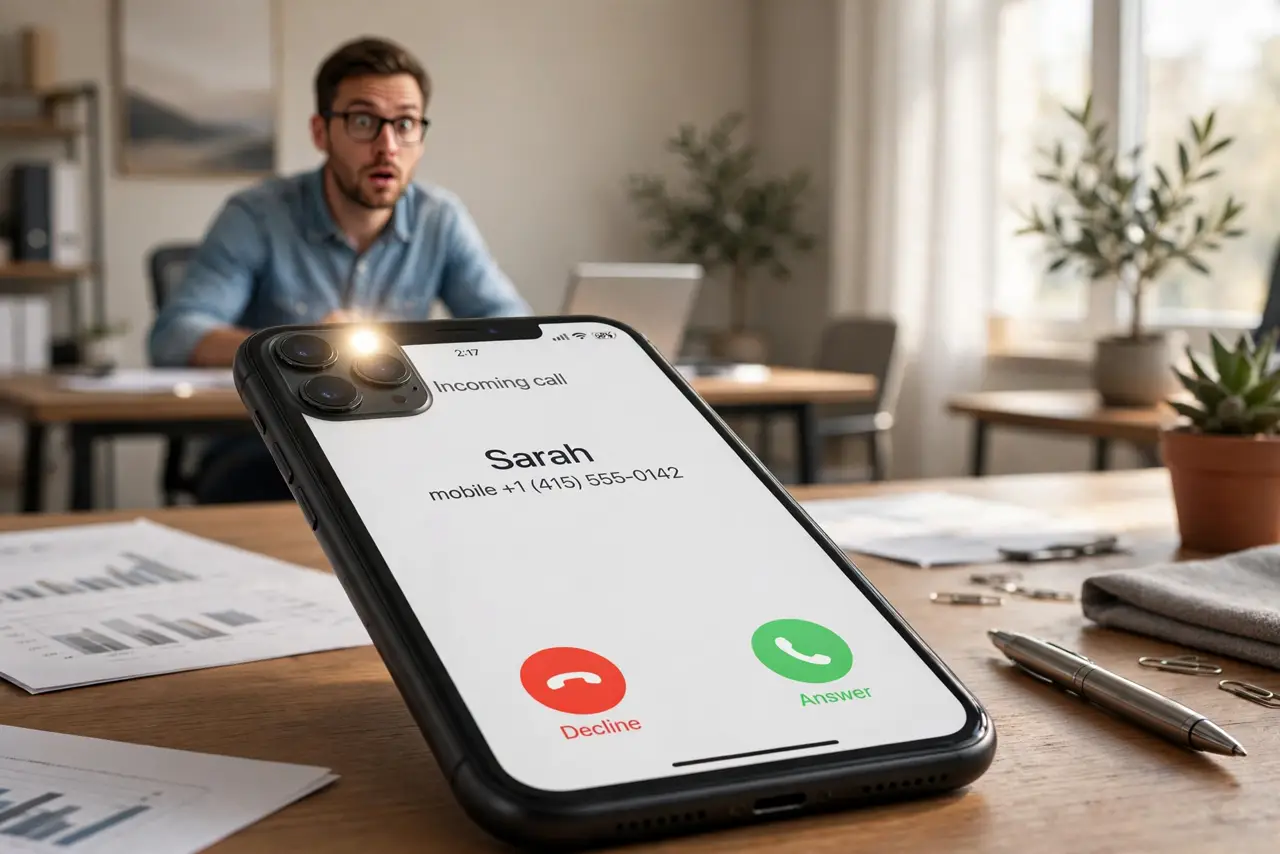
You keep the phone on silent — meetings, the baby's nap, the library — and then you miss every call because you never felt the vibration. Flash alerts make the camera LED strobe for incoming calls and notifications: a visual ring you can see across the room. Here is how to turn it on.
TL;DR / Quick Fix
Quick fix: flash alerts strobe the camera LED for calls and notifications — perfect on silent. On iPhone, go to Settings > Accessibility > Audio/Visual > LED Flash for Alerts. On Android, look in Settings > Accessibility or Notifications for Flash notification. Choose calls only, or calls plus notifications.
Follow these steps
- Turn it on for iPhone. Go to Settings > Accessibility > Audio/Visual > LED Flash for Alerts. Toggle it on, then choose whether it fires for calls only or for all notifications too.
- Find it on Android. Open Settings > Accessibility and look for Flash notification, or check Settings > Notifications. Placement varies by maker — some put camera-flash alerts and screen-flash alerts as separate toggles.
- Choose calls, notifications, or both. Calls-only is the calm choice — the LED fires for incoming calls. Adding notifications means every buzz becomes a strobe; great for the hard of hearing, chaotic for heavy texters. Alerts always use full LED brightness, independent of your flashlight brightness setting.
- Decide about silent mode behavior. On iPhone you can limit flashing to when the ringer is silent — the thoughtful default. Flashing during every normal ring is overkill for most people.
- Position the phone face-down. The LED is on the back, so the flash is visible when the phone lies face-down — which also keeps the screen dark. Face-up, you will barely notice it.
- Test with a real call. Have someone call you with the phone on silent across the room. If the strobe is too subtle or too aggressive, adjust which alerts trigger it.
What NOT to do
- Do not enable it for all notifications in a busy group chat. A strobing phone every ten seconds will get you glared at.
- Do not use it around photosensitive people without warning. Strobing LEDs can trigger seizures — ask before enabling in shared spaces.
- Do not expect it to replace vibration entirely. In a pocket or bag, you will not see the flash — keep vibration on too.
- Do not leave it on if it annoys you. It is an accessibility feature, not a requirement — toggle it off the moment it stops helping.
Frequently asked questions
Will flash alerts drain my battery?
Barely. The LED fires in brief bursts — far less than the screen lighting up for each notification.
Can I make the screen flash instead?
Yes — many Android phones offer screen-flash alerts, and iPhone has a related accessibility option. Useful if the phone usually sits face-up.
Does it work when the phone is locked?
Yes. Flash alerts fire regardless of lock state — that is the point, catching your eye from across the room.