Guided Access? Lock to One App
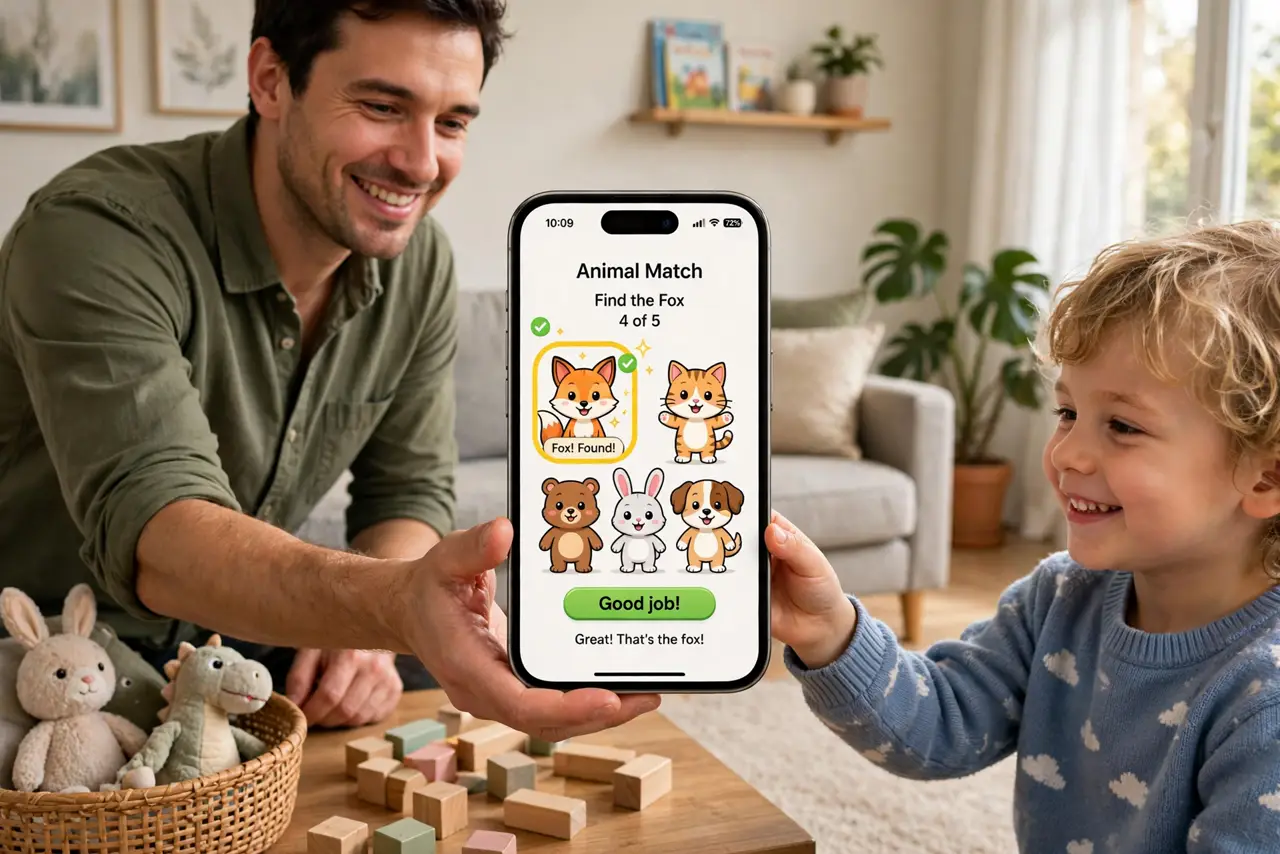
Handing your phone to a child — or a curious stranger who 'just needs to make a call' — is nerve-wracking when one swipe reaches your messages, photos, and bank app. Guided Access locks an iPhone to a single app until you enter a passcode; Android's app pinning does the same job. Set it up once and lend your phone without the anxiety.
TL;DR / Quick Fix
Quick fix: on iPhone open Settings, Accessibility, Guided Access, turn it on, and set a passcode. Open the app, triple-click the side button, and tap Start. On Android turn on App pinning under Settings, Security, open the app, and pin it from recent apps. Exit with the passcode.
Follow these steps
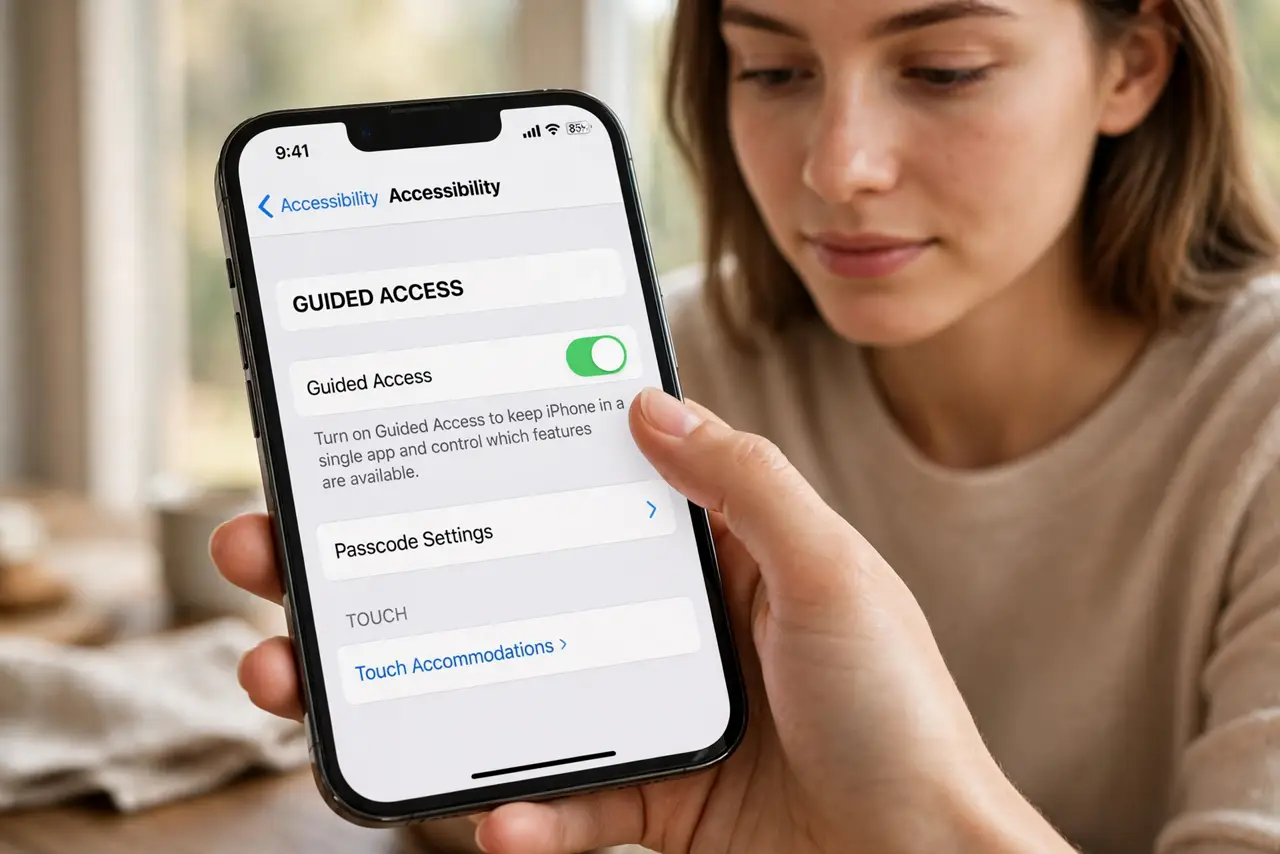
- Turn on Guided Access on iPhone. Go to Settings, then Accessibility, then Guided Access. Switch it on and set a passcode you will remember — this is your only way out.
- Start a session in any app. Open the app, triple-click the side button (or Home button on older iPhones), adjust options like disabling touch areas, then tap Start.
- Learn the exit gesture. Triple-click again and enter your passcode to end the session. If you get stuck, see can't exit Guided Access before panicking.
- Enable app pinning on Android. Open Settings, then Security (or Biometrics and security), and turn on App pinning. Some phones also let you require the unlock to unpin — turn that on.
- Pin from the recent-apps screen. Open the app, open the recent-apps view, tap the app's icon or overflow menu, and choose Pin. The phone now stays in that app.
- Unpin with the system gesture. Hold Back and Recents together (or follow your phone's on-screen hint). With unlock-required enabled, your PIN or fingerprint ends the session.
What NOT to do
- Do not set a passcode you will forget. A forgotten Guided Access passcode turns a helpful lock into a very stressful afternoon.
- Do not hand over the phone mid-session without testing the exit first. Practice entering and exiting before a child is watching.
- Do not rely on it as theft protection. It stops casual snooping, not a determined thief — the lock screen and encryption do that job.
- Do not enable it during an important call or navigation. An accidental triple-click mid-drive is the wrong time to learn the gesture.
Frequently asked questions
Can the person still access notifications?
You control that. The session options let you disable touch, motion, and time limits — lock down whatever the situation needs.
Does it work on Android tablets too?
Yes. App pinning is part of Android itself, so tablets and most maker skins include it in the same place.
What if triple-click does nothing?
Check that Guided Access is actually enabled in Settings, and that the Accessibility Shortcut is set to Guided Access rather than another feature.