Guided Access Will Not Exit on iPhone
Guided Access locks the iPhone to one app, and the exit gesture or passcode does not seem to work. The exit method depends on the exact setup — and panic-pressing only makes it worse.
TL;DR / Quick Fix
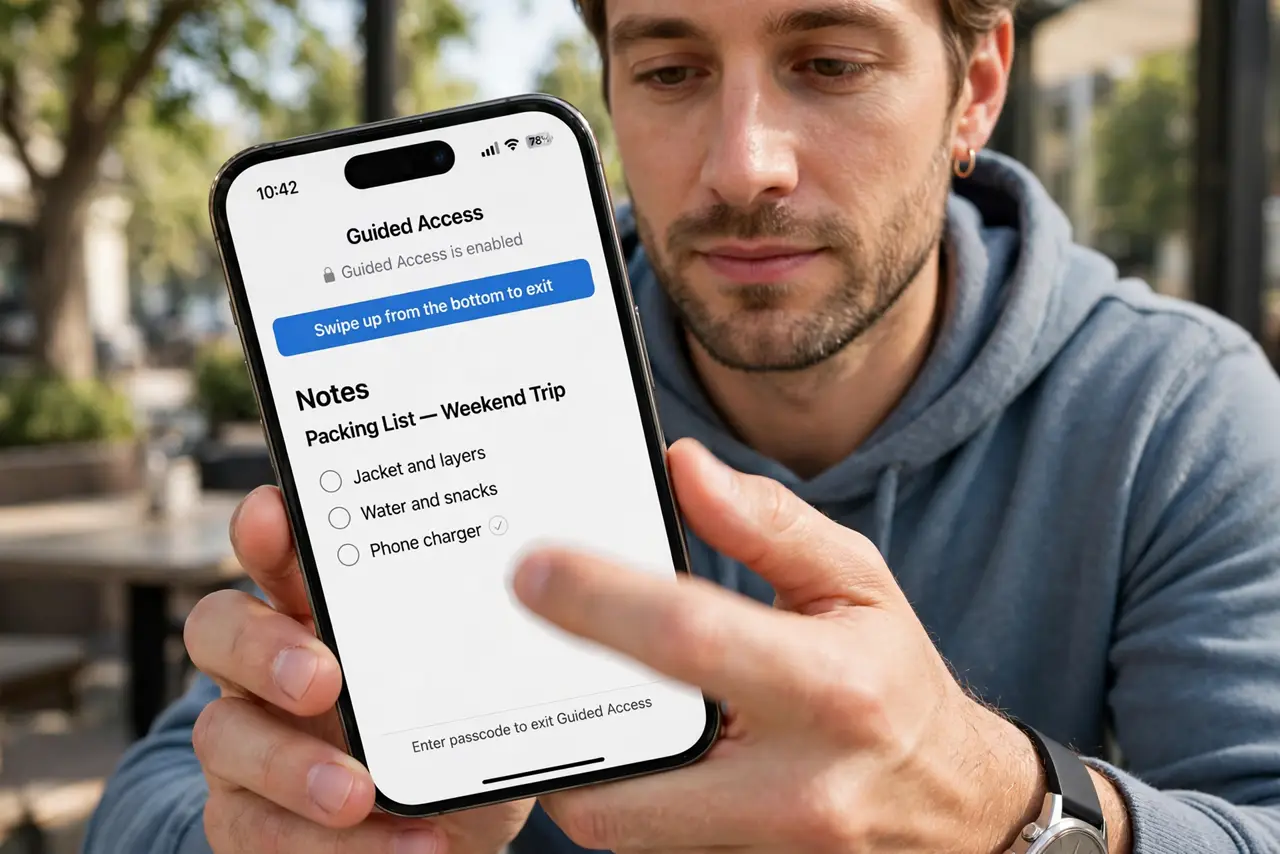
Quick fix: triple-click the side button, enter the Guided Access passcode, and tap End. If that fails, try the device passcode, then restart the iPhone and try the triple-click again and note the passcode so the next exit takes only seconds.
Follow these steps
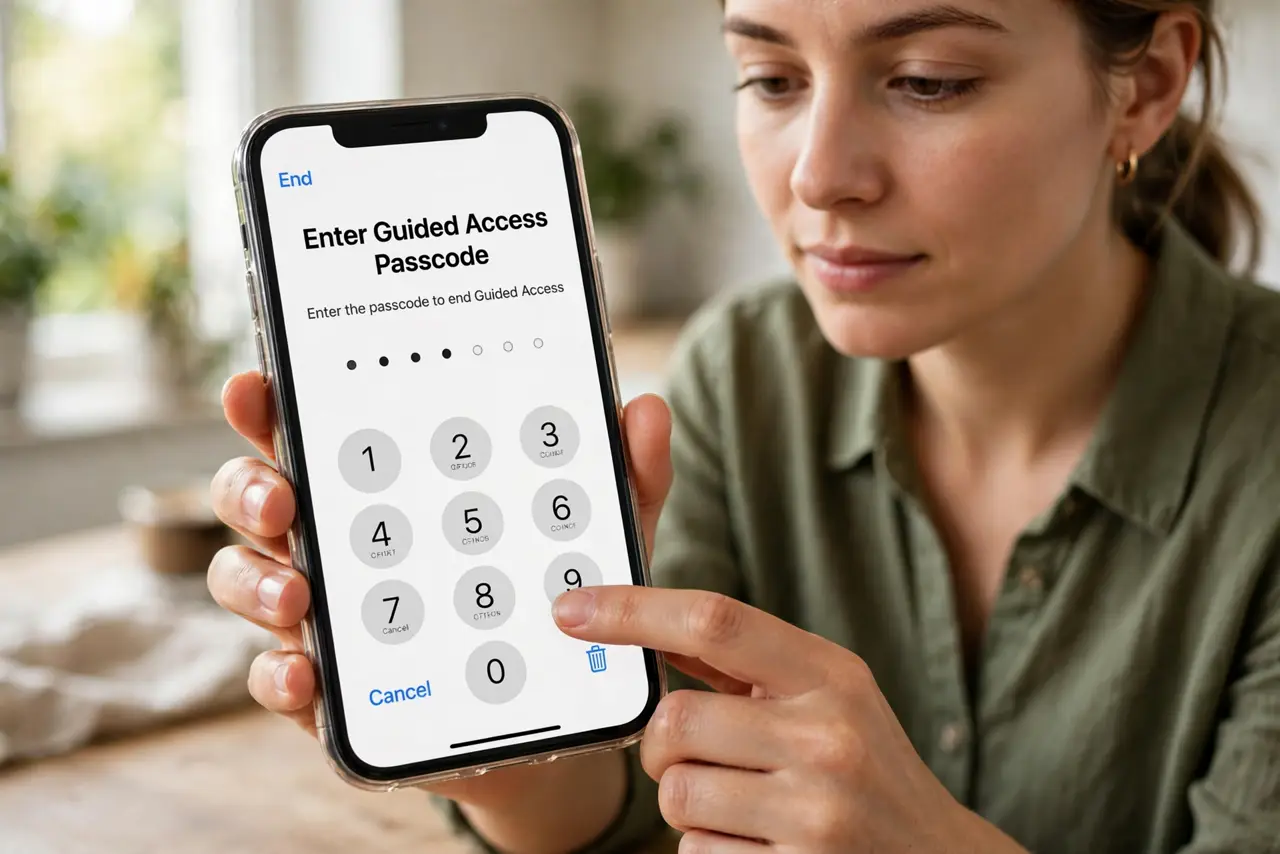
- Triple-click and enter the Guided Access passcode. Triple-click the side button, then enter the Guided Access passcode you set when starting the session. Tap End at the top left to leave Guided Access.
- Try the device passcode if that fails. If the Guided Access passcode does not work, try your normal device passcode on the same prompt. Some setups accept the device passcode as the exit code.
- Check the triple-click shortcut assignment. Open Settings after exiting, or check before starting next time, that triple-click is assigned to Guided Access. If triple-click runs another feature, the exit gesture cannot start.
- Restart if the exit screen will not appear. Force-restart the iPhone following Apple's steps for your model, then triple-click again once it boots. A restart clears a stuck Guided Access session that ignores the gesture.
- Ask the person who started it. If someone else started Guided Access, ask them for the passcode. Guided Access passcodes can differ from the device passcode, and guessing repeatedly can lock the prompt.
- Set a memorable passcode next time. When you next start Guided Access, choose a passcode you will remember and note the exit gesture. A known passcode turns the next exit into a ten-second job.
What NOT to do
- Do not keep guessing passcodes rapidly. Repeated wrong attempts can delay the prompt, while one careful try with the right code exits cleanly.
- Do not erase the iPhone to exit Guided Access. A restart and the correct passcode exit the session, and erasing destroys data for a lock that was never permanent.
- Do not assume the iPhone is broken because it stays in one app. Guided Access is designed to hold one app, so the exit gesture and passcode are the way out.
- Do not start Guided Access without noting the passcode. An unnoted passcode turns a helpful lock into a frustrating trap the next time you need to exit.
Frequently asked questions
How do I exit Guided Access?
Triple-click the side button, enter the Guided Access passcode, and tap End.
What if I forgot the Guided Access passcode?
Try the device passcode, or restart and try again. If neither works, the session may need the original passcode from whoever started it.
Why does triple-click not open the exit screen?
Because triple-click may be assigned to another feature, so check the Accessibility Shortcut assignment.
What to read next
- iPhone Passcode Rejected Once? Fix It
- iPhone Screen Time Limits Ignored? Fix It