Tint Your App Icons? How To
Your home screen is a riot of clashing colors — neon games, red social apps, blue everything — and you want calm. Icon tinting recolors all your app icons into one unified shade: monochrome minimalism, dark elegance, or whatever matches your wallpaper. Here is how to tint on iPhone and Android.
TL;DR / Quick Fix
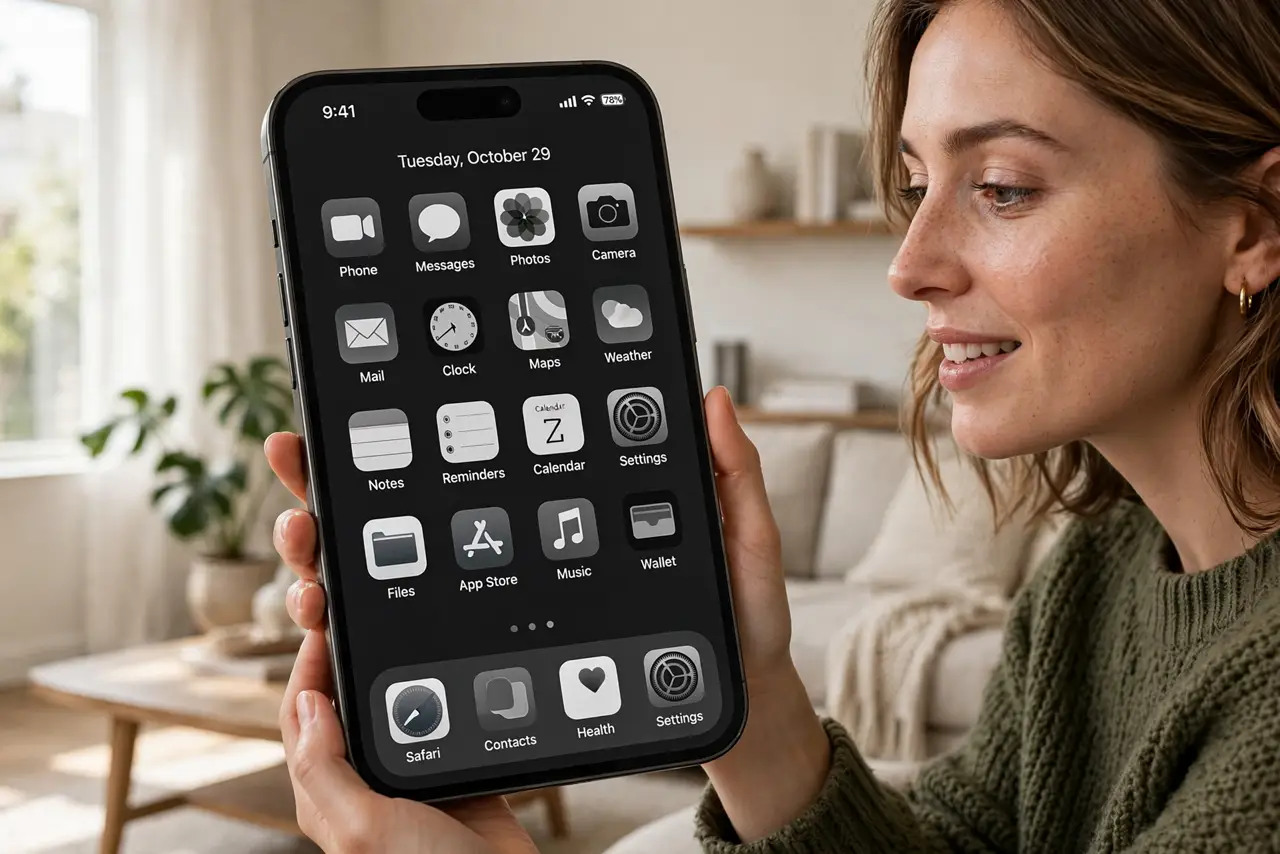
Quick fix: tinting recolors every app icon into one unified shade for a calm home screen. On iPhone, long-press the home screen, tap Edit > Customize, choose Tinted, and pick your color. On Android, enable themed icons in Wallpaper & style settings. Revert anytime with one tap.
Follow these steps
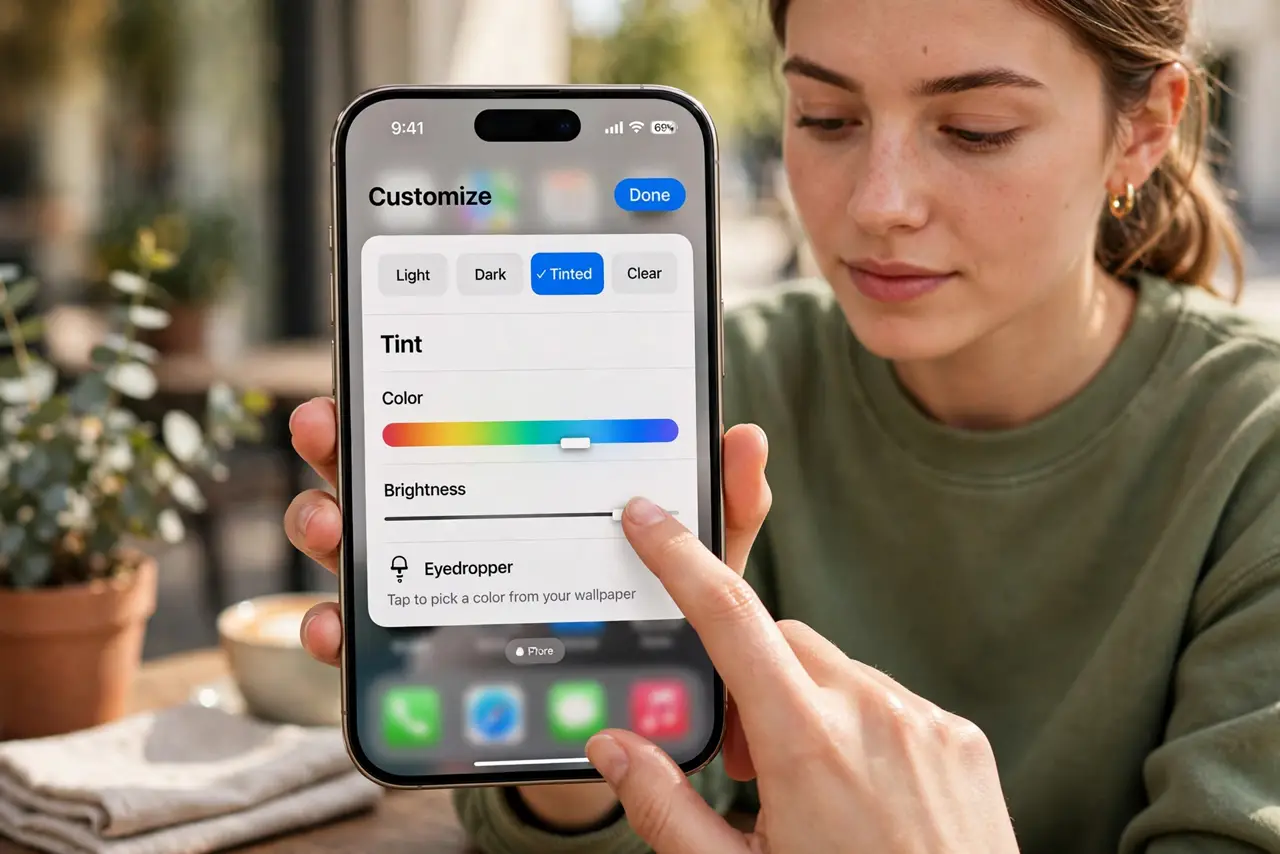
- Tint on iPhone. Long-press the home screen, tap Edit in the corner, then Customize. Choose Tinted and pick a color with the sliders — every icon takes on the tint, including widgets' accents.
- Pick your shade deliberately. Dark tints recede elegantly; a single accent color makes a statement. Match the wallpaper's dominant tone for the designer look — or go full monochrome for maximum calm.
- Use themed icons on Android. Open Settings > Wallpaper & style (or long-press the home screen > Wallpaper & style) and enable Themed icons. Supported icons recolor to your system palette automatically.
- Know the Android limits. Themed icons only recolor apps that support it — many do now, but stragglers keep their original colors. iPhone's tint forces every icon; Android's is opt-in per app.
- Pair with dark mode. Tinted icons plus dark mode plus a dark wallpaper is the full serene setup. The three multiply — any one alone is a half measure.
- Revert in one tap. Do not like it? Return to Customize and choose Automatic or Dark/Light. Tinting changes no app data — it is pure appearance, instantly reversible.
What NOT to do
- Do not tint so dark you cannot find apps. Recognition beats aesthetics — if you hunt for the bank app, lighten up.
- Do not expect third-party icon packs to tint. Custom icon packs replace icons entirely — tinting applies to the standard set.
- Do not tint for screenshots you share as instructions. Tinted icons confuse people following your 'tap the blue icon' guidance.
- Do not forget widgets. Tinted mode affects widget accents too — check your widget stacks still read well.
Frequently asked questions
Will tinting affect the apps themselves?
No. It is purely visual — app icons on the home screen only. Inside the apps, everything looks exactly as before.
Why do some Android icons not change?
Themed icons require the app to provide a monochrome icon. Apps that have not added one keep their original colors.
Can I tint only some icons?
On iPhone, no — tint is all-or-nothing. For selective styling, use custom icon packs or Shortcuts-based icons instead.