Large App Icons? How To
Squinting at tiny icons, mistapping the wrong app, handing the phone to a grandparent who cannot see the targets — bigger icons fix all of it. Both platforms let you enlarge app icons and their labels, trading a little home screen density for a lot of tappability. Here is where the size controls live.
TL;DR / Quick Fix
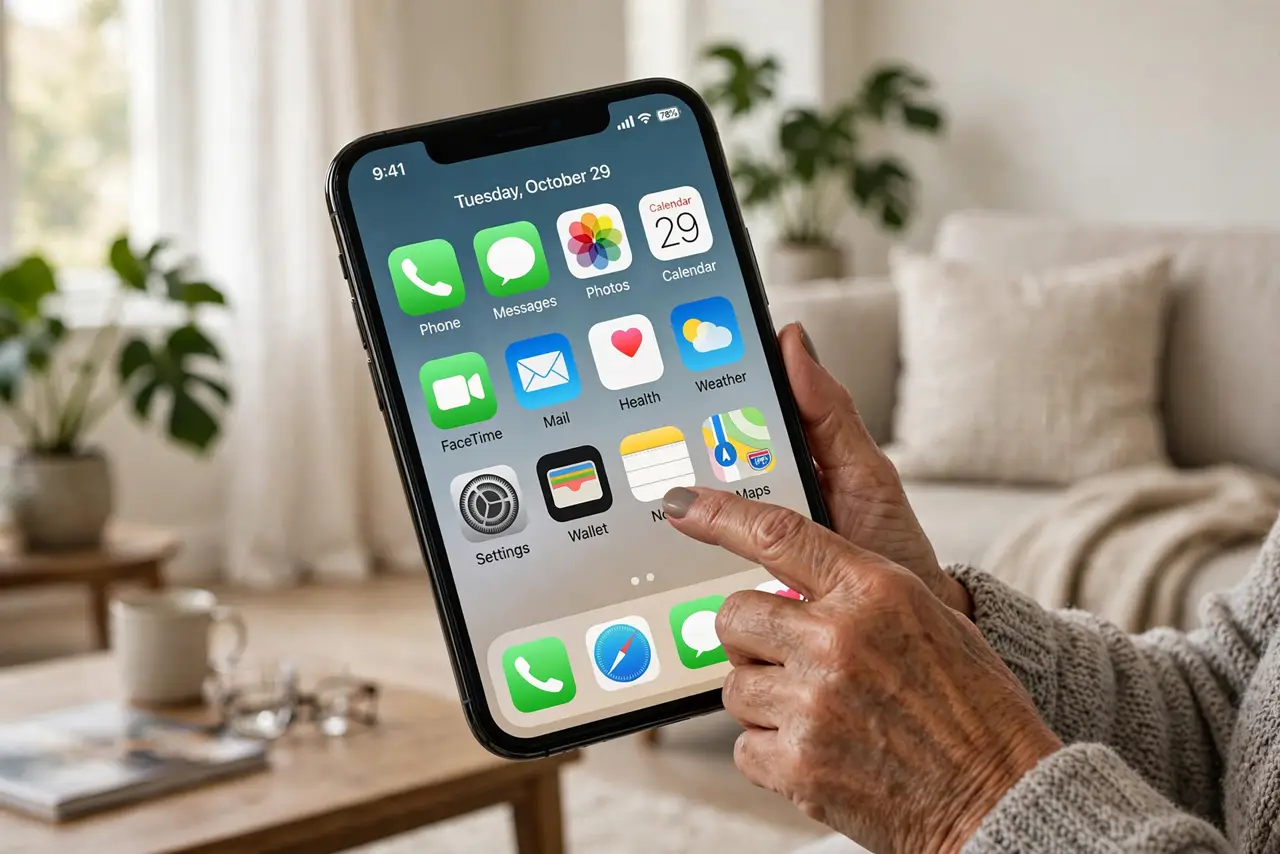
Quick fix: enlarge app icons for easier seeing and tapping. On iPhone, long-press the home screen, tap Edit > Customize, and choose Large — icons grow and labels hide. On Android, increase Display size in Settings, or use launcher grid settings. Fewer icons per page, but every tap lands.
Follow these steps
- Enlarge on iPhone. Long-press the home screen, tap Edit, then Customize, and select Large. Icons grow substantially and names hide beneath — the clean, bold look. Toggle back to Small anytime.
- Scale up on Android. Go to Settings > Display > Display size (or Screen zoom) and increase it — icons, text, and interface all grow together. Alternatively, your launcher's home screen settings may offer icon size directly.
- Accept the density tradeoff. Bigger icons mean fewer per page — a 4-column grid becomes effectively 3. Pair with hidden pages and the App Library so overflow stays organized.
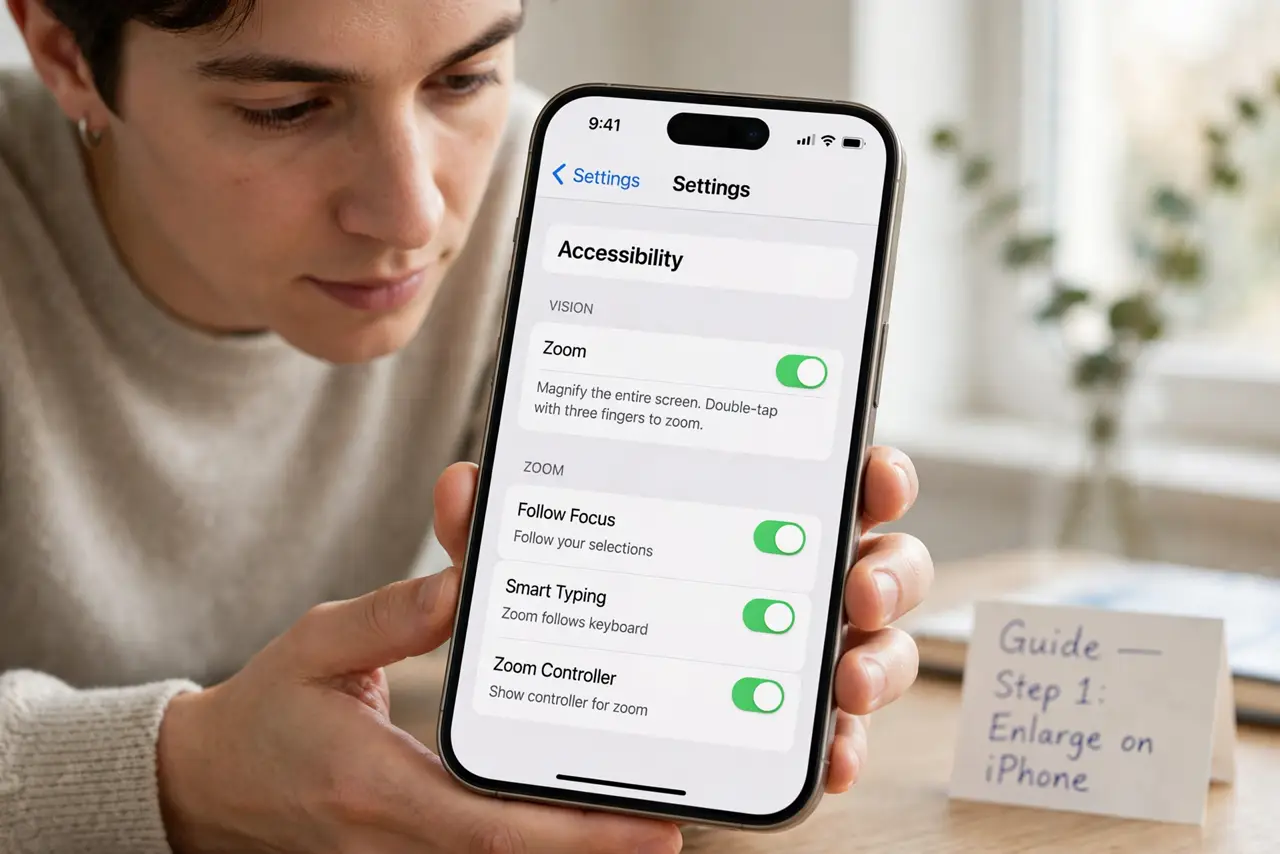
- Consider it an accessibility win. Large icons plus bold text plus increased contrast is a genuine usability upgrade for low vision — not just aesthetics. Check Accessibility settings for the full suite.
- Set it up for someone else thoughtfully. Configuring a parent's phone? Large icons, few pages, essential apps only, everything else in the Library. Then lock the layout if the launcher allows — accidental rearrangement is the enemy.
- Test tappability, not just looks. The real test: can the intended person hit the right icon first try, without glasses? Adjust until yes — appearance is secondary to the tap landing.
What NOT to do
- Do not max everything at once blindly. Largest icons plus largest text can break layouts — increase stepwise and check.
- Do not forget widgets scale too. Enlarged display size grows widgets — recheck your widget stacks fit the page.
- Do not assume bigger fixes all mistaps. If taps still miss, check touch sensitivity and screen protector interference too.
- Do not leave it half-configured on someone else's phone. Walk them through the new layout — changed icon positions confuse more than small icons did.
Frequently asked questions
Will large icons delete any apps?
No. Icon size is purely visual — every app stays installed exactly where it was, just displayed bigger.
Why did my home screen layout change?
Bigger icons fit fewer per page, so the system reflows pages. Your apps are all still there — check the App Library if one seems missing.
Can I make only the text bigger?
Yes — Settings > Display > Text size (both platforms) scales text independently of icons. Mix and match for the exact comfort level.