Magnifier App? How To Use It
Restaurant menu in tiny print, a medicine bottle label, the serial number etched inside a battery compartment — some things are simply too small to read, glasses or not. Your phone's camera plus its screen is a better magnifying glass than any plastic lens: brighter, bigger, and already in your pocket. Here is how to use the built-in magnifier on both platforms.
TL;DR / Quick Fix
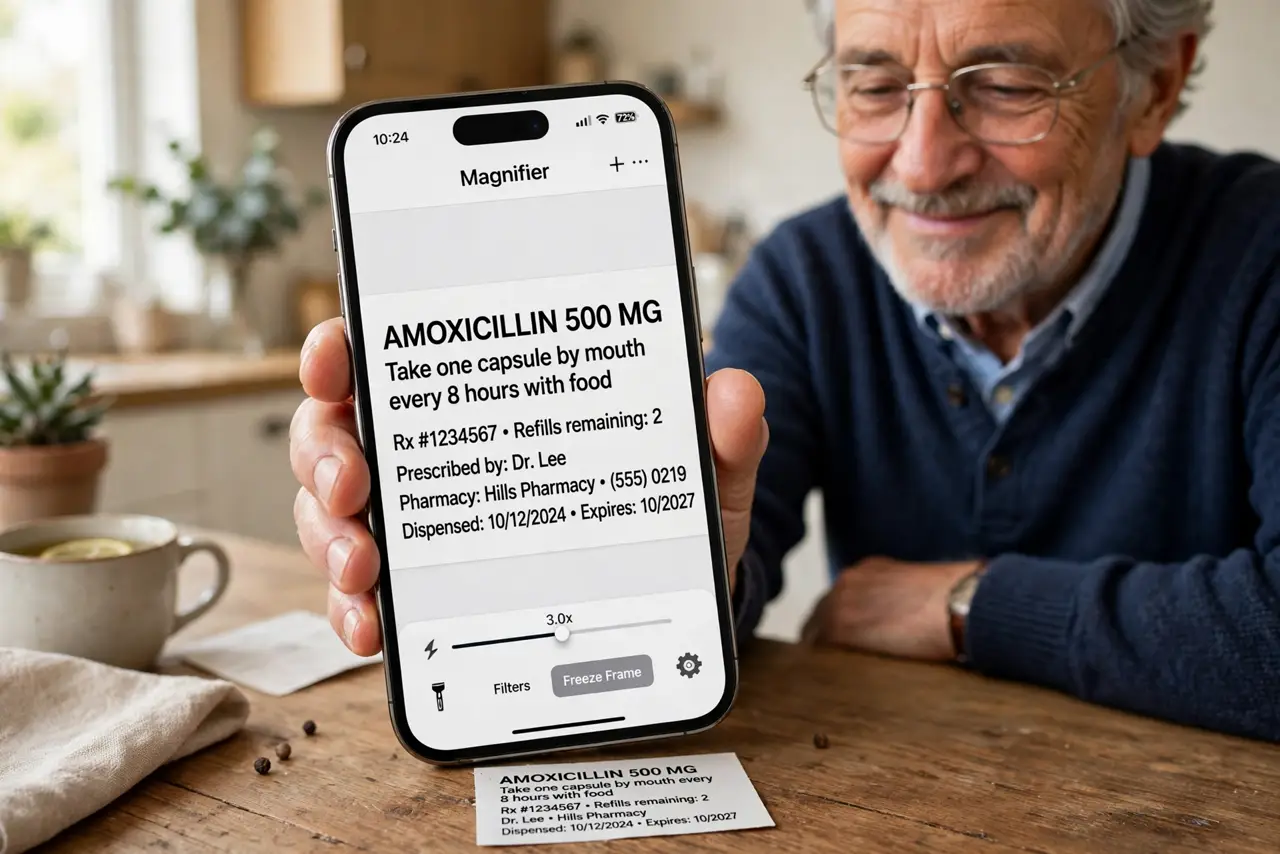
Quick fix: on iPhone open the Magnifier app and point the camera at the small text — pinch to zoom, tap the flashlight for dark corners, and freeze the frame to read. On Android turn on Magnifier under Settings, Accessibility, or just pinch-zoom in the Camera app.
Follow these steps
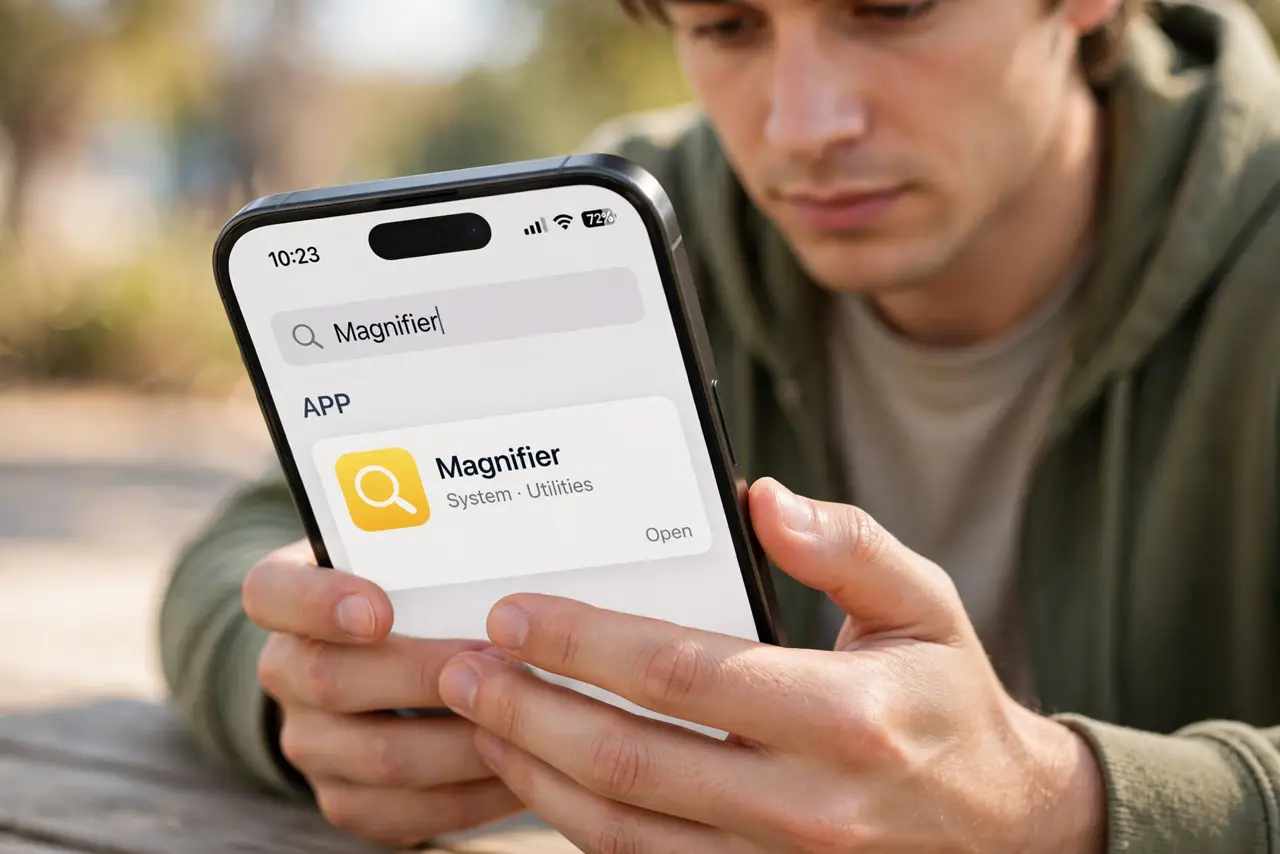
- Find the Magnifier app on iPhone. Swipe down and search for Magnifier. If it is missing, go to Settings, then Accessibility, then Magnifier, and turn on the app.
- Point, pinch, and freeze. Aim the camera at the text, pinch to zoom, then tap the freeze-frame button. Reading a still image beats chasing a shaky live view.
- Add light with the built-in flashlight. The magnifier has its own torch toggle. Dark restaurant menus become readable without blinding the table.
- Adjust contrast and filters. The filters button offers high-contrast modes — white on black, yellow on blue — that make faded print pop.
- Use it on Android. Open Settings, then Accessibility, then Magnifier, and turn it on. Triple-tap or the accessibility button launches it over any screen — or just pinch-zoom in the Camera app for a quick look.
- Save what matters. Screenshot the frozen magnified view to keep the serial number, dosage, or menu for later.
What NOT to do
- Do not buy a clip-on macro lens for reading labels. The built-in magnifier with digital zoom is sharper and simpler.
- Do not use full-screen zoom for this job. System zoom magnifies the interface; the magnifier app magnifies the real world through the camera.
- Do not photograph other people's documents up close without asking. A magnifier pointed at someone's paperwork reads as snooping.
- Do not rely on it for critical medication details alone. Magnify, read twice, and confirm against the box — small print deserves double-checking.
Frequently asked questions
Is the magnifier better than just zooming the camera?
For reading, yes — freeze-frame, contrast filters, and the torch are built for exactly this, while the camera app is built for photos.
Can it read text aloud?
The iPhone Magnifier has detection modes that can read text out loud. For full-page reading, your phone's Speak Screen feature goes further.
Why is the image blurry up close?
You are inside the camera's minimum focus distance. Pull back slightly and use more digital zoom instead of getting closer.