Offload Unused Apps? How To
Your phone is full, but deleting apps feels drastic — what if you need that one later? Offloading is the middle path: the app leaves the phone while its documents and data stay behind, so reinstalling restores everything exactly as you left it. Here is how to offload unused apps safely on iPhone and Android.
TL;DR / Quick Fix
Quick fix: offloading removes the app but keeps its documents and data, so reinstalling restores everything. On iPhone, use Settings > General > iPhone Storage > Offload Unused Apps, or offload one app from its entry. On Android, archive apps from the Play Store. Your files stay safe.
Follow these steps
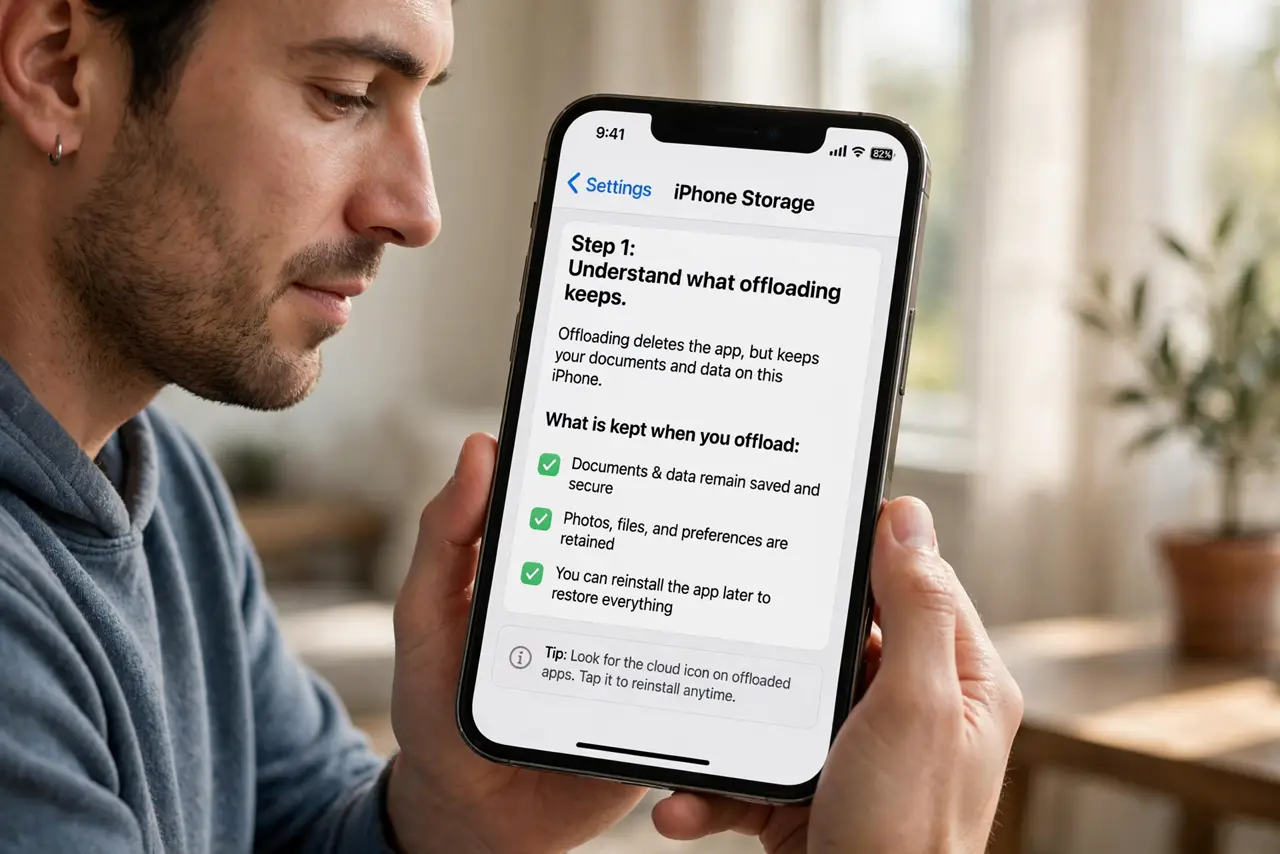
- Understand what offloading keeps. Offloading removes the app's program files but preserves its documents, settings, and saved data on the phone. Reinstalling later restores the app exactly as you left it — this is why it beats deleting for apps you might need again.
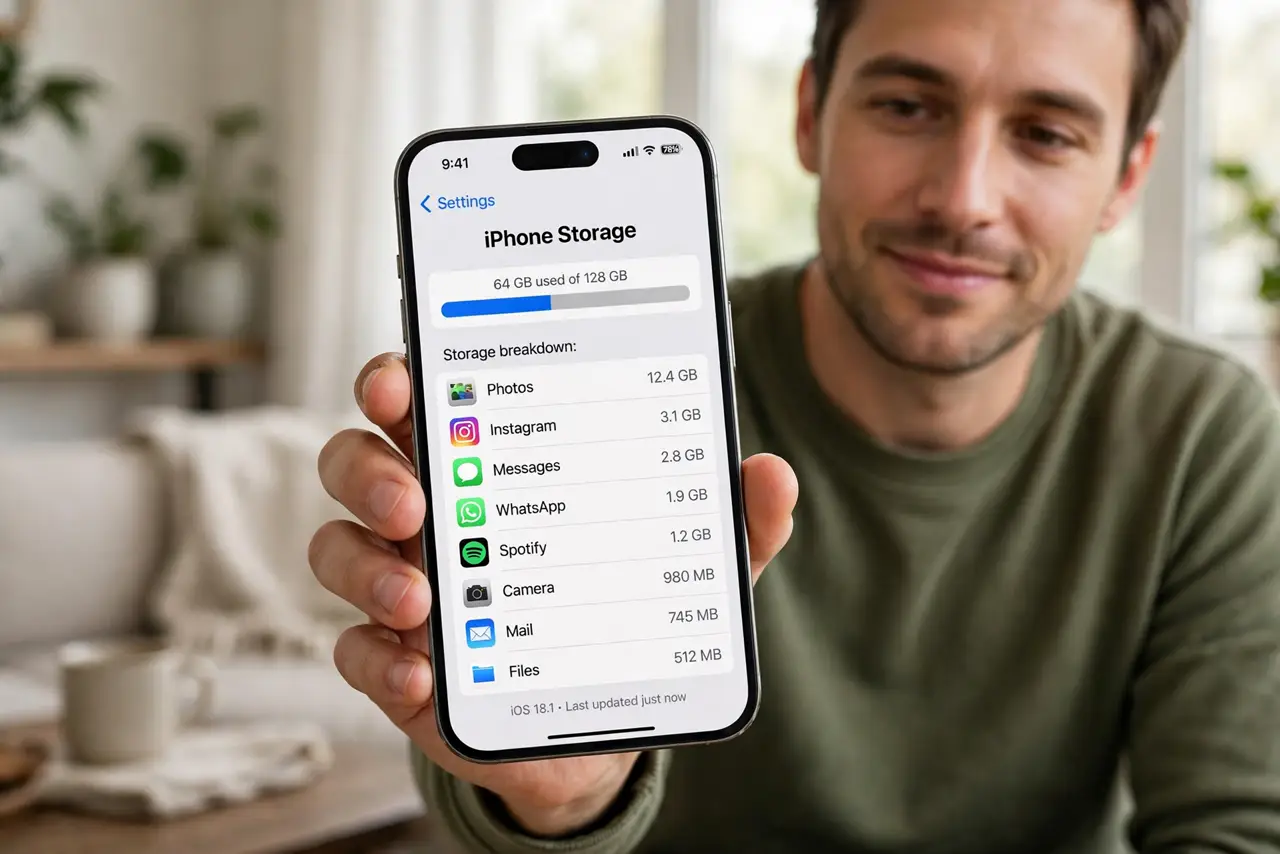
- Offload a single app on iPhone. Go to Settings > General > iPhone Storage, tap the app, and choose Offload App. The app icon stays on your home screen with a small cloud badge, ready to reinstall with one tap.
- Turn on automatic offloading on iPhone. The same storage screen offers Offload Unused Apps, which automatically offloads apps you have not opened in a while. Documents and data are still preserved — only the app files go.
- Archive apps on Android. Open the Play Store, find an installed app, and choose Archive. Android removes the app but keeps your data, and the launcher icon remains so you can restore it from the store.
- Pick the right candidates. Offload big apps you use rarely: games you finished, travel apps between trips, event apps from last year. Small apps save little space — sort the storage list by size and start at the top.
- Know when to delete instead. If you will never use the app again and do not care about its data, delete it outright. Offloading is for the 'maybe later' apps — for the storage crunch itself, also review large attachments.
What NOT to do
- Do not offload apps you need offline this week. Reinstalling requires a connection — bad timing on a flight or abroad.
- Do not confuse offloading with deleting. Offload keeps your data; Delete removes app and data together. Read the button before tapping.
- Do not offload your authenticator or banking apps. Reinstalling those means re-verifying your identity, which is a hassle.
- Do not expect huge savings from tiny apps. One 2 GB game offloaded beats fifty small utilities — sort by size.
Frequently asked questions
Will I lose my photos or chats by offloading?
No. Offloading keeps documents and data — only the app's program files are removed. Reinstalling restores everything as it was.
What is the difference between offload and delete?
Offload removes the app but keeps its data; Delete removes both. Offloaded apps show a cloud badge and reinstall with one tap.
Does automatic offloading delete anything important?
It only removes apps you have not opened recently, and it always preserves their data. System apps and anything currently in use are never touched.