Encrypt Your Phone's DNS
Cafe Wi-Fi is convenient and nosy: whoever runs the hotspot can log every site you visit through plain DNS lookups. Both iPhone and Android let you encrypt those lookups on any network — no VPN subscription required. It is the single highest-value privacy setting for public Wi-Fi. This guide sets it up on both platforms.
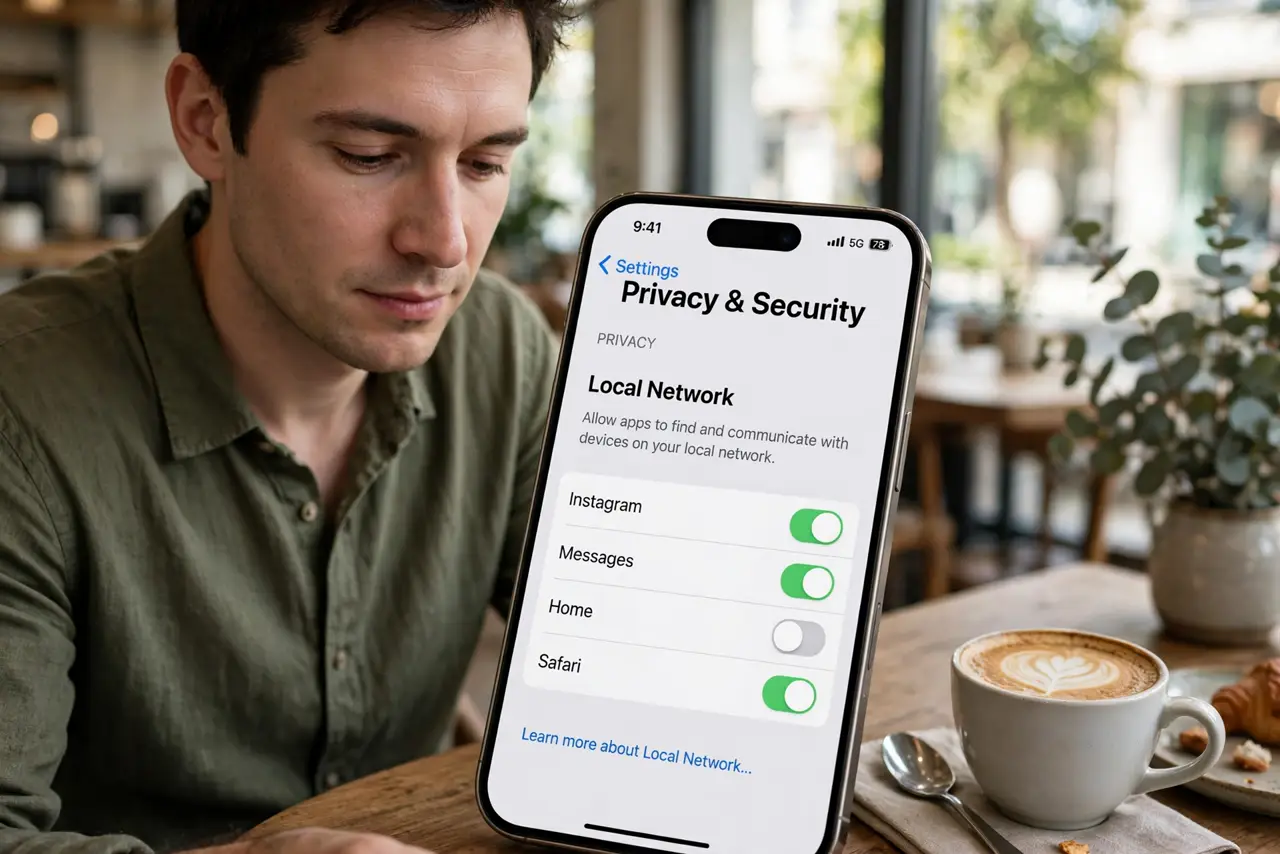
TL;DR / Quick Fix
Quick fix: both iPhone and Android can encrypt DNS on any network — Android has a Private DNS setting, iPhone can use a DNS profile or encrypted DNS in the browser. It stops cafe Wi-Fi owners logging every site you visit. A VPN adds even more protection on public networks.
Follow these steps
- On Android, use Private DNS. Open Settings, then Network, then Private DNS, and enter the hostname of a trusted encrypted DNS provider. From then on, every lookup on every network — including cafe Wi-Fi — is encrypted. If a captive portal misbehaves, switch it off just for login, then back on.
- On iPhone, install a DNS profile. iOS encrypts DNS via configuration profiles from reputable DNS providers. Install one from a provider you trust and it applies system-wide, on Wi-Fi and cellular alike.
- Or encrypt DNS in the browser. If a full-device profile feels like overkill, enabling DNS-over-HTTPS in your mobile browser protects your browsing with one toggle — less coverage than system-wide, far better than nothing.
- Pick a provider you trust. Your DNS provider sees your lookups instead of the hotspot owner. Choose a well-known provider with a clear no-logging policy — you are moving trust to someone accountable, not eliminating it.
- Test on the next public network. Join a cafe or airport Wi-Fi and run a DNS encryption check. Confirming it works where it matters — not just at home — is the whole point.
- Add a VPN for full protection. Encrypted DNS hides lookups; a VPN hides everything else too. On truly sketchy networks, run both — they stack without conflict.
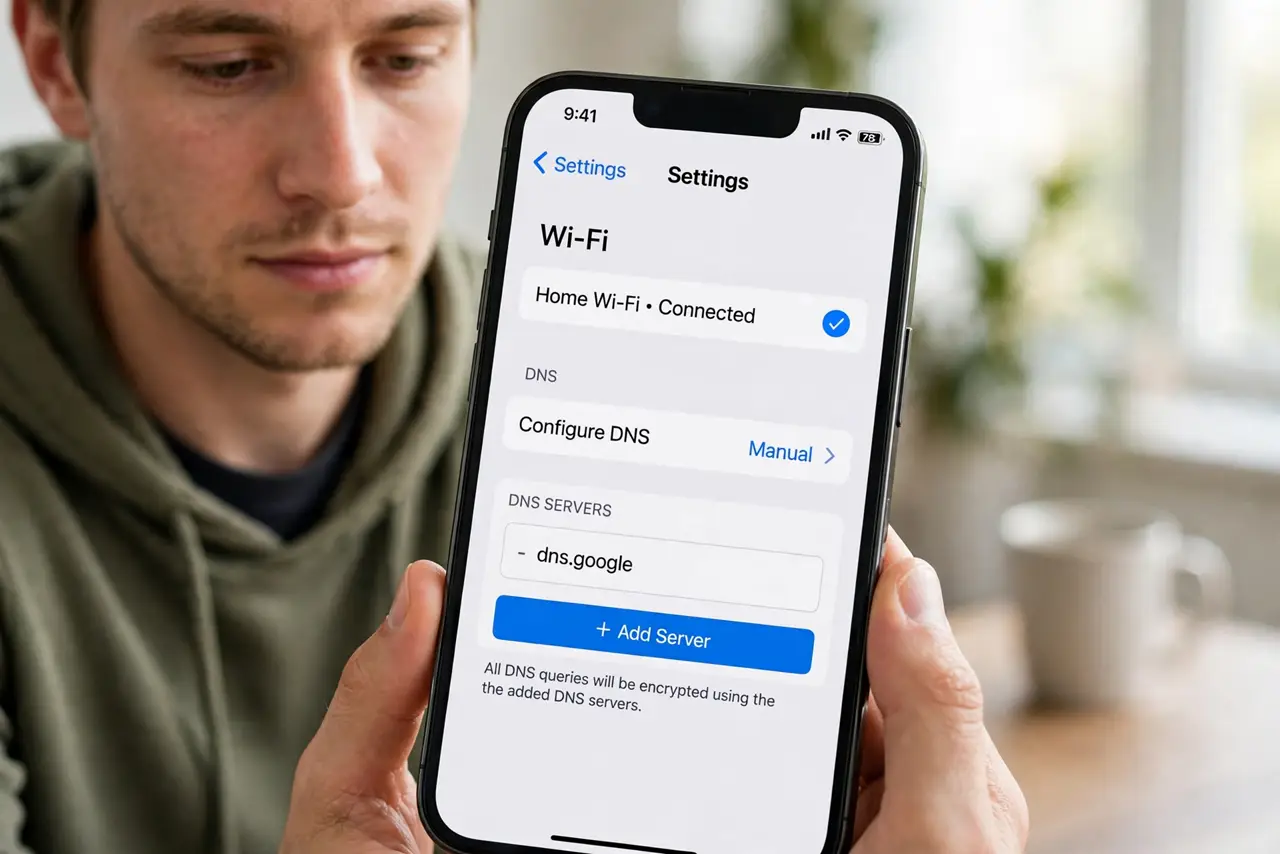
What NOT to do
- Do not use a random free DNS hostname. Obscure providers can log exactly what you are hiding — stick to reputable names with published privacy policies.
- Do not forget captive portals. Hotel and airport login pages sometimes break with Private DNS on — toggle it off to log in, then re-enable.
- Do not assume you are invisible. Encrypted DNS stops lookup snooping; the hotspot still sees connection IPs and unencrypted traffic. It is a strong layer, not a cloak.
- Do not skip it on cellular. Your mobile carrier logs plain DNS too — system-wide encrypted DNS protects you on every network, not just Wi-Fi.
Frequently asked questions
Does Private DNS slow my phone?
No noticeable difference. Encrypted lookups resolve just as fast through major providers — you will not feel it.
Will this break my work VPN?
Corporate VPNs often set their own DNS and override yours while connected. That is normal — the VPN's encryption covers you instead.
Is this enough for banking on public Wi-Fi?
Banking apps already encrypt everything end-to-end, so they are safe regardless. Encrypted DNS additionally hides which bank you use from the hotspot owner.