Review Large Attachments? Free Space
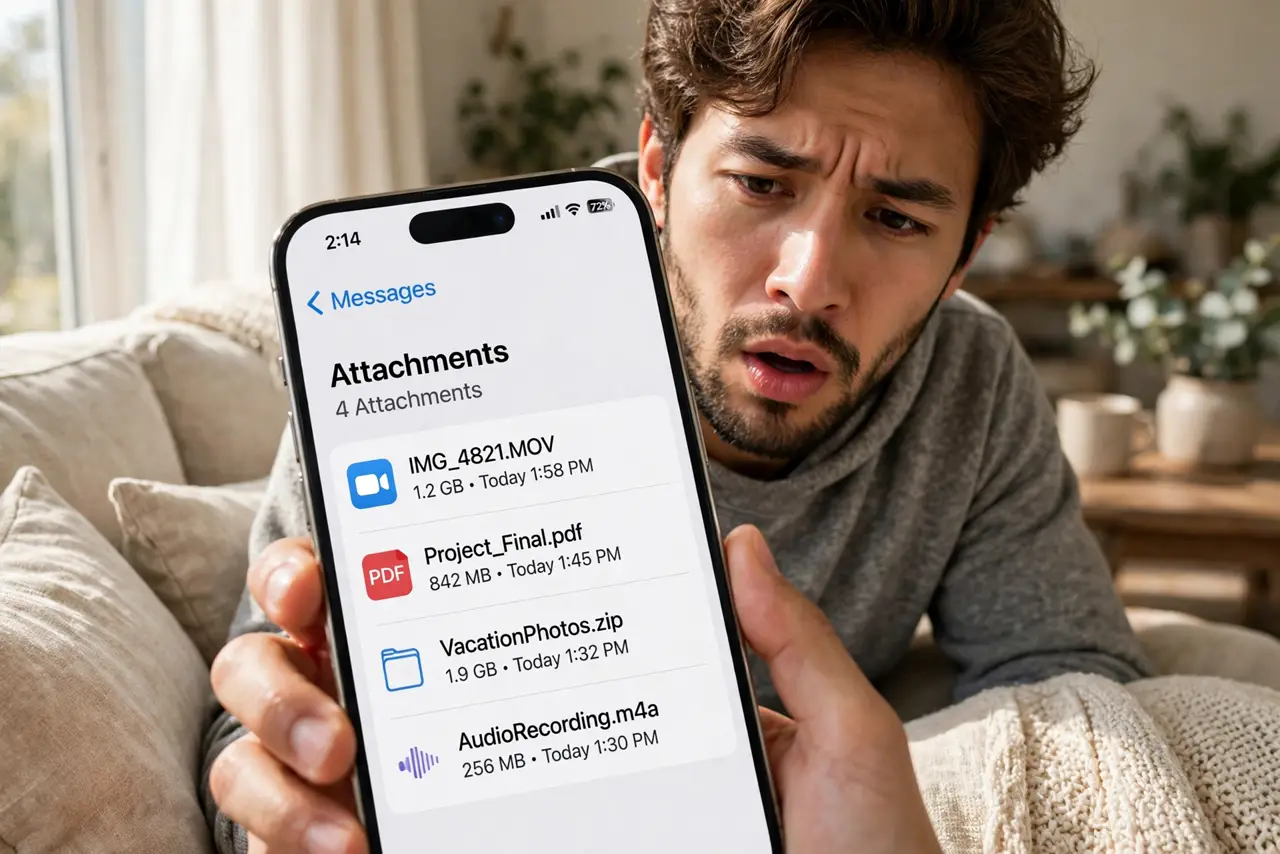
Your messaging apps quietly hoard gigabytes: every photo, video, GIF, and voice note anyone ever sent you sits in storage long after the conversation moved on. Both iPhone and Android can show you the biggest attachments in one list so you can clear them in minutes. Here is where that review screen lives.
TL;DR / Quick Fix
Quick fix: both phones list your largest message attachments in one place. On iPhone, open Settings > General > iPhone Storage > Messages and review Top Conversations, Photos, and Videos. On Android, check your messaging app's storage section. Delete big files you no longer need.
Follow these steps
- Open the attachment review on iPhone. Go to Settings > General > iPhone Storage > Messages. You will see Top Conversations plus separate Photos, Videos, and GIFs lists — each sorted by size, biggest first.
- Review attachments on Android. Open your messaging app's settings and look for Storage, Media, or Data usage. Google Messages and WhatsApp both offer media overviews showing what each conversation is hoarding.
- Delete the big videos first. A single minute of shared video can outweigh hundreds of photos. Watch or save the keepers, then delete the rest — this one pass often frees more space than any other single action when storage is almost full.
- Clear per conversation, not everything. Tap into a conversation's media list and delete selectively. The chat history itself stays — only the attachments you choose are removed.
- Save keepers before deleting. Forward the photos and videos that matter to your camera roll or cloud storage first. Once deleted from the messaging app, they are gone unless backed up.
- Repeat every few months. Attachments regrow silently. A quick quarterly review keeps messaging storage from becoming the biggest line item on your phone again.
What NOT to do
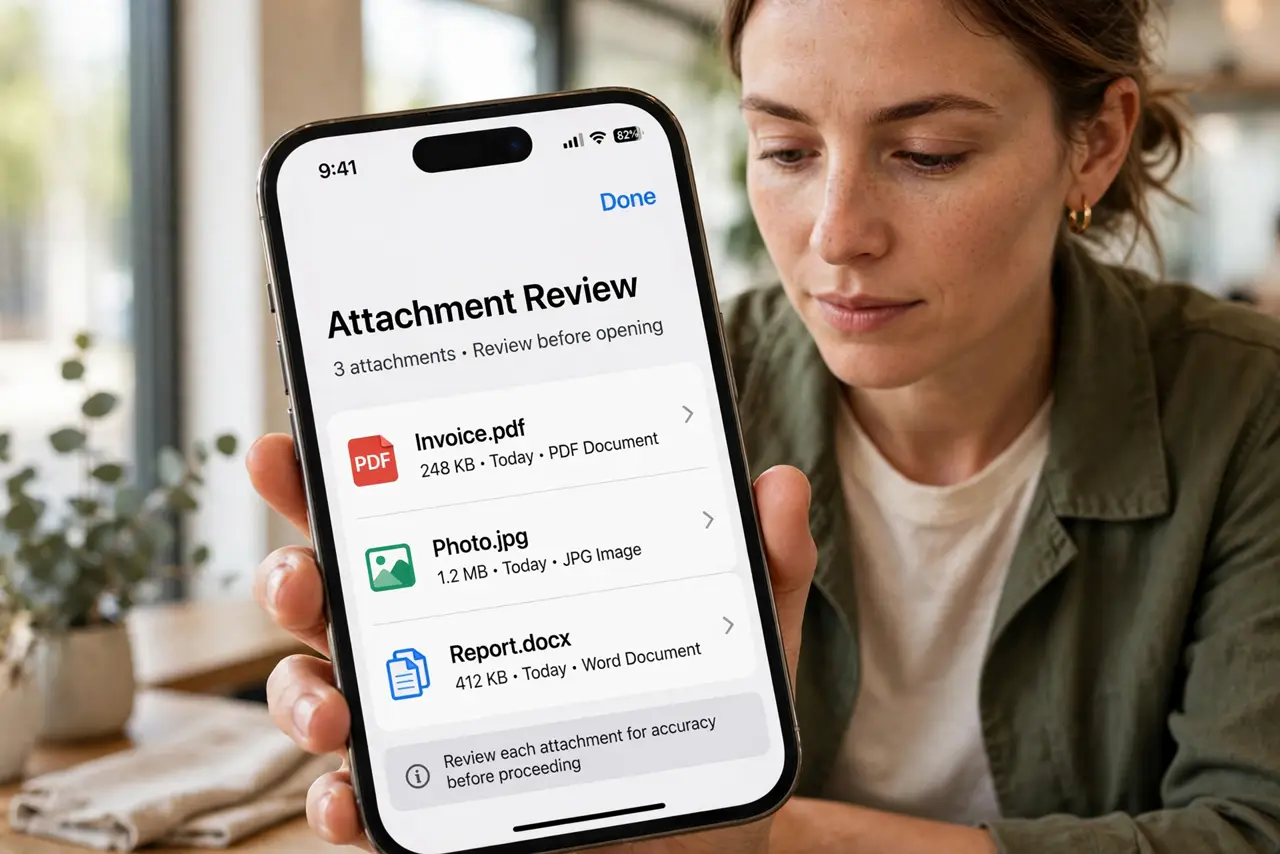
- Do not delete attachments you have not saved elsewhere. Messaging apps are often the only copy of shared family photos.
- Do not clear an entire conversation to save space. Deleting attachments selectively keeps the chat history intact.
- Do not forget voice notes. Long voice messages are surprisingly large — they hide in the audio section of the review.
- Do not assume cloud backup covers these. Some messaging backups exclude media by default — check before you purge.
Frequently asked questions
Will deleting attachments delete the conversation?
No. The chat text stays — only the photos, videos, and files you select are removed. The conversation looks the same, just without the media.
Why do attachments take so much space?
Every photo and video anyone sends you is stored on your phone, even ones you barely glanced at. Group chats multiply this fast.
Can I stop apps from saving everything automatically?
Yes — turn off auto-save or auto-download in each messaging app's settings so only what you choose gets stored.