Schedule a Text? How To
It is 2 a.m. and you finally remember the birthday message — but sending it now wakes someone up. Scheduled texts let you write the message now and have it send at a sane hour. Both iPhone and Android can do it, though the paths differ. Here is how to schedule a text so it arrives exactly when you mean it.
TL;DR / Quick Fix
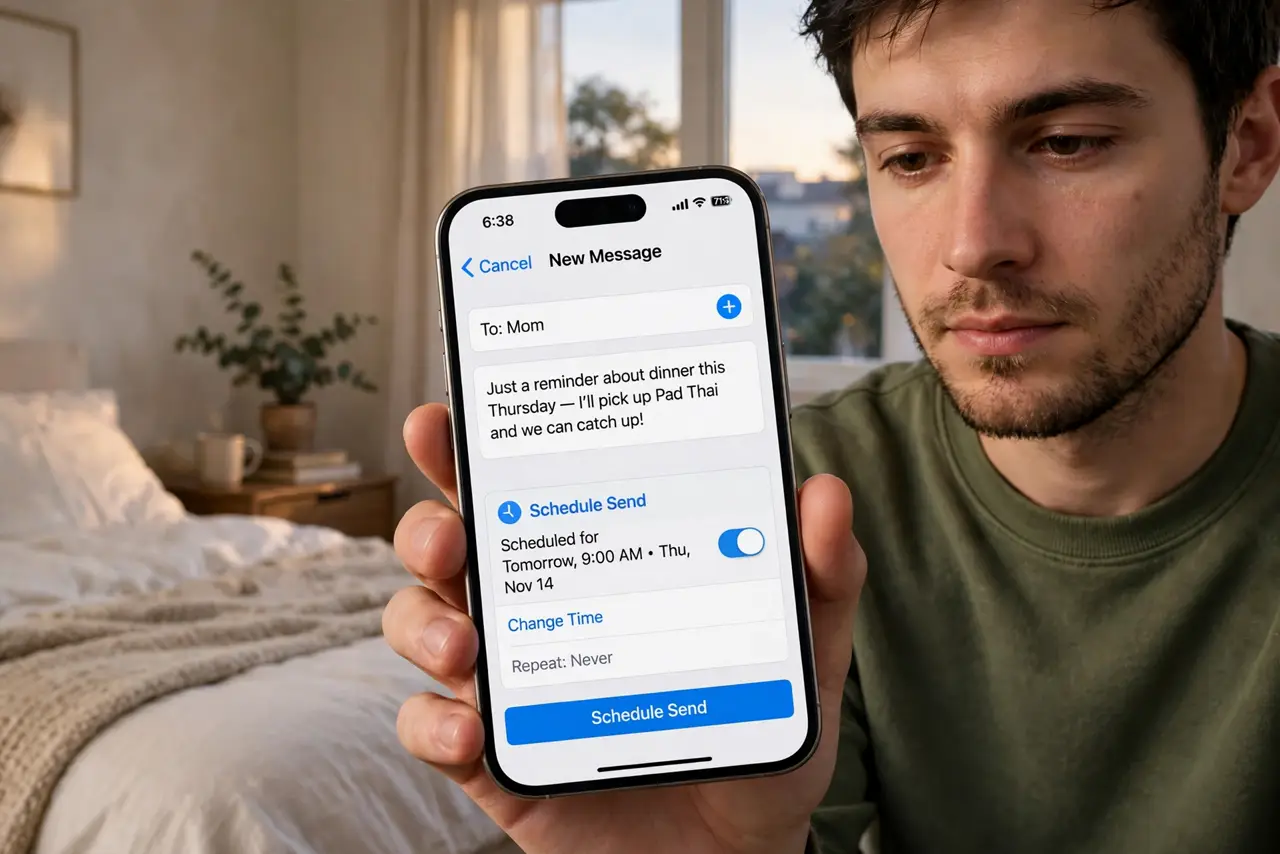
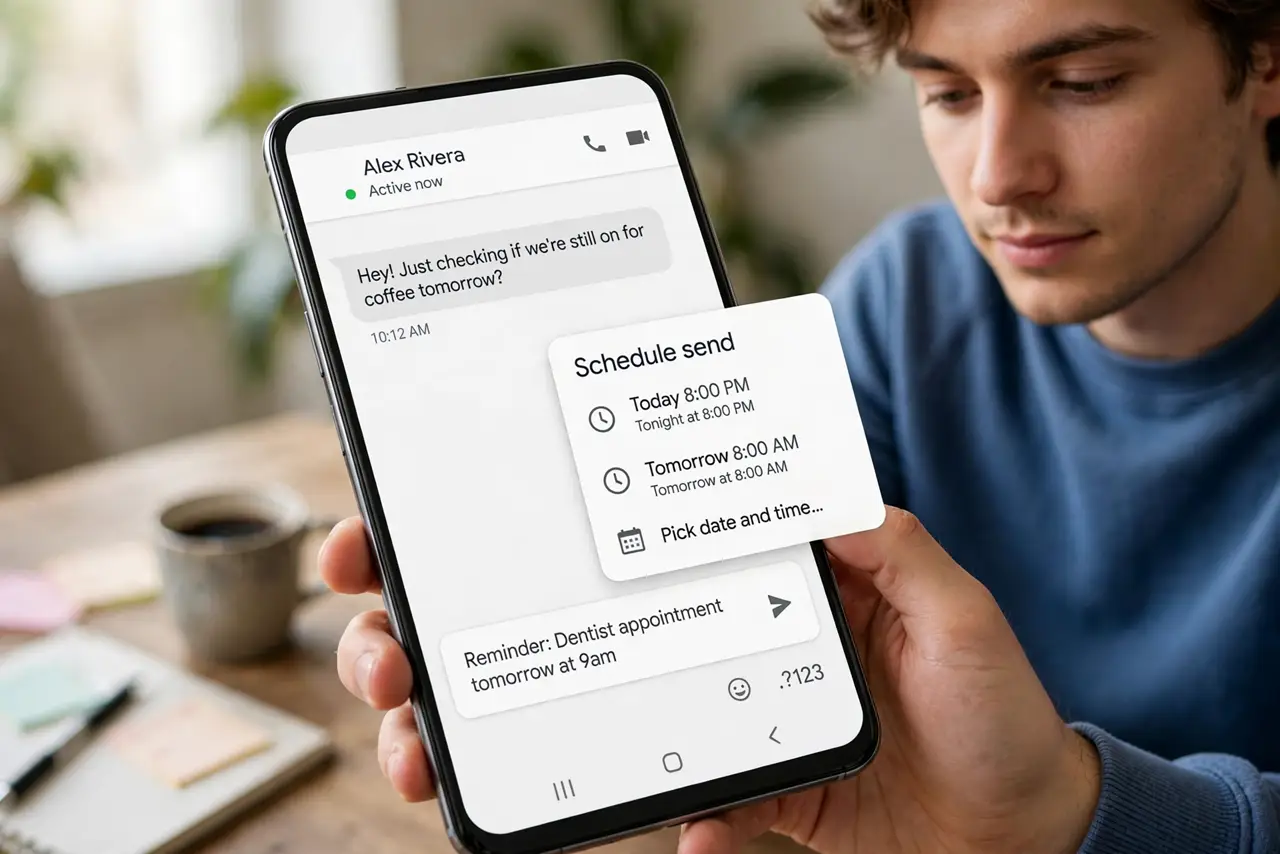
Quick fix: write the text now, send it later. On Android in Google Messages, long-press the send button and pick a date and time. On iPhone, use Send Later in Messages or a Shortcut automation. The message sends automatically at the chosen time — birthdays, reminders, business hours.
Follow these steps
- Schedule in Google Messages on Android. Type your message, then long-press the send button instead of tapping it. Pick a date and time from the scheduler. The message sits queued with a small clock icon until it sends.
- Schedule on iPhone with Send Later. In Messages, tap the plus button in a conversation and choose Send Later, then set the date and time. The message appears in the thread with a dashed outline until it sends. It works whether the thread sends as SMS or RCS.
- Use Shortcuts for recurring sends. For a weekly reminder text, build a simple automation in the Shortcuts app. One-time scheduling lives in Messages; repeating schedules live in Shortcuts.
- Double-check the time zone. A birthday text scheduled for 9 a.m. means 9 a.m. on your phone's clock. Traveling across zones? Verify which zone the schedule follows before relying on it.
- Edit or cancel before it sends. Scheduled messages can be edited or deleted from the thread until the send time. After it sends, it is a normal text — no take-backs.
- Keep the phone on and connected. Scheduled sends need the phone powered with signal at send time. A dead battery at 8:59 a.m. means the 9 a.m. text waits.
What NOT to do
- Do not schedule sensitive news by text. A scheduled breakup or firing text is still a breakup or firing text — call instead.
- Do not schedule and forget the context. Re-read before the send time — the situation may have changed since you wrote it.
- Do not rely on scheduling for true emergencies. Queued messages are not alarms; use a call for anything urgent.
- Do not schedule across a phone switch. Scheduled messages live on the device — a new phone will not send the old one's queue.
Frequently asked questions
Will the text send if my phone is off?
No. The phone must be on and connected at the scheduled time. If it is off, the message waits until the phone is back online.
Can the recipient tell it was scheduled?
No. It arrives as a perfectly normal text at the scheduled time — no 'scheduled' label on their end.
Can I schedule in WhatsApp?
Not natively. WhatsApp has no built-in scheduler — third-party apps claim to, but they need intrusive permissions. Stick to SMS/RCS scheduling.