Share Files Android to iPhone
AirDrop does not talk to Android, and Nearby Share does not talk to iPhone — the two platforms' tap-to-share features politely ignore each other. Moving photos or files between them needs a bridge both sides understand. The good news: several free bridges exist, and the simplest one needs no app at all.
TL;DR / Quick Fix
Quick fix: AirDrop and Nearby Share ignore each other, so use a bridge both phones understand — a messaging app you both have, a browser-based transfer page over shared Wi-Fi, or a shared cloud album. For full photo quality, send as a document or choose original quality, never MMS.
Follow these steps
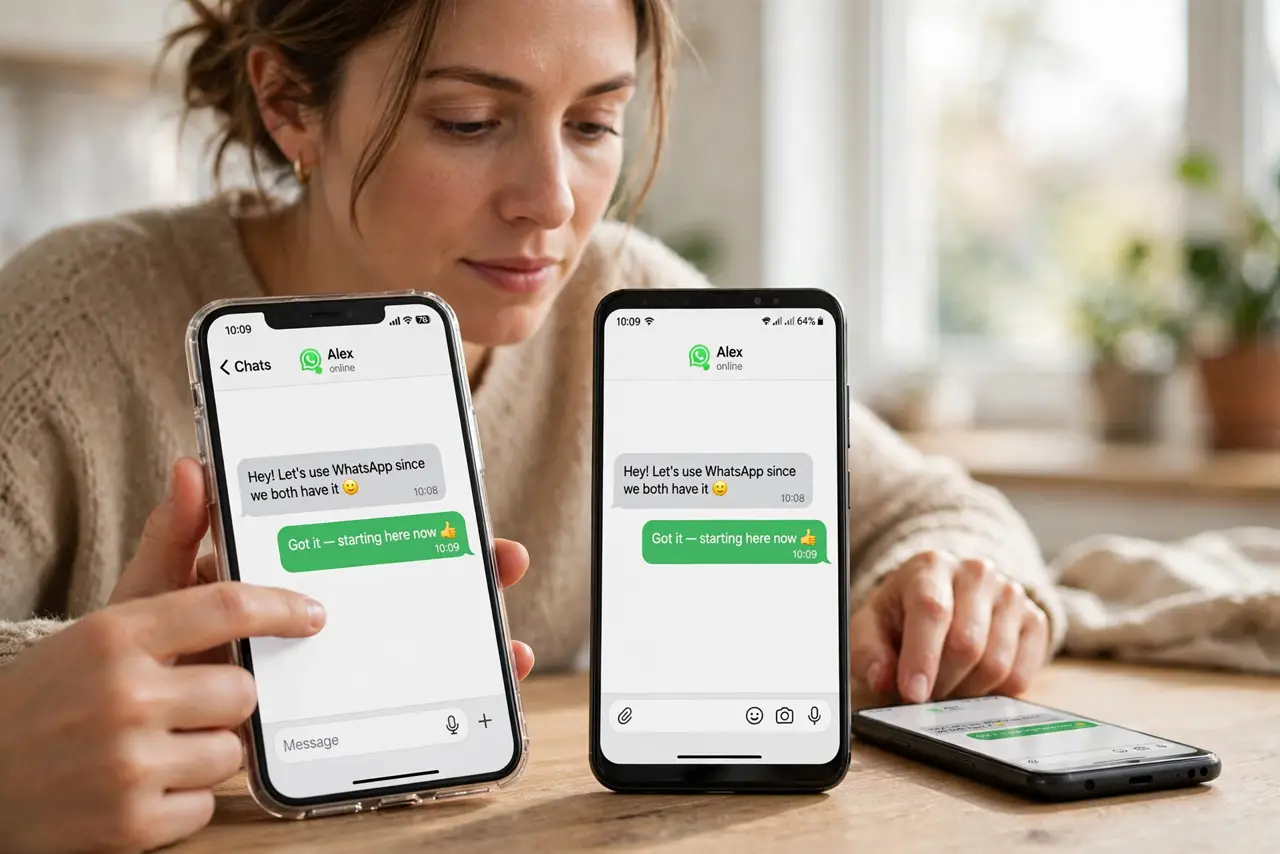
- Use a messaging app you both have. WhatsApp, Telegram, or Signal send photos, videos, and documents between Android and iPhone instantly. Watch for compression on photos — choose 'document' or HD send for full quality.
- Try a browser-based transfer page. Both phones open the same local transfer site over shared Wi-Fi — no accounts, no installs. One phone sends, the other downloads, and the files never leave your network.
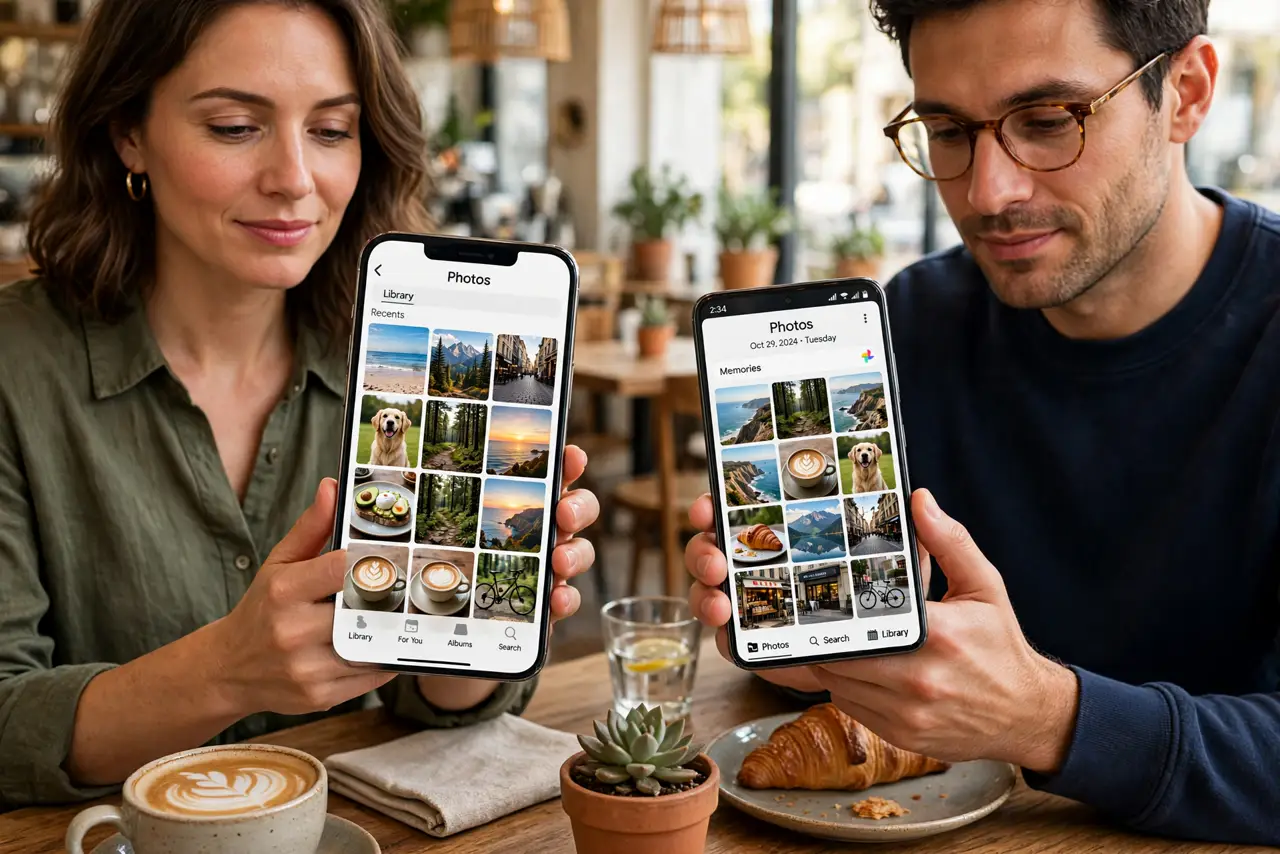
- Use a shared cloud album for photos. Google Photos shared albums open on both platforms. Upload from Android, open on iPhone — full quality if you pick original quality.
- Move big batches with a cable and a computer. For hundreds of photos, copy Android-to-computer then computer-to-iPhone. Slow to set up, but the most reliable for bulk moves.
- Use cloud storage as the neutral ground. Drop files in Google Drive, Dropbox, or iCloud (via icloud.com on Android). Either phone uploads, either phone downloads.
- Know what will not work. AirDrop is Apple-only and Nearby Share is Android-only — neither crosses the border, so do not waste time trying.
What NOT to do
- Do not install a random 'phone clone' app from ads. Many are adware or worse — stick to the big-name methods above.
- Do not send originals over MMS. Carrier picture messages compress photos brutally; use a data-based method for anything you care about.
- Do not assume Bluetooth file transfer works. iPhone's Bluetooth does not do general file exchange with Android — that path is a dead end.
- Do not share sensitive documents over an unknown transfer site. For private files, prefer your own cloud account or an encrypted messenger.
Frequently asked questions
What's the fastest way for a few photos?
A messaging app you both already have — send as documents for full quality. Under a minute, no setup.
Can I AirDrop from Android to iPhone?
No. AirDrop is Apple-proprietary. Android's equivalent cannot see iPhones either. Use a bridge method instead.
Will quality be lost?
Only if you let the app compress. Send as file/document, use original-quality cloud uploads, or use a cable — all preserve full quality.