'System Data' Huge? What It Is
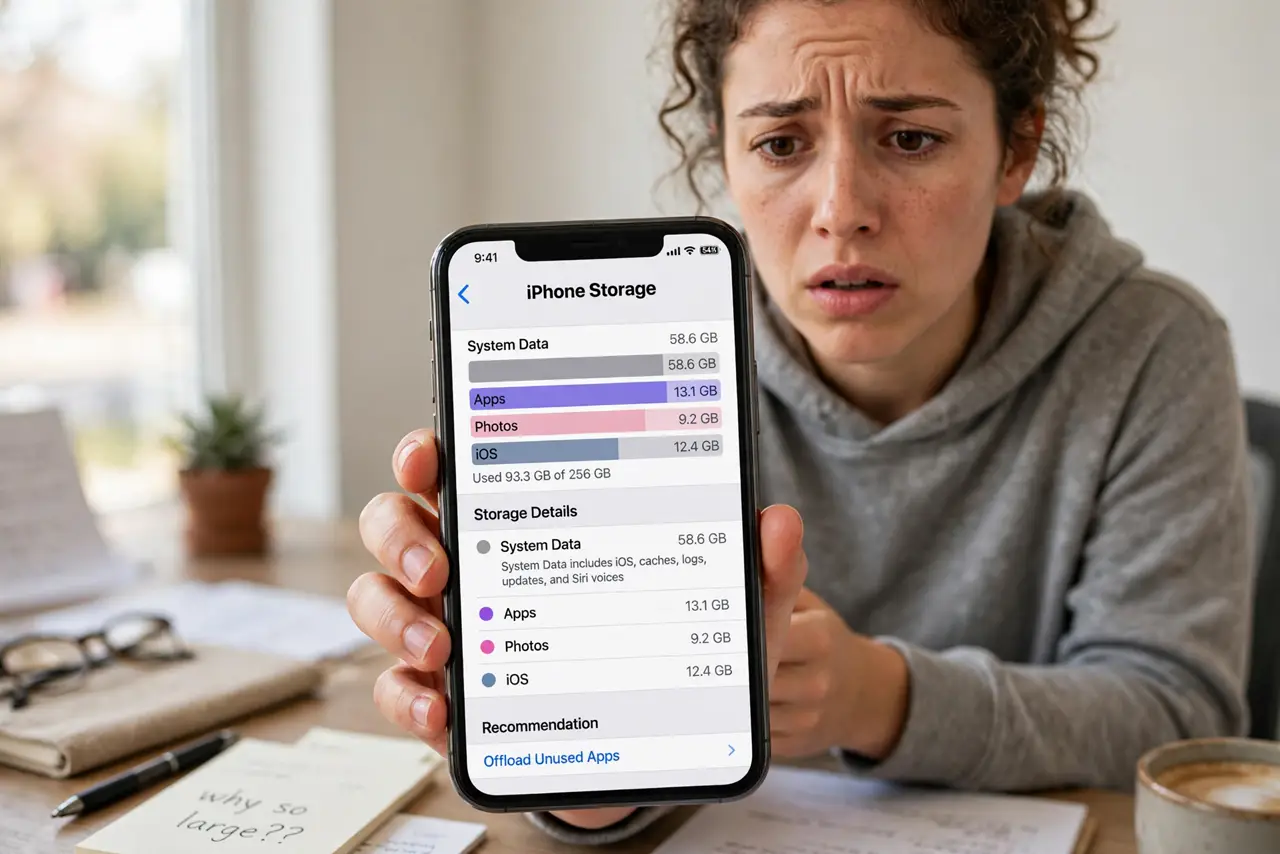
Your storage screen shows a giant gray bar labeled System Data — or just 'System' — eating tens of gigabytes, and there is no delete button for it. It looks like the phone is stealing your storage. It is not: System Data is mostly caches, logs, and temporary files the system manages itself. Here is what it really is and the safe ways to shrink it.
TL;DR / Quick Fix
Quick fix: System Data is mostly caches, logs, and temporary files — not a virus, and not directly deletable. Shrink it by updating the phone, clearing per-app caches, offloading bloated apps, and restarting. It often drops on its own after an update. Never factory-reset just for System Data.
Follow these steps
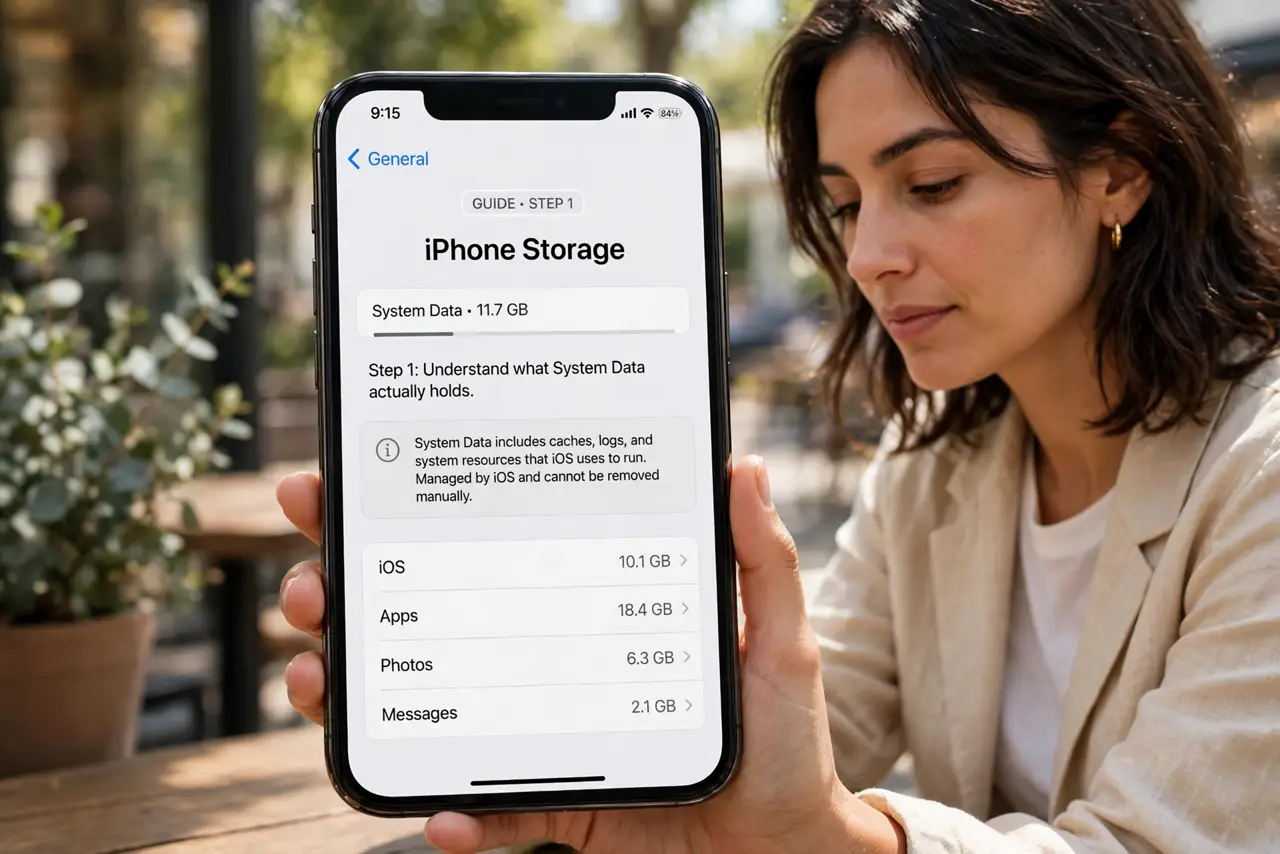
- Understand what System Data actually holds. It is caches, system logs, temporary files, Siri voices, dictionaries, and update staging files. It is legitimate system working space — the phone needs some of it, but it should not be enormous.
- Update the phone first. Pending or failed updates leave large staging files in System Data. Installing the latest update often clears them and the gray bar visibly shrinks afterward.
- Clear the biggest app caches. Bloated app caches feed System Data on some phones. On Android, clear caches per app; on iPhone, offload and reinstall the worst offenders — see clear cache per app for the Android route.
- Restart the phone. A restart lets the system flush temporary files and logs it was holding. It is the simplest shrink and costs nothing — try it before anything drastic.
- Offload the apps with huge 'Documents & Data.' On the iPhone storage list, an app whose data dwarfs the app itself is stuffing caches into System Data. Offloading and reinstalling it resets that bloat while keeping your account.
- Give it time after big changes. System Data often balloons temporarily during updates, restores, and photo library rebuilds, then settles down over a few days. If it is still huge after a week of normal use, then dig deeper.
What NOT to do
- Do not factory-reset just to shrink System Data. It regrows during normal use — you would wipe everything for temporary relief.
- Do not delete things at random hoping the gray bar shrinks. System Data is not tied to your photos or apps directly.
- Do not trust 'system cleaner' apps claiming to purge it. They cannot reach system storage and often install junk of their own.
- Do not confuse it with malware. A big System Data bar is normal system behavior, not an infection.
Frequently asked questions
Is System Data a virus?
No. It is the operating system's own working files — caches, logs, and temporary data. Phones do not get traditional viruses this way.
Why did System Data suddenly grow?
Usually an update staging files, a photo library rebuild, or an app caching aggressively. Check for pending updates and bloated apps first.
Can I delete System Data directly?
No — there is no delete button, by design. You shrink it indirectly: updates, cache clearing, restarts, and reinstalling bloated apps.