Voice Control? The Basics
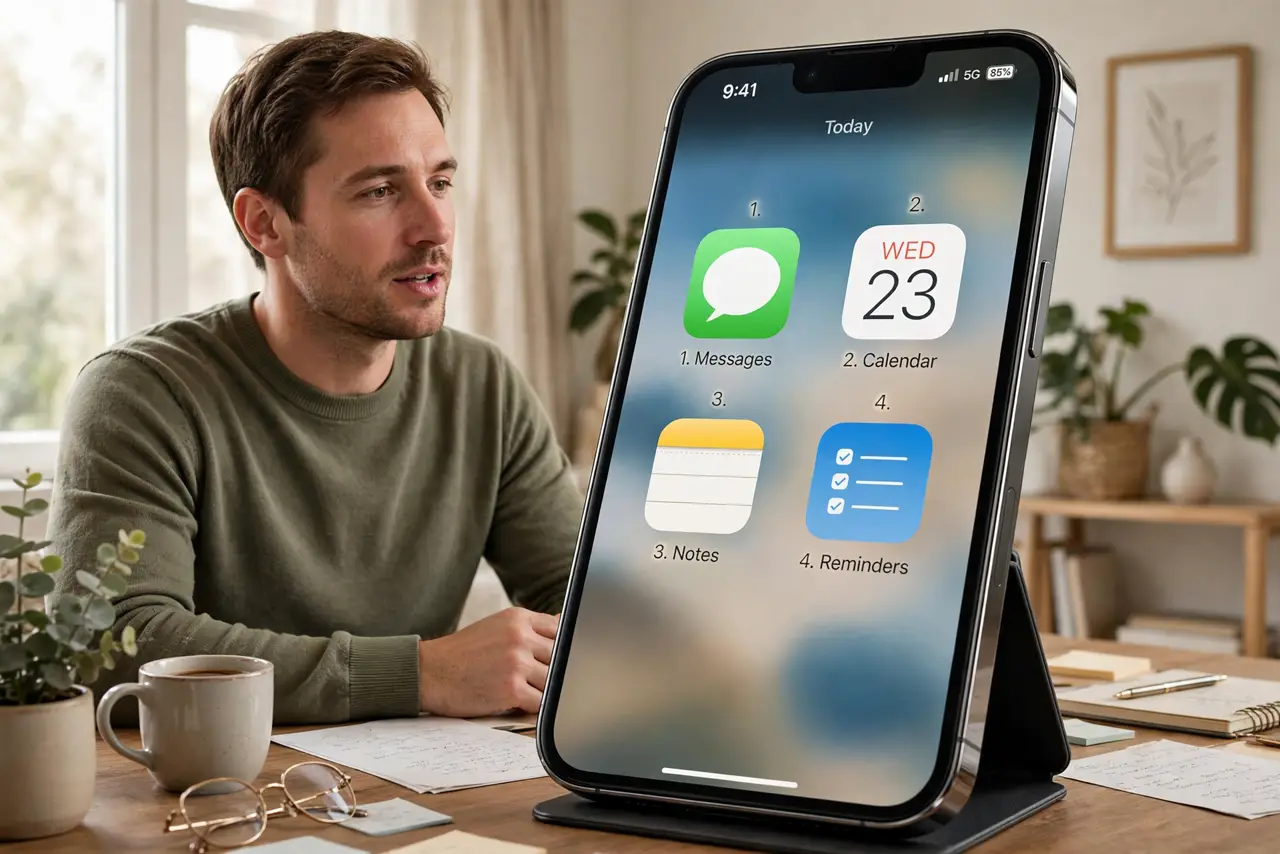
Controlling your phone entirely by voice — opening apps, tapping buttons, dictating text — sounds like science fiction until your hands are full, injured, or simply tired. Voice Control (iPhone) and Voice Access (Android) do exactly that, showing numbered labels on everything you can tap. Setup takes a few minutes; the learning curve is gentler than you would expect.
TL;DR / Quick Fix
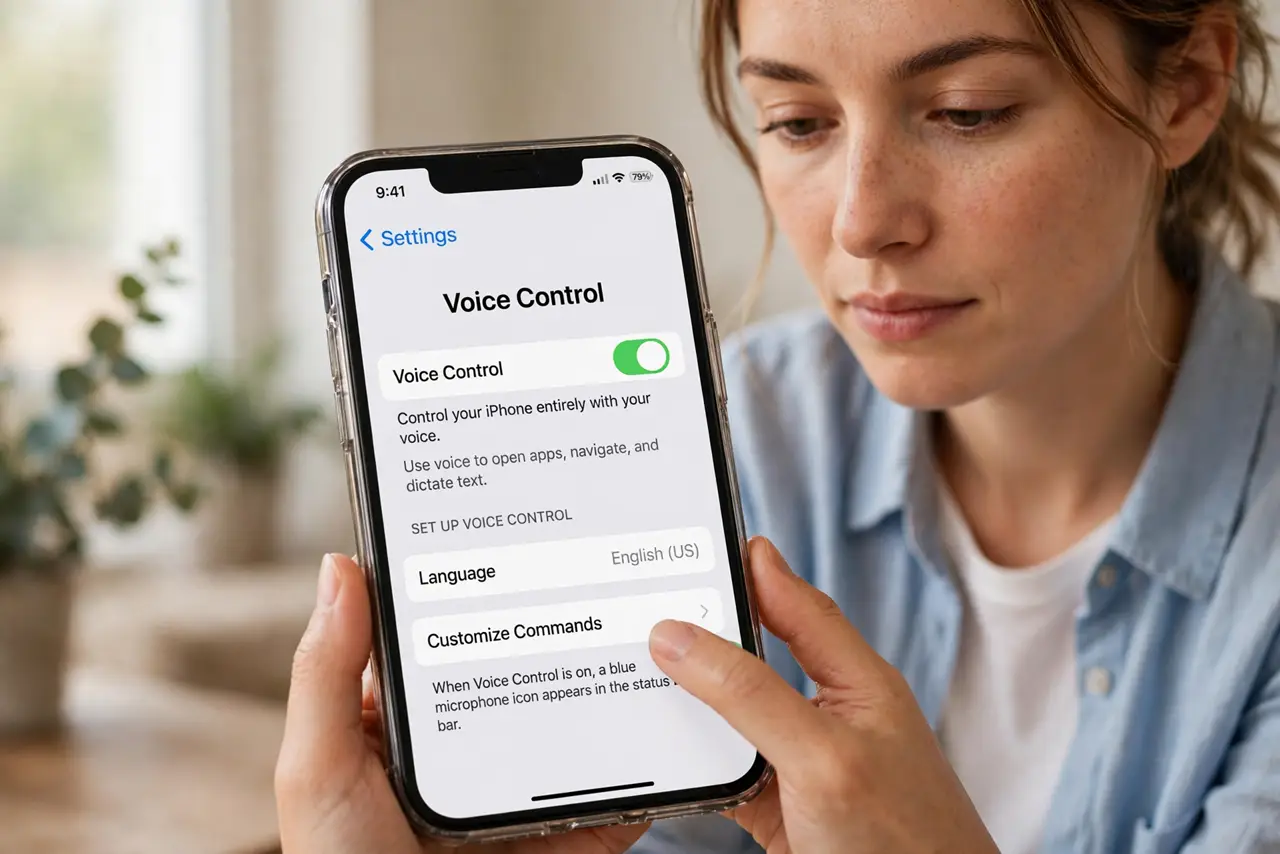
Quick fix: on iPhone open Settings, Accessibility, Voice Control, and turn it on — numbered labels appear on tappable items; say 'tap 4' or 'go home.' On Android open Voice Access, grant permissions, and say 'tap' plus the shown number. Train it somewhere quiet first.
Follow these steps
- Turn on Voice Control on iPhone. Go to Settings, then Accessibility, then Voice Control, and enable it. A microphone icon appears in the status bar, and tappable items gain numbered badges.
- Learn the core commands. Say 'show numbers' to label everything, then 'tap' plus a number. 'Go home,' 'go back,' and 'scroll down' handle navigation — the on-screen command list teaches the rest.
- Set up Voice Access on Android. Open the Voice Access app, complete its tutorial, and grant the accessibility permission it needs. It works like the iPhone version with its own command set.
- Train it in a quiet room first. Recognition is dramatically better without background noise. Do one full setup session somewhere quiet before relying on it in the wild.
- Use dictation mode for text. Say 'dictate' (iPhone) or start talking in a text field (Android) to speak messages. Say 'stop dictation' when done — do not just go silent and hope.
- Customize the vocabulary. Both systems let you add custom words and commands for names and jargon they keep mangling. Five minutes here saves daily frustration.
What NOT to do
- Do not confuse Voice Control with Siri or Google Assistant. Assistants answer questions; Voice Control presses the phone's buttons for you — different tools.
- Do not enable it in a noisy cafe and declare it broken. Background chatter wrecks recognition; test somewhere quiet first.
- Do not grant its permissions to a random third-party 'voice control' app. Use the built-in feature — it is safer and better integrated.
- Do not expect perfection with strong accents on day one. Both systems adapt with use; the first session is always the worst.
Frequently asked questions
Can it unlock my phone?
On iPhone, Voice Control can work from the lock screen if you allow it — handy, but consider who else is in the room before enabling that.
Does it work without internet?
iPhone's on-device recognition handles basic commands offline. Android's Voice Access needs a connection for full accuracy.
Is it always listening?
Only while the feature is on. Turn it off from Settings (or its own voice command) when you want guaranteed silence.