Widget Stacks? How To
You want the calendar, the weather, and the headlines on your home screen — but three widgets eat the whole page. Widget stacks pile multiple widgets into one slot: swipe through them like a deck of cards, or let the phone rotate the smartest one to the top automatically. Here is how to stack them.

TL;DR / Quick Fix
Quick fix: stack widgets to fit several into one home screen slot. On iPhone, drag one widget onto another of the same size — they merge into a stack you swipe through. Long-press the stack to reorder or enable Smart Rotate. On Android, check your launcher's widget options for stacking.
Follow these steps
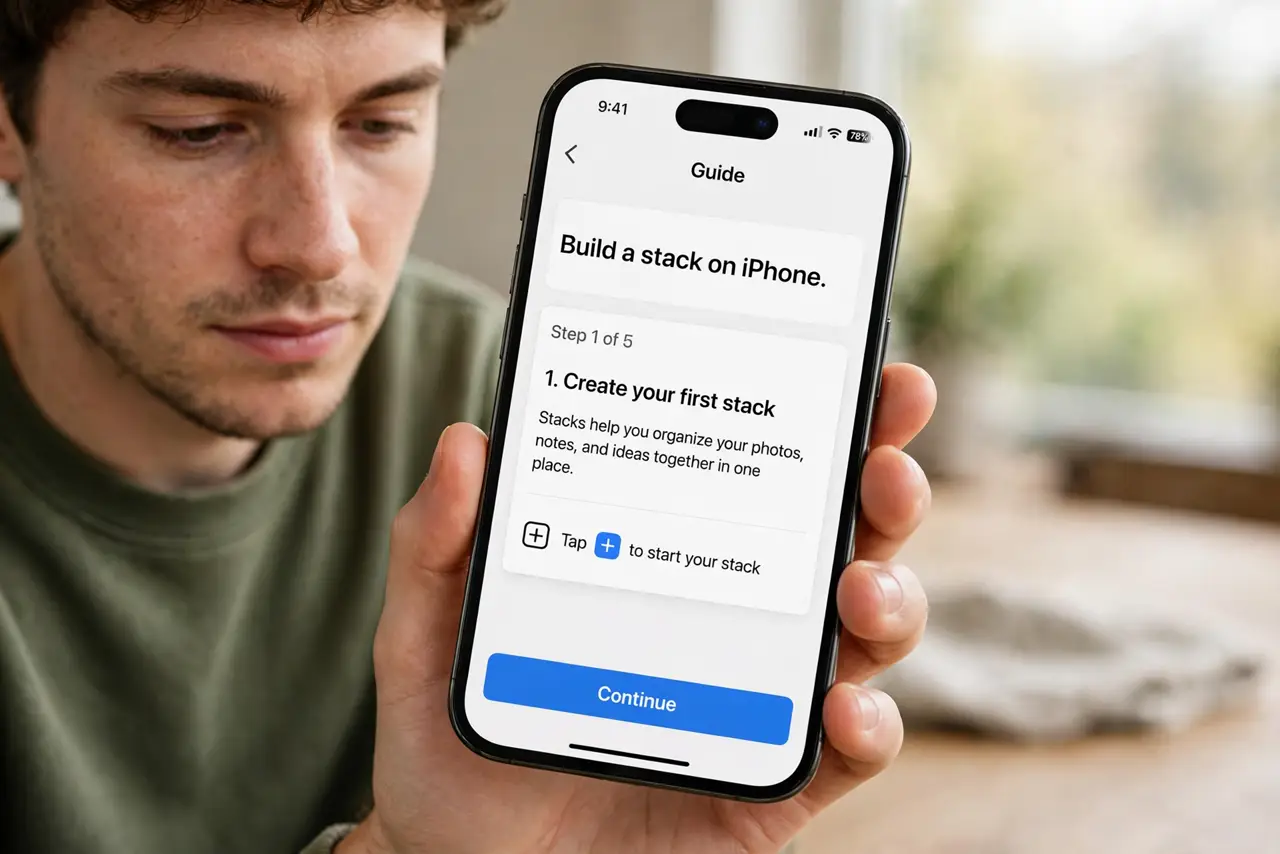
- Build a stack on iPhone. Long-press the home screen, drag a widget onto another widget of the same size, and drop — they merge into a stack. Up to ten widgets can share one slot.
- Swipe through the stack. Swipe up or down on the stack to flip through its widgets. The dots on the side show your position — it behaves like a tiny deck of cards.
- Enable Smart Rotate. Long-press the stack > Edit Stack > turn on Smart Rotate. The iPhone surfaces the most relevant widget by time of day — calendar in the morning, for example. It learns your routine.
- Reorder or remove from the stack. Long-press > Edit Stack, then drag to reorder or swipe to delete a widget from the stack. Removing from the stack does not delete the app — just the widget instance.
- Stack on Android. Support varies: some launchers stack natively by dragging widgets together; others need a dedicated stack widget. Check your launcher's long-press menu — the feature is spreading fast.
- Keep stacks shallow. Three to five widgets per stack is the sweet spot. Ten deep, and you will never swipe past the third — the bottom widgets become decoration.
What NOT to do
- Do not stack ten widgets. Depth beyond five means the bottom ones never get seen — split into two stacks instead.
- Do not stack different sizes. Stacks require same-size widgets — mismatched sizes refuse to merge.
- Do not rely on Smart Rotate for critical info. It guesses well but not perfectly — keep truly essential widgets unstacked and visible.
- Do not forget stacks need space. A stack still occupies its full slot — plan the home screen layout around it. If the page gets crowded, hide a whole home screen page instead of deleting widgets you use.
Frequently asked questions
How many widgets can I stack?
Up to ten on iPhone. Practical advice: keep it to three to five, or the deep ones never get viewed.
What is Smart Rotate?
The iPhone automatically shows the most relevant widget in the stack based on time, location, and activity — calendar mornings, music when headphones connect.
Do stacked widgets drain battery?
Slightly more than one widget, since each updates on its own schedule. Keep update-heavy widgets out of stacks you rarely swipe through.