Strip Location From Photos Before Sharing? How To
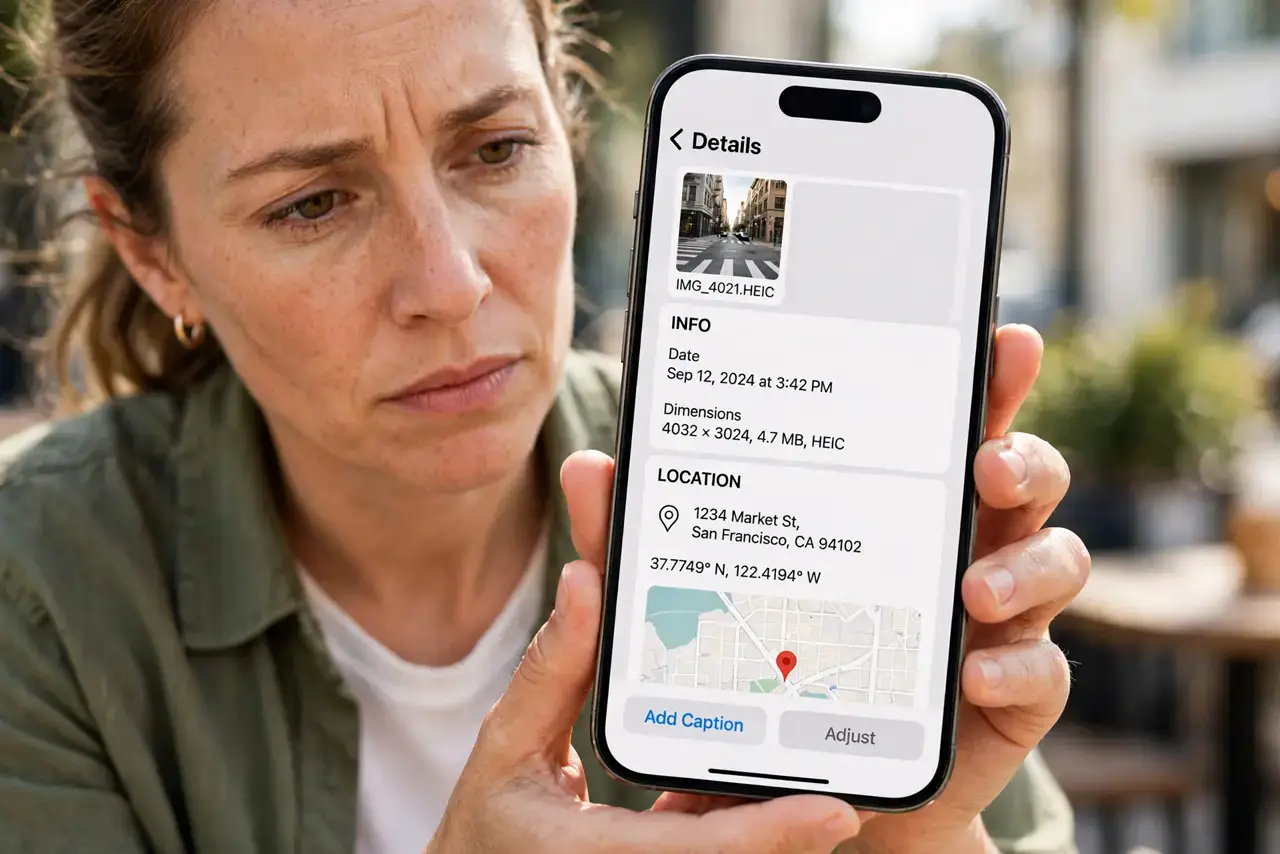
Every photo your phone takes hides metadata — the exact GPS location, the time, and your device model — inside the file. Share the photo and you share that data too, which is why geotagged kid photos are such a risk. This guide shows how to strip location data before a photo leaves your phone.
TL;DR / Quick Fix
Quick fix: before sharing a sensitive photo, remove its location data — on iPhone use the share sheet's Options to toggle Location off, on Android use a metadata-removal app. Better still, turn off geotagging in your camera settings so future photos never carry location at all.
Follow these steps
- See the hidden data first. On iPhone, swipe up on a photo to see its map location. On Android, open the photo's details. Seeing the exact pin on your home is usually convincing enough.
- Strip location on iPhone before sharing. Tap Share, then Options at the top, and toggle Location off. That single share goes out clean while your original keeps its data.
- Use a metadata app on Android. Android's share sheet varies by brand, so a free EXIF-removal app gives you a reliable one-tap clean before you post or send.
- Turn off geotagging in the camera. Open your camera settings and disable location tags. Photos taken afterward carry no GPS data at all — the simplest permanent fix.
- Check cloud backups too. Stripped shares do not clean the originals in cloud photo backup. If your concern is the cloud copy, adjust those settings separately.
- Warn family members who share. One careful person cannot fix a group chat. Show relatives how to strip location once, so birthday photos stop broadcasting addresses.
What NOT to do
- Do not assume screenshots are clean. Screenshots usually carry no GPS data, but screen recordings and originals from other people might.
- Do not trust every messaging app to strip metadata. Some strip it, some do not, and their behavior changes — strip it yourself before sending.
- Do not post originals straight from the camera roll to marketplaces or forums. Strangers do not need the coordinates of your driveway.
- Do not forget videos. Video files carry the same GPS metadata as photos and are even easier to overlook.
Frequently asked questions
What is EXIF data?
It is metadata embedded in every photo: GPS coordinates, date and time, camera model, and settings. It travels with the file unless removed.
Does turning off location services stop geotagging?
Only if the camera loses location access. The reliable switch is the camera app's own 'location tags' setting — turn that off directly.
Can someone recover stripped location data?
No. Once the GPS fields are removed from a copy, that copy no longer contains them. Keep your originals backed up separately.
What to read next
- Kids' Photos Carry Location? Check This
- Cloud Photo Backup Syncing Private Photos? Check