Photos App Duplicates Pictures? Clean Up the Library
The same photo appears twice in your library, and the collection feels twice as big as it should. Duplicate folders, repeated imports, and cloud plus local copies are the usual causes. Find the source before deleting anything.
TL;DR / Quick Fix
Quick fix: check which folders the photos app watches, and remove any folder listed twice or overlapping another. Then delete only exact duplicate copies, keep the best version, and import new photos once from a single source only, and refresh the library afterwards.
Follow these steps
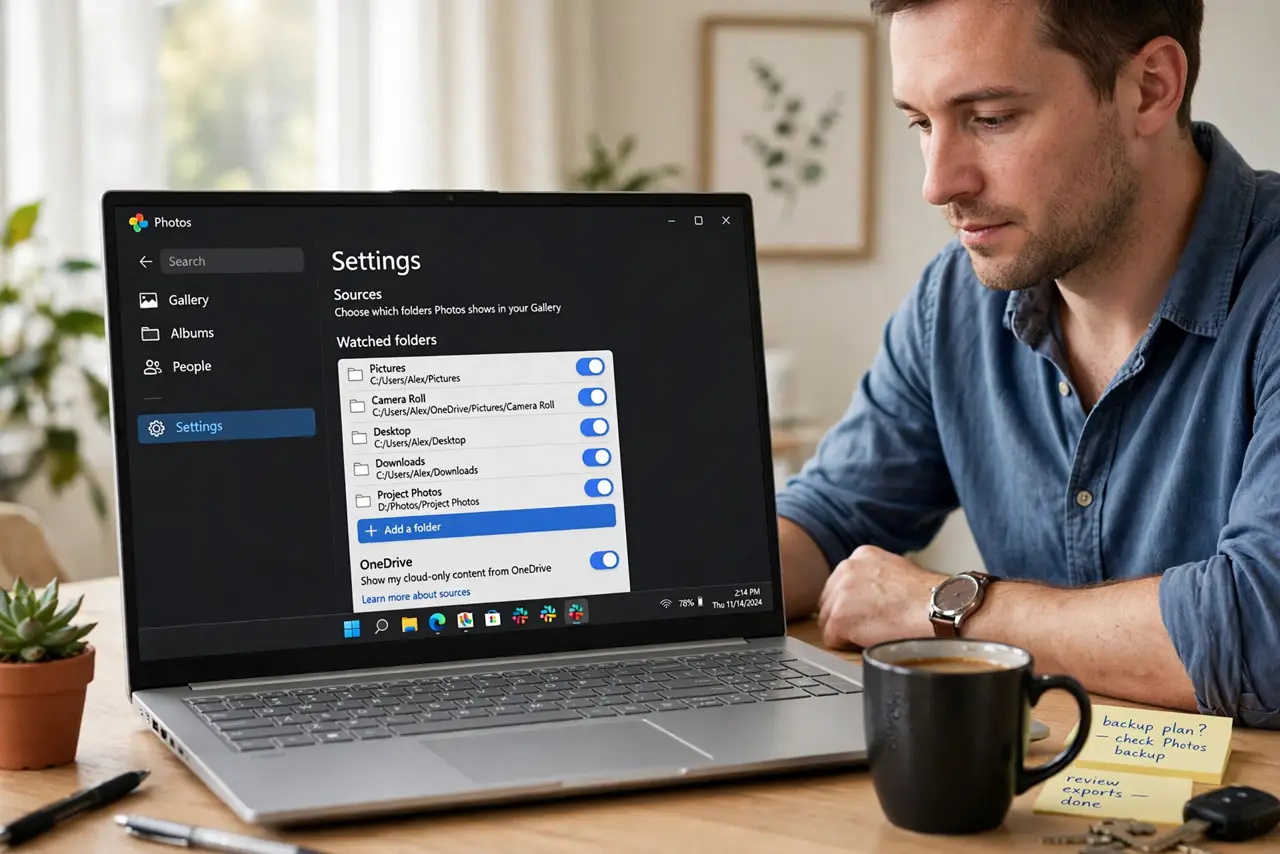
- Check which folders the app watches. Open the photos app settings and list its watched folders. A folder listed twice, or a parent and child folder both listed, shows every photo twice.
- Remove overlapping folders. Remove the duplicate or overlapping folder from the watched list, keeping the single folder that actually holds the pictures. The library should shrink on the next refresh.
- Find the real file locations. For a duplicated photo, check its file details to see where each copy lives. Two copies in different folders are real duplicates, while one file shown twice is a library listing problem.
- Delete only exact duplicates. Delete copies that are identical in content and quality, keeping the best version. When two copies differ, keep the sharper or more complete one.
- Stop double imports. Import new photos from a single source and a single folder from now on. Importing the same card or phone twice recreates the whole problem.
- Refresh the library and recount. Refresh the photos library and check a known duplicated photo. A single appearance after refresh proves the source fix worked.
What NOT to do
- Do not delete duplicates before checking watched folders. Deleting first leaves the overlapping folder in place, so the next refresh can show duplicates again.
- Do not delete from two folders at once. Confirm which copy is the keeper first, or you can delete both copies of a photo you wanted.
- Do not import the same photos again to test the fix. A test import of already-imported photos creates fresh duplicates and muddies the result.
- Do not empty the recycle bin immediately after cleanup. Keep deleted copies recoverable for a day, in case a keeper was removed by mistake.
Frequently asked questions
Why does one photo appear twice?
Either two real copies exist in different folders, or the app watches overlapping folders and lists one file twice. File details tell you which case it is.
Are duplicates wasting disk space?
Only if two real copies exist. A single file listed twice wastes no extra space, while two copies do, so check file locations first.
How do I stop future duplicates?
Watch a single folder per collection, and import each photo source only once. Consistent import habits prevent most duplicates.