Pick a Docking Station
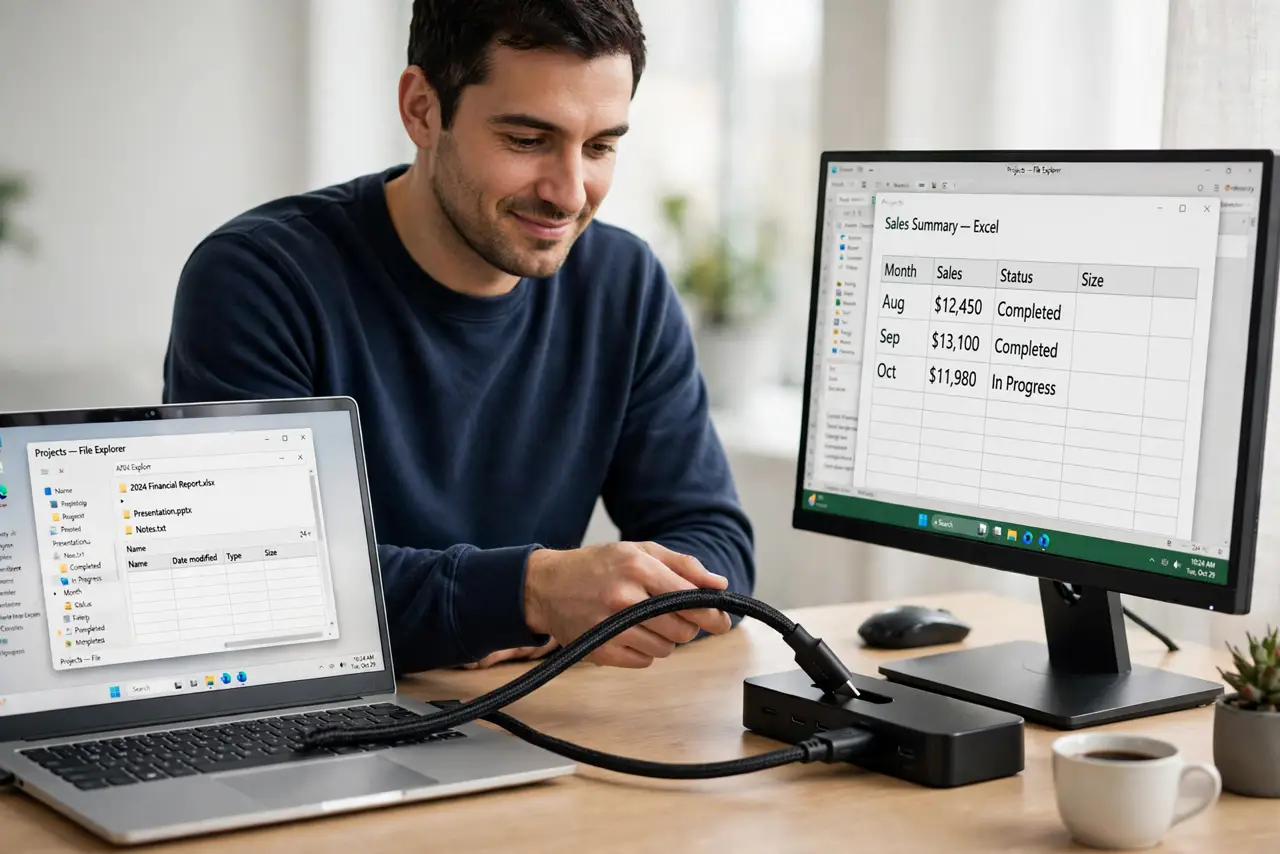
You arrive at your desk, plug in one cable, and the monitor lights up, the keyboard works, the laptop charges, and the network connects. That is the docking-station dream — and the nightmare version is a dock that flickers the monitor, charges too slowly, or needs three support calls. Picking right comes down to matching the dock to your laptop's port and your monitor's appetite.
TL;DR / Quick Fix
Quick fix: a docking station turns one cable into monitor, charging, network, and USB — but only if its video ports, power wattage, and your laptop's USB-C capabilities match. Confirm your laptop's port supports video output, buy enough charging watts, and check the dock drives your monitor's resolution.
Follow these steps
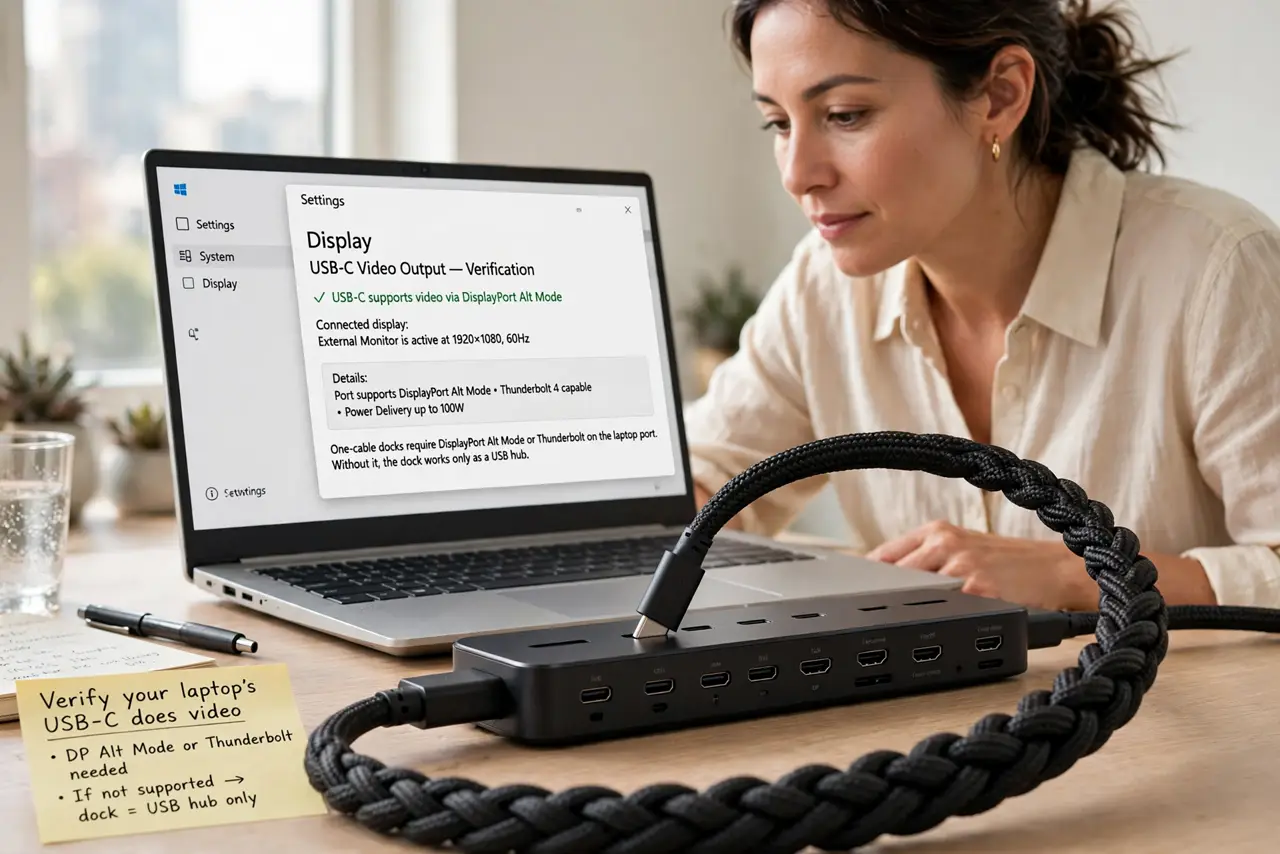
- Verify your laptop's USB-C does video. One-cable docks need DisplayPort Alt Mode or Thunderbolt on the laptop port. Without it the dock becomes an expensive USB hub — check the laptop specs before anything else.
- Count the watts. The dock must supply at least your laptop's charger wattage. A 65W dock on a 90W laptop means the battery drains during heavy work — the most common dock disappointment.
- Match the monitor connection. Check the dock's video outputs against your monitor's inputs and resolution. Dual 4K needs far more bandwidth than one 1080p — see the one-cable checklist for the details.
- Prefer Thunderbolt for heavy setups. Thunderbolt docks carry more bandwidth for dual high-res monitors and fast storage. For a single 1080p screen, a plain USB-C dock is plenty and much cheaper.
- Check the Ethernet situation. If you want wired networking through the dock, confirm it has a real Ethernet port — many slim docks skip it, and USB network adapters are a clunky substitute.
- Read reviews for your exact laptop. Docks are finicky about firmware pairings. A dock with glowing reviews can still misbehave with your specific model — search reviews mentioning your laptop by name.
What NOT to do
- Do not buy the cheapest dock for a dual-4K setup. Bandwidth is physics; under-spec docks flicker, drop, or silently downgrade your monitors.
- Do not ignore the power math. 'Charges via USB-C' means nothing if the watts do not cover your laptop under load.
- Do not assume all USB-C ports are equal. A data-only port will never drive the dock's monitor outputs, whatever the marketing says.
- Do not skip the firmware update. Dock makers fix the weirdest bugs in firmware — update it on day one before judging the hardware.
Frequently asked questions
Can a dock replace my laptop charger?
Yes, if its wattage meets or beats your charger's. Many people leave the original charger in their bag and live on the dock.
Why does my monitor flicker through the dock?
Almost always bandwidth or a marginal cable. Try the monitor direct to the laptop — if that is clean, the dock or its cable is the weak link.
USB-C dock or Thunderbolt dock?
Single 1080p/1440p screen and basic peripherals: USB-C is fine. Dual 4K, fast storage, or daisy-chaining: pay for Thunderbolt.