Ping Looks Good but the Game Rubber-Bands
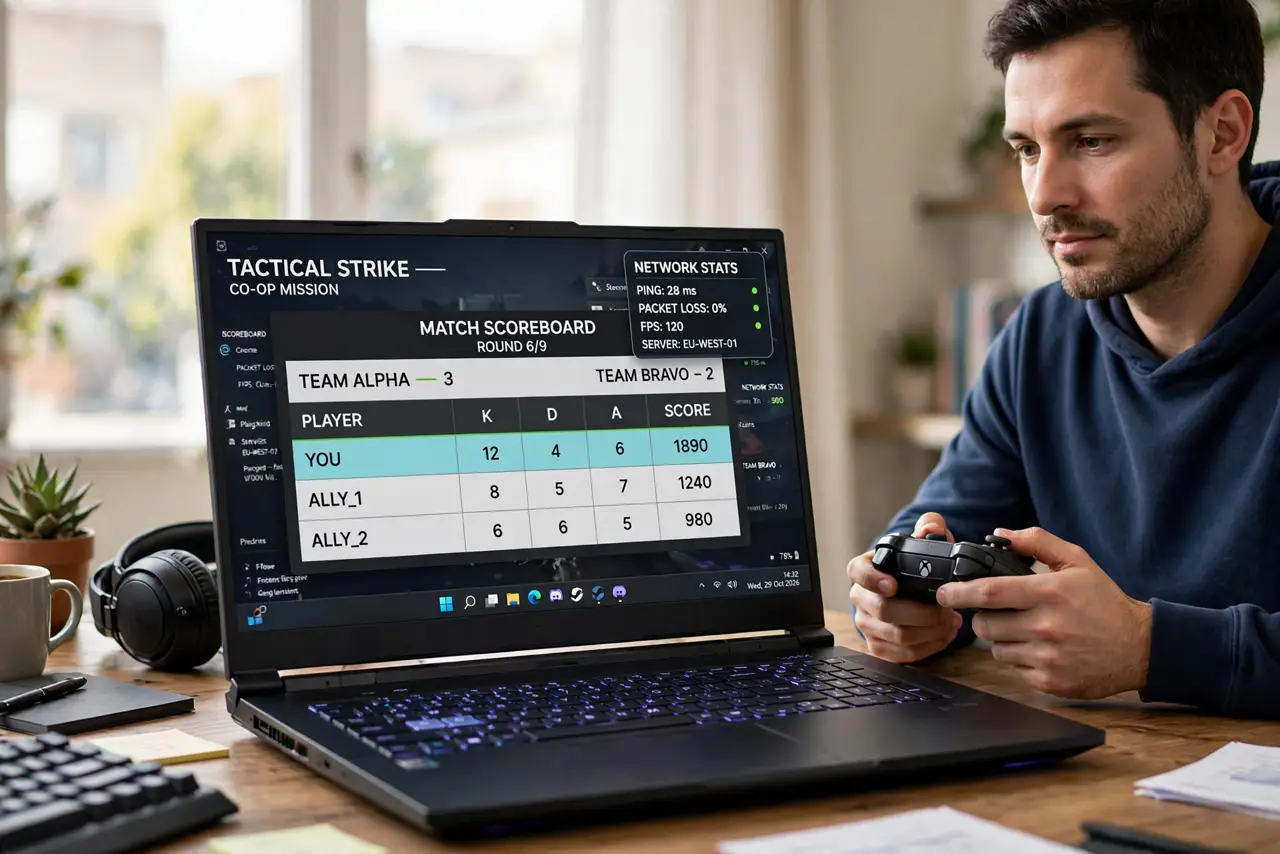
Your ping number looks fine, yet your character snaps back and forth across the map. Ping averages over time, while rubber-banding comes from jitter, the spikes that an average hides.
TL;DR / Quick Fix
Quick fix: connect the gaming device to the router with a cable instead of Wi-Fi, since cable kills most jitter. Then close other apps and streams, pick a game server closer to you, and check whether the rubber-banding stops for good.
Follow these steps
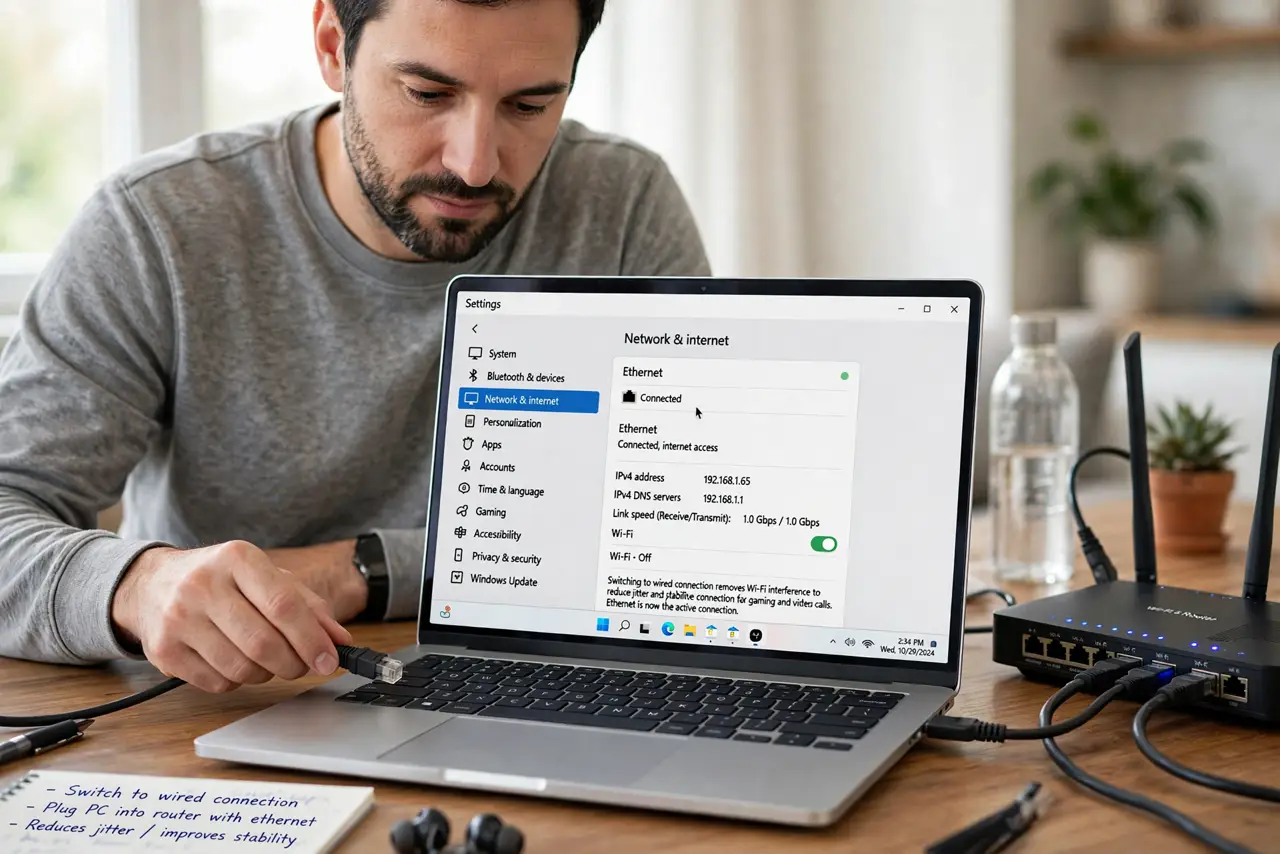
- Switch to a wired connection. Plug the console or PC into the router with an ethernet cable. Cable removes the Wi-Fi interference that causes most jitter, even when average ping looks good.
- Close everything else on the network. Stop streams, downloads, and cloud backups while you play. A download starting mid-match creates the exact spikes that snap your character backwards.
- Pick a closer game server. Choose a server in your region in the game's settings. A closer server shortens the path, which shrinks both ping and the spikes that cause rubber-banding.
- Check ping over time, not one number. Watch the ping graph for a minute instead of reading one value. Spikes to high numbers between fine readings explain rubber-banding that a single number hides.
- Restart the router before a session. Restart the router once before you play. A router that has run for weeks can develop the small hiccups that show up as jitter in games.
- Test at a quiet hour. Play once when nobody else is home. If the game runs smoothly then, your own network traffic is the cause, not the game's servers.
What NOT to do
- Do not trust a single ping number. Averages hide the spikes that cause rubber-banding, so watch the ping over time.
- Do not buy a faster plan to fix jitter. Jitter comes from interference and congestion, and a faster plan does not remove either.
- Do not game on Wi-Fi next to a microwave or thick walls. Those create the interference spikes, so cable or a better position fixes more than settings.
- Do not blame the game server first. Test wired, at a quiet hour, on a close server before deciding the servers are at fault.
Frequently asked questions
Why does my game rubber-band with good ping?
Because the average ping hides spikes, called jitter, and those spikes are what snap your position back.
Does a cable really help gaming?
Yes. Cable removes Wi-Fi interference, which is the most common source of jitter at home.
Is the game server the problem?
Sometimes, but test your own setup first, since home Wi-Fi and network traffic cause most rubber-banding.