Port Forwarding Basics
Port forwarding tells your router to send incoming traffic on a specific port straight to one device — the trick behind hosting a game server, reaching a home camera remotely, or running a media server. It is powerful and slightly risky, so this guide covers the safe setup plus when your provider blocks it entirely.
TL;DR / Quick Fix
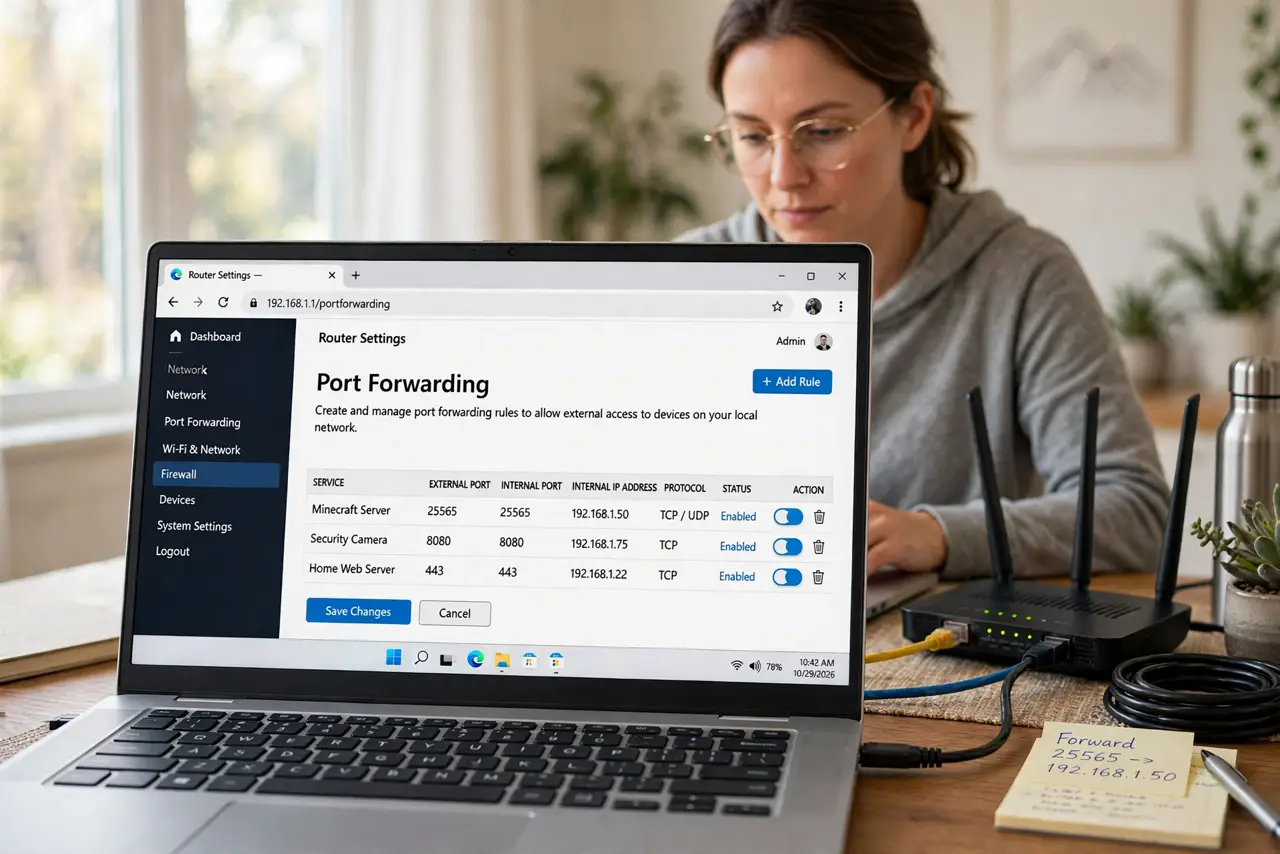
Quick fix: port forwarding opens a door in your router so an outside device can reach one device inside your network — gamers and cameras use it most. Forward only the port you need, and only to the device that needs it. Close rules you no longer use.
Follow these steps
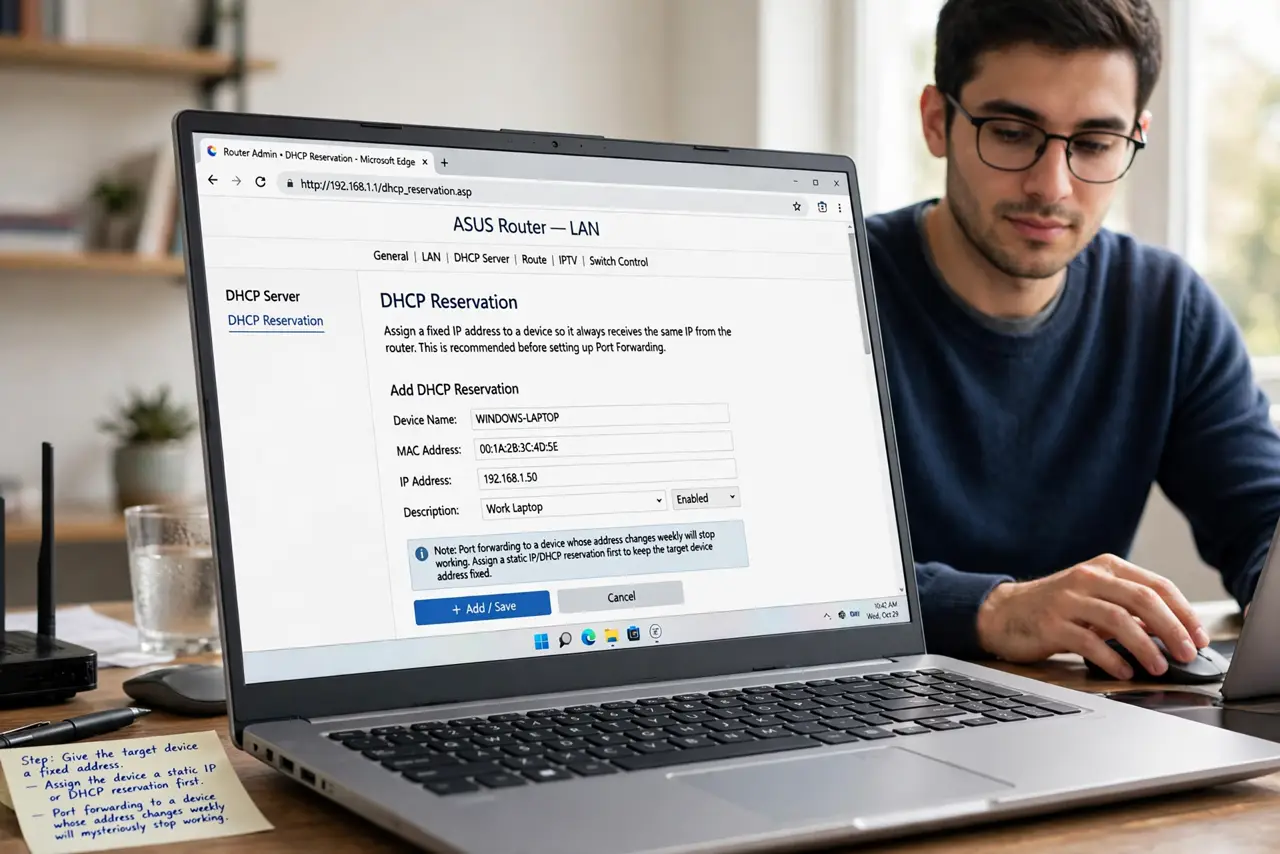
- Give the target device a fixed address. In your router, assign the device a static IP or DHCP reservation first. Port forwarding to a device whose address changes weekly will mysteriously stop working.
- Open your router's port forwarding page. Log in to the router and find Port Forwarding or Virtual Server, usually under Advanced or NAT settings. The exact name varies by brand, but every consumer router has it.
- Create one rule for the port you need. Enter the port number the app or game requires, choose TCP, UDP, or both as its documentation says, and point it at the device's fixed address. One rule per service — no more.
- Forward only what you need. Every open port is a door into your network. Open exactly the ports your app needs and nothing else — a game console setup needs far fewer ports than people assume.
- Test from outside your network. Check the service from your phone with Wi-Fi off, or ask a friend to connect. Testing from inside your own network can falsely succeed even when the rule is wrong.
- Remove rules you stop using. When you stop hosting the server or the camera moves on, delete the rule. Old forgotten forwards are the most common way home networks stay exposed.
What NOT to do
- Do not forward ports to a device you do not keep updated. An exposed, unpatched device is an invitation.
- Do not use DMZ mode instead of forwarding. DMZ exposes the whole device — forwarding exposes one port.
- Do not forward the router's own admin port to the internet. That hands strangers your router's login page.
- Do not assume forwarding fixes everything. If your provider uses CGNAT, no router setting will open the port — call them first.
Frequently asked questions
Is port forwarding dangerous?
It increases exposure, but one carefully chosen port to an updated device is a manageable risk. The danger comes from forwarding many ports, or forwarding to devices you never update.
Why does my forwarded port still show as closed?
Common causes: the device's firewall blocks it, the IP address changed, the app is not actually running, or your provider uses CGNAT. Check each in order before changing the rule.
Do I need port forwarding for online gaming?
Usually not for playing — modern games use techniques that avoid it. You need it mainly for hosting servers or when a specific game's support page says so.