Port Forwarding for a Game Console, Safely
Some console games need specific ports open to connect well, and port forwarding opens just those. Done carefully it is safe — done carelessly, with every port open, it is not. Here is the careful version.
TL;DR / Quick Fix
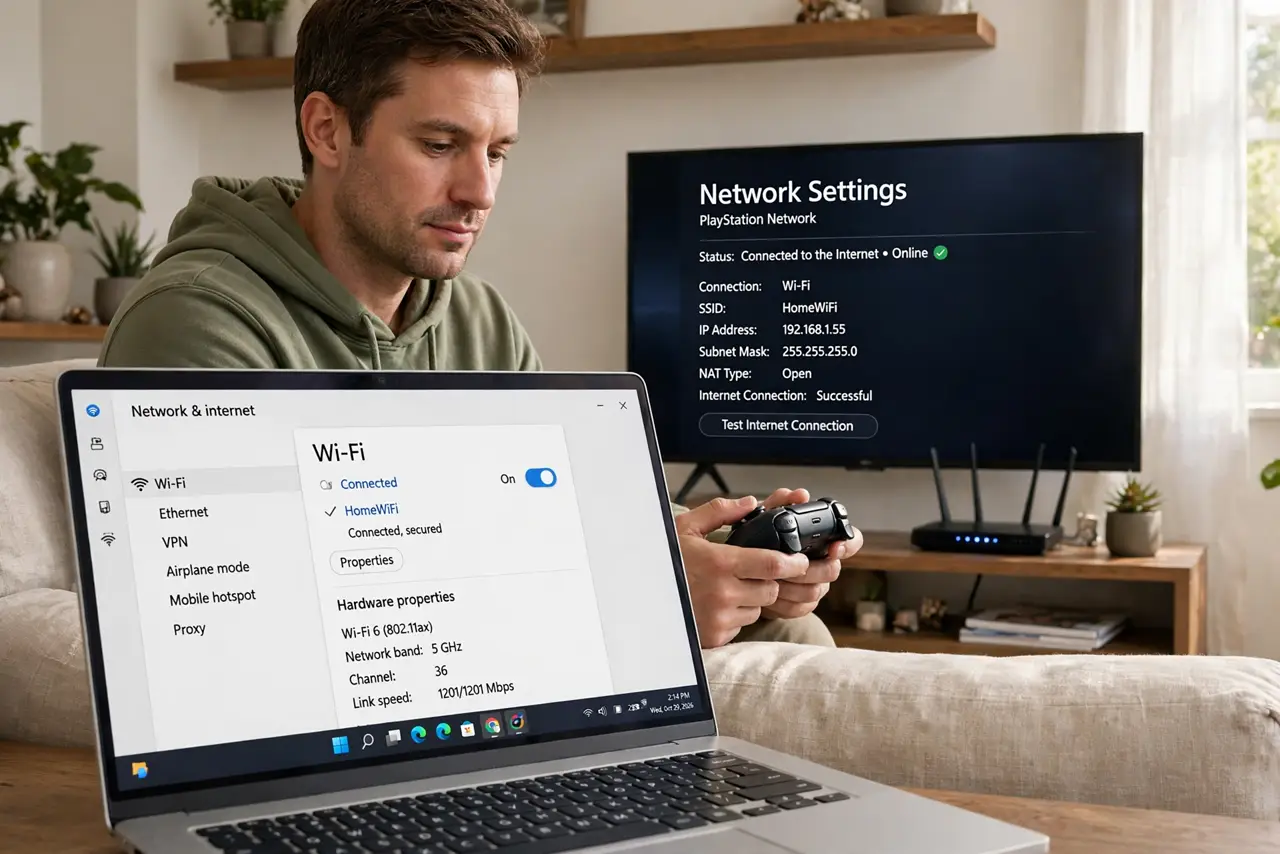
Quick fix: give your console a fixed local address in the router, then forward only the ports your console maker lists. Test the connection on the console afterwards, and never open all ports at once, since that removes the router's protection.
Follow these steps
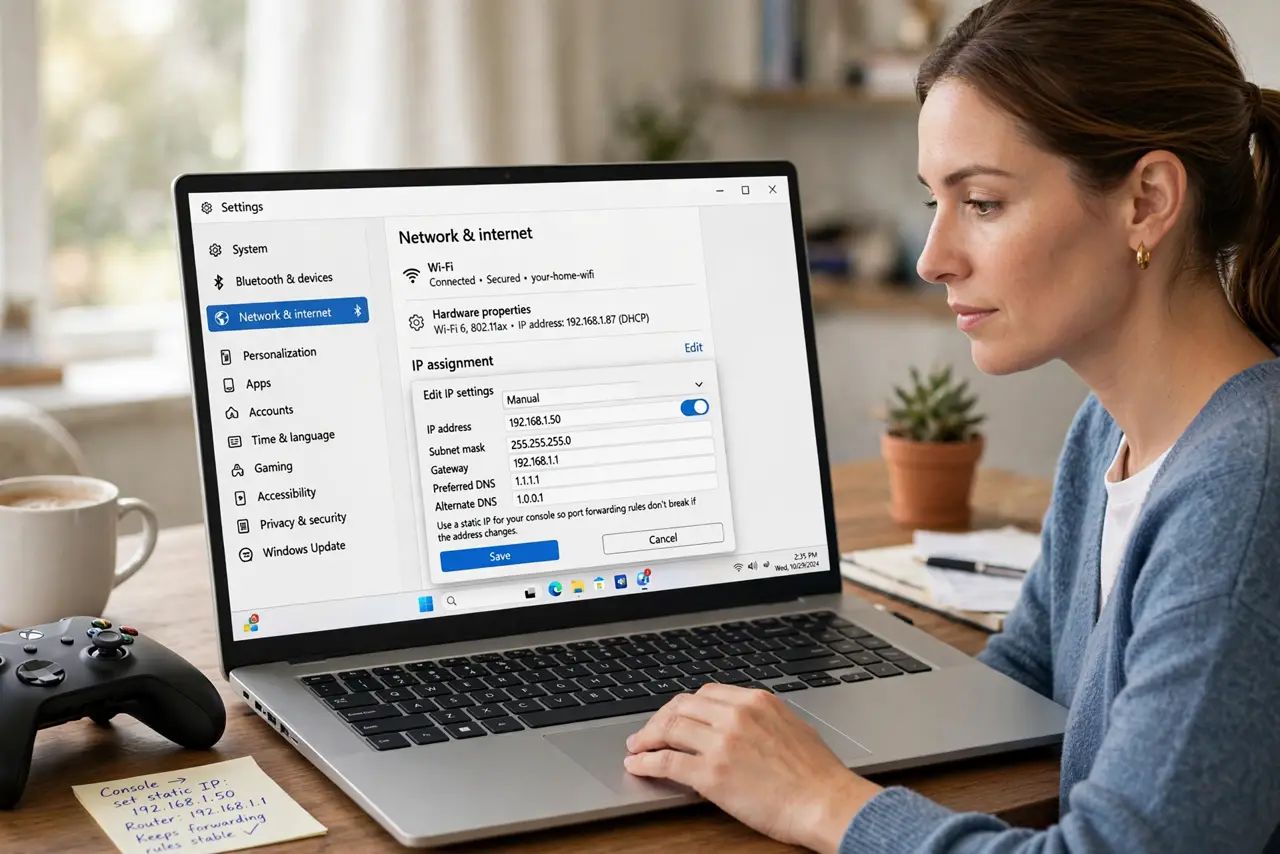
- Give the console a fixed local address. In the router, reserve one local address for the console, or set a static address on the console itself. Forwarding rules break if the console's address keeps changing.
- Find the official port list. Use only the ports your console maker publishes for its network service. Guessing extra ports opens doors the console never needed.
- Log into the router's port forwarding page. Open the admin page and find port forwarding or virtual servers. If the page will not open, the router may need a restart or you may be using the wrong admin address.
- Forward only the listed ports to the console. Create one rule per port or range, pointing at the console's fixed address. Each rule should name the console so a future you knows why it exists.
- Test the console's connection type. Run the console's network test and check the NAT type improved. If nothing changed, the rule points at the wrong address or the provider blocks those ports upstream.
- Consider UPnP instead of manual rules. If manual forwarding feels fragile, the router's UPnP can open console ports automatically. Weigh that convenience against the security trade-off before switching.
What NOT to do
- Do not put the console in the DMZ. A DMZ opens every port to the console, which removes the router's firewall protection for that device entirely.
- Do not forward ports to the wrong device. A rule aimed at an old address can expose a laptop or camera instead of the console, so double-check the address first.
- Do not copy port lists from random forum posts. Use the console maker's official list, since outdated lists open ports the console no longer uses.
- Do not leave test rules in place forever. If you added rules while experimenting, delete the ones the final setup does not need.
Frequently asked questions
Is port forwarding safe for a console?
Yes, when you forward only the maker's listed ports to the console's fixed address. It becomes unsafe when every port is opened at once.
Why does the NAT type stay strict?
The rule may point at the wrong address, the console's address changed, or the provider blocks those ports before they reach your router.
Do I need this for every game?
No. Most games connect fine without it. Forward ports only when a specific game shows connection or NAT problems.
What to read next
- Router Port Forwarding Does Not Work? Fix It
- Is UPnP a Security Risk on a Home Network?