Presentation Mode Blocks Notifications? Fix It Fast
You finish presenting and notifications still do not arrive, or they vanish during every presentation. Presentation tools and Focus settings can both silence alerts, and they do not always switch back on their own.
TL;DR / Quick Fix
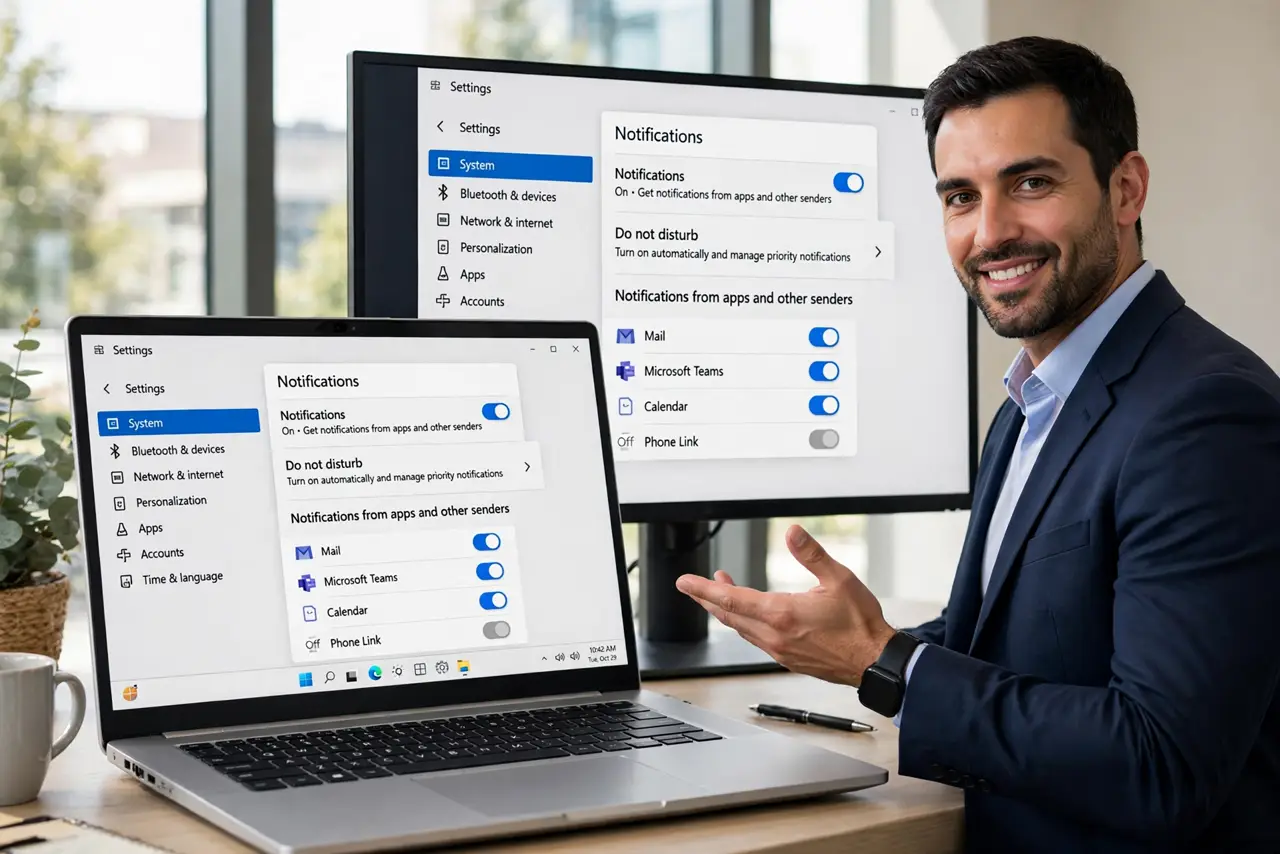
Quick fix: open Quick Settings and turn Do not disturb off, then open Settings, then System, then Notifications, and confirm notifications are on. If a presentation app silenced them, close it fully and test with a message you send to yourself.
Follow these steps
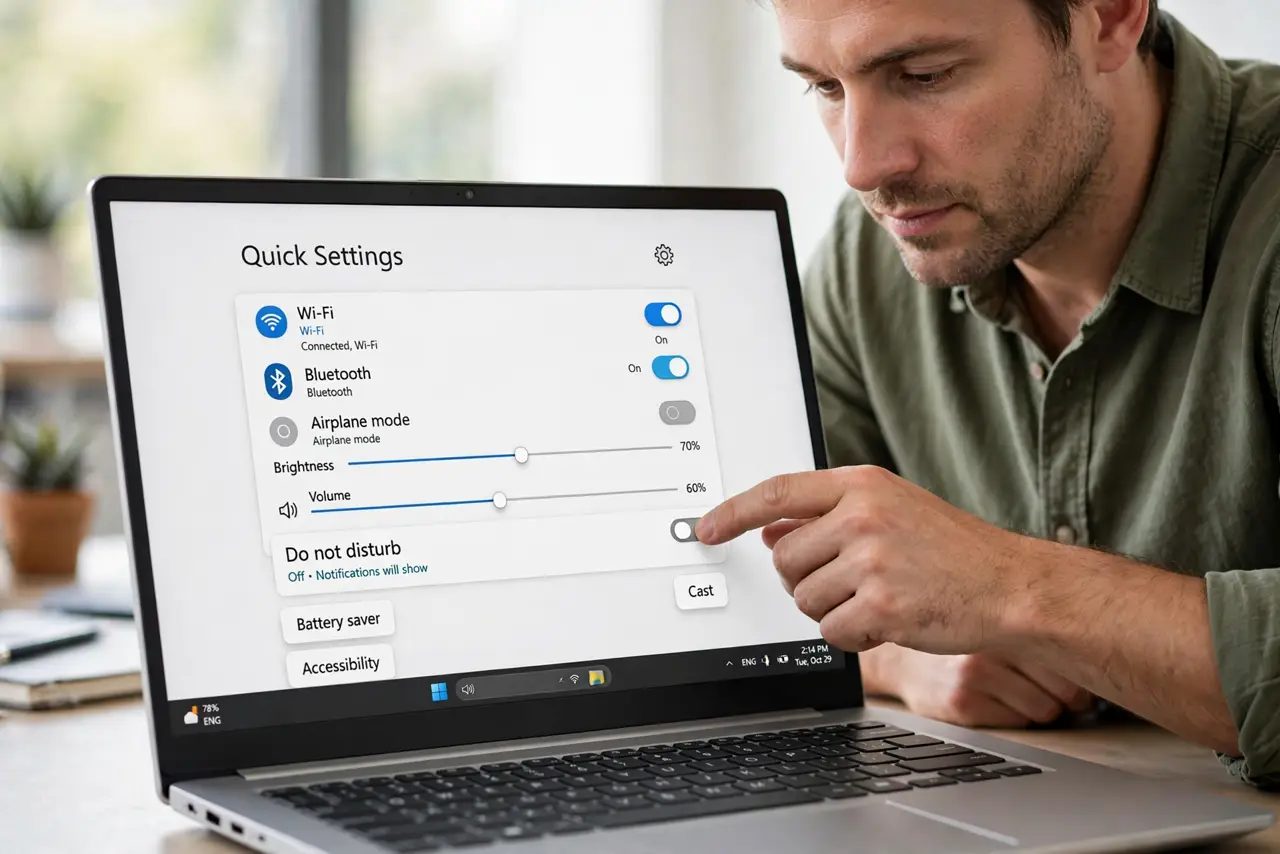
- Turn Do not disturb off. Open Quick Settings and click Do not disturb to turn it off. This is the fastest switch, and it restores notifications that Focus silenced.
- Check Notifications settings. Open Settings, then System, then Notifications, and confirm the main Notifications switch is on. A main switch left off silences everything, not just presentation alerts.
- Check automatic Focus rules. On the same Notifications page, look at the automatic rules for Do not disturb. A rule tied to presenting, gaming, or duplicating the display can re-silence alerts without warning.
- Close the presentation app fully. Close the presentation app completely, not just its window. Some apps hold a presentation state until they close, which keeps notifications silenced.
- Disconnect the external display test. If alerts return only after disconnecting the projector or second screen, the display-duplication rule was the trigger. Adjust that rule rather than avoiding external displays.
- Send yourself a test notification. Send yourself a test message or email and confirm a banner appears. A visible test notification proves alerts are back, instead of assuming they are.
What NOT to do
- Do not turn off all notifications to stop presentation interruptions. Do not disturb during presenting is the right tool, and it should switch off afterwards.
- Do not assume notifications are lost forever. Silenced notifications usually wait in the notification center, even when no banner appeared during the presentation.
- Do not change every Focus rule at once. Check the presenting and display-duplication rules first, since those are the ones tied to this problem.
- Do not leave Do not disturb on after presenting and wonder why calls go unanswered. Check Quick Settings as part of your post-presentation routine.
Frequently asked questions
Where do silenced notifications go?
Most wait in the notification center. Open it from the taskbar after presenting to review anything that arrived silently.
Why does presenting silence notifications?
Focus rules can silence alerts while you present or duplicate your display, so the audience never sees private banners.
Should I disable all Focus rules?
No. Keep the presenting rule, but confirm it turns off when presenting ends, and turn Do not disturb off by hand if it does not.