Printer Drops Off Wi-Fi Every Week? Fix It
Every few days the printer vanishes from the network, and the only fix is unplugging it. This weekly vanishing act usually means the printer's IP address keeps changing or it is dozing too deeply to wake. A couple of one-time settings make it stay put.
TL;DR / Quick Fix
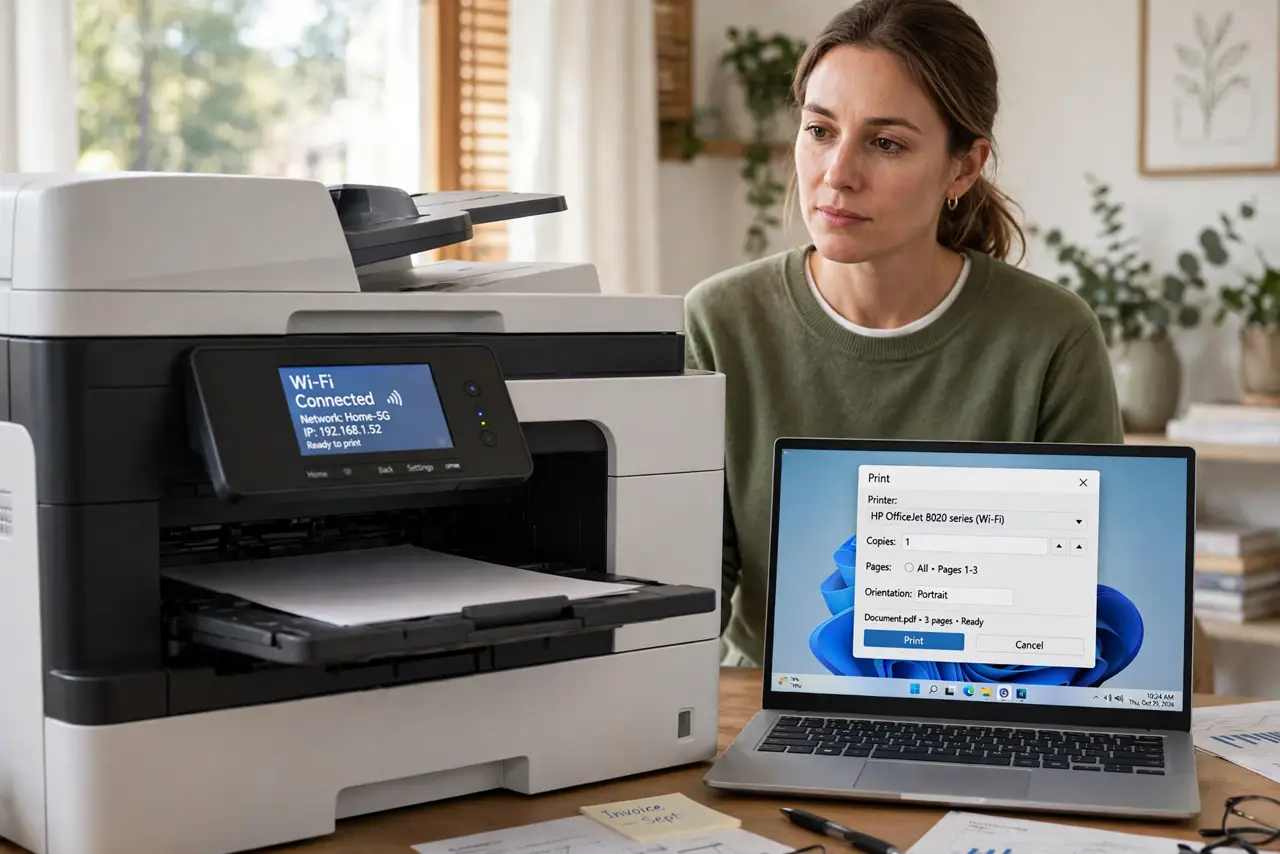
Quick fix: give the printer a reserved IP address in the router so its address never changes, and turn off the printer's deep-sleep power saving. If it sits on a [[guest network|guest-network-cant-see-printer]], move it to the main network where your devices can see it.
Follow these steps
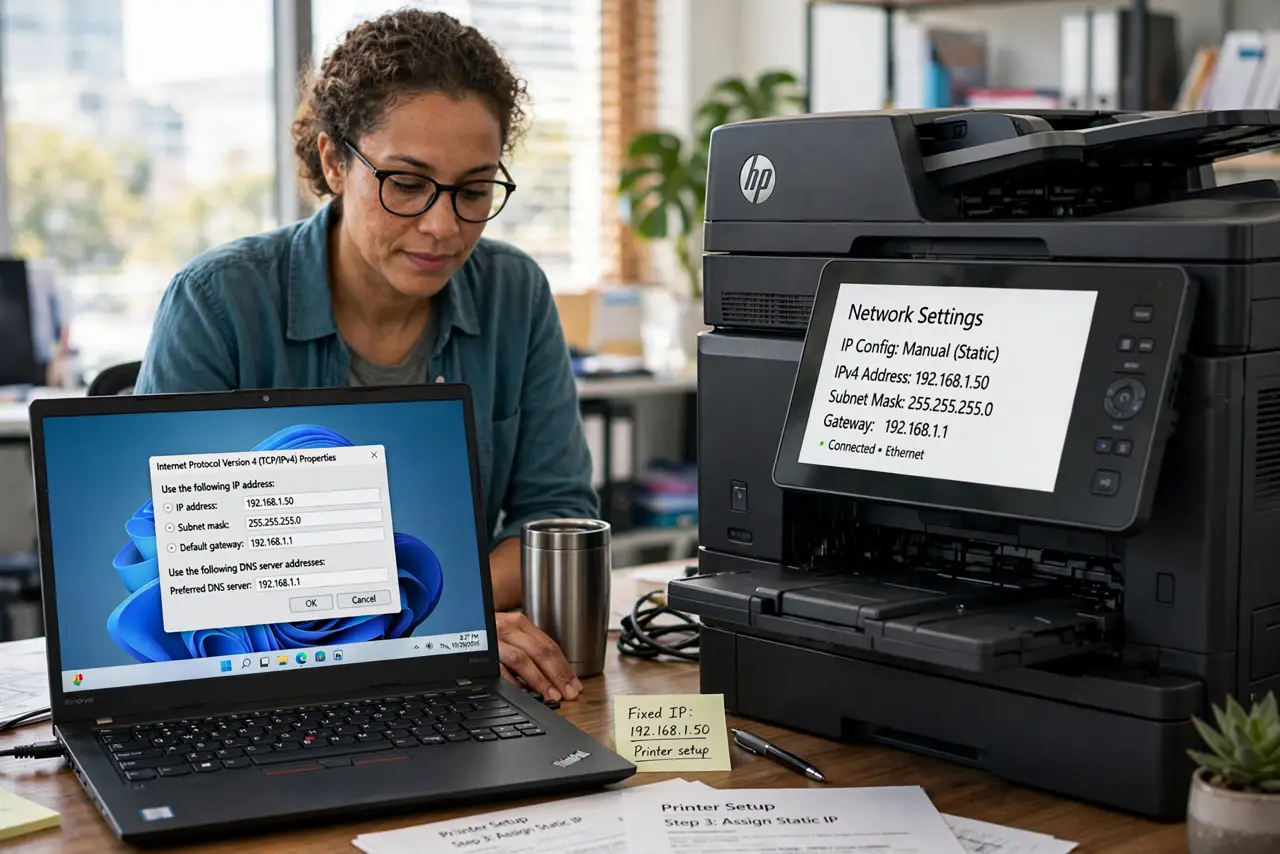
- Give the printer a fixed address. In the router, find the printer in the device list and reserve its IP. Printers that get a new address each week confuse every computer that remembers the old one.
- Turn off deep sleep on the printer. In the printer's own menu, disable or lengthen the deep-sleep timer. Some printers sleep so hard they ignore wake-up calls from the network.
- Keep it on the main network. Printers on a guest network are often invisible to your devices by design. Move it to the main network, or check why guest networks hide printers.
- Avoid extenders for the printer. A printer hanging off a second network from an extender can hop between networks. Connect it to the main router's Wi-Fi directly.
- Update the printer's firmware once. Manufacturers quietly fix Wi-Fi dropout bugs. Run one firmware update from the printer's menu, then leave it alone.
- Reinstall it with the fixed address. After reserving the IP, remove the printer from your computer and add it again. The fresh install points at the address that will never change now.
What NOT to do
- Do not reboot the printer every time as your 'fix'. That treats the symptom weekly; the reserved IP treats the cause once.
- Do not put the printer on a smart plug timer. Cutting its power nightly forces a full rejoin every morning and wears the printer out faster.
- Do not use WPS to reconnect it weekly. WPS rejoins are fragile and the button dance gets old; a proper saved network with a reserved IP is stable.
- Do not assume the printer is dying. Weekly dropouts are a network addressing issue far more often than failing hardware — try the IP fix first.
Frequently asked questions
Why does my printer work after a reboot but vanish later?
Its IP address likely changed when the router's lease expired. A reserved IP stops the address from ever changing.
Should the printer use 2.4 GHz or 5 GHz?
2.4 GHz — it reaches farther and printers barely need speed. The 5 GHz band drops more easily through walls.
My phone finds the printer but my laptop doesn't. Why?
They may be on different networks or bands. Put both on the same main network and reinstall the printer on the laptop.