Printer Wi-Fi Setup Keeps Failing? Fix It
The printer sees your network, you enter the password, and setup fails — every time. Printer Wi-Fi fails on band mismatches, weak signals, and router features printers do not understand. This guide gets the printer on the network without the loop.
TL;DR / Quick Fix
Quick fix: make sure the printer joins the 2.4 GHz band — most printers cannot use 5 GHz. Move the printer closer to the router for setup, then move it back. If setup still fails, check that the router is not isolating new devices on a [[guest network|guest-network-cant-see-printer]].
Follow these steps
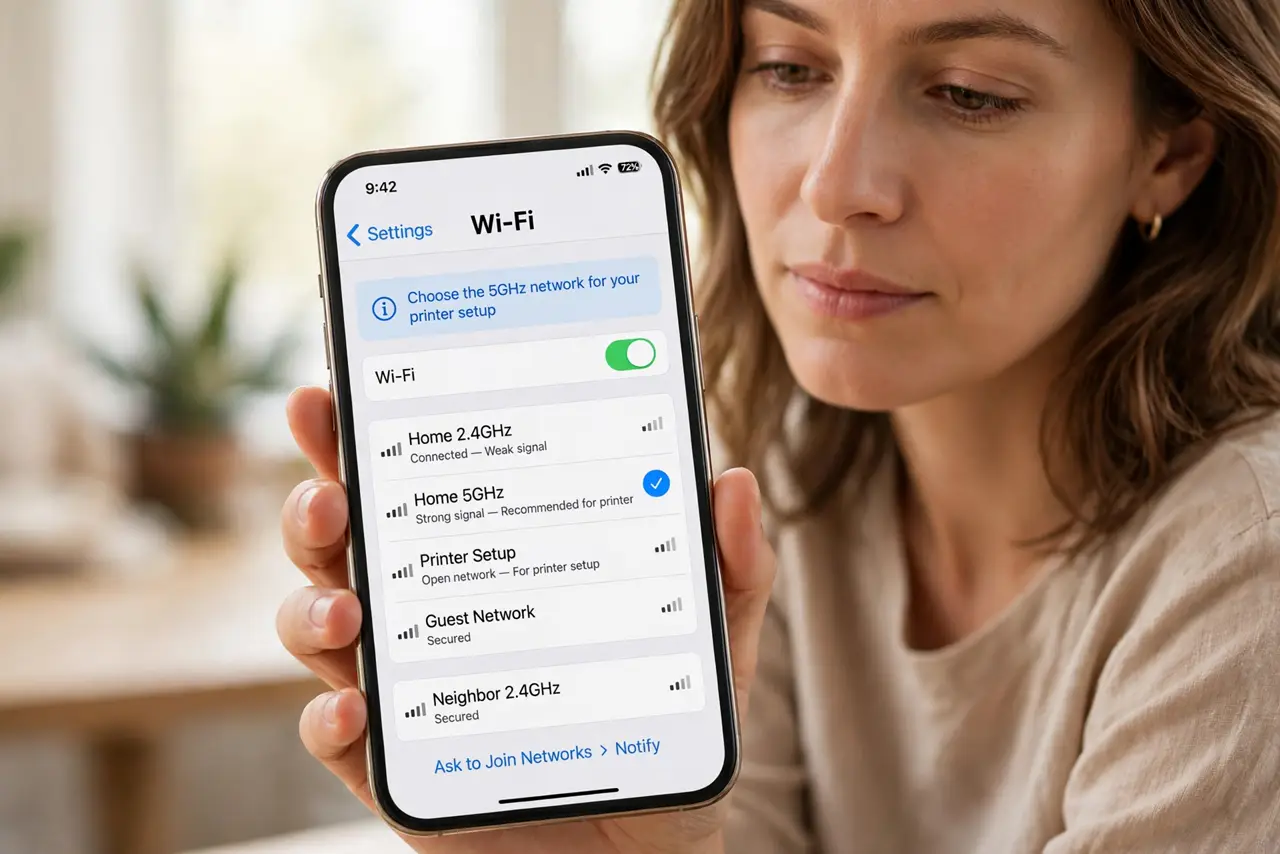
- Join the 2.4 GHz network. Check your router's network names and connect the printer to the 2.4 GHz one. Most printers lack 5 GHz radios and fail silently on the wrong band.
- Move the printer close for setup. Place the printer in the same room as the router during setup. A weak signal at the printer's permanent spot causes exactly these failures — relocate after it connects.
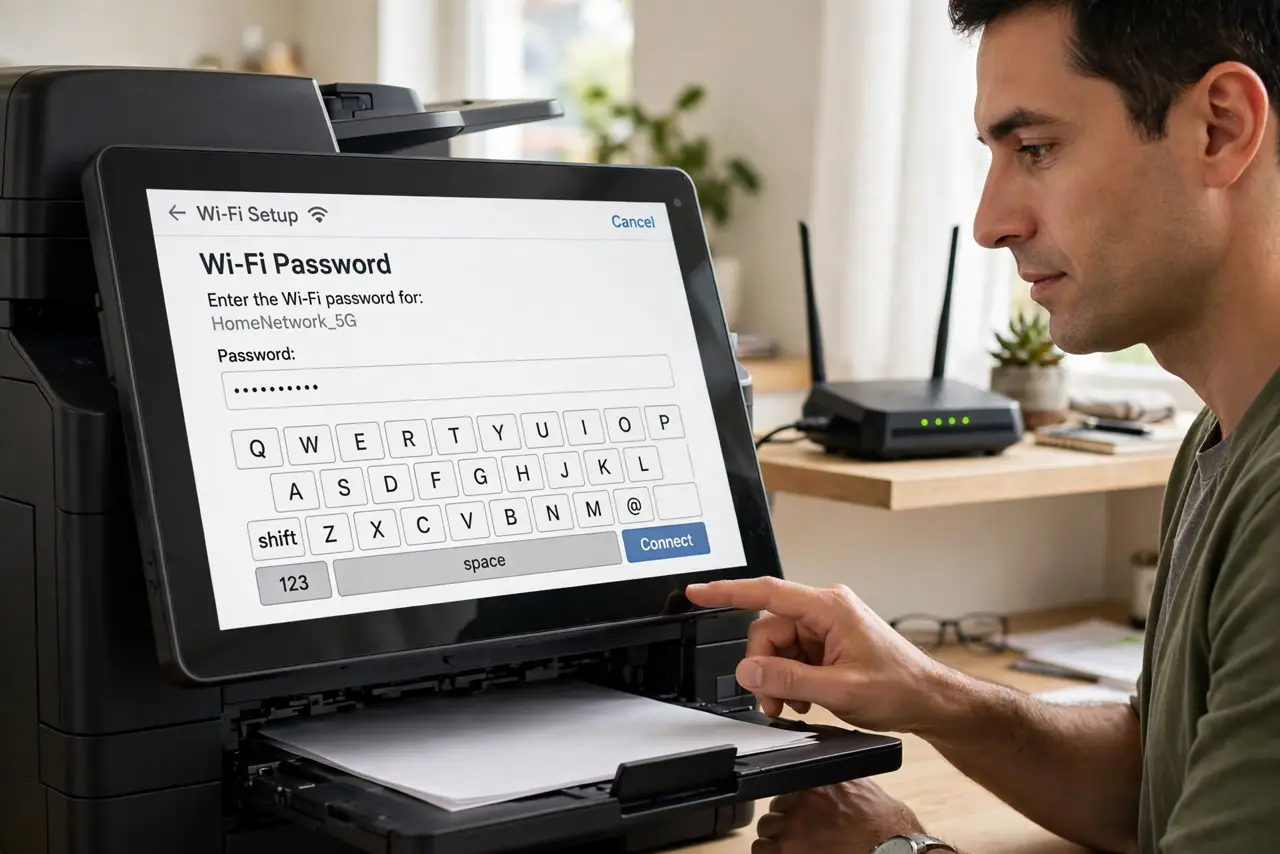
- Enter the password carefully. Printer touchscreens invite typos. Re-enter the Wi-Fi password slowly, watching for case errors and confused characters like 0 and O.
- Restart the router and printer. Power-cycle both: router first, wait two minutes, then the printer. Stale DHCP states cause a surprising share of setup failures.
- Check for client isolation. Some routers block new devices from each other. Disable AP or client isolation for setup, and avoid the guest network — guests often cannot reach printers by design.
- Use WPS or the app as a fallback. If manual entry keeps failing, try the router's WPS button method or the manufacturer's setup app, which handles the handshake more reliably than the tiny touchscreen.
What NOT to do
- Do not keep retrying with the wrong band. A 5 GHz-only attempt will fail forever — confirm the 2.4 GHz network name first.
- Do not set up from the far corner of the house. Weak signal during setup writes a weak connection permanently; set up close, then relocate.
- Do not disable router security to 'make it work.' Dropping to open Wi-Fi for a printer exposes your whole network — fix the real issue instead.
- Do not forget the printer drops off later. If it connects then vanishes weekly, see the guide on printers dropping off Wi-Fi — that is a separate problem.
Frequently asked questions
Why won't my printer connect to Wi-Fi?
Usually the wrong band, a weak signal, a typo in the password, or router isolation. The 2.4 GHz band fixes the majority.
Do printers work on 5 GHz Wi-Fi?
Most do not. Printer Wi-Fi radios are overwhelmingly 2.4 GHz only — that is the band to use.
Should I use WPS?
It is convenient and fine for home use. For the security-conscious, manual setup with a strong password is slightly better.