Share Wi-Fi With a QR Code
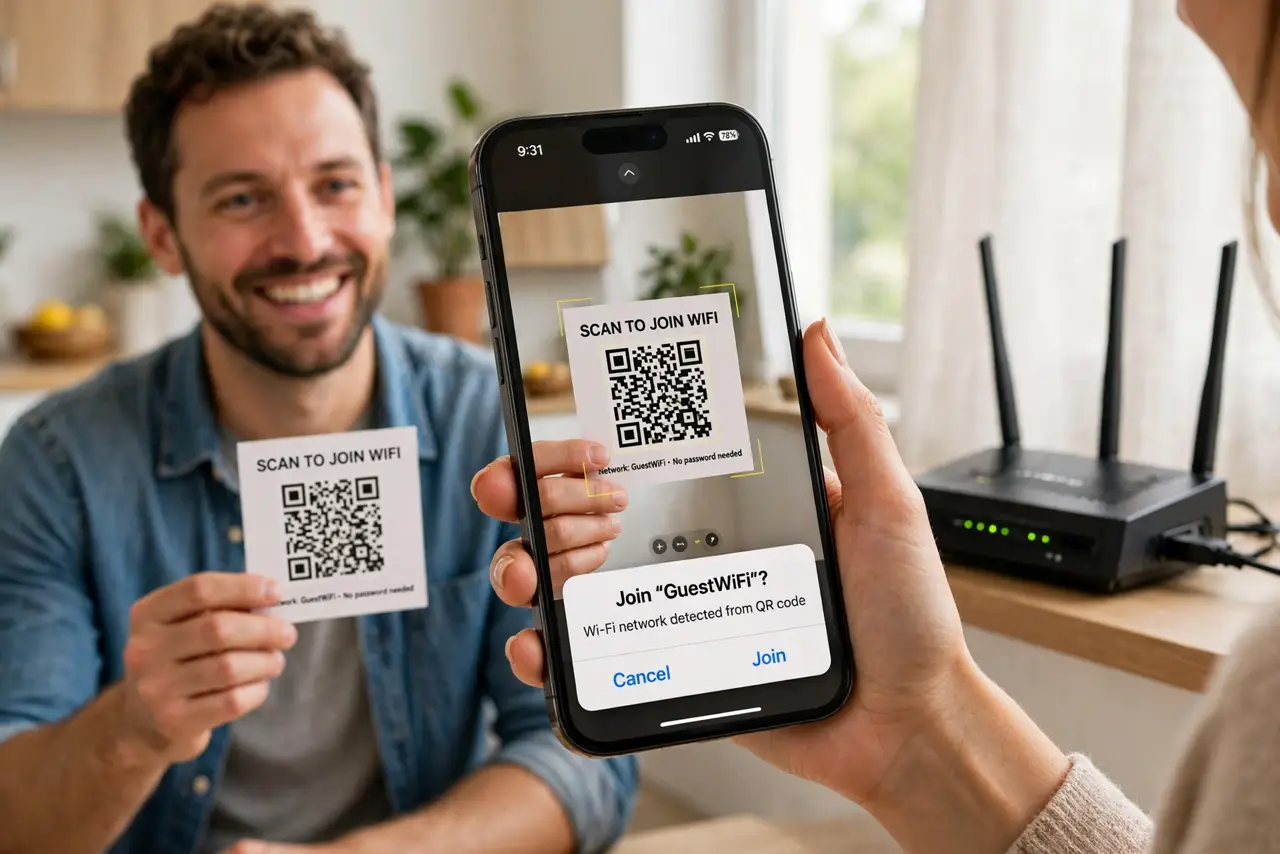
Reading out a long Wi-Fi password letter by letter is painful, and it ends with typos. A QR code lets guests join by pointing their camera at it — no spelling, no mistakes. It works on iPhone and Android and takes two minutes to make.
TL;DR / Quick Fix
Quick fix: generate a Wi-Fi QR code with your exact network name and password, print it, and keep it near the router. Guests scan it with their camera app and join instantly — no more [[spelled-out passwords|wifi-password-correct-but-rejected]], typos, or reading credentials aloud.
Follow these steps
- Confirm the exact network details. Copy the network name and password exactly, including capitals and spaces. The QR code fails silently if one character is off, so double-check against the router.
- Generate the code from your router or a trusted generator. Many routers print a QR code in the admin panel or app. Otherwise use a well-known generator — and never type the password into a site you do not trust.
- Print it and put it where guests look. Tape the code inside a cabinet door or near the entryway. A printed card survives phone upgrades and works when you are not home to read the password.
- Test it with a guest phone first. Scan it yourself before the party. If the phone joins without asking for a password, the code is correct; if it prompts, regenerate it.
- Make a separate code for the guest network. Point guests at your guest network, not your main one. Regenerate the code whenever you change the password so the old printout dies.
- Keep the code out of public photos. A QR code in the background of a social media photo gives the whole internet your Wi-Fi password. Crop or hide it before posting.
What NOT to do
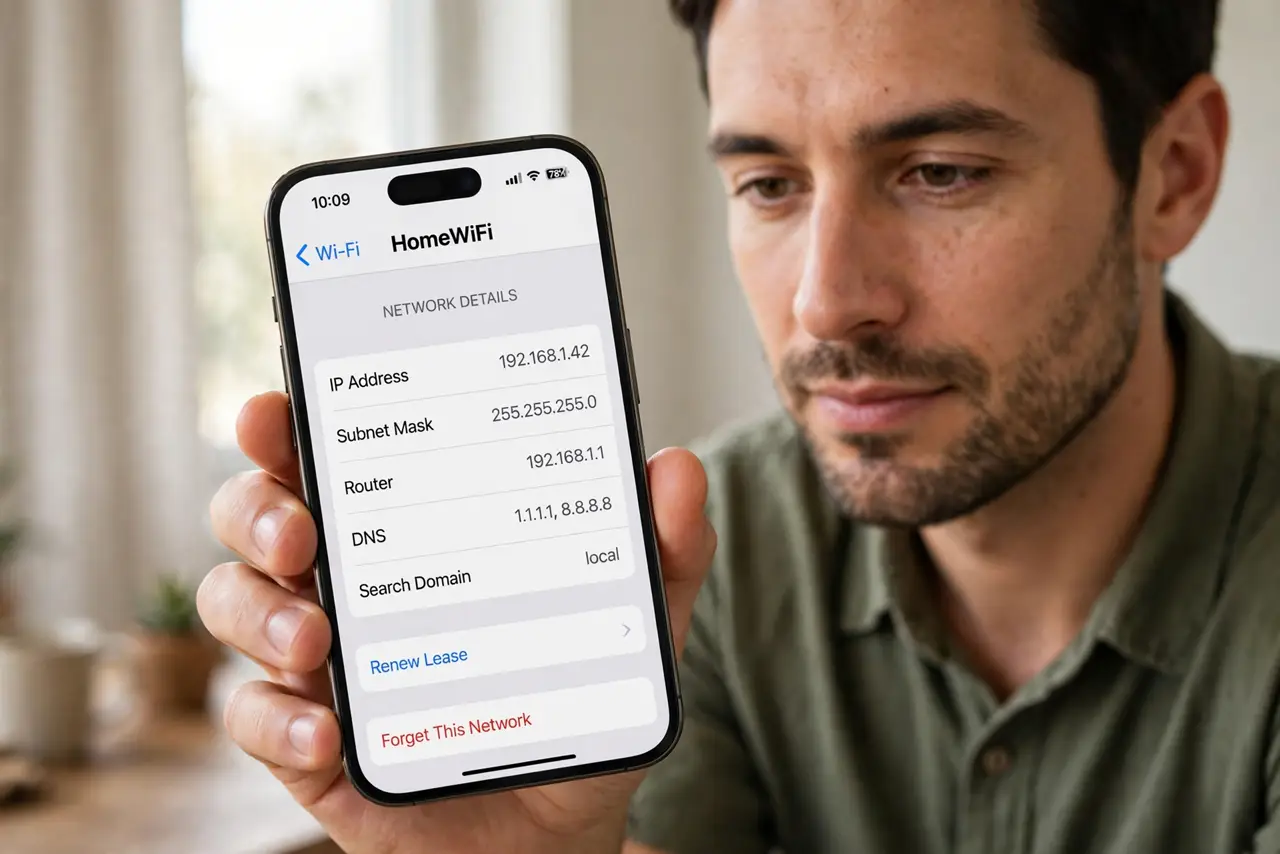
- Do not screenshot someone else's random QR generator result and reuse it. Generate your own from your real credentials so it actually works.
- Do not share the main-network QR code publicly. Guests get the guest network; your main password stays with the household.
- Do not assume every old phone scans QR codes. Very old Android phones may need a QR scanner app — keep the typed password as a backup.
- Do not forget to update the printout after a password change. An old code silently fails and guests end up asking you anyway.
Frequently asked questions
Does the QR code reveal my password?
It encodes it, so anyone who scans it can join. Treat the printed code like the password itself and keep it in the house.
Why does the QR code not work on my friend's phone?
Usually a typo in the network name or password, or a special character the generator mishandled. Regenerate carefully.
Is sharing Wi-Fi by QR code safe?
Yes, for guests — it shares access, not control. Use your guest network for extra separation.