Set Up a Racing Wheel
Unboxing a racing wheel is exciting right up until the pedals slide across the floor, the wheel isn't recognized, and the force feedback feels like a jackhammer. A proper setup — solid mounting, correct drivers, sane in-game settings — is the difference between immersion and frustration. Here is the order that works.
TL;DR / Quick Fix
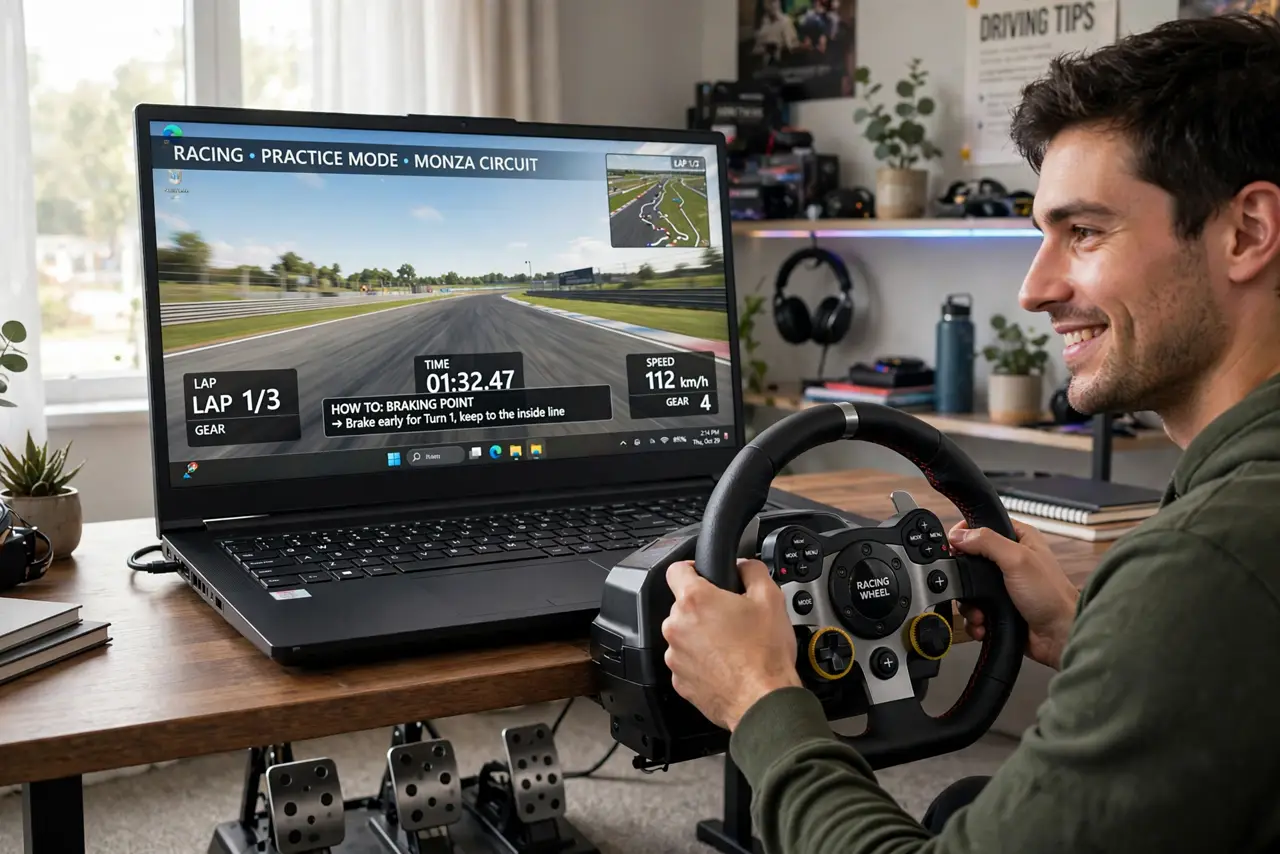
Quick fix: clamp the wheel to a sturdy desk or stand, connect pedals and power, then plug the USB into your PC or console. Install the maker's driver on PC, calibrate in the game settings, and start with low force feedback until you get used to it.
Follow these steps
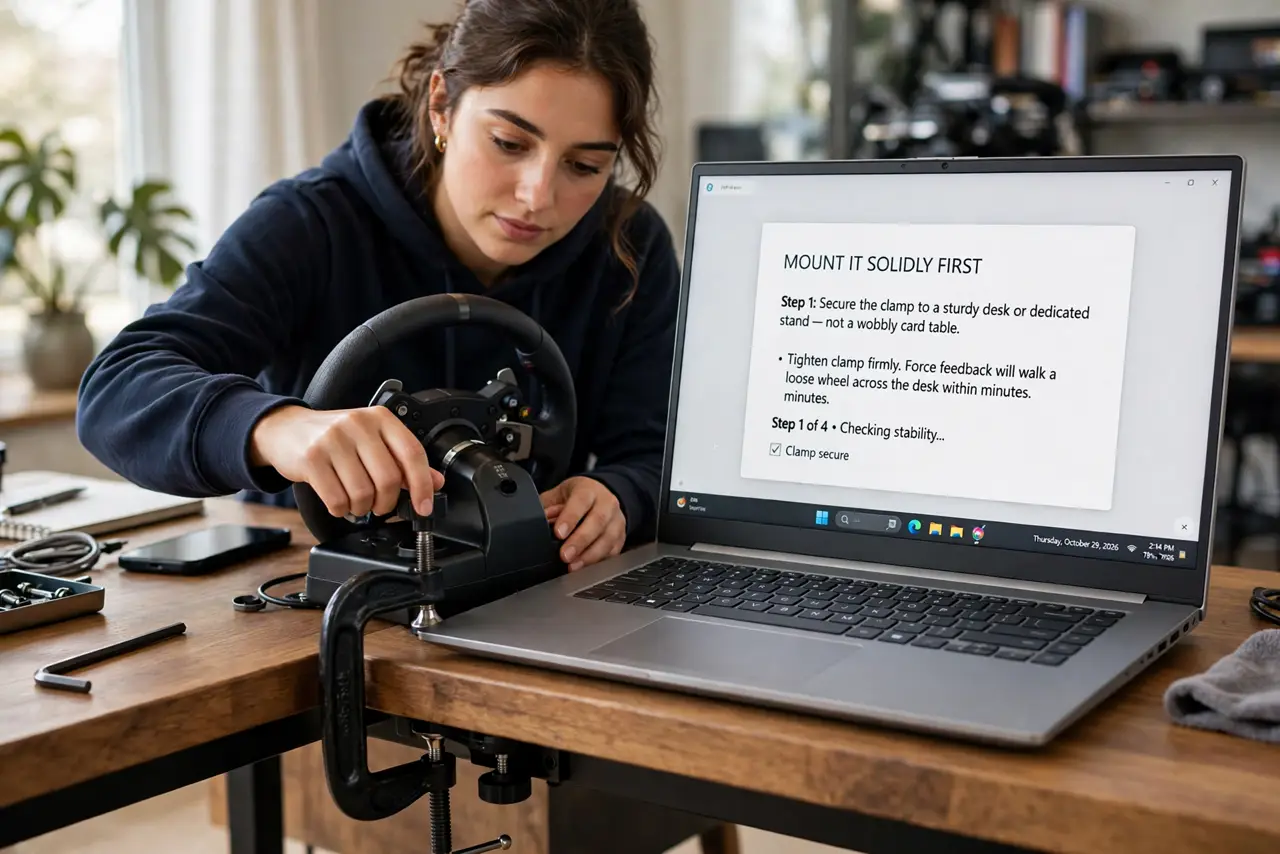
- Mount it solidly first. Clamp the wheel to a sturdy desk or a dedicated stand — not a wobbly card table. Force feedback will walk a loose wheel across the desk within minutes.
- Connect pedals and power. Plug the pedals into the wheel base and connect the power supply before USB. Pedals daisy-chain through the wheel on most models — check the manual's diagram.
- Install the maker's driver (PC). On PC, install the manufacturer's driver/software before launching games. Consoles usually recognize the wheel directly — but check the box for your specific console's compatibility.
- Calibrate in the game. Open the game's wheel/controller settings and run calibration: full lock left and right, full pedal travel. Skipping this gives you a dead zone or a twitchy mess.
- Start force feedback low. Begin around 50-70% strength and raise it gradually. Maxed feedback on day one causes sore arms and masks the subtle cues you're learning to feel.
- Tune per game, save profiles. Each racing game wants different rotation and feedback settings. Save a profile per game once dialed in — the maker's software usually supports this. And if a regular controller drifts, that's a separate fix.
What NOT to do
- Do not mount the wheel to a flimsy surface. Force feedback plus a wobbly desk equals a wheel that migrates mid-race — solidity first.
- Do not crank force feedback to maximum immediately. You'll fatigue fast and learn nothing; build up as your arms and feel adapt.
- Do not skip the driver install on PC. Windows' generic driver gives basic function; the maker's driver unlocks the full feature set.
- Do not assume every wheel works on every console. Wheel licensing is platform-specific — verify your exact console model before buying.
Frequently asked questions
Why isn't my PC detecting the wheel?
Usually the driver isn't installed, or it's plugged into a USB hub instead of directly into the PC. Install the driver, plug direct, and try another USB port.
Do I need a dedicated stand?
Not to start — a solid desk works. A stand or rig earns its place when you're sure the hobby sticks; comfort over long sessions is the payoff.
Can I use a racing wheel on a laptop?
Yes, if the laptop runs the games and has the ports. Performance depends on the laptop's GPU — the wheel itself just needs USB and the driver.