Restore Point Missing? Recreate Protection Fast
You go to roll back a bad change, and there is no restore point to use. System Protection may be off, out of space, or never enabled on that drive. Turn it on and create a fresh point now.
TL;DR / Quick Fix
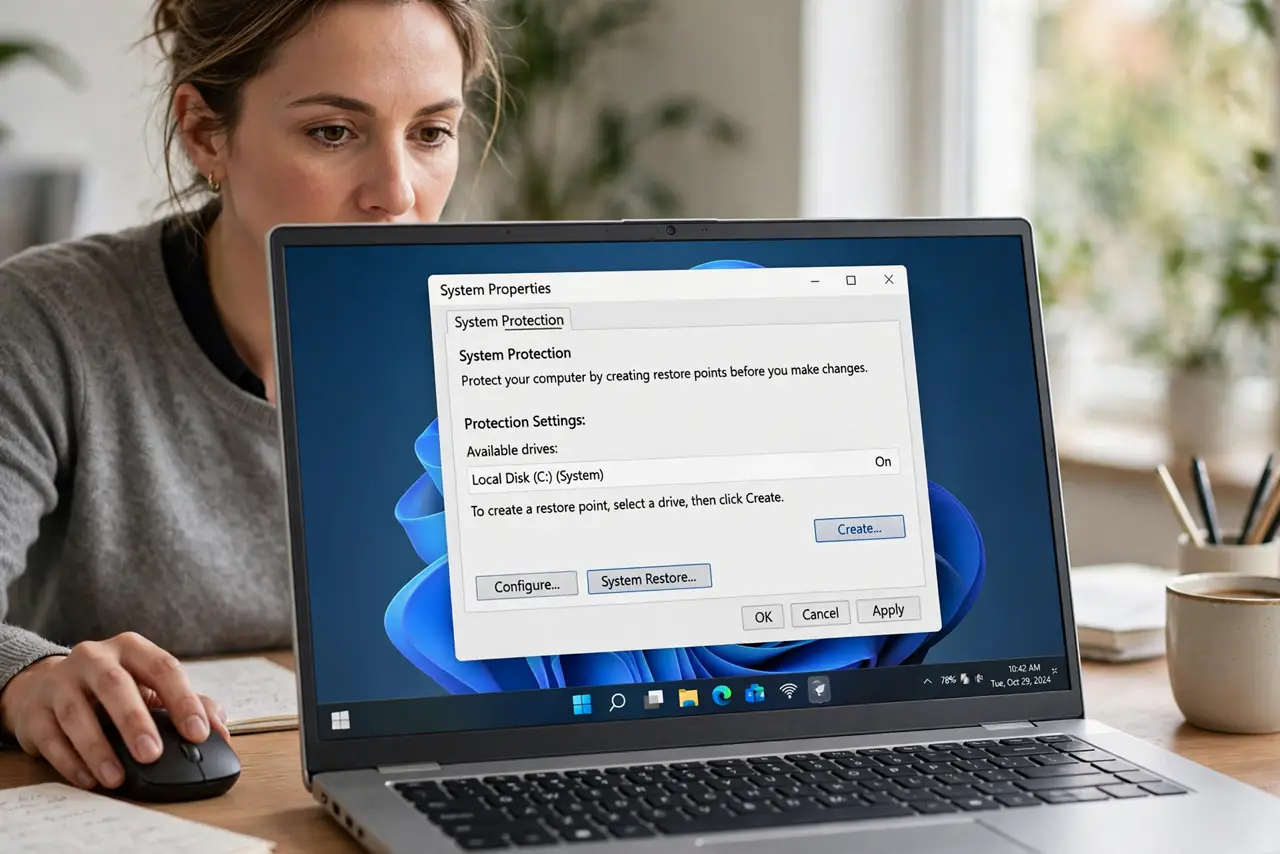
Quick fix: open System Protection settings, confirm protection is on for your system drive, and create a manual restore point today. Then check the disk space reserved for protection, so new points are not deleted the moment they are created.
Follow these steps
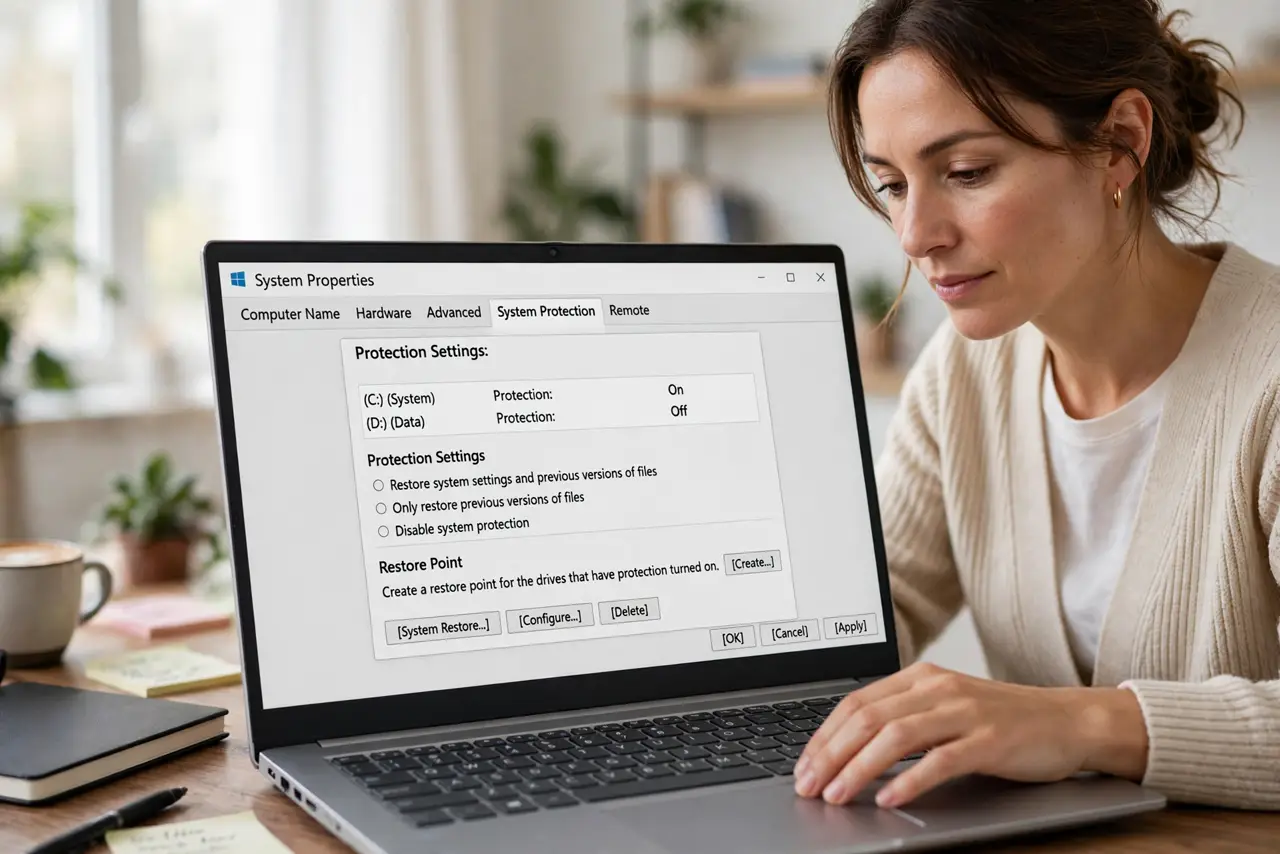
- Open System Protection settings. Search for Create a restore point, open it, and look at the Protection Settings list. This shows whether protection is on or off for each drive.
- Turn on protection for the system drive. Select the system drive, click Configure, and turn on System Protection. Without protection on, Windows creates no restore points for that drive at all.
- Create a manual restore point. Click Create, give the point a clear name with today's date, and wait for confirmation. A manual point proves protection works, instead of assuming it does.
- Check the reserved disk space. In the same Configure window, check how much disk space is reserved for restore points. Too little space means new points delete old ones almost immediately.
- Confirm the point is listed. Open System Restore and confirm your new point appears in the list. A listed point is usable; a point that never appears means protection still is not working.
- Create points before big changes. From now on, create a manual point before driver updates, app installs, or settings overhauls. A point made before a change is the one that saves you after it.
What NOT to do
- Do not assume restore points exist because the feature sounds automatic. Protection must be on for the drive, and it is off by default on some setups.
- Do not rely on a single old restore point. Old points get deleted as space fills, so create a fresh point before each risky change.
- Do not turn protection on and skip the manual point. The manual point is the proof that protection actually works on your computer.
- Do not confuse a restore point with a full backup. A restore point undoes system changes, but it is not a replacement for a separate backup of your files.
Frequently asked questions
Why was there no restore point?
System Protection was likely off for the system drive, or space was too low, so Windows never created or kept any points.
Does a restore point back up my files?
No. It protects system settings and drivers, not your documents. Keep a separate file backup for your personal files.
How often should I create points?
Before any big change, and whenever you have a stable setup you want to preserve. Regular manual points beat hoping automatic ones exist.