IP Address Conflict Warning? Fix It
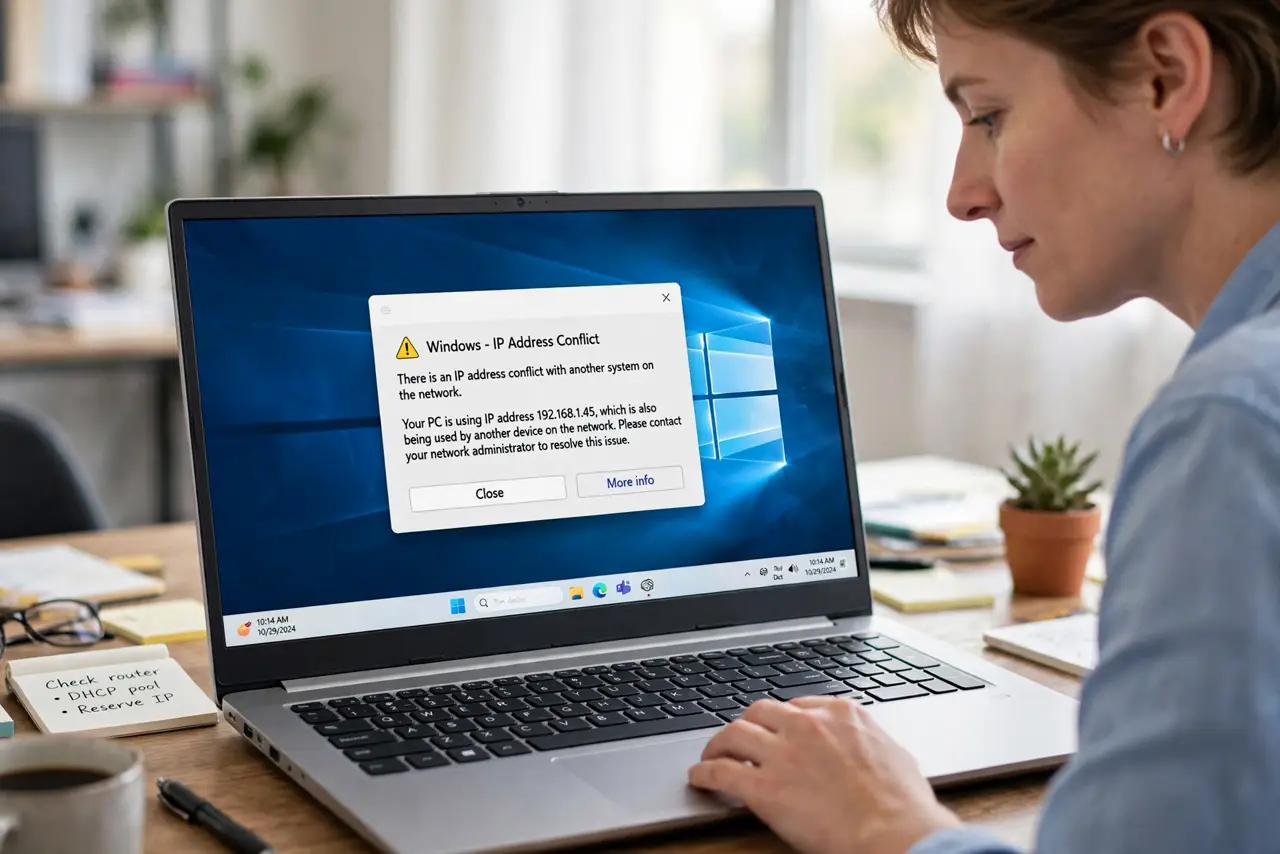
A device warns that another device uses its IP address, and one or both keep dropping off the network. Two devices claim the same address, usually because one has a static address inside the range the router hands out.
TL;DR / Quick Fix
Quick fix: restart the warning device, then restart the router, so the router hands out fresh addresses. If the warning returns, check for a device with a static address that duplicates one the router assigns. Test once more after a restart. Write down what worked for next time.
Follow these steps
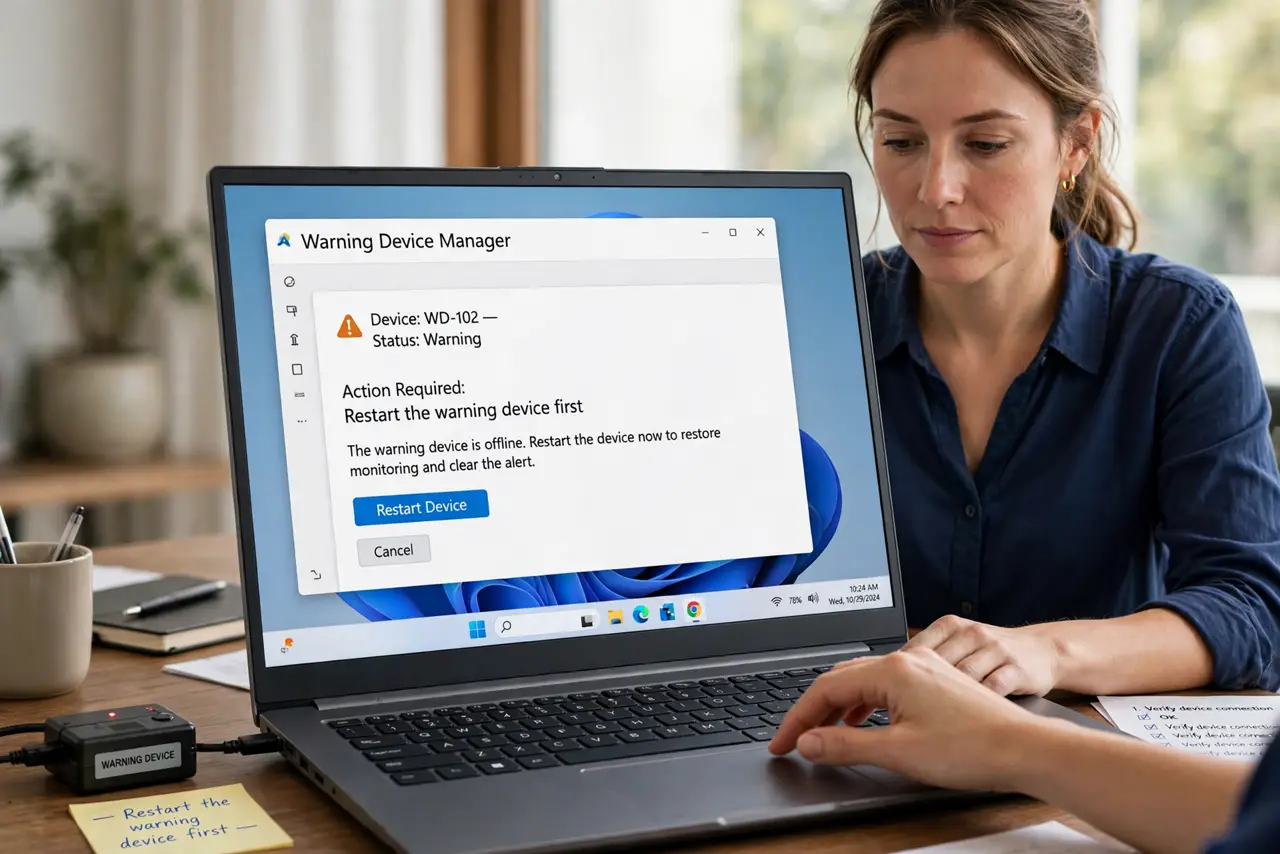
- Restart the warning device first. Restart the device that shows the warning, so it asks the router for a fresh address. A restart alone fixes conflicts caused by a stale address after sleep or travel.
- Restart the router next. Unplug the router, wait thirty seconds, and plug it back in, then let every device reconnect. A router restart clears its address table and hands out clean addresses.
- Find any static address device. Check printers, cameras, and computers for a manually set static address. A static address inside the router assignment range is the most common repeat cause.
- Move static addresses outside the range. In the router settings, either reserve the address for that device or move its static address outside the range the router hands out. Either step stops the duplicate.
- Forget and rejoin on wireless devices. On a wireless device with the warning, forget the network and rejoin it. A fresh join gives the device a new address from the router.
- Check the result on both devices. Confirm both devices stay online for a while after the fix. A conflict that returns on the same pair points to a static address you have not found yet.
What NOT to do
- Do not assign the same static address to two devices. One address belongs to one device, and sharing it guarantees a conflict.
- Do not ignore the warning and keep using both devices. Conflicts cause random drops that look like Wi-Fi problems but never heal on their own.
- Do not set static addresses at random inside the router range. Use reservations in the router, or addresses outside the range, so the router never hands them out twice.
- Do not reset the router before restarting devices. A restart is faster and usually enough, while a reset wipes settings you still need.
Frequently asked questions
What is an IP address conflict?
Two devices claim the same network address, so the network cannot tell them apart and one or both drop off.
Why does restarting fix it?
A restart makes the device ask for a fresh address, and a router restart clears the address table, so duplicates get sorted out.
Should I use static addresses?
Only for devices that need a fixed address, like printers, and only as a router reservation or outside the assignment range.
What to read next
- Router Port Forwarding Does Not Work? Fix It
- Router DNS Settings Keep Resetting? Fix It