Encrypt DNS at the Router
Encrypting DNS in your browser protects one browser. But your smart TV, your guests' phones, your game console, and every IoT gadget also make DNS lookups — all visible to your provider. Encrypting DNS at the router covers the whole network at once with a single setting. This guide shows how DNS-over-TLS on the router works and how to enable it.
TL;DR / Quick Fix
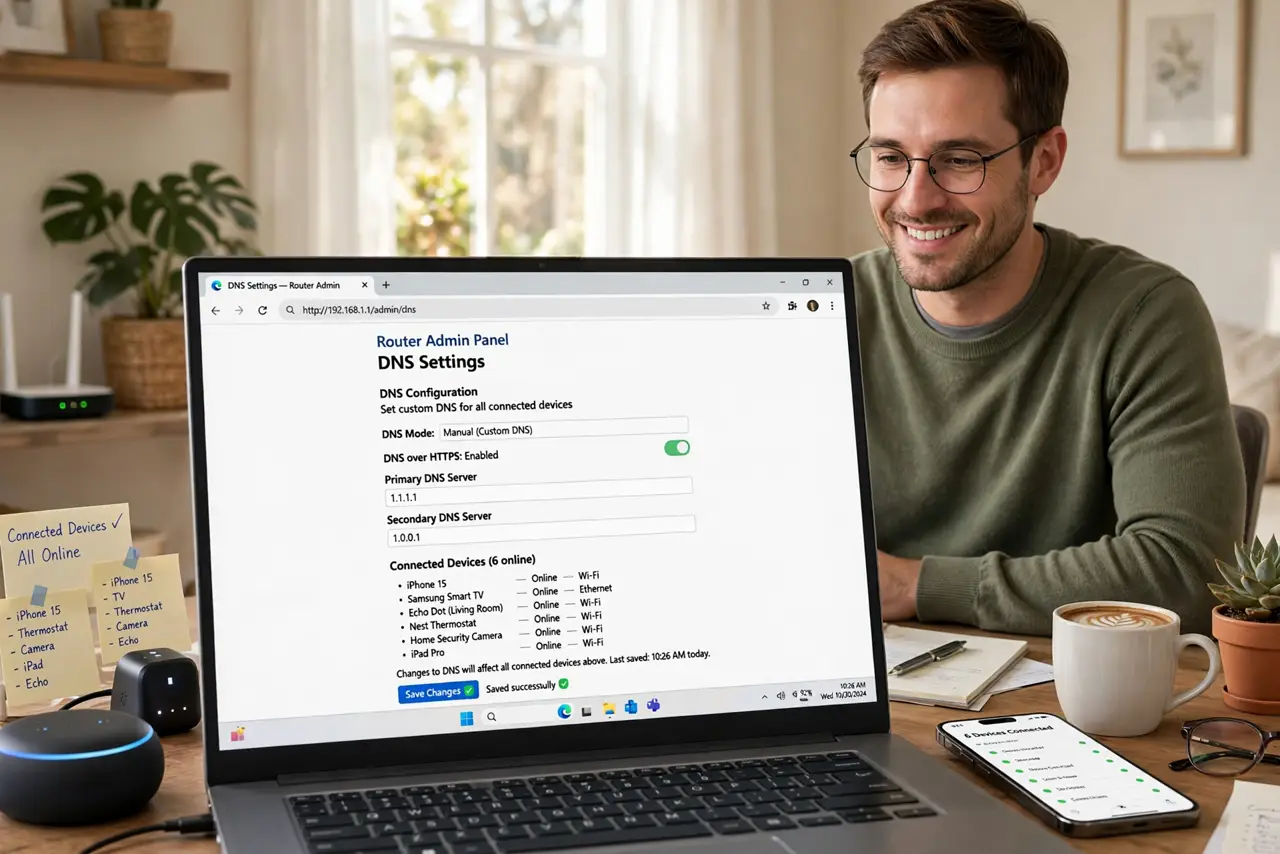
Quick fix: encrypting DNS at the router protects every device on your network at once — phones, TVs, guests — with one setting. Look for DNS-over-TLS or DNS privacy in your router's DNS settings and enable it. Devices with their own DNS set bypass it, so check the important ones.
Follow these steps
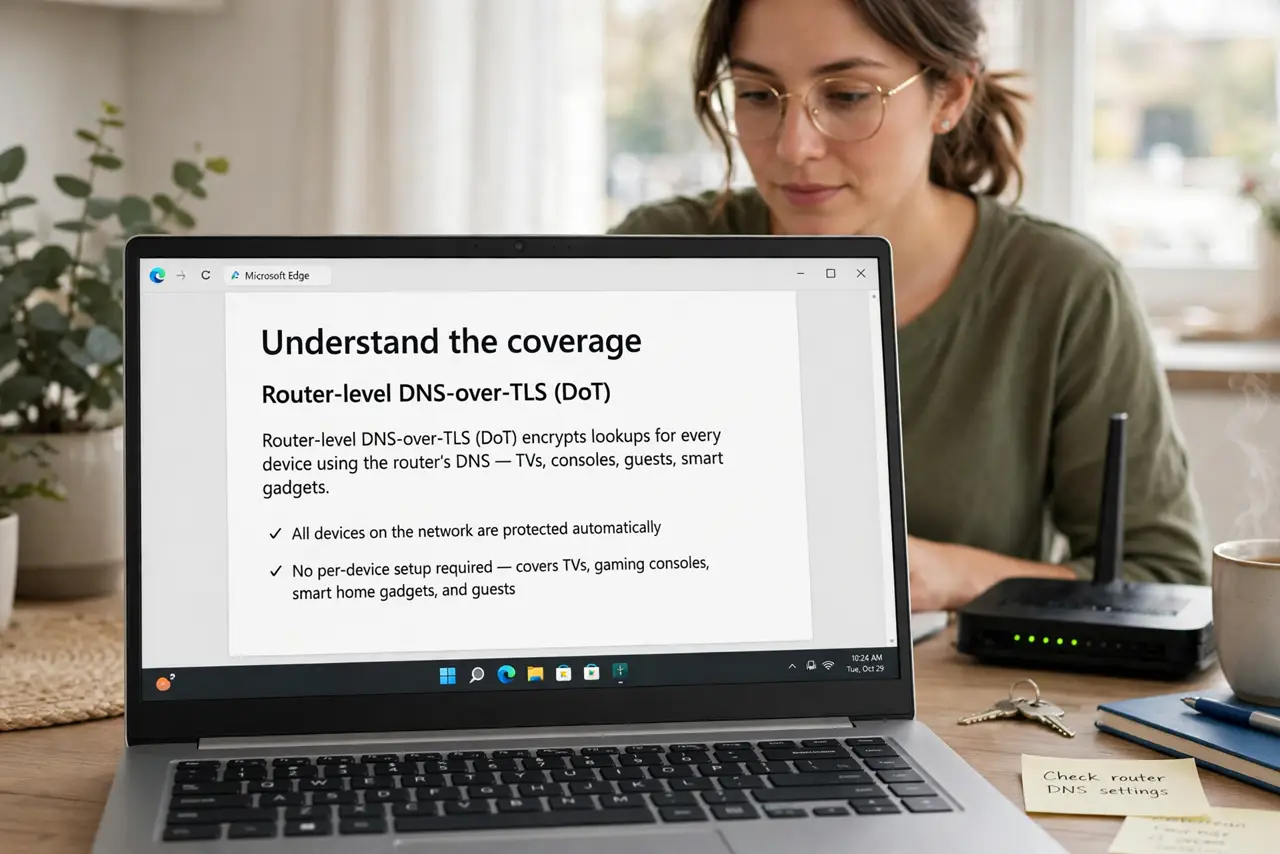
- Understand the coverage. Router-level DNS-over-TLS (DoT) encrypts lookups for every device using the router's DNS — TVs, consoles, guests, smart gadgets. It is the whole-network version of the browser-level DoH setting.
- Log in to your router. Open the router's admin page (the address is usually on the router's label) and sign in. If you never changed the default admin password, do that first — an open admin page is a bigger risk than plain DNS.
- Find the DNS privacy setting. Look under WAN, Internet, or DNS settings for DNS-over-TLS, DNS privacy, or encrypted DNS. Names vary by maker — ASUS, for example, labels it clearly; some ISP routers hide it under Advanced.
- Choose a provider and enable it. Pick a reputable DNS provider from the router's list or enter one manually, then enable strict or opportunistic TLS mode. Strict mode is better — it refuses to fall back to unencrypted lookups.
- Check for bypasses. Devices with manually set DNS (some phones, tech-savvy guests' VPNs) bypass the router's setting. For the devices that matter most, verify they are actually using the router's DNS.
- Test it. Use a DNS encryption check site from a device on your network. If it reports encrypted DNS, the whole house is covered — one setting, every screen.
What NOT to do
- Do not assume every router has it. Many ISP-supplied routers lack DNS-over-TLS entirely — check before promising yourself whole-network privacy.
- Do not use opportunistic mode if strict is available. Opportunistic silently falls back to plain DNS when TLS fails, which defeats the purpose quietly.
- Do not forget the router admin password. An attacker who reaches your admin page can simply turn the encryption off — lock the front door too.
- Do not expect it to hide traffic. DoT encrypts lookups only; your provider still sees connection IPs. It is a strong layer, not invisibility.
Frequently asked questions
DoT vs DoH — which is better?
They encrypt the same lookups over different transports. DoT (port 853) is the router standard; DoH (port 443) blends with web traffic. For router-wide coverage, DoT is the one to enable.
Will this break parental controls?
It can — filters that rely on plain DNS get bypassed by encryption. Use a DNS provider with built-in family filtering if you need both privacy and controls.
Does it slow down my internet?
No noticeable difference. The TLS handshake adds milliseconds once per session; browsing feels identical.