Schedule Router Reboots
Every few days the internet gets flaky, you unplug the router, wait ten seconds, plug it back in — and everything works again. For a while. If your router genuinely needs regular reboots to behave, automating the reboot buys you peace while you address the real cause. Here is how to schedule it, and why it is a band-aid, not a fix.
TL;DR / Quick Fix
Quick fix: a scheduled weekly reboot is a band-aid for a router needing frequent restarts — set it in the admin panel under Administration or System. But temporary fixes point to overheating, failing hardware, or old firmware. Fix the cause; schedule reboots only while planning a replacement.
Follow these steps
- Confirm the pattern first. If a reboot fixes things for days, you have a flaky router worth scheduling around. If it fixes things for minutes, skip the schedule — something is actively broken. The hourly-restart diagnosis helps tell the difference.
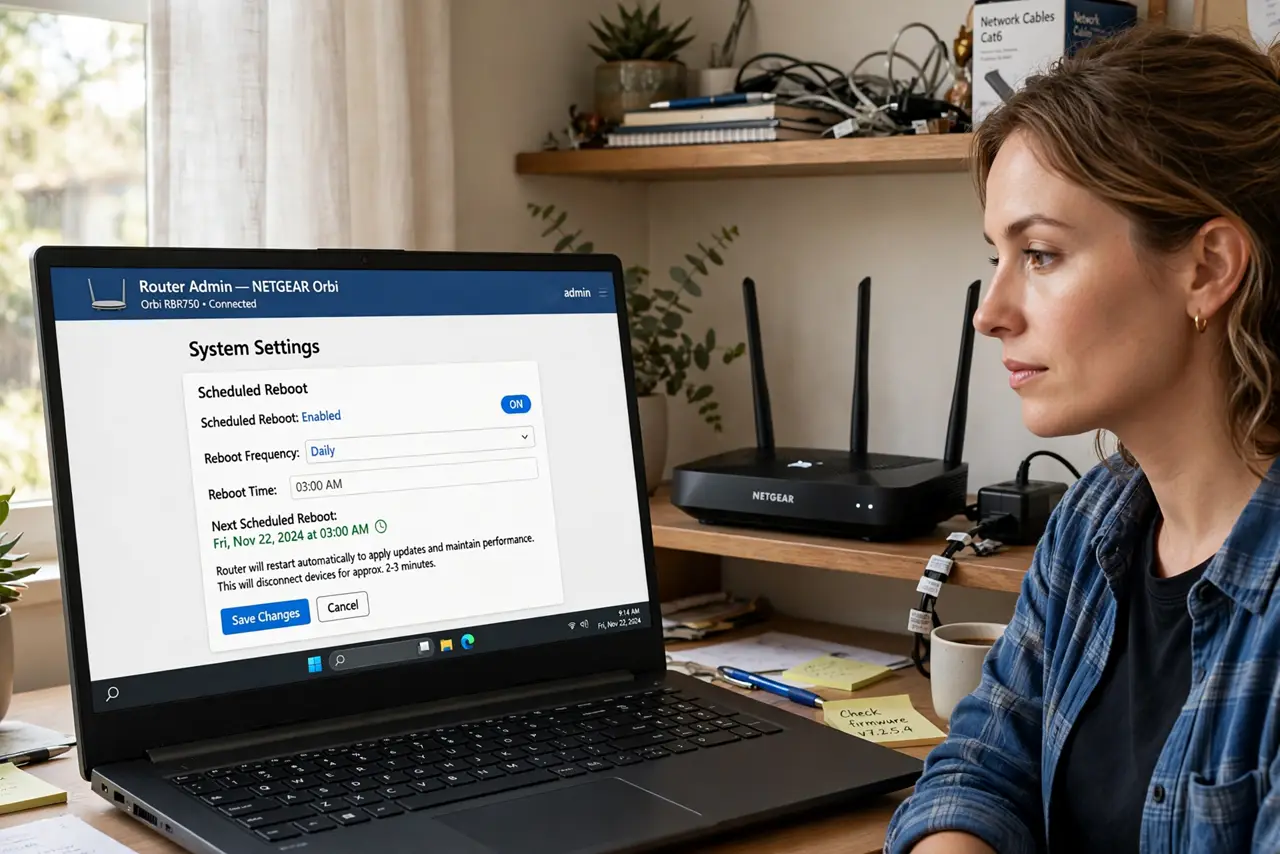
- Find the schedule setting. Log in to the admin panel and look under Administration, System, or Maintenance for Reboot Schedule or Scheduled Reboot. Not all routers have it — budget models often do not.
- Pick an off-hours time. 3 or 4 AM weekly is the classic. Avoid scheduling during work hours, overnight backups, or anyone's gaming session — a reboot drops every connection for a couple of minutes.
- Update the firmware instead. Before automating reboots, check for a firmware update — many needs-reboot-weekly bugs were fixed years ago in updates people never installed.
- Check for overheating. A router in a closed cabinet or stacked on a hot cable box will flake out on schedule. Move it somewhere ventilated — the overheating signs guide shows what to look for.
- Plan the replacement. A router that needs life support is telling you its age. Use the scheduled reboot to buy time while you research a replacement — not as a permanent lifestyle.

What NOT to do
- Do not confuse reboot with reset. A reboot (restart) keeps your settings; a reset wipes them — the reboot vs reset distinction matters when you are clicking buttons at 3 AM.
- Do not schedule reboots to dodge an ISP problem. If the modem is the flaky part, rebooting the router fixes nothing — diagnose before automating.
- Do not schedule daily reboots as a first resort. Weekly is plenty for a band-aid; daily suggests the hardware is actively dying.
- Do not forget connected smart-home gear. Cameras and alarms that do not reconnect cleanly after a reboot will silently go offline every week.
Frequently asked questions
Will a scheduled reboot fix slow Wi-Fi?
Only if the slowness is caused by the router degrading over days — a memory leak, a stuck process. If Wi-Fi is always slow, that is a signal or ISP issue, not a reboot issue.
My router has no schedule option — now what?
Use a cheap outlet timer to power-cycle it weekly, or upgrade to a router with the feature. The outlet timer is crude but effective.
Is it bad to reboot a router often?
No — reboots are harmless to the hardware. They are just a symptom treatment; the question is always what is causing the symptom.