Network Scanner Not Found? Reconnect It Fast
You open the scan app and it cannot find the scanner, even though the printer part may still work. Scanning uses its own connection, so a scanner can vanish while printing keeps going. Reconnect it step by step.
TL;DR / Quick Fix
Quick fix: confirm the scanner and computer share the same Wi-Fi network, then restart the scanner and wait for it to rejoin. If the app still cannot find it, remove the device in Printers and scanners and add it again fresh.
Follow these steps
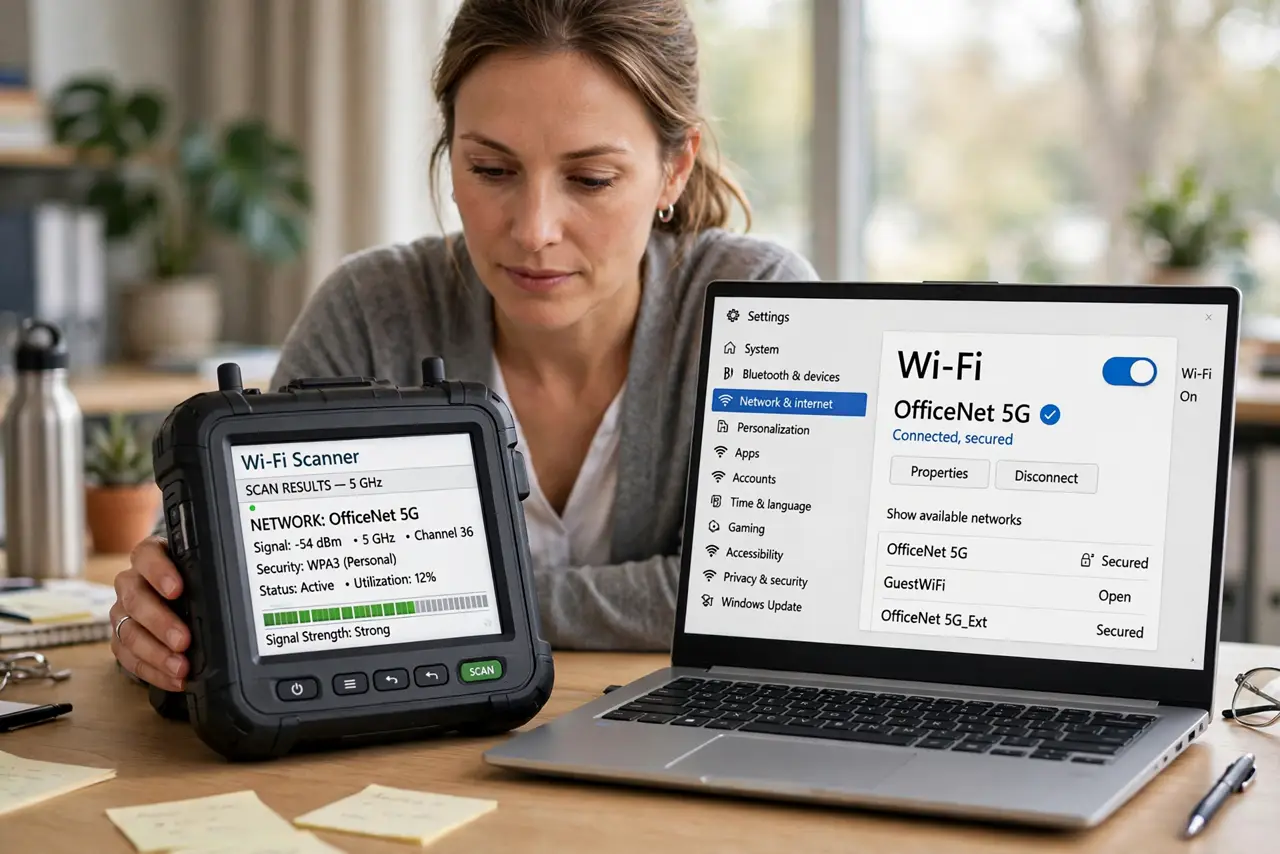
- Confirm the same network. Check the scanner panel and the computer to confirm both use the same Wi-Fi network name. A scanner on a guest network or a different band will not appear to the computer.
- Restart the scanner. Turn the scanner or multifunction device off, wait thirty seconds, turn it back on, and wait until it shows as connected on its own panel before testing.
- Restart the computer. Save your work and restart the computer, then open the scan app again. A restart clears a stale device listing that can hide a scanner that is actually back online.
- Remove and re-add the device. Open Settings, then Bluetooth and devices, then Printers and scanners, remove the device, and add it again. A fresh addition rebuilds the scanner connection from scratch.
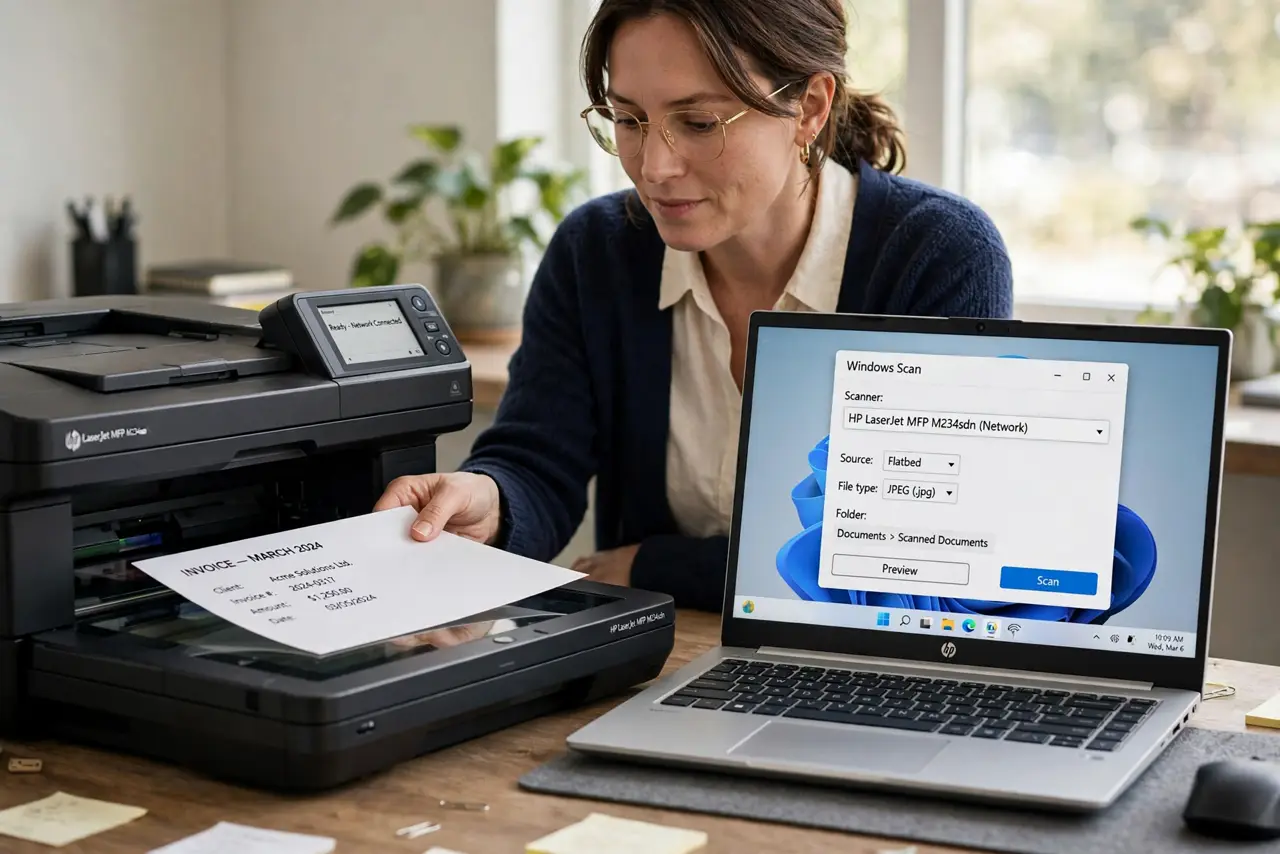
- Test with the built-in scan app. Open the Windows Scan app and look for the scanner there. If it appears in Scan but not in another app, the other app holds the problem, not the scanner.
- Move closer or use a cable test. Move the scanner closer to the router for a test, or connect it by cable if it supports one. If a cable connection works, weak Wi-Fi signal is the cause.
What NOT to do
- Do not reinstall scanning software before checking the network. A scanner on the wrong network will stay invisible no matter how many times you reinstall the app.
- Do not assume printing and scanning share one connection. Printing can work while scanning fails, because they use different device functions.
- Do not change the scanner IP settings by hand as a first step. A restart and a fresh addition fix most discovery failures without manual network changes.
- Do not test with the scanner asleep. Wake it fully and wait for its panel to show connected before concluding the computer cannot find it.
Frequently asked questions
Why does printing work but scanning fail?
They are separate functions with separate connections. A scanner discovery failure can hide scanning while printing keeps working normally.
Do I need special software to scan?
Not usually. The built-in Windows Scan app is a good test, and if it finds the scanner, your main app should too after a re-add.
What if the scanner appears and disappears?
Weak Wi-Fi is a likely cause. Move it closer to the router or test with a cable to confirm the signal is the problem.