Screen Flickers in Just One App? Fix It
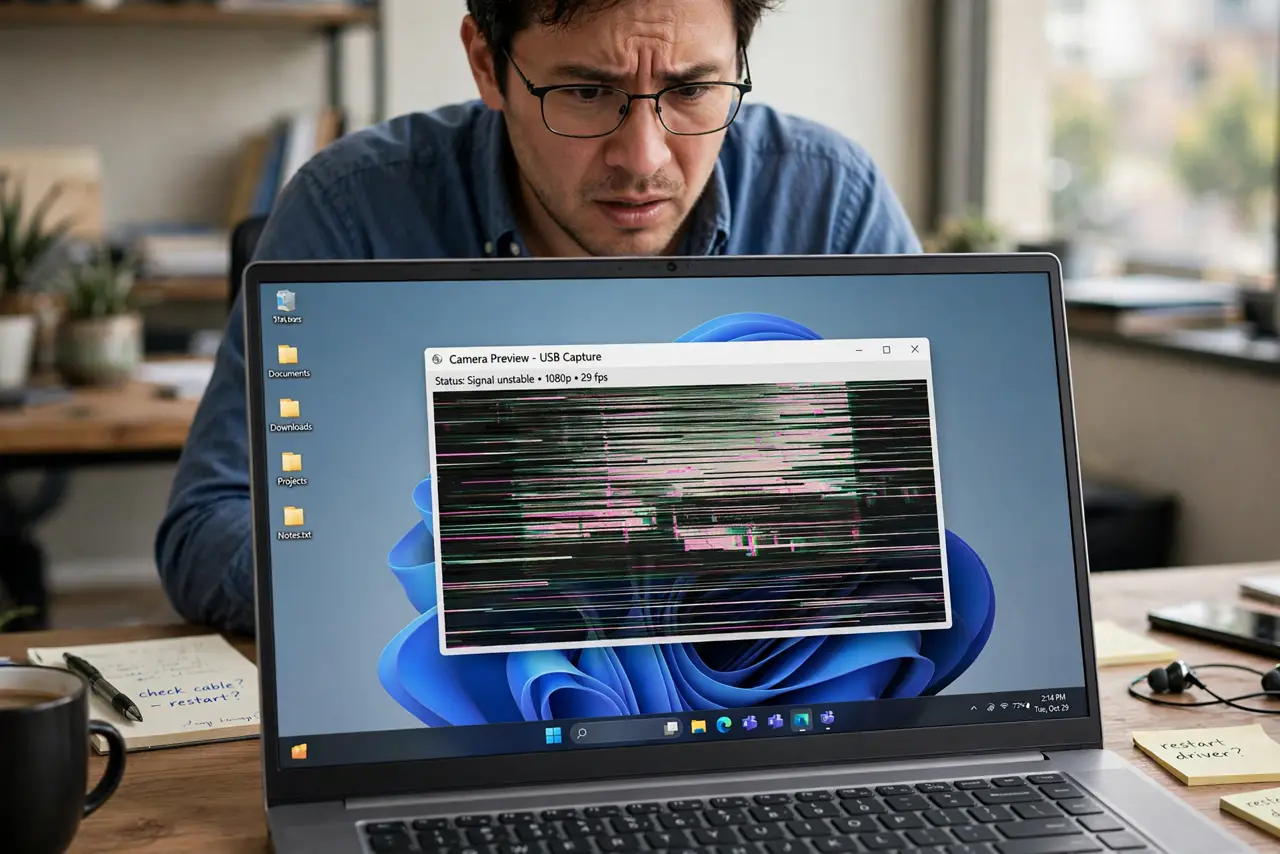
Your screen is perfect everywhere except in one app, where it flickers, tears, or flashes. That pattern is good news: the monitor is fine, and the culprit is that app's graphics settings — usually hardware acceleration or a resolution mismatch. This guide fixes the app without touching the display hardware.
TL;DR / Quick Fix
Quick fix: open the flickering app's settings and turn off hardware acceleration, then restart the app. If that fixes it, the app's GPU rendering was the problem. Also check the app is updated — developers fix rendering bugs constantly — and try toggling fullscreen versus windowed mode.
Follow these steps
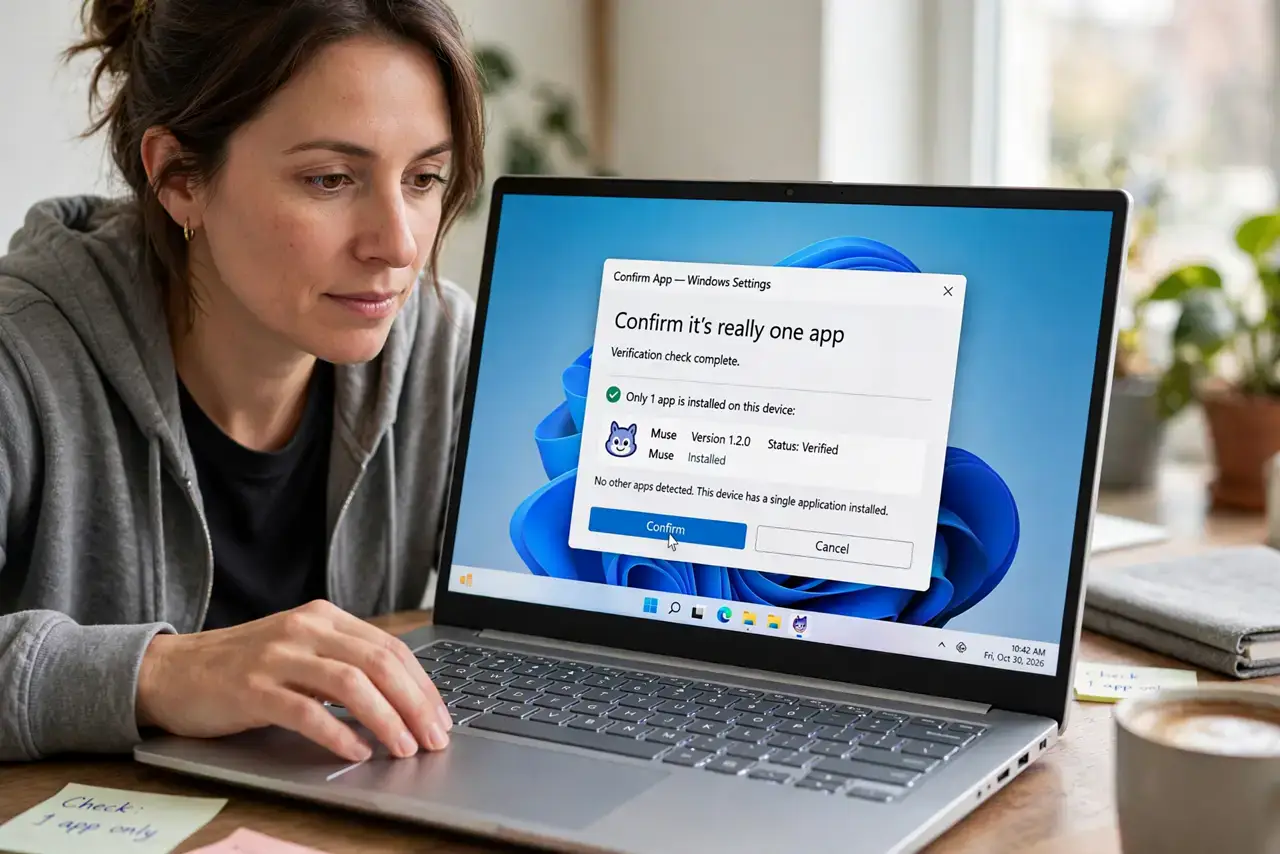
- Confirm it is really one app. Open several other apps and the desktop. If flicker appears only in one program, the hardware is innocent — focus all effort on that app.
- Disable hardware acceleration. In the app's settings (often under Advanced or System), turn off hardware acceleration and restart the app. This is the fix more often than not.
- Update the app. Check for the app's latest version. Rendering and flicker bugs are among the most commonly patched issues in changelogs.
- Toggle fullscreen and windowed. Switch the app between fullscreen and windowed mode. Some flicker only triggers in one mode due to how the compositor handles it.
- Check the app's resolution scaling. If the app looks blurry or oversized, its DPI scaling may clash with the system. Try the app's compatibility or scaling overrides.
- Update the graphics driver. If several apps flicker, the driver is suspect after all. Get the latest from the GPU maker's site — not just Windows Update.
What NOT to do
- Do not replace the monitor over one flickering app. App-specific flicker is software by definition — new hardware will flicker identically.
- Do not disable hardware acceleration system-wide. Turn it off in the problem app only; the rest of your system benefits from GPU rendering.
- Do not ignore the pattern if it spreads. One app today and three tomorrow means the graphics driver or GPU is degrading — investigate promptly.
- Do not crank the refresh rate hoping it helps. App-level flicker ignores refresh settings; fix the app's rendering path instead.
Frequently asked questions
Why would only one app flicker?
Because that app uses the GPU differently — its own rendering engine, acceleration path, or overlay method — and something in that path is broken.
Is hardware acceleration bad?
No, it is usually great for performance. But when an app's implementation is buggy, turning it off trades a little speed for stability.
The flicker started after an update — coincidence?
No. App and driver updates are the top trigger for new app-specific flicker. Rolling back either is a valid fix.