Screen Sideways? Fix a Rotated Display Fast
Your screen suddenly turned sideways and everything looks wrong. It is usually an accidental keyboard shortcut, not a broken monitor. You can fix it in under a minute, and then lock the setting so it stays put.
TL;DR / Quick Fix
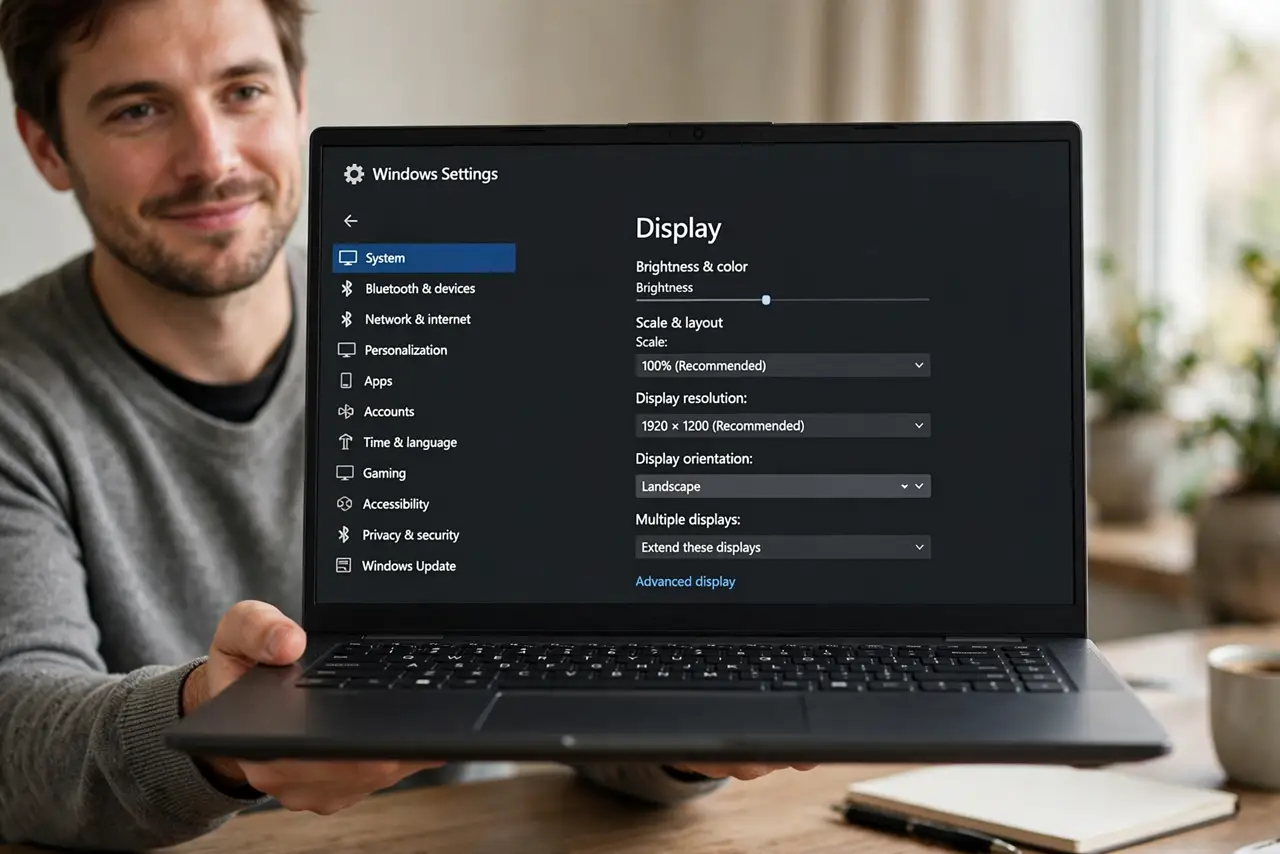
Quick fix: press Ctrl, Alt, and Up Arrow together. If nothing changes, open Settings, then System, then Display, and set Display orientation to Landscape. Click Keep changes, and check that the mouse moves in the direction you expect, and that windows open right side up.
Follow these steps
- Try the rotation shortcut first. Press Ctrl + Alt + Up Arrow. On most Windows computers this returns the display to Landscape at once. If it does nothing, do not keep pressing it; move to Display settings instead, because some computers disable this shortcut.
- Open Display settings. Right-click an empty part of the desktop and choose Display settings. You can also open Settings, then System, then Display. Look for the display that looks sideways if you have more than one monitor.
- Set orientation to Landscape. Find Display orientation and choose Landscape. Landscape is the normal wide view for most monitors and laptops. Do not choose Landscape (flipped), which is upside down.
- Keep the change. Click Keep changes when Windows asks. If you miss the countdown, Windows returns to the old setting, so you will need to choose Landscape again. Check that text reads left to right.
- Test the mouse and windows. Move the mouse and open a window. The pointer should move in the direction your hand moves, and windows should open right side up. If the mouse still feels reversed, you may have set the wrong monitor.
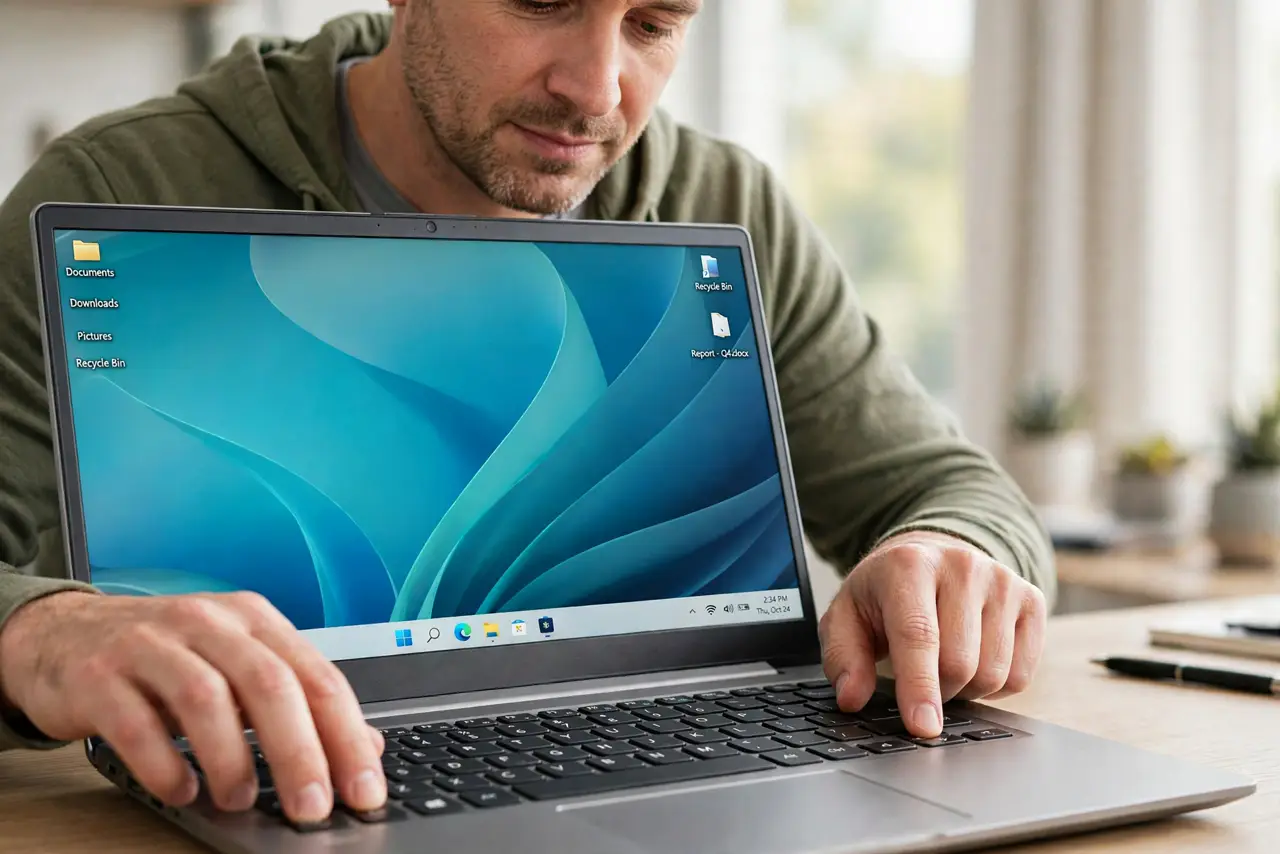
- Stop it happening again. If it happens often, avoid pressing Ctrl and Alt with an arrow key together. If a child or a pet steps on the keyboard, that is a common cause. Note the shortcut so you can fix it quickly next time.
What NOT to do
- Do not restart the computer in a panic. A restart will not fix a rotated display, and it can interrupt work you have not saved.
- Do not choose a random orientation and hope. Landscape (flipped) is upside down, and Portrait is tall and narrow, so check the preview before you keep a change.
- Do not change monitor cables while the computer is on if you are unsure. A loose cable is a different problem from a rotated screen, and swapping cables will not fix orientation.
- Do not install a random screen rotation tool. Windows already has the setting you need, and extra tools can add pop-ups or change other settings.
Frequently asked questions
Why did my screen rotate by itself?
Usually an accidental Ctrl, Alt, and Arrow press rotated it. It is a setting change, not damage to the monitor.
Does the shortcut work on every computer?
No. Some computers disable the shortcut, so use Settings, then System, then Display, then Display orientation instead.
What if I have two monitors and only one is sideways?
Select the sideways display in Display settings first, then set only that display to Landscape and keep the change.