Windows Keyboard Not Typing? Fix It Step by Step
A keyboard that stops typing can be caused by a loose cable, a wrong layout, a filter setting, or a stuck key, and it is often fixable in minutes. Work through connection and settings first, because replacing a keyboard will not fix a setting problem.
TL;DR / Quick Fix
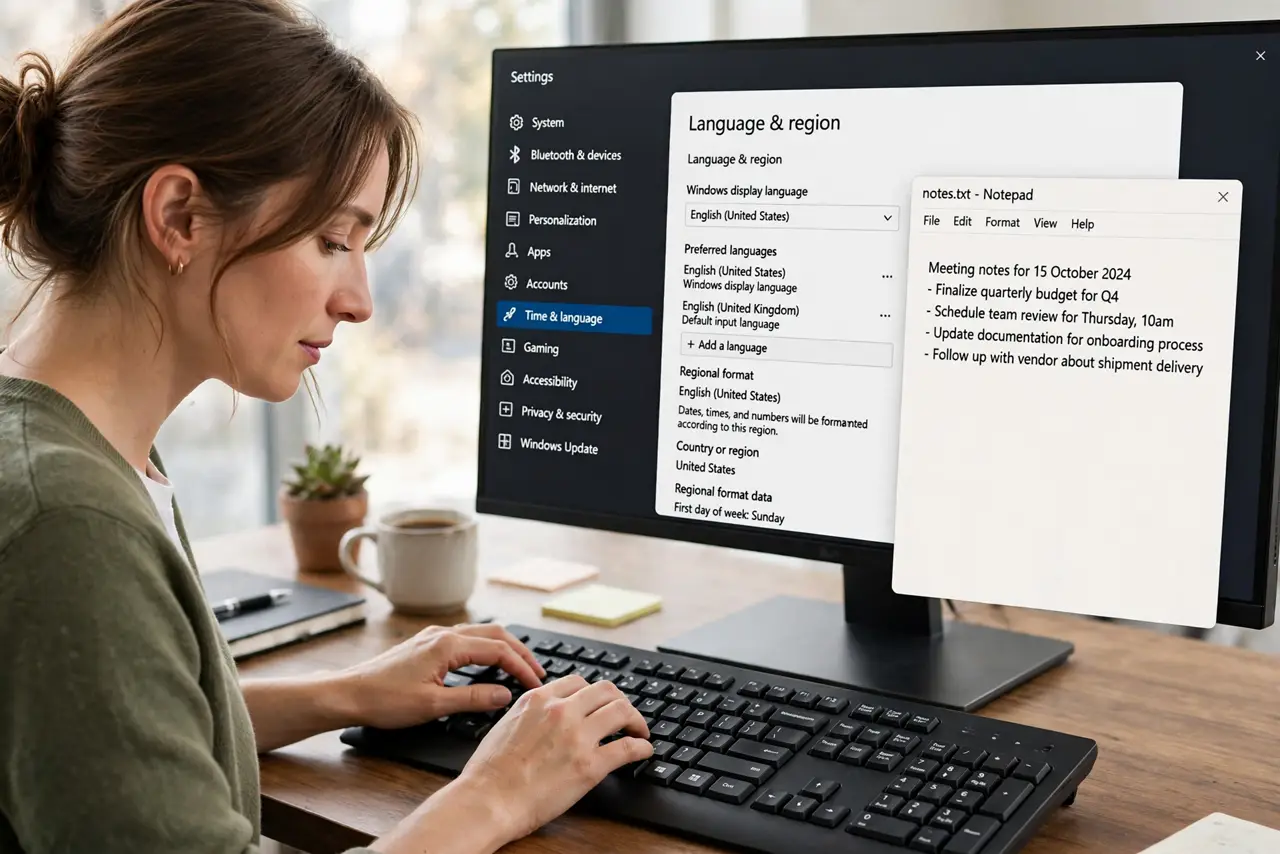
Quick fix: unplug and replug the keyboard, or turn a wireless keyboard off and on again. Then open Settings, then Time and language, then Language and region, and check the keyboard layout matches your keyboard. Test typing in Notepad, not only in one app.
Follow these steps
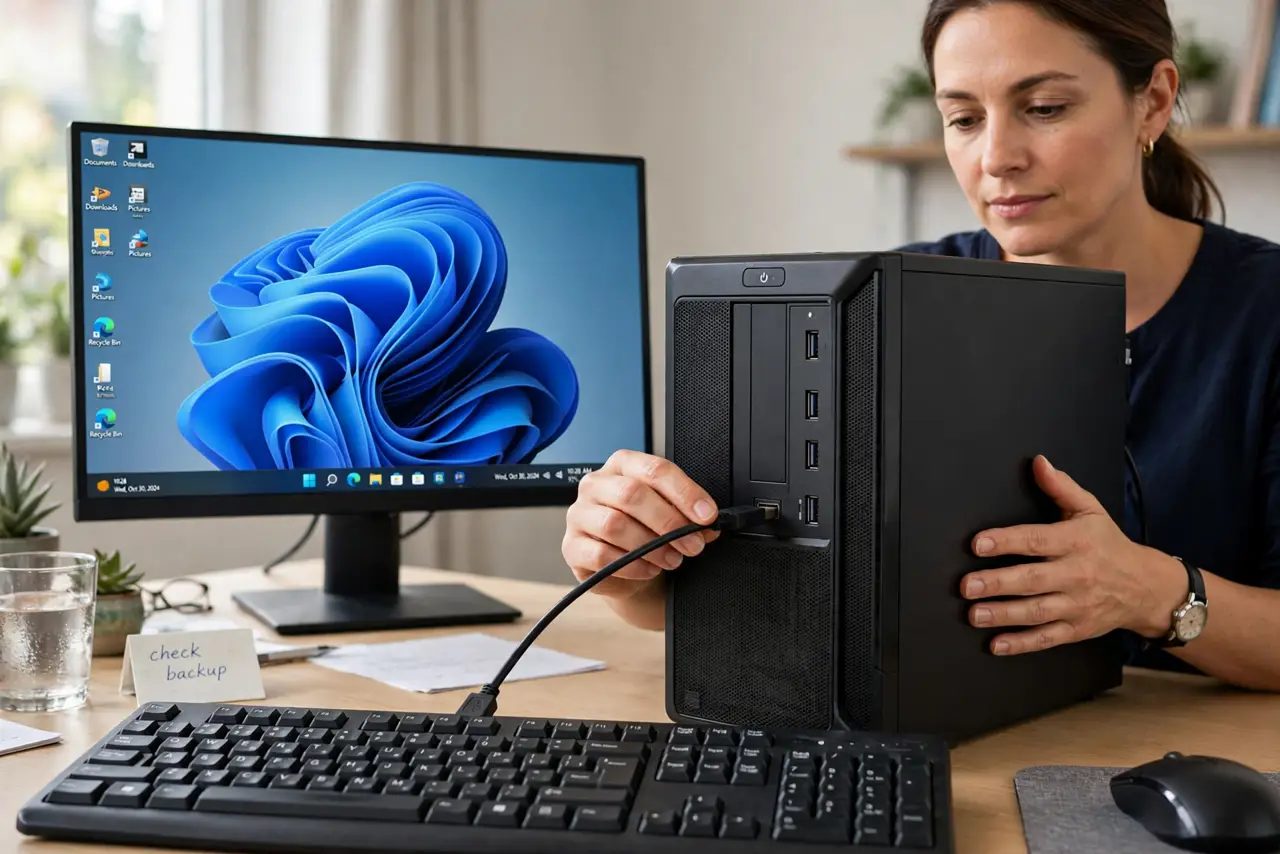
- Reseat the connection. Unplug a wired keyboard, wait a few seconds, and plug it back in firmly. For a wireless keyboard, turn it off and on, check the batteries, and move its receiver closer if it uses one. Test a few keys after each change.
- Test in a simple app. Open Notepad and type the alphabet and numbers. If typing works in Notepad but not in one app, the problem is likely in that app, not the keyboard. If typing fails everywhere, continue with settings.
- Check the keyboard layout. Open Settings, then Time and language, then Language and region, and check the keyboard layout. A layout for another language can make symbols and some letters appear wrong, even though the keyboard looks normal.
- Check Filter Keys and Sticky Keys. Open Settings, then Accessibility, then Keyboard, and check Filter Keys and Sticky Keys. Filter Keys can ignore quick or repeated key presses, so turn it off if typing feels delayed or missing.
- Test another USB port. Plug the keyboard into another USB port on the computer, not only a hub. If it works in a direct port, the hub or first port was the problem. Try the keyboard on another computer only if you have one spare.
- Check for a stuck key. Look for a key that sits lower than the others or feels stuck, and press it gently a few times. Do not pry keys off unless you know how to refit them, because laptop keys are easy to break.
What NOT to do
- Do not pour cleaner under the keys. Liquid can damage a keyboard, especially a laptop keyboard, so clean only the surface with a dry cloth if needed.
- Do not change every language setting at once. Change only the keyboard layout, then test, so you know which change fixed the problem.
- Do not uninstall the keyboard driver as a first fix. A missing driver can leave you without typing at all, and you may need another keyboard to reinstall it.
- Do not assume the keyboard is broken if only one app fails. Test in Notepad first, because app-specific problems have app-specific fixes.
Frequently asked questions
Why does my keyboard type wrong symbols?
Usually the keyboard layout is set for another language. Check Settings, then Time and language, then Language and region, and set the layout that matches your keyboard.
Why do some keys not register?
Filter Keys can ignore quick presses, a key can be stuck, or a wireless battery can be low. Check those settings and connections first.
What if the keyboard works in Notepad but not in a game?
Then the game or app may be capturing keys differently. Check that app's settings, rather than replacing the keyboard.