Screenshot and Annotate in Seconds
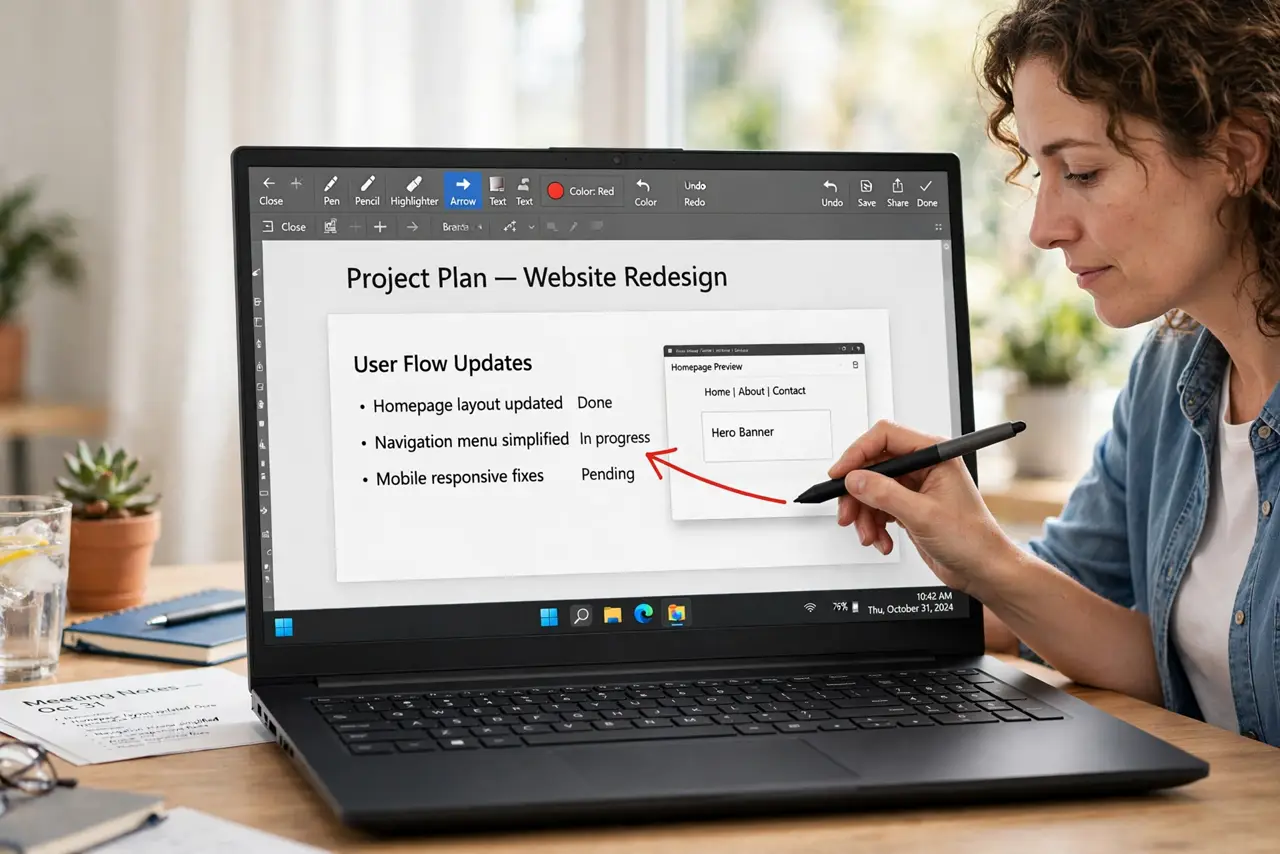
A screenshot with a red arrow explains in seconds what paragraphs cannot. The slow way is screenshotting, opening an editor, and hunting for tools; the fast way is a capture tool with annotation built in. This guide shows the seconds-long workflow.
TL;DR / Quick Fix
Use your system's screenshot shortcut that opens an annotation toolbar immediately. Add arrows, boxes, and short text labels, then copy or save the result. Name each file clearly so annotated shots stay findable. Keep a dedicated folder for annotated screenshots so they never mix with random captures.
Follow these steps
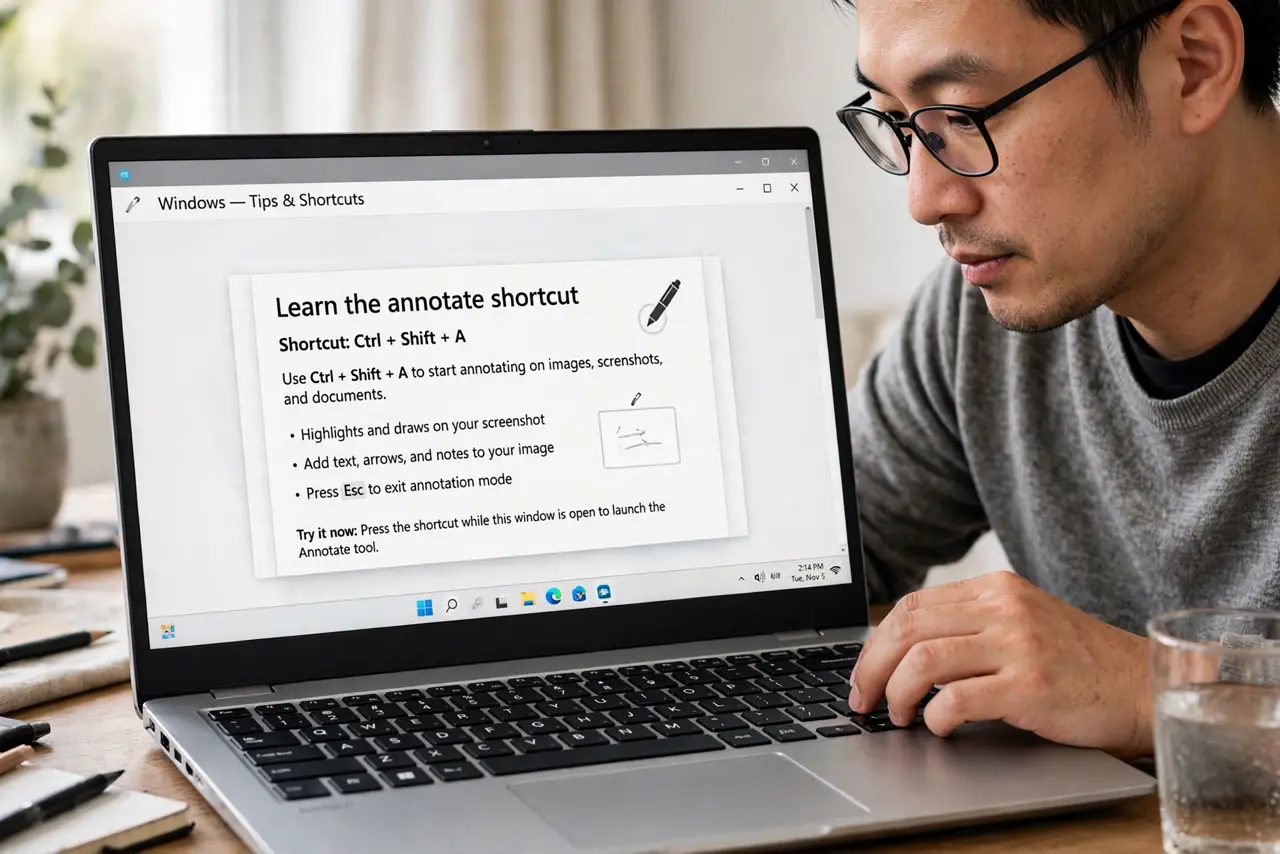
- Learn the annotate shortcut. Find the screenshot key combo that opens markup immediately — on most systems one shortcut captures and another captures straight into annotation. Seconds matter here.
- Capture only what you need. Drag a region around the relevant area instead of the full screen. A tight crop focuses attention and keeps file sizes small — and prevents the screenshot pile-up of giant full-screen grabs.
- Arrow first, text second. Drop an arrow or box on the key spot before adding any text. The mark shows where; the text says what.
- Keep annotations minimal. One arrow and a five-word label beats a rainbow of highlights. If the annotation needs a paragraph, the screenshot was the wrong tool.
- Copy or save deliberately. Copy to clipboard for chat, save to file for records. Decide in the moment, or annotated shots scatter across both.
- Name the keepers. Give saved annotations real names like login-error-2026-10-29. Named files get found; Screenshot-47 never does.
What NOT to do
- Do not annotate full-screen screenshots. Crop first, then mark — a tiny arrow on a huge screen helps nobody.
- Do not use five colors and three fonts. One high-contrast color keeps the message clear.
- Do not screenshot sensitive data to annotate it. Crop out passwords, tokens, and personal details first.
- Do not skip saving the important ones. Clipboard-only annotations vanish with the next copy.
Frequently asked questions
What is the fastest way to annotate a screenshot?
Use the system shortcut that opens the annotation toolbar right after capture, mark it, then copy or save.
How do I draw arrows on a screenshot?
In the annotation toolbar, pick the arrow tool, drag from the label to the target, and keep the label short.
Where do annotated screenshots go?
Wherever you save them — which is why naming them and using a dedicated folder matters.