Scroll Wheel Direction Reversed? Fix It
When scrolling up moves the page down, the direction setting flipped, or mouse software changed it. Flipping the setting back, in one place, restores the direction your hand expects.
TL;DR / Quick Fix
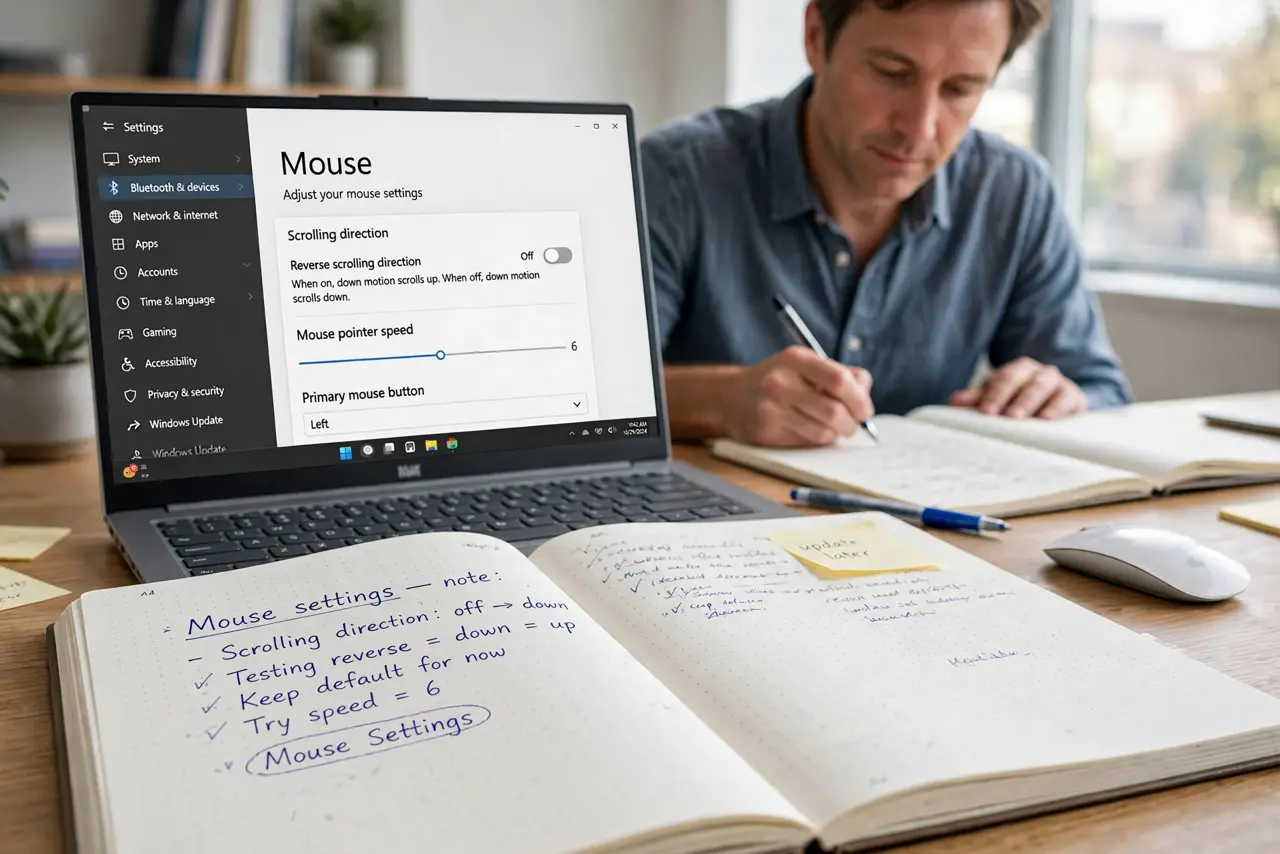
Quick fix: open Settings, then Bluetooth and devices, then Mouse, and check the scrolling direction option. Flip it to the opposite choice, then test on a long page. If it flips back, check the mouse maker software for its own direction setting.
Follow these steps
- Flip the direction in Mouse settings. Open Settings, then Bluetooth and devices, then Mouse, and find the scrolling direction option. Change it to the opposite choice and test at once.
- Test on a long page. Open a long document or web page and scroll up, then down. The page should move the way your hand expects, without a delay or a jump.
- Check the mouse maker software. If you installed software for the mouse, open it and look for a scroll direction or natural scrolling option. Set it to match Windows, not fight it.
- Try another mouse to isolate it. Plug in a different mouse and test scrolling. If the second mouse scrolls correctly, the first mouse or its software is the cause.
- Restart and test again. Restart the computer and test scrolling once more. If the direction flips back after restart, a start-up program is changing it.
- Check for a touchpad setting confusion. If you use a touchpad as well, check its scroll direction separately. Touchpad and mouse directions are separate settings, and one can feel reversed while the other is fine.
What NOT to do
- Do not change every mouse setting to fix direction. Change only the direction option, or you may alter speed and button behavior too.
- Do not install a scroll fixer from a pop-up. Windows already has the direction setting, and extra tools can add unwanted behavior.
- Do not force the wheel harder when it scrolls the wrong way. Forcing a wheel does not change direction, and it can damage the wheel mechanism.
- Do not ignore a direction that flips back daily. A flipping direction points to software changing it, so find that software instead of flipping the setting daily.
Frequently asked questions
Why did the direction flip by itself?
Mouse software, a new mouse, or a settings change flipped it. Checking Windows and the mouse software together finds which one changed.
Should touchpad and mouse match?
Not necessarily. Many people prefer opposite directions for touchpad and mouse, so set each to what feels natural for that device.
What if only one app scrolls reversed?
That app may have its own scroll setting or zoom. Check the app settings before changing the system direction.