Second Monitor Says No Signal? Fix It Step by Step
A second monitor saying No Signal is frustrating, especially when it worked yesterday. It is often a cable, input, or display setting, not a dead monitor. Work from the simplest check to the deeper one, and test one change at a time.
TL;DR / Quick Fix
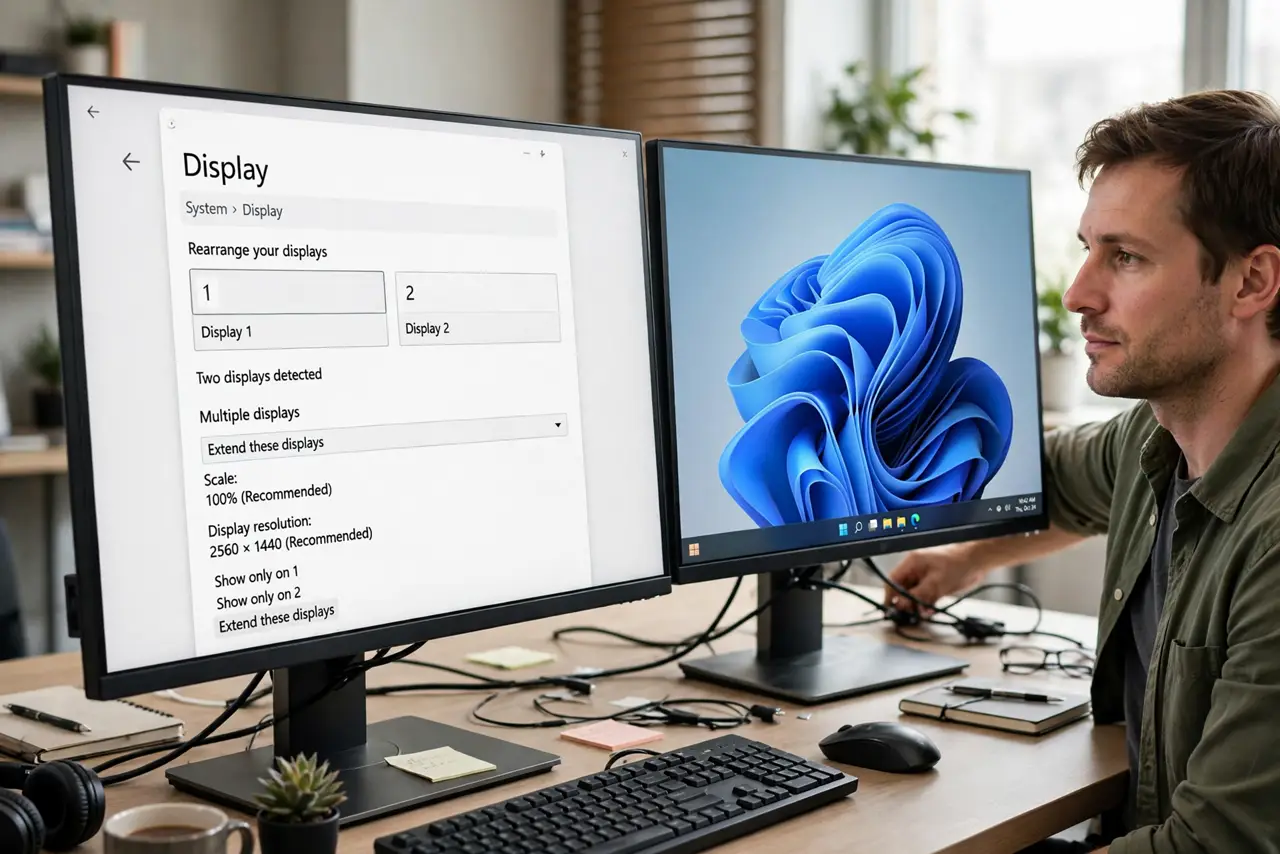
Quick fix: check the monitor is on and set to the right input, then check the cable at both ends. In Windows, open Settings, then System, then Display, and press Detect. If the monitor still shows No Signal, try another port or cable before assuming it is broken.
Follow these steps
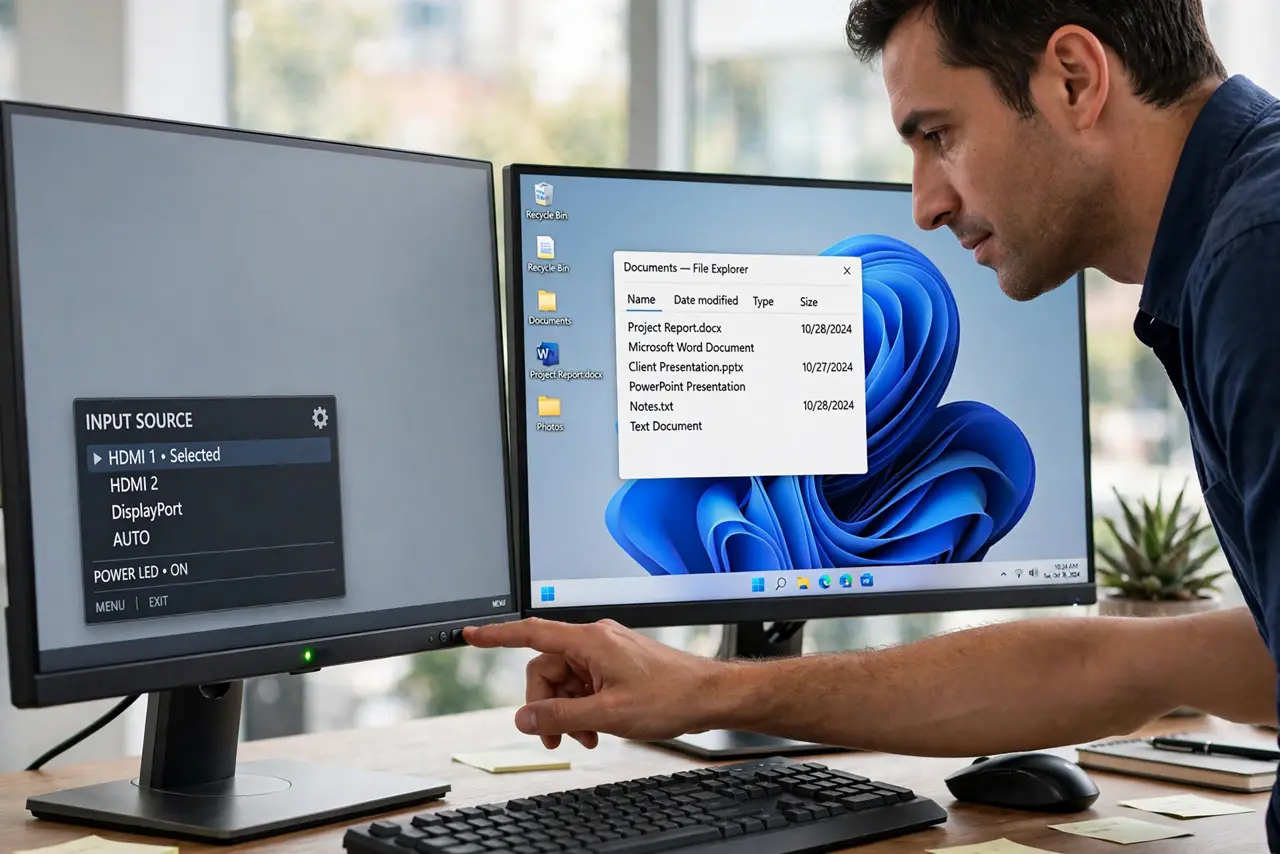
- Check power and input first. Make sure the monitor power light is on and the monitor is set to the input you are using, such as HDMI or DisplayPort. Use the monitor buttons to cycle inputs only once, and wait a few seconds on each input.
- Reseat the cable at both ends. Unplug the video cable from the monitor and from the computer, then plug it back in firmly at both ends. A cable that looks connected can still be loose, especially after moving a desk.
- Detect the display in Windows. Open Settings, then System, then Display, and choose Detect under Multiple displays. If Windows finds the monitor, choose Extend these displays so you can use both screens.
- Try another port or cable. If Detect finds nothing, try another port on the computer or monitor, and another cable if you have one. If a different cable works, the first cable was the problem, not the monitor.
- Check display arrangement. In Display settings, drag the monitor boxes so they match how your monitors sit on your desk. If the second monitor is detected but shows a black screen, check that it is not set to Disconnect this display.
- Test the monitor on its own. Connect the problem monitor by itself as the only display, if you can. If it works alone, the issue is likely a port, cable, or multi-display setting, not a dead monitor.
What NOT to do
- Do not buy a new monitor as the first step. Cables, inputs, and Detect settings are cheaper and more common causes than a dead monitor.
- Do not force a cable into the wrong port. HDMI, DisplayPort, and USB-C look different, and forcing a cable can damage a port.
- Do not change graphics driver settings at random. Driver settings can override Windows Display settings, so check Windows first.
- Do not ignore the monitor input button. Many No Signal cases are simply the monitor set to HDMI 1 when the cable is in HDMI 2.
Frequently asked questions
Why does my second monitor work sometimes and not others?
A loose cable or a monitor that sleeps on the wrong input can cause intermittent No Signal. Reseat the cable and set the input explicitly.
What if Windows detects the monitor but it stays black?
Check Multiple displays is not set to Disconnect this display, and check brightness and input on the monitor itself.
What if only one monitor works after a move?
Check every cable again after a move. A cable that was tight before a move is often the one that loosened.