Back Up Your Authenticator?
Your authenticator app holds the keys to your accounts — and if your phone dies, gets stolen, or gets replaced, those keys can vanish with it. Then you are locked out of everything at the worst possible moment. Backing up your authenticator is not optional maintenance; it is the difference between a phone upgrade and a week of account recovery hell.
TL;DR / Quick Fix
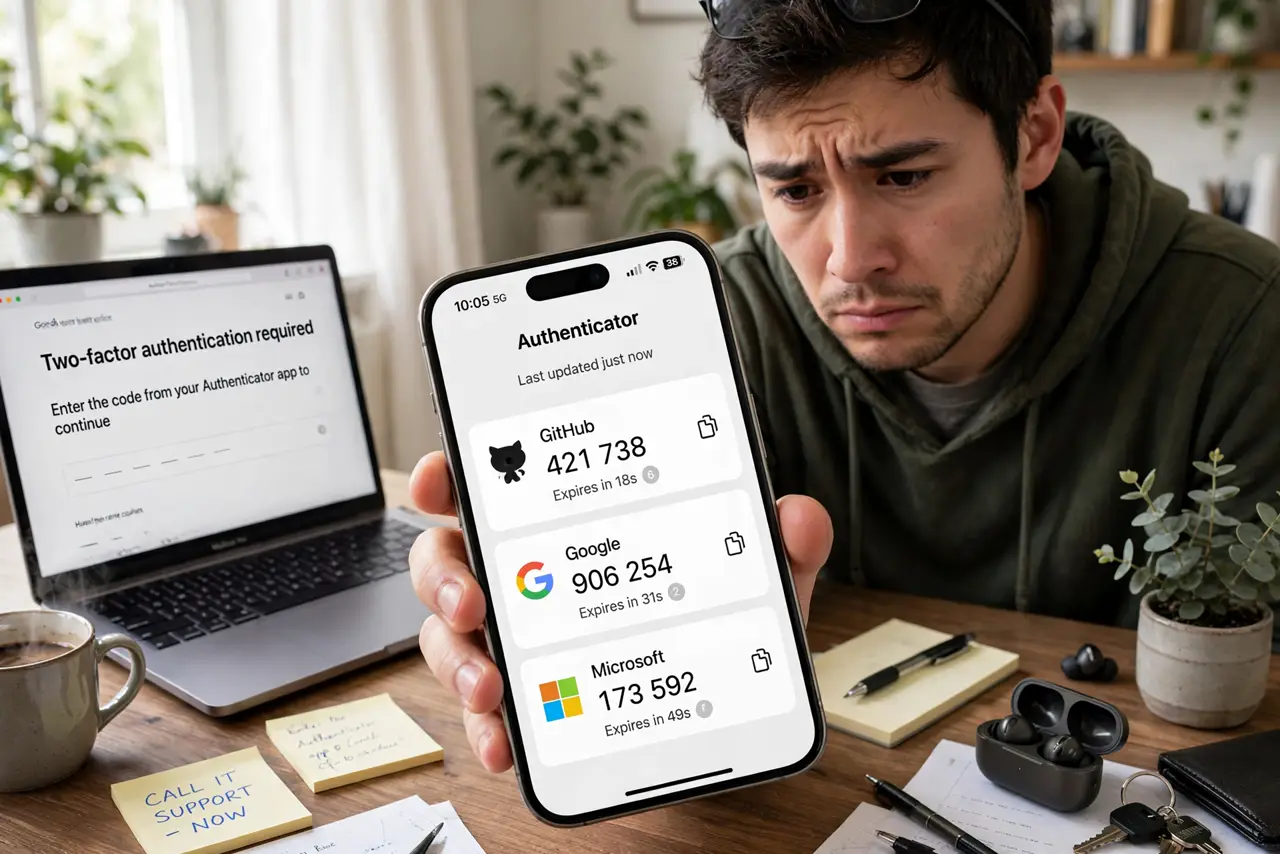
Quick fix: your authenticator codes live only on your phone unless you back them up. Turn on cloud backup in the authenticator app's settings now, and save each account's backup codes somewhere safe. Do this before you need it — after a lost phone is too late.
Follow these steps
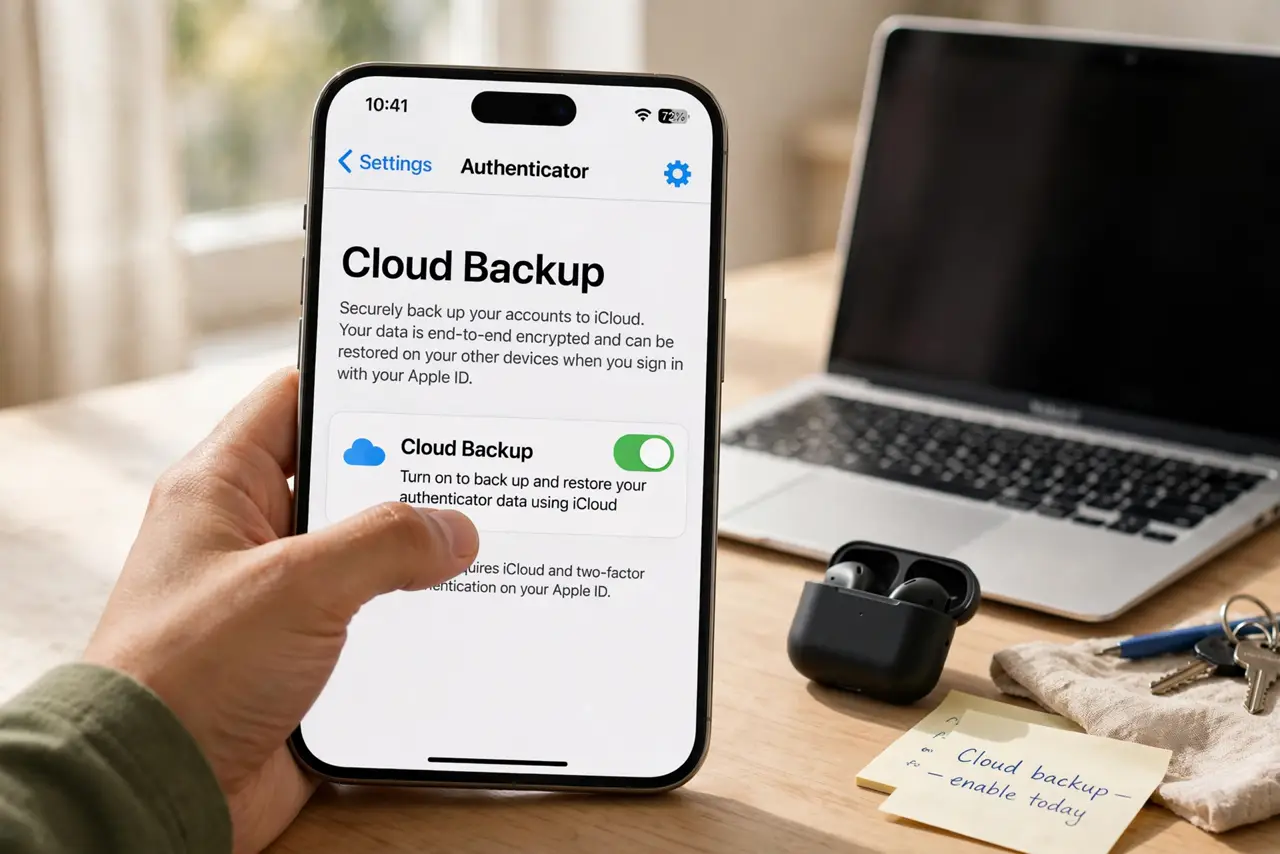
- Turn on cloud backup today. Open your authenticator app's settings and enable cloud backup — this syncs your codes to your platform account. The new phone transfer guide shows the migration, but backup means you may never need it.
- Save the backup codes too. Every site that gave you a QR code also offered backup codes — one-time codes for exactly this emergency. Save them in your password manager; the lost backup codes guide is what happens without them.
- Do the backup before the crisis. Backups only help if they exist before the phone is lost. This is a five-minute task with no deadline — which is exactly why everyone postpones it until the deadline arrives violently.
- Test recovery on a second device. Install the authenticator on a tablet or old phone and confirm the codes sync. A backup you have never tested is a hope, not a plan.
- Update the backup after adding accounts. Cloud backup usually syncs automatically, but saved backup codes do not update themselves. Each new account means new codes to file away.
- Know what happens without backup. No backup means per-site account recovery — ID verification, waiting periods, support tickets. For some services it takes days; for a few, the account is simply gone.
What NOT to do
- Do not assume your codes transfer with a phone backup. Some authenticator data explicitly does not transfer — verify the app's backup is on rather than assuming.
- Do not screenshot your QR codes into your camera roll. An unencrypted photo of every account key is a jackpot for anyone who sees your photos.
- Do not keep backup codes only on the same phone. Codes stored solely on the device they protect are not a backup — they are a decoration.
- Do not postpone this until the new phone arrives. Migration day with no backup is the number-one authenticator disaster story.
Frequently asked questions
I got a new phone and my codes are gone. Now what?
Use each site's backup codes or account recovery to sign in, then set up the authenticator fresh. Then — this time — turn on cloud backup immediately.
Is cloud backup of authenticator codes safe?
The codes are encrypted with your account credentials. It is far safer than the alternative, which is losing everything — perfect security that loses your accounts helps no one.
Should I switch to a password manager's built-in authenticator?
It is convenient and backs up with the vault. The tradeoff is single-point-of-failure: if the vault is compromised, passwords and codes go together. Many security folks keep them separate deliberately.