Autofill Data? Manage It
Your browser offering to fill your address and credit card on every form is convenient -- and it is also a small database of your personal details sitting in the browser. Autofill data includes names, addresses, phone numbers, and payment methods, and managing it well means convenience without carelessness. Here is what is stored, where it lives, and how to control it.
TL;DR / Quick Fix
Quick fix: browsers store addresses and payment methods to fill forms faster -- review them in Settings under Autofill or Privacy. Delete old addresses and expired cards you no longer use. Keep payment autofill only on personal devices, and consider a dedicated password manager for sensitive entries.
Follow these steps
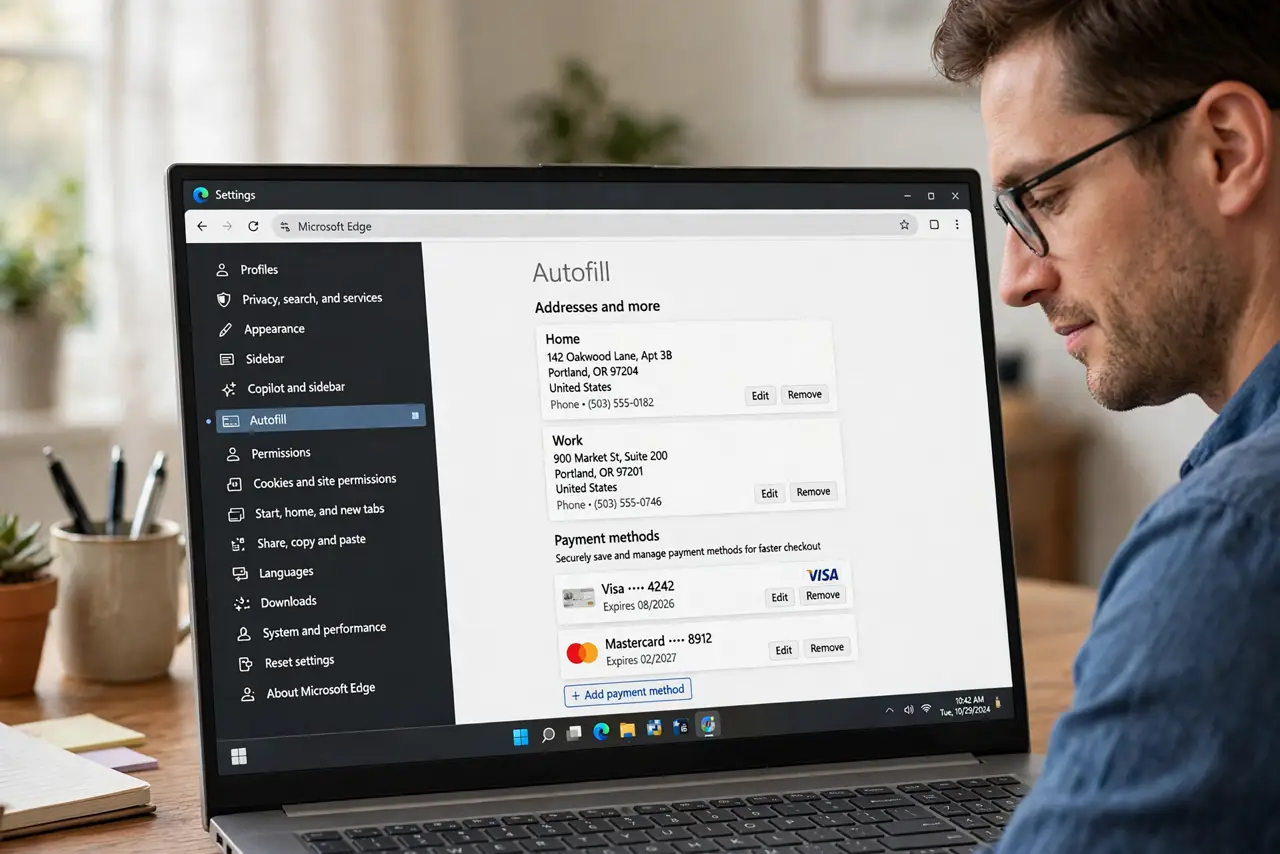
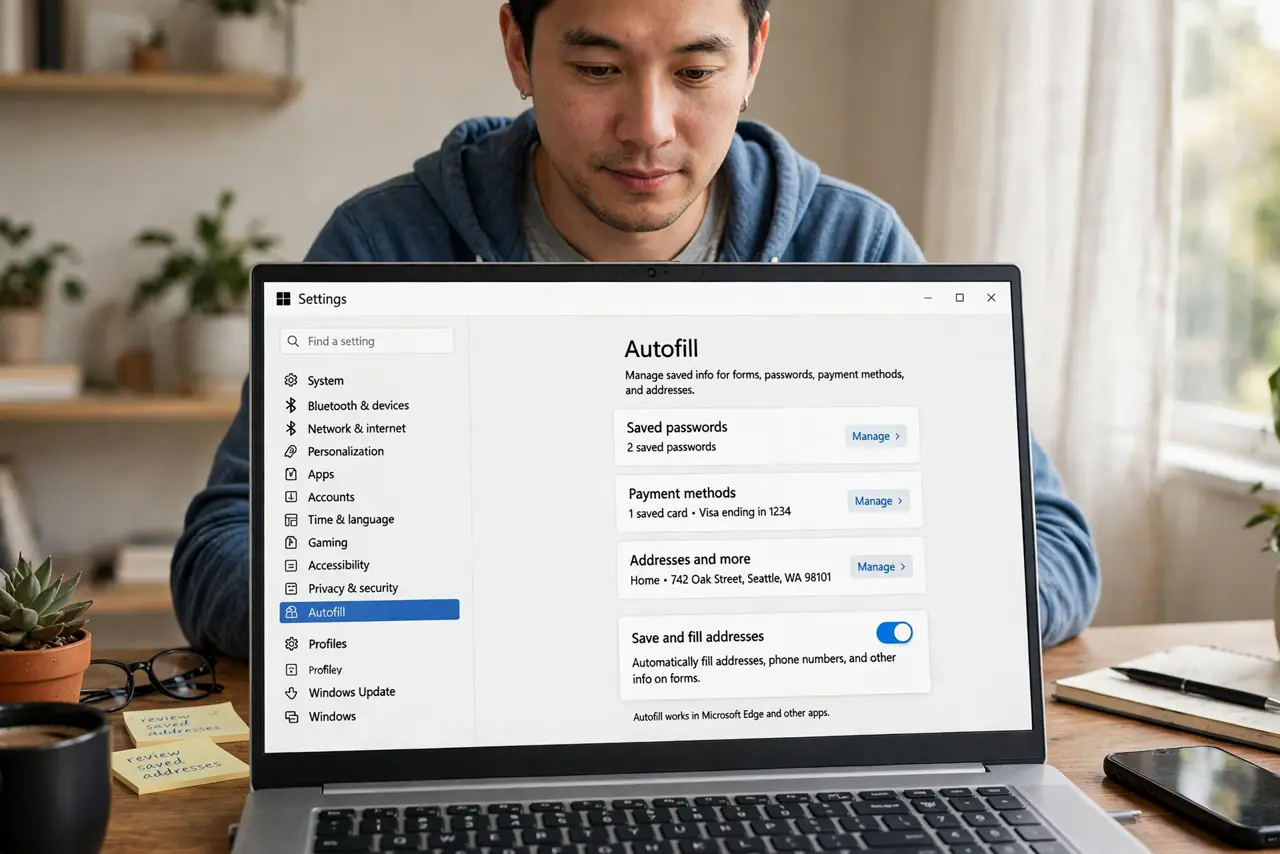
- See what your browser stored. In Chrome or Edge: Settings, then Autofill. In Firefox and Safari: Settings, then Privacy or AutoFill. You may be surprised -- years of addresses and old cards accumulate silently.
- Delete the stale entries. Old addresses, expired cards, a previous phone number -- remove them. Stale autofill data causes wrong-address orders and checkout confusion, not just clutter.
- Decide about payment autofill. Filling card numbers is the riskiest autofill. On a personal device with a screen lock it is reasonable; on a shared computer, turn payment autofill off entirely.
- Fix wrong suggestions. When the browser fills the wrong address, edit or delete the bad entry rather than fighting it each time. The wrong-address problem is almost always one stale entry -- see the autofill wrong address guide for the full fix.
- Protect the device itself. Autofill is only as safe as the device: a phone without a screen lock hands your addresses to anyone who picks it up. Lock screens and OS passwords are autofill's real bodyguards.
- Consider a password manager instead. Dedicated managers handle addresses and cards with stronger encryption and better controls than browsers. If autofill worries you, a password manager is the upgrade path.
What NOT to do
- Do not keep expired cards in autofill. They cause failed payments and confusion -- delete them the moment they are replaced.
- Do not enable payment autofill on shared computers. Anyone using that browser can spend as you -- turn it off there.
- Do not ignore a wrong autofill suggestion. It signals a bad entry that will keep causing errors until you delete it.
- Do not assume autofill is encrypted like a vault. Browser autofill protection varies -- device locks matter more than browser settings.
Frequently asked questions
Is browser autofill safe?
Reasonably, on a personal locked device -- the convenience is real and the risk is modest. On shared or unlocked devices, it is not safe at all.
Why does autofill suggest the wrong address?
A stale or duplicate entry is stored. Open the autofill settings, find the bad entry, and delete or correct it.
Should I use a password manager instead?
For the security-conscious, yes -- managers encrypt better and sync more safely. For casual use on a personal device, browser autofill is fine.