Delete Browsing History?
Your browser keeps a list of every site you visit — handy for finding that page from Tuesday, awkward on a shared computer. Deleting browsing history wipes that local list, but it does not make you invisible: your internet provider, employer, and the sites themselves keep their own records. Know what deleting does and does not do before you bother.
TL;DR / Quick Fix
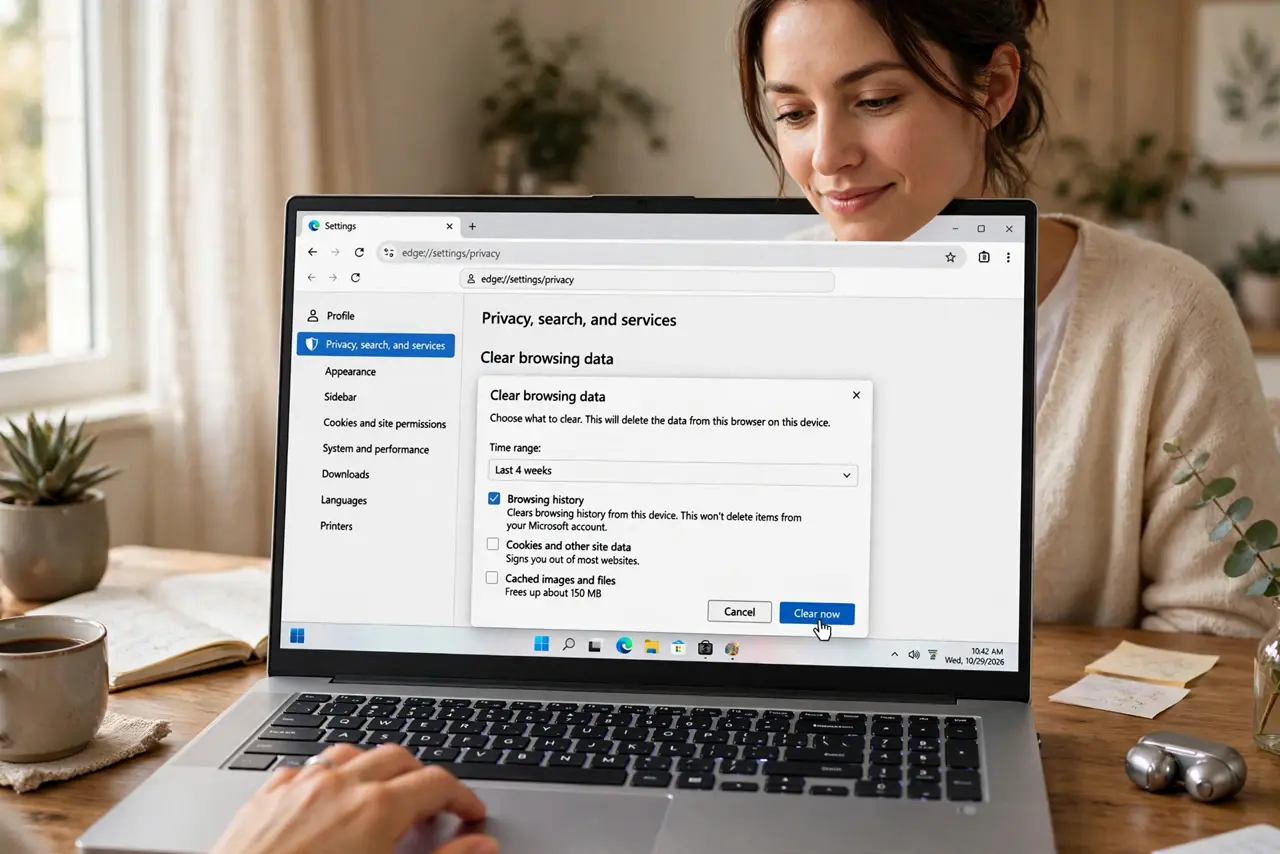
Quick fix: deleting browsing history removes the local list of visited sites — useful on shared computers and for a fresh start. It does not erase what your provider, employer, or the sites themselves recorded. Use Clear browsing data in Settings, then Privacy.
Follow these steps
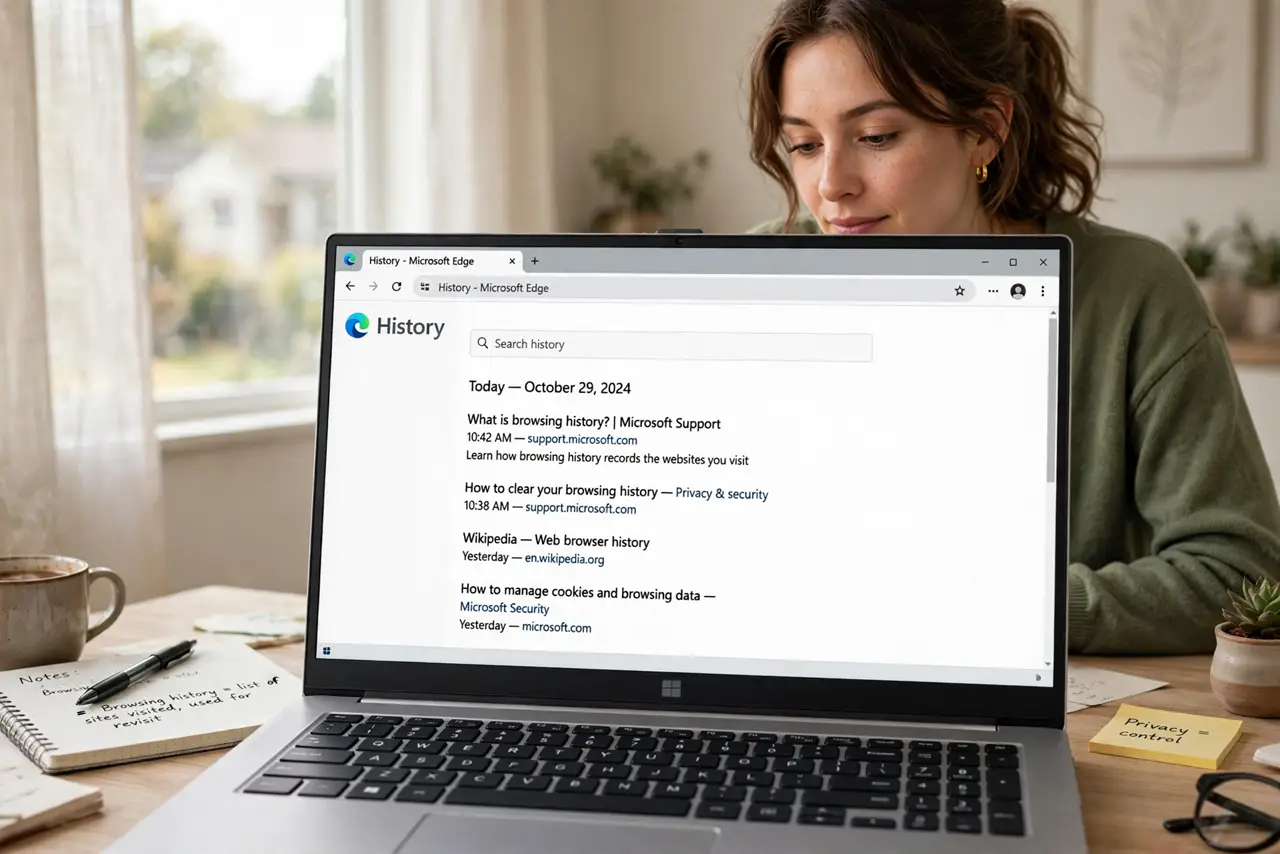
- Understand what history is. The history is your browser's local log of visited pages, powering the address-bar suggestions and the 'find that page again' feature. Deleting it removes the log from this browser on this device only.
- Know what deleting cannot erase. Your internet provider, your employer's network, and each website keep their own records regardless. Deleting local history is privacy from the next person using this browser — not from the network.
- Delete for a time range. The 'last hour' option cleans up a recent session while keeping older history useful. 'All time' wipes the slate — pick based on what you are actually trying to remove.
- Clear on shared computers, always. Library, hotel, borrowed laptop — clear history (and cookies) when done. Better yet, use a guest profile or private window there so nothing is saved in the first place.
- Use private windows proactively. A private or incognito window never writes history at all. For sensitive browsing, starting private beats cleaning up afterward — no deletion step to forget.
- Check synced devices too. If your browser syncs, history may live on your other devices as well. Clearing on one synced browser usually clears everywhere — verify rather than assume.
What NOT to do
- Do not delete history expecting invisibility. Networks, providers, and sites keep their own logs — local deletion is not a cloak.
- Do not clear history to 'speed up' the browser. History is a tiny text list; it has no meaningful effect on speed.
- Do not forget downloads and cookies. History deletion leaves downloaded files and login cookies behind — clear those separately if needed.
- Do not rely on deletion on a monitored computer. Employer and school devices may log activity independently of the browser.
Frequently asked questions
Does deleting history hide me from my internet provider?
No — your provider sees the connections regardless of what your browser remembers. Local history deletion only affects the browser itself.
Will I lose my saved passwords?
No, unless you also tick the passwords box. History, cookies, and passwords are separate checkboxes — read them before confirming.
Is private browsing better than deleting history?
For avoiding a local trail, yes — private windows never record in the first place, so there is nothing to forget to delete.