Clear Cookies? Basics
Cookies are small notes websites leave in your browser — some remember your login so you stay signed in, others are trackers that follow you across sites. Clearing them all feels like a fresh start, but it also logs you out of everything and resets site preferences. This guide explains which cookies matter, when clearing helps, and how to do it without the annoyance.
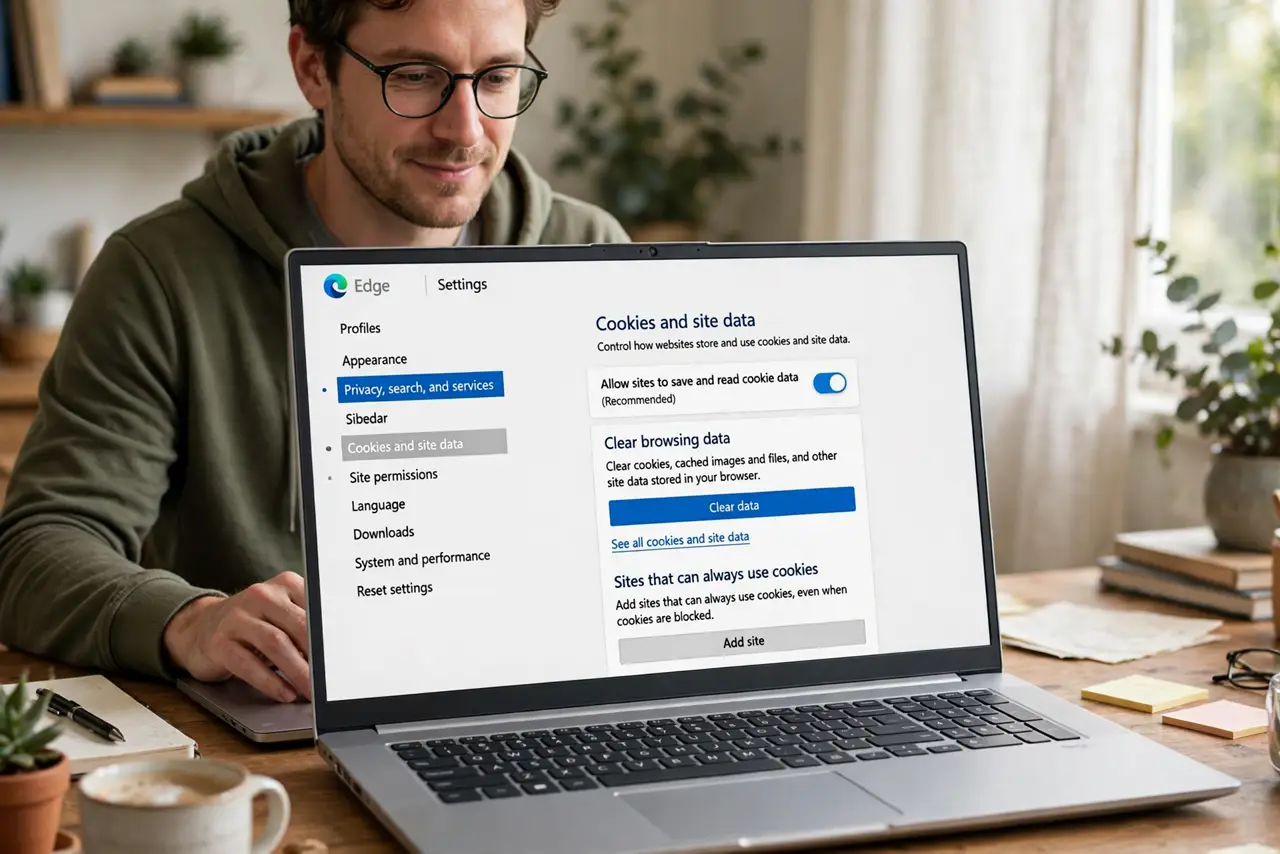
TL;DR / Quick Fix
Quick fix: clearing cookies logs you out of most sites and wipes saved preferences, so do it deliberately — not as a daily ritual. It helps when a site misbehaves or after a shared computer. In browser settings under Privacy, clear cookies for 'all time' but keep passwords.
Follow these steps
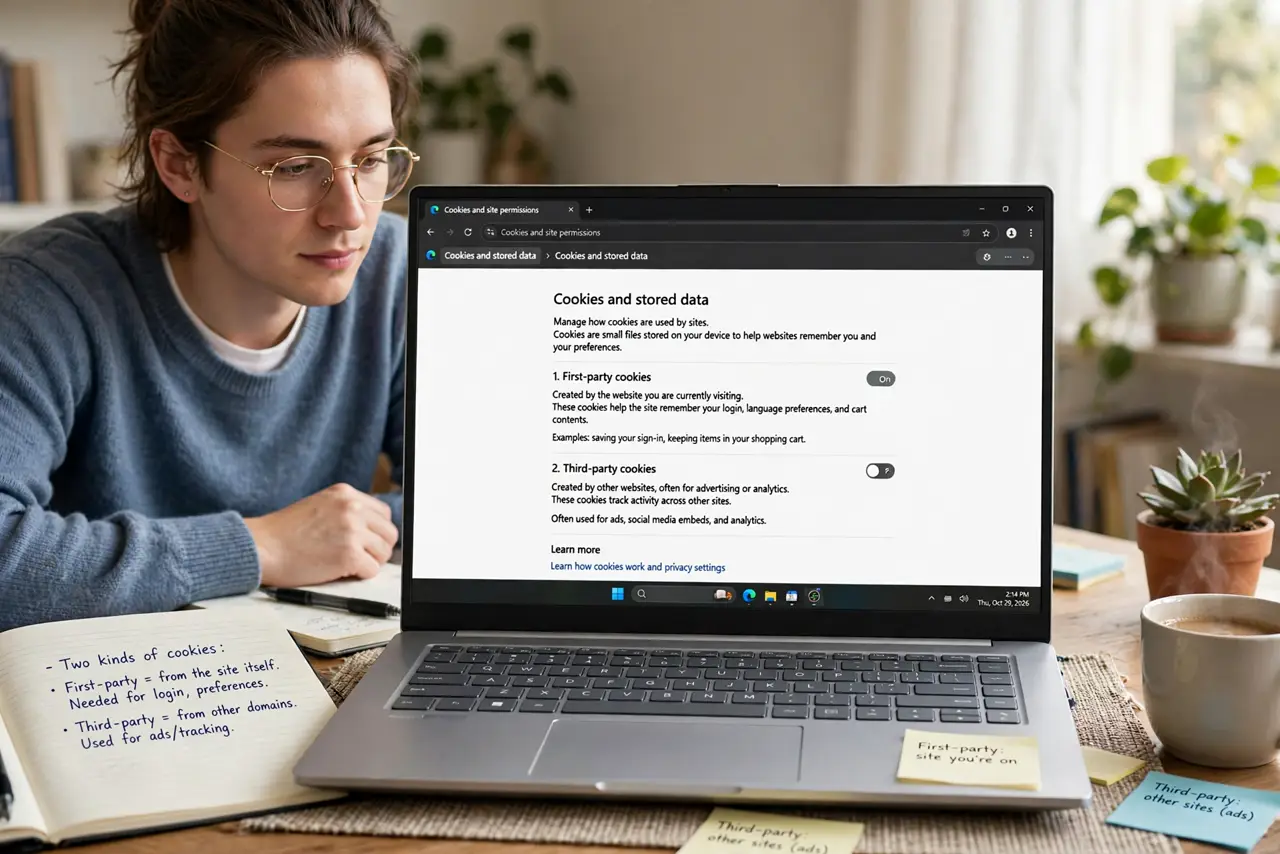
- Understand the two kinds of cookies. First-party cookies come from the site you are visiting — they keep you logged in and remember your cart. Third-party cookies come from advertisers embedded in the site — those are the trackers. Clearing wipes both, which is why the cleanup has side effects.
- Clear when a site misbehaves. A site stuck in a login loop or showing stale content is often fixed by clearing its cookies. Most browsers let you clear cookies for one site only — better than nuking everything for one broken page.
- Use the time range wisely. The 'last hour' or 'last day' option targets recent trackers while keeping older logins intact. 'All time' is the nuclear option: every login, every preference, gone.
- Clear after shared or public computers. On a library or hotel computer, clear cookies (and history) when you finish — leftover session cookies can keep you logged into accounts for the next user.
- Keep passwords separate in your mind. Clearing cookies does not delete saved passwords — those live in the password manager section. But you will need those passwords, because every site will ask you to log in again.
- Pair clearing with tracking protection. Clearing removes old trackers; tracking protection stops new ones from being set. One without the other is half the job — do both and the creepy follow-you ads fade noticeably.
What NOT to do
- Do not clear cookies daily as 'maintenance.' You gain little and pay with constant re-logins — it is a targeted tool, not a vitamin.
- Do not clear cookies on your own computer expecting speed gains. Cookies are tiny; they do not slow down your browser in any meaningful way.
- Do not clear cookies on a shared computer and walk away. Also close the browser — some sessions survive in open tabs.
- Do not confuse cookies with cache. Clearing the cache dumps stored files; clearing cookies dumps logins and trackers — different jobs.
Frequently asked questions
Will clearing cookies delete my passwords?
No — saved passwords live separately in the browser's password section. But you will be logged out everywhere, so make sure you know your passwords first.
Why am I logged out of everything after clearing?
That is the first-party cookies doing their job — they were the things remembering your logins. It is the expected price of the cleanup.
Do I need to clear cookies on my phone too?
Phone browsers keep their own cookies, so yes if the goal is a full reset. Each browser app clears independently.