Export Passwords? Basics
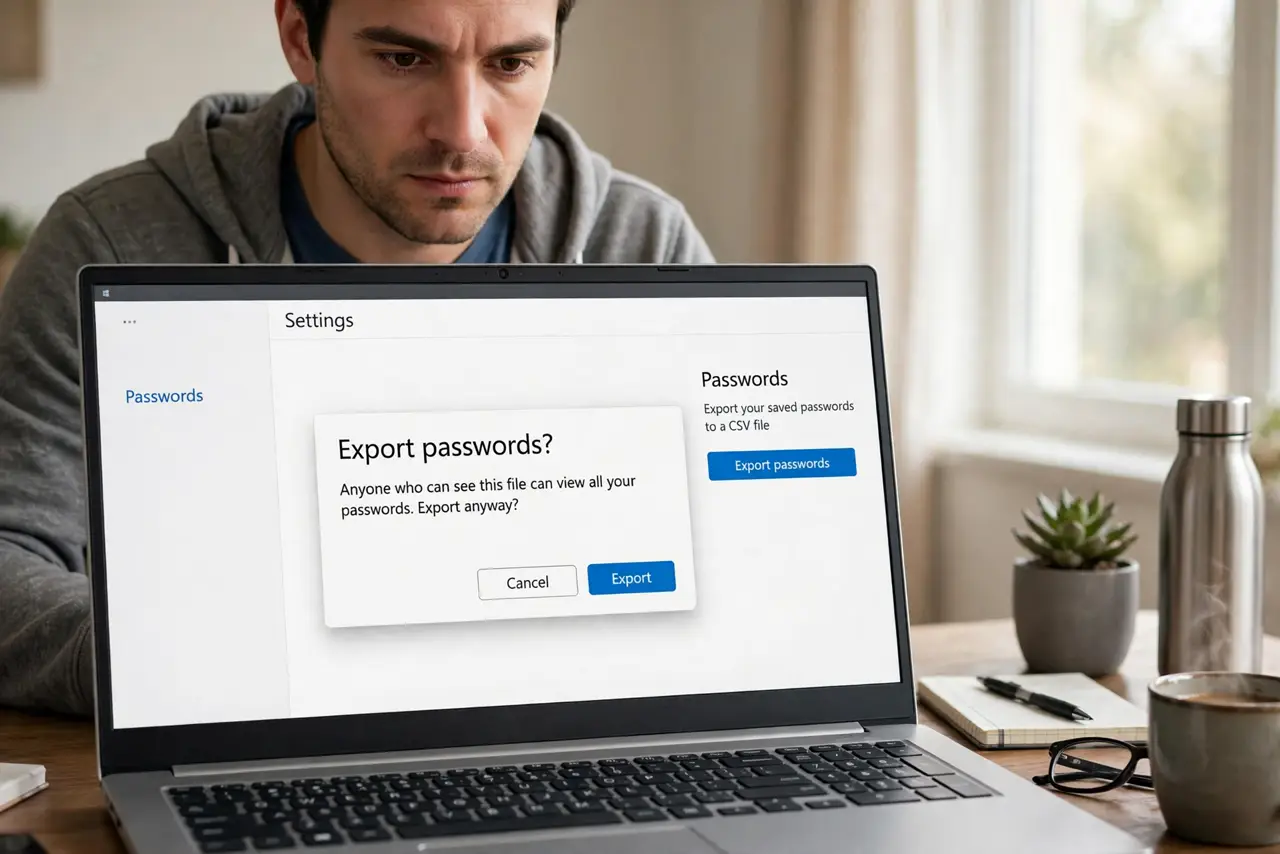
Moving to a password manager -- or just switching browsers -- starts with getting your passwords out of the old one. Browsers can export saved logins to a file, usually CSV, which the new home imports in seconds. The catch: that file is plain, readable text with every password exposed, so the export window is the most dangerous minute of the whole process.
TL;DR / Quick Fix
Quick fix: export browser passwords from Settings, then Passwords, then the export option -- you get a CSV with every login in plain text. Import it into the password manager immediately, then securely delete the CSV. Never email it or store it in the cloud.
Follow these steps
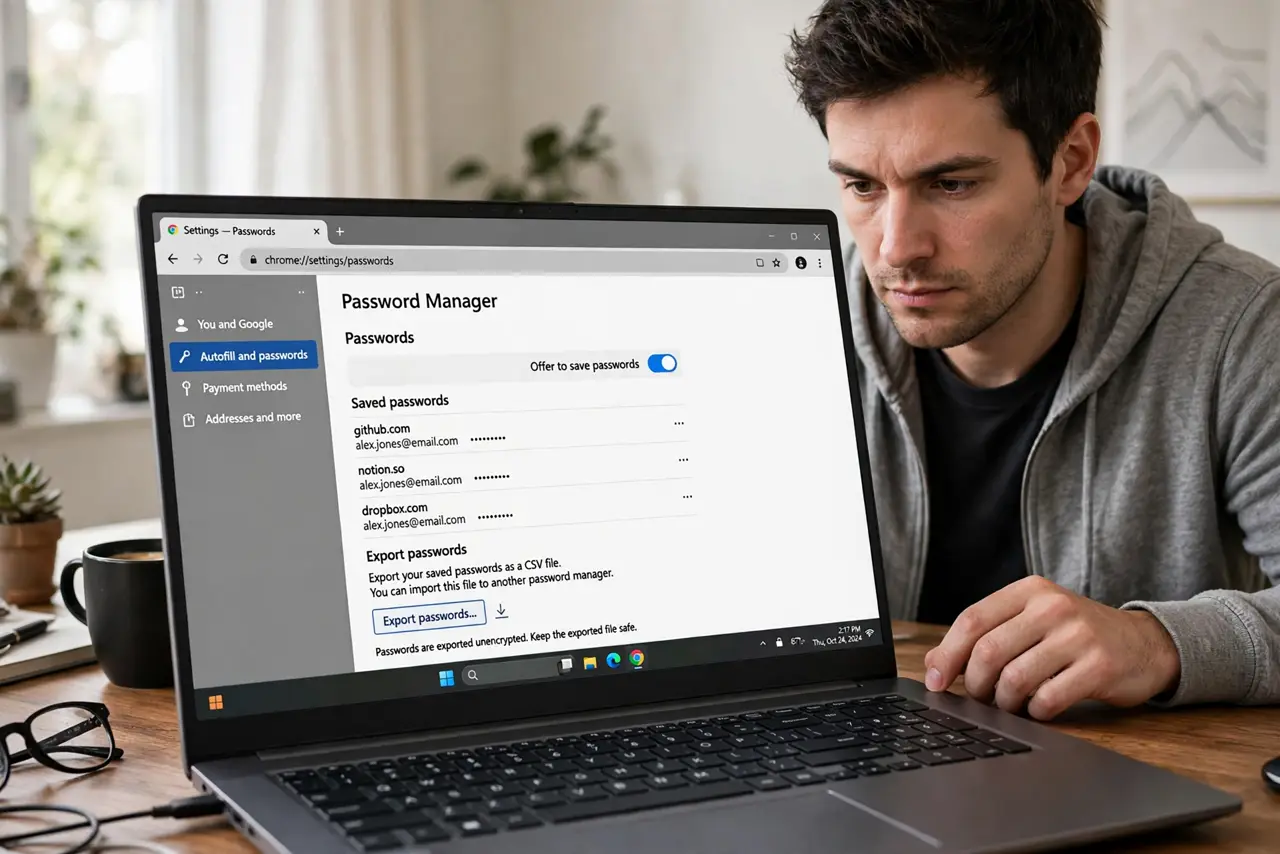
- Find the export option. In Chrome or Edge: Settings, then Autofill and passwords, then Password Manager, then Settings -- Export passwords. Firefox and Safari have equivalents. The browser will demand your OS password first.
- Understand what the CSV contains. Every saved login -- site, username, password -- in plain readable text. Anyone who opens the file owns your accounts. Treat the next five minutes like handling cash.
- Import immediately into the new home. Password managers all offer CSV import -- do it right away, while the file exists. Verify a few logins imported correctly before moving on.
- Delete the CSV securely. After a successful import, delete the file -- then empty the trash. On Windows, consider a secure-delete; on any OS, do not let it sit in Downloads for months.
- Never transmit the file. No emailing it to yourself, no cloud storage, no USB stick left in a drawer. The export should live only on the encrypted disk, briefly, between export and import.
- Clean up the old browser. Once the manager holds everything, clear the browser's saved passwords -- see the saved passwords guide for the review process. Two copies of every password is two attack surfaces.
What NOT to do
- Do not export 'just to have a backup.' A plaintext password file is not a backup -- it is a liability. Back up the password manager's encrypted vault instead.
- Do not leave the CSV on the desktop. Every minute it exists is risk -- import, verify, delete, empty trash, done.
- Do not email the file to yourself. Email is not secure storage, and the copy lives on servers forever.
- Do not skip the verification step. Import errors happen -- confirm your critical logins work before deleting the export.
Frequently asked questions
Is exporting passwords safe?
The export itself is fine if you handle the file correctly: import immediately, delete securely, never transmit it. The danger is entirely in how the CSV is treated.
What format do browsers export?
CSV -- comma-separated values, readable by every password manager's importer. Some managers also accept 1Password or LastPass formats directly.
Can I import into another browser instead?
Yes -- most browsers import passwords from each other's files or directly. The same plaintext caution applies during the transfer.