Guest Network for Visitors?
When friends visit, handing over your main Wi-Fi password gives their phones access to your computers, printers, and smart home devices too. A guest network is a separate Wi-Fi lane — internet yes, your private devices no. Nearly every modern router can make one in minutes. Here is how to set it up right.
TL;DR / Quick Fix
Quick fix: enable your router's guest network to give visitors internet without access to your computers and files. Use a different network name and password from your main Wi-Fi, and turn on client isolation if offered. It takes minutes and is the single kindest security upgrade for a social household.
Follow these steps
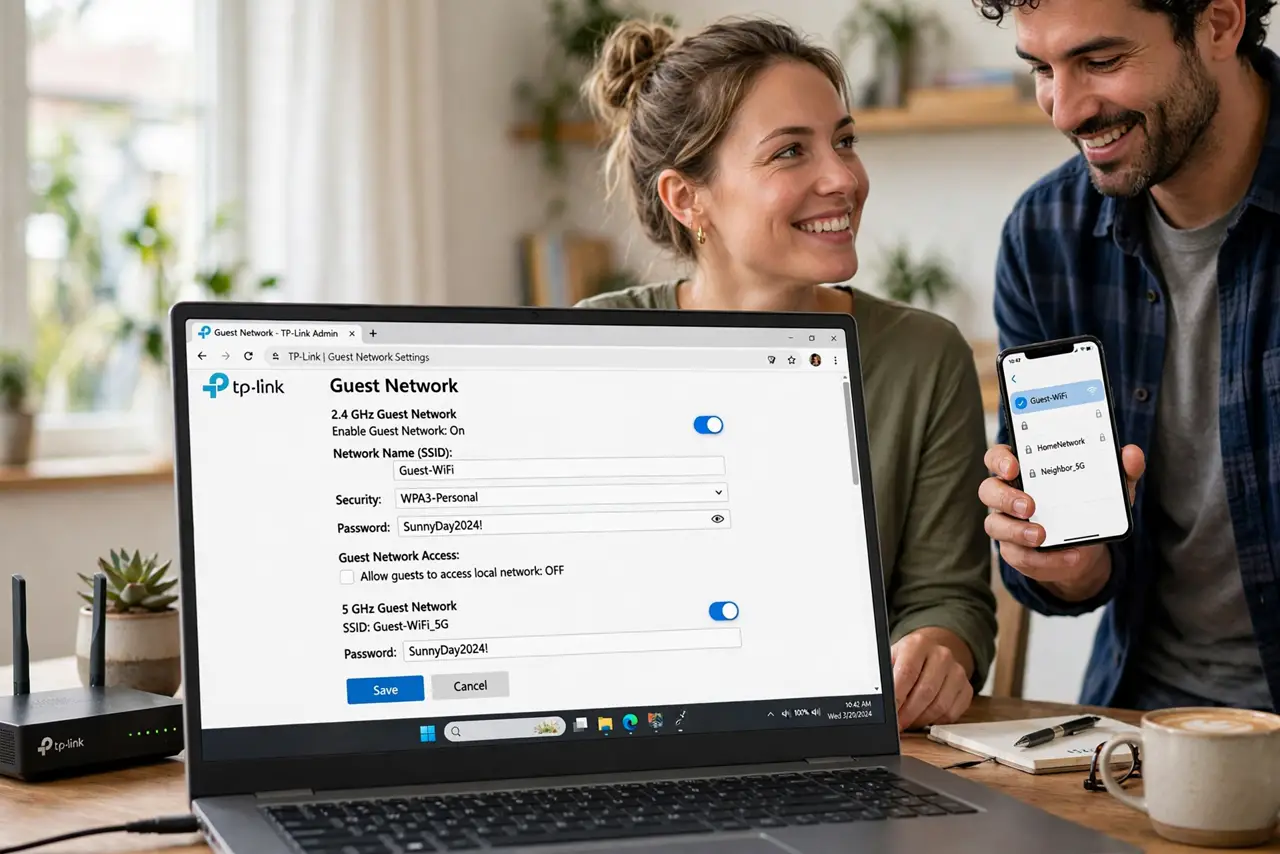
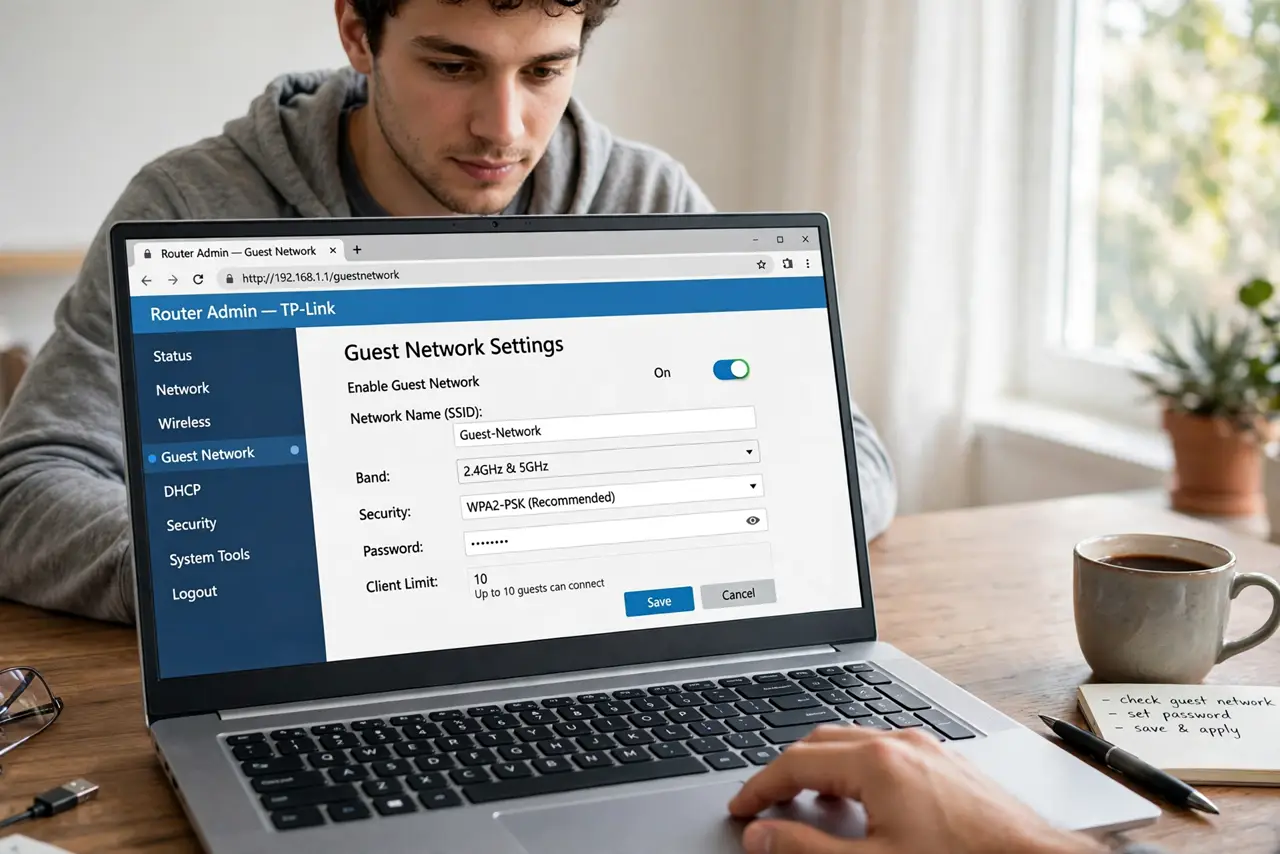
- Find the guest network setting. Log into your router's admin page and look for Guest Network, Guest Wi-Fi, or Guest Access — usually under Wireless settings. This is step four of the home Wi-Fi checklist, and it is the easiest one.
- Give it a clear name and password. Name it something obvious like 'Home-Guest' with its own password — different from your main network. Guests should never need your private password.
- Enable client isolation. If offered, turn on 'isolate clients' or 'AP isolation' — it stops guest devices from seeing each other, blocking one compromised phone from attacking another.
- Decide what guests can reach. The default — internet only, no local devices — is right for almost everyone. Some routers let you share a printer with guests; enable that only if you actually need it.
- Set bandwidth limits if offered. A generous cap keeps one guest's video calls from choking your work meeting. You probably will not need it, but it is nice to know it exists.
- Rotate the password occasionally. Change the guest password every few months or after big gatherings. It is low-stakes since your private network is untouched — see the visitor network tips for more.
What NOT to do
- Do not give guests your main Wi-Fi password. That is exactly the exposure a guest network exists to prevent.
- Do not skip the separate password. A guest network with no password is an open door for the whole street.
- Do not enable guest access to your local network. Internet-only is the safe default — open the gates deliberately or not at all.
- Do not forget the feature exists after setup. Point guests to it proactively instead of dictating your private password.
Frequently asked questions
Can guests see my computers on a guest network?
No — that is the point. A proper guest network isolates visitors to internet access only, keeping your devices invisible to them.
Does a guest network slow down my Wi-Fi?
Barely — it shares the same radio, so heavy guest use can nibble bandwidth, but normal visiting has no noticeable effect.
Should smart home gadgets go on the guest network?
Often yes — cheap IoT devices are a common attack vector, and isolating them from your computers is smart segmentation.