Change Default Router Login?
Every router ships with a default admin username and password — often 'admin' and 'admin' — printed in the manual and identical on thousands of units. Anyone on your network who knows it can change your DNS, spy on traffic, or lock you out. Changing it takes two minutes and is the single highest-value security fix in your home.
TL;DR / Quick Fix
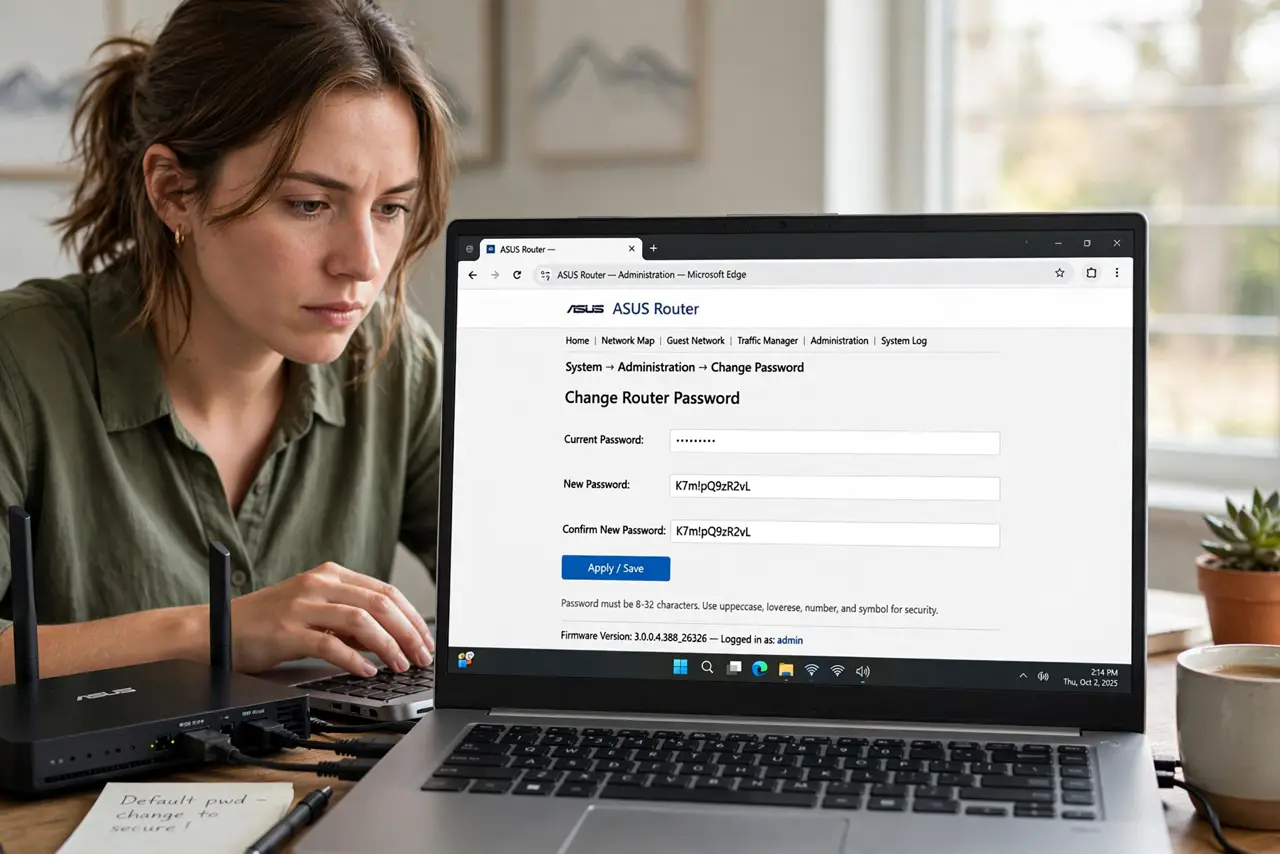
Quick fix: log into your router's admin page (usually 192.168.1.1 or 192.168.0.1) and change the default admin username and password to something unique. Write it down somewhere safe — unlike the Wi-Fi password, you will rarely need it. This is step one of any home Wi-Fi security checklist.
Follow these steps
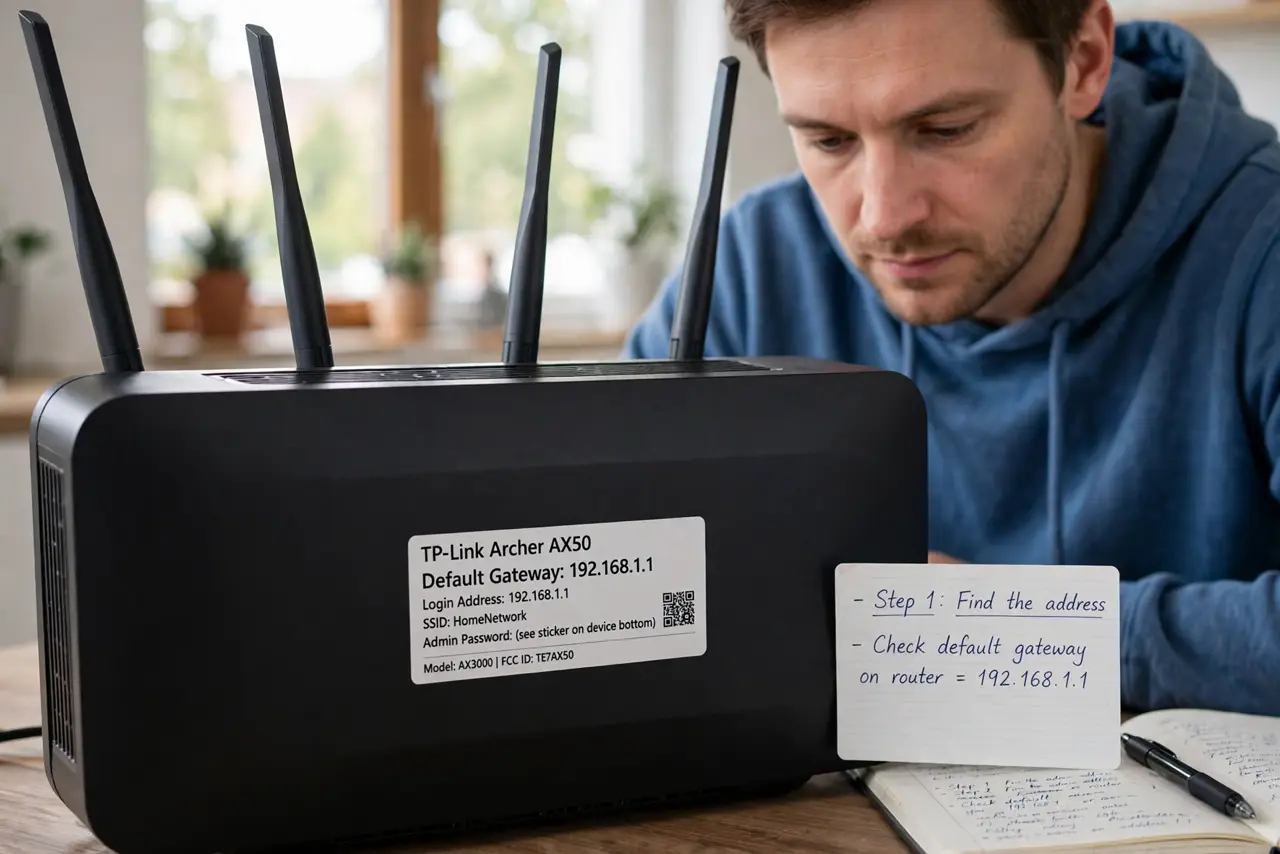
- Find the admin address. Check the sticker on the router — it lists the admin page address (commonly 192.168.1.1 or 192.168.0.1) and the default credentials. Type the address into a browser on a device connected to the router.
- Log in with the defaults. Enter the printed username and password. If a previous owner changed them and you do not know the new ones, a factory reset restores defaults — but wipes all settings too.
- Change both username and password. Do not just change the password and leave 'admin' as the username — change both to unique values. A long passphrase you store in a password manager is ideal.
- Save and test the new login. Log out and back in with the new credentials to confirm they work. A changed password you cannot remember is its own emergency — verify before closing the tab.
- Store it somewhere recoverable. Write it on the router's sticker in pen, or save it in your password manager. You will need it for firmware updates and future tweaks.
- Check for a separate Wi-Fi password. The admin login and the Wi-Fi password are different things — changing one does not change the other. Set a strong unique value for each.
What NOT to do
- Do not leave the default credentials in place. They are public knowledge — this is the most-attacked setting on home routers.
- Do not use the same password as your Wi-Fi. Separate credentials mean one leak does not compromise both.
- Do not change settings you do not understand while you are in there. Change the login, save, and leave — curiosity clicks cause outages.
- Do not factory-reset without noting your settings. A reset wipes the Wi-Fi name, password, and ISP settings along with the admin login.
Frequently asked questions
What if I forgot the router admin password?
Factory-reset the router (hold the reset button ~10 seconds), then log in with the printed defaults and set a new password. You will need to reconfigure Wi-Fi afterward.
Is the admin password the same as the Wi-Fi password?
No — the admin password protects the router's settings page; the Wi-Fi password lets devices join the network. They are independent.
How often should I change the admin password?
Once, to something strong and unique, is enough — then leave it. Unlike Wi-Fi passwords shared with guests, the admin login rarely needs rotation.