Saved Passwords? Basics
Your browser offers to remember every password -- and most people click Yes without thinking twice. Browser password storage is convenient and better than reusing one password everywhere, but it has real limits compared to a dedicated password manager. Here is what the browser does with your passwords, where the risks are, and when to upgrade.
TL;DR / Quick Fix
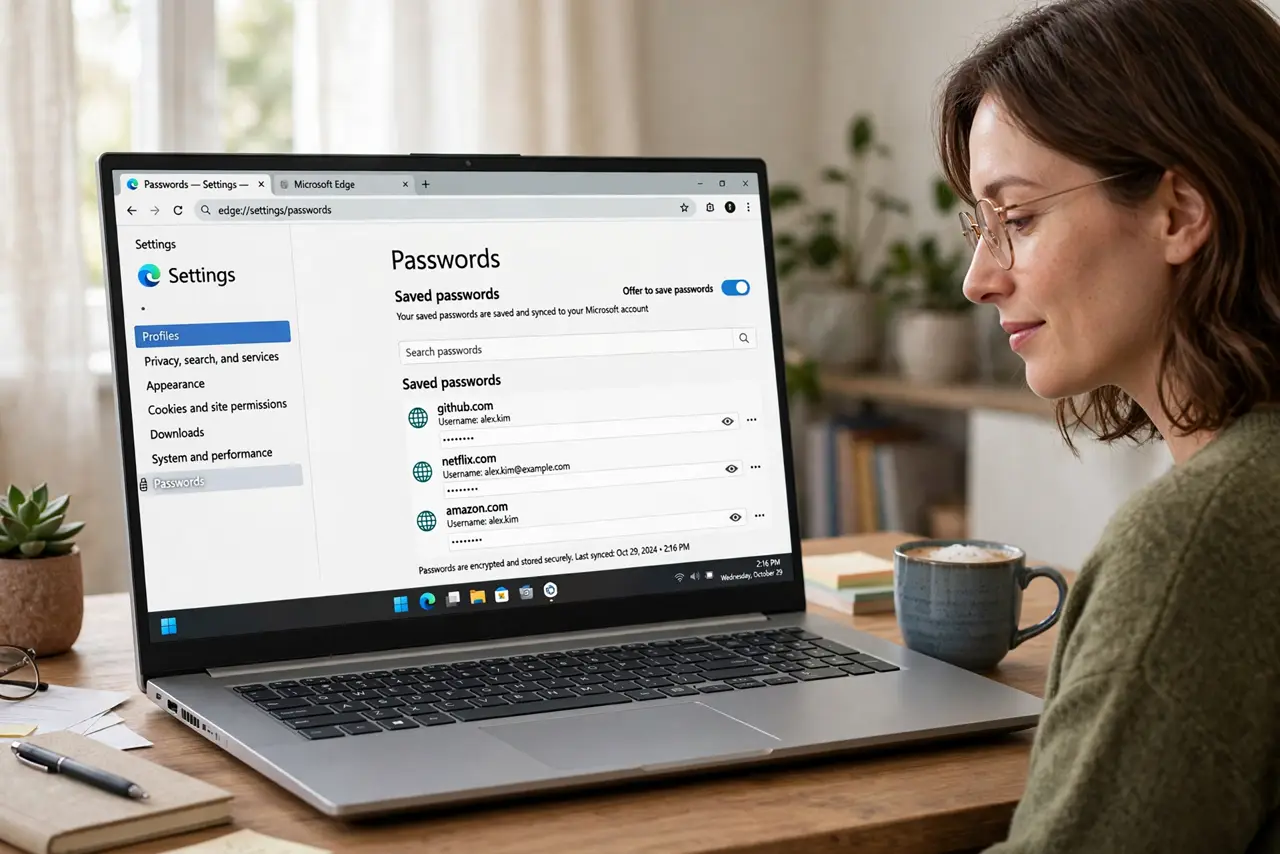
Quick fix: browser-saved passwords beat reusing one password everywhere, but they are only as safe as the device -- require a screen lock and OS password. Review the saved list in Settings under Passwords and delete old entries. For best protection, move to a dedicated password manager.
Follow these steps
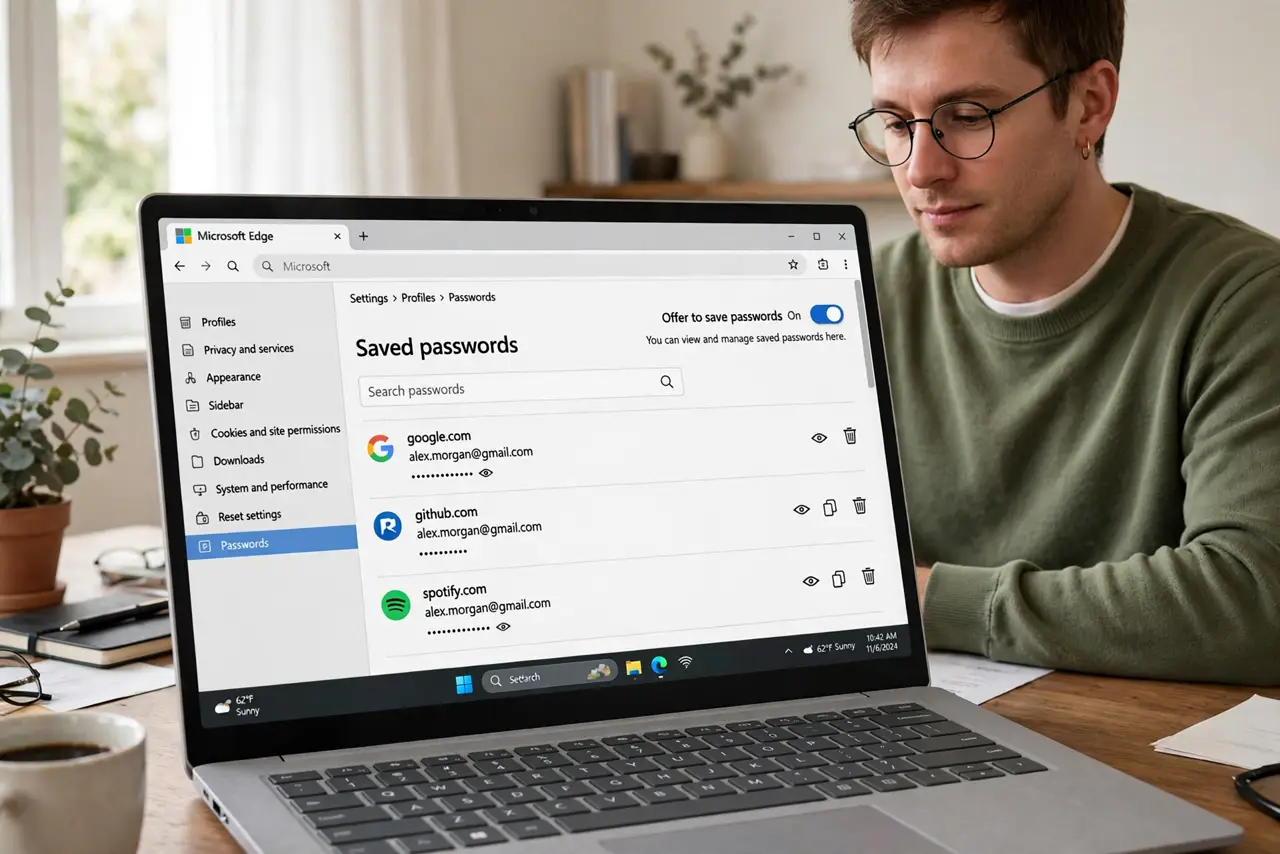
- See what the browser saved. Chrome, Edge, Firefox, Safari -- all have a Passwords section in Settings showing every saved login. Most people find dozens they forgot, including dead accounts worth deleting.
- Understand the protection model. Browsers typically encrypt saved passwords with your OS login -- meaning anyone logged into your computer as you can reveal them. A screen lock and a strong OS password are non-negotiable.
- Delete the dead and duplicate entries. Old accounts, changed passwords saved twice, sites you no longer use -- prune them. A clean list is easier to audit and less to lose.
- Never save passwords on shared computers. Library, hotel, borrowed laptop -- always decline the save prompt there. One saved password on a shared machine is a standing invitation.
- Turn on the browser's safety check. Most browsers now audit saved passwords for breaches, reuse, and weakness -- run it in the Passwords settings. Fix what it flags, starting with breached ones.
- Upgrade to a password manager when ready. Dedicated managers add a separate master password, better breach alerts, and safer sharing -- the export guide covers moving your passwords over when you decide.
What NOT to do
- Do not save passwords without a device lock. No lock screen means anyone holding the device owns every saved login.
- Do not reuse one master password everywhere. The browser is only step one -- unique passwords per site is the real defense.
- Do not save banking passwords in the browser if it worries you. High-value accounts deserve the strongest storage -- a dedicated manager or memory.
- Do not ignore breach alerts. A 'password found in a data breach' warning means change it now, not someday.
Frequently asked questions
Are browser-saved passwords safe?
Safer than password reuse, less safe than a dedicated manager. On a personal locked device, they are reasonable; the upgrade path exists when you want more.
Can someone steal my saved passwords?
With access to your unlocked device, yes -- the OS login is the main barrier. Malware with full access is a deeper threat no browser fully solves.
Should I switch to a password manager?
If you have 50+ logins, share accounts, or want breach monitoring, yes. The browser is fine for lighter needs on a secured device.